
Claude Artifacts: how do you build and share one?
Claude Artifacts on web and desktop: build and check a sample quote calculator, then choose a link or file based on what the recipient needs to do.
When you use Claude Artifacts to make a quote calculator for a colleague, a tidy layout tells you little about whether it follows your pricing rules. A sample quote you can work out by hand gives you something concrete to compare with the draft, even after you ask for a change. There’s a separate question when you hand it over: does your colleague need a copy to look at, or do they need to enter their own numbers and get a result?
What are Claude Artifacts?
The Claude Help Center describes a Claude artifact as a self-contained piece of work that opens in its own workspace beside the conversation. A chat reply might suggest what to put in an onboarding guide; the artifact is the guide itself. Keeping the draft beside the chat lets you discuss changes while looking at the work, then return to the guide when you need it again without piecing it together from replies.
Artifacts can be documents, code snippets, flowcharts, or small interactive apps. You might draft a meeting agenda, save a snippet that formats dates, map who approves a request, or build a bill splitter. On supported paid plans, the built-in Data template turns data from connected sources into dashboards. Claude Academy recommends a custom interactive page when a built-in format doesn't fit, such as an intake form that saves submissions.
A bill splitter can run on fixed rules: enter the same numbers and it gives you the same total. Anthropic’s help pages also describe apps that call Claude to generate a response to what someone enters, such as feedback on a draft.
On supported paid plans on web and desktop, Claude asks you to approve the apps and tools an artifact wants to use the first time it needs a connection. On those same plans and platforms, artifacts can keep data between sessions: personal storage keeps each person's entries private, while shared storage gives everyone the same set of entries. The default cap per artifact is 100 MB of data or 25,000 saved records, whichever comes first.
A brief for the first draft
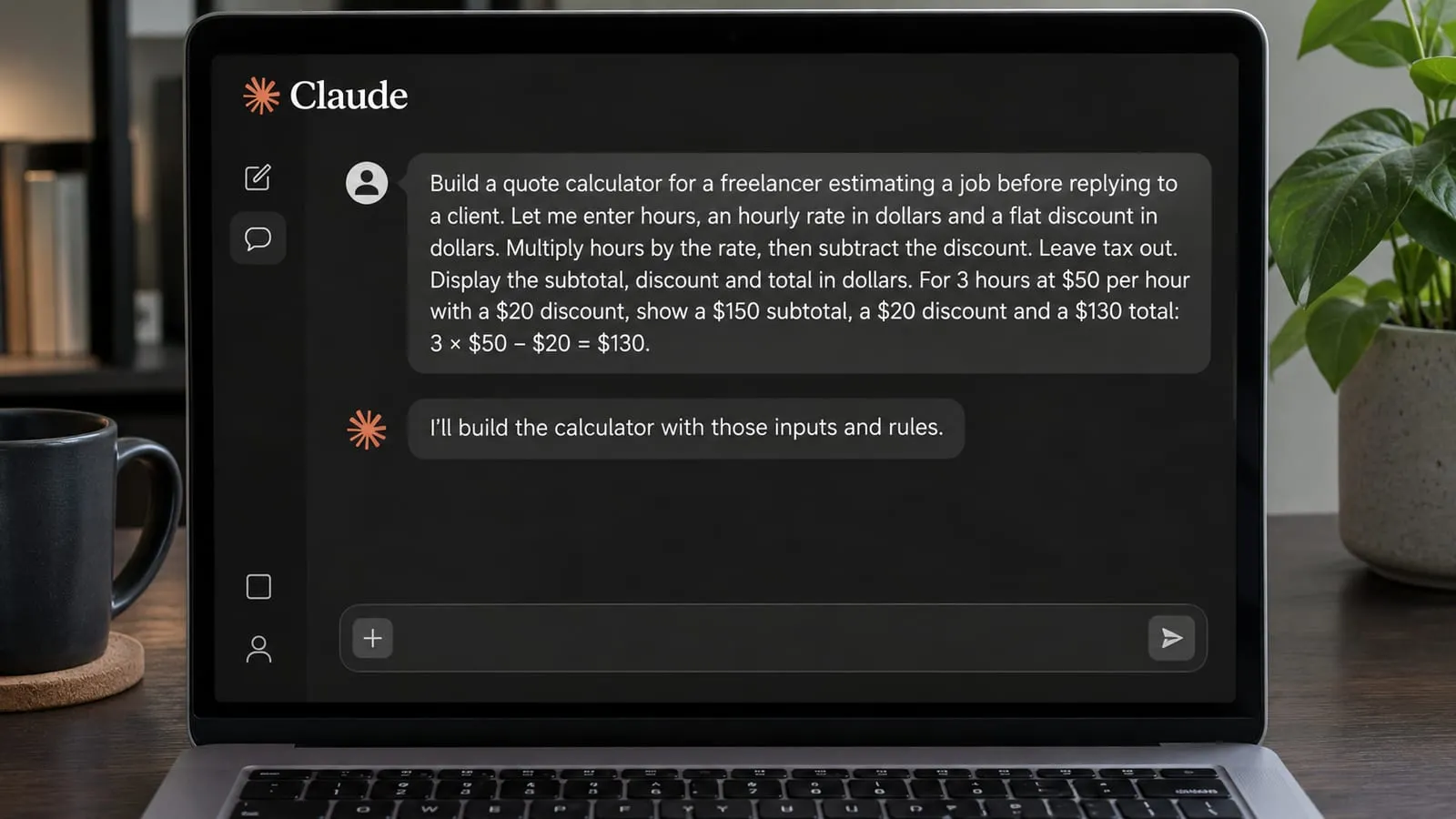
Write your Claude artifact prompt as a brief that tells Claude what to make and gives you one result to check. God of Prompt’s Claude template specifies a role, a task, the context, the rules and the output format. For an artifact, say who will use it, what they need to do, what rules apply and what they should see when they’re done.
Attach or paste the relevant material from files and trusted links up front so you can rerun the brief without relying on Claude to find the right page or read it in full. If a rate sheet defines the prices, point to the relevant rates. God of Prompt’s template also asks Claude to flag gaps or contradictions before starting. Make that instruction specific: “If a missing or conflicting rule would change the result, ask me before building.”
Suppose you’re a freelancer estimating a job. “Make me a quote calculator” leaves Claude to decide what a quote includes. Try this instead:
“Build a quote calculator for a freelancer estimating a job before replying to a client. Let me enter hours, an hourly rate in dollars and a flat discount in dollars. Multiply hours by the rate, then subtract the discount. Leave tax out. Display the subtotal, discount and total in dollars. For 3 hours at $50 per hour with a $20 discount, show a $150 subtotal, a $20 discount and a $130 total: 3 × $50 − $20 = $130.”
If you use NjectAI for recurring work, keep reusable guidance such as brand terminology separate from the calculator’s inputs and pricing rules, which belong in the brief. Recurring work benefits more from a stable set of background, rules and reference links than from clever phrasing: that context gives you the same starting point across tools and chats.
How do you create and edit Claude Artifacts?
If Claude gives you a chat reply when you expected an artifact, check the required setting before you rewrite your brief.
Here’s how to create and reopen an artifact:
- Check Capabilities. The Claude Help Center says artifacts require Cloud code execution and file creation, called Create and edit files in the updated layout, to be on under Settings > Capabilities (Free, Pro, Max, Ultra) or Organization settings > Capabilities (Team, Enterprise).
- Send your brief in chat and ask Claude to build it as an artifact. If you prefer to start from a template, choose one through Output in the message box or from the Artifacts tab.
- Reopen your work from the Artifacts tab in the sidebar. You can get back to it without finding the original chat first.
Ask in chat when you want Claude to change how the artifact behaves or what its layout looks like. If you know exactly what to move on a supported template canvas, such as an element in a design, edit it directly. For a rewrite in a doc or Markdown document, highlight the passage, choose Edit with Claude, and describe the change so Claude knows exactly where to apply it.
Run the case from your brief in the calculator preview. If the result is off, fix the calculation first so you have a working version to compare against. Then ask Claude, “Rename the total label to Estimated quote. Leave the calculation unchanged.” In the revised preview, enter the same values again. Look for both the new label and the same $130 amount. If the label changed but the amount didn’t match, the edit hasn’t passed. That is the three-step edit check: a known case, one targeted edit, then the same case again.
If Try fixing with Claude appears beside an error, click it to copy the details into a message, then send that message so Claude can diagnose the problem and suggest a fix. A repair may take more troubleshooting.
Before a bigger change to a custom artifact, Claude Academy recommends choosing Duplicate from the title menu. Make the change in the copy so you can compare it with the original.
Sharing, publishing, and exporting artifacts
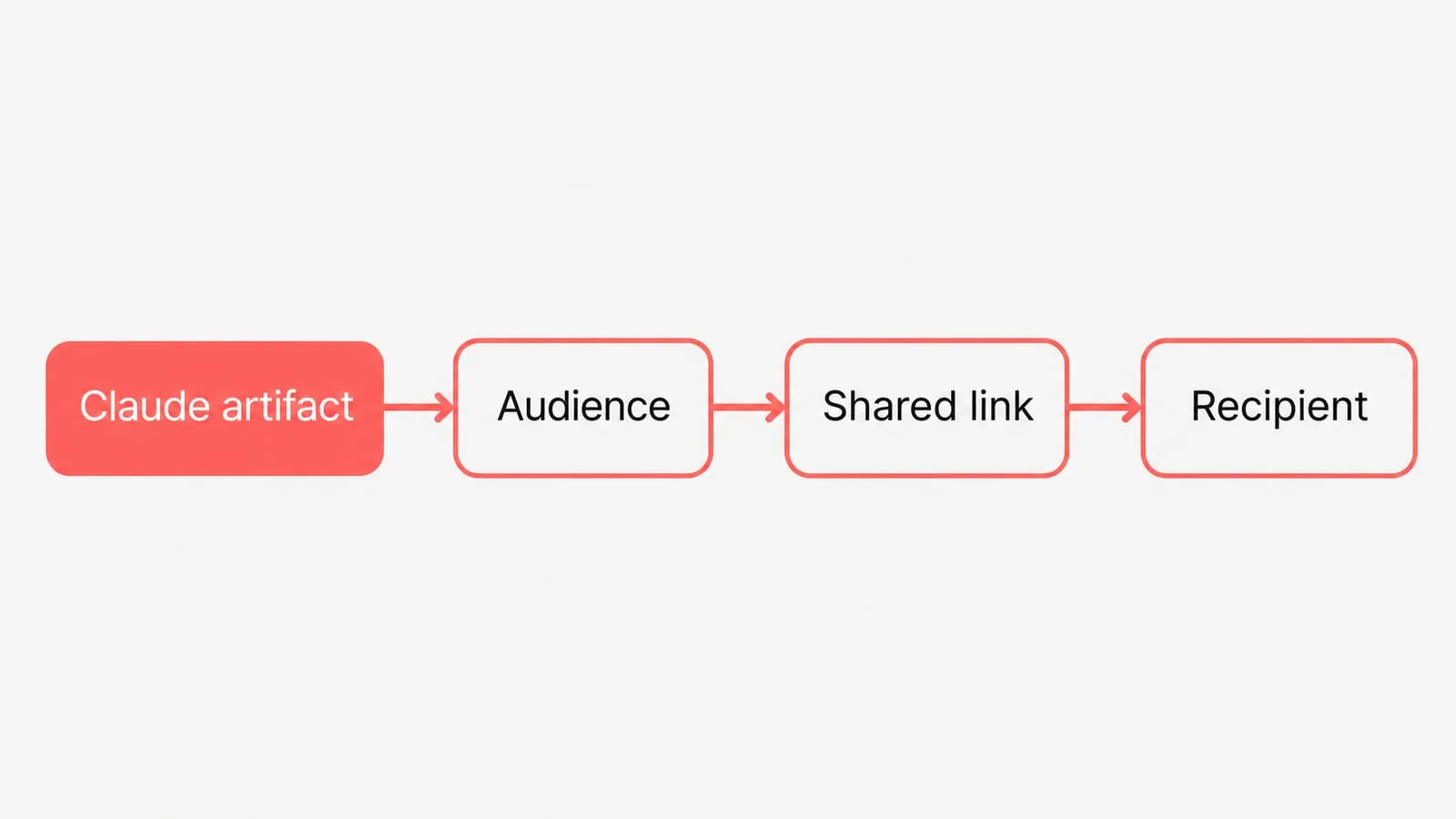
Host0’s guide reports that current artifacts start private. Here’s how to share one:
- Open the artifact in Claude on the web or in Claude Desktop and click Share.
- Choose the narrowest audience that fits: invite specific people, share within your organization, or allow anyone with the link, if that option is available.
- When inviting someone directly, choose whether they can view, comment or edit. Named invitees sign in with the invited email address, and organization access also requires sign-in.
- Copy and send the link. Ask the recipient to open it and try the feature they need; even a Doc shared with anyone who has the link requires sign-in.
Publish is the older route to a public page. It remains available for eligible artifacts made in a chat before September 16, 2026. Anyone with the link can open a published artifact without a Claude account, and unpublishing is final: you can’t publish the same artifact again. On Team and Enterprise, older chat artifacts use Share & copy link instead, and viewers also get access to the attachments and files in that chat, so check the conversation before you send the link.
Here are the options for sharing or exporting an artifact:
| Format | When to use it | What to know |
|---|---|---|
| Shared link | Work in the artifact in Claude. | Check access to the specific features the recipient needs. |
| Doc export | Use Word for edits or PDF for a reading copy. | The Claude Help Center lists both Word and PDF as Doc export options. |
| HTML export | Send a standalone page. | Claude Academy notes that saving entries, calling Claude and using connected tools stop working in the exported copy. |
The Claude Help Center identifies live sharing as an exception to the usual connection rule: it shows results from the connection of the editor who shared the artifact.
Ready for the recipient
A useful handoff depends on what you can verify and what the recipient can do. If the revised artifact still gives the result you expect for a known case, you have evidence about that case. Other inputs remain untested.
Judge the format from the recipient’s side. If they only need to read the work, a copy may be enough. If they need to use a specific feature, confirm that they can open what you send and use that feature. A check in your own preview tells you about the draft; a check on their side tells you about the handoff.