
ChatGPT Chrome extension: what does it do, and which fits?
Compare the official ChatGPT Chrome extension, third-party add-ons and context injection, then assess permissions, data paths and safe setup.

A ChatGPT Chrome extension lets ChatGPT read the pages you open and take actions in your browser. The official extension connects ChatGPT to your browser context under OpenAI’s access controls, while third-party extensions add search, writing help, summaries, archives, exports, or reusable context. Choose the option that fits the job you need, the access it requires, and the operator’s data practices.
What does the ChatGPT Chrome extension do?
OpenAI's help page says the ChatGPT browser extension works in Chrome, Edge, Brave, Opera, and Vivaldi and can read or act on signed-in sites you already use. Side chat is available in Chrome, Edge, Brave, and Vivaldi, and Opera does not support side chat. You can mention an open tab or bring selected text into a chat to use that page as context. You can start a browser task with an @‑mention, or use @Browser to keep the work inside ChatGPT's built‑in browser.
By default, ChatGPT asks before it interacts with each new website, scoped by host, and you can choose Allow once, Allow for this site, Allow for all sites, or Decline. You control an allowlist and a blocklist in Settings so ChatGPT can use some domains without asking and keep others off limits. When ChatGPT wants to use your browser history, it prompts and scopes access to the request, and there is no always‑allow option. At install, your browser shows the extension's permission prompts such as reading and changing data on sites or history, and ChatGPT still applies its own confirmations and allowlists before it uses websites or history. Browser control follows your Memories setting: if Memories is on, ChatGPT can use relevant memories; if Memories is off, it does not. OpenAI does not store a separate complete record of your browser actions and stores browsing only when it becomes part of the chat context.
Use these prompts deliberately. Choose Allow for all sites only if you accept the elevated risk. Keep sensitive domains in your blocklist and review each request before you let ChatGPT act on a page. Page content, selected text, and video transcripts are untrusted context. Review the page and any requested permissions before you ask ChatGPT to use or act on it.
What third‑party extensions add
God of Prompt’s roundup shows AI extensions that automate work, improve writing and manage information; in practice, most add‑ons for ChatGPT fall into five jobs:
- Search integrations: an AI answer beside search results or a sidebar you can ask while you browse.
- Page and video summarizers and selected‑text ask: highlight text or a YouTube link to get a summary, explanation, translation or rewrite.
- Embedded writing aids: compose, expand or adapt tone directly in email, forms and docs without switching tabs.
- Conversation export, save and search: export to PDF, Markdown or JSON, add folders and tags, or search long chats.
- Utilities: voice input or read‑aloud, token or usage counters, and small workflow helpers such as safer send shortcuts.
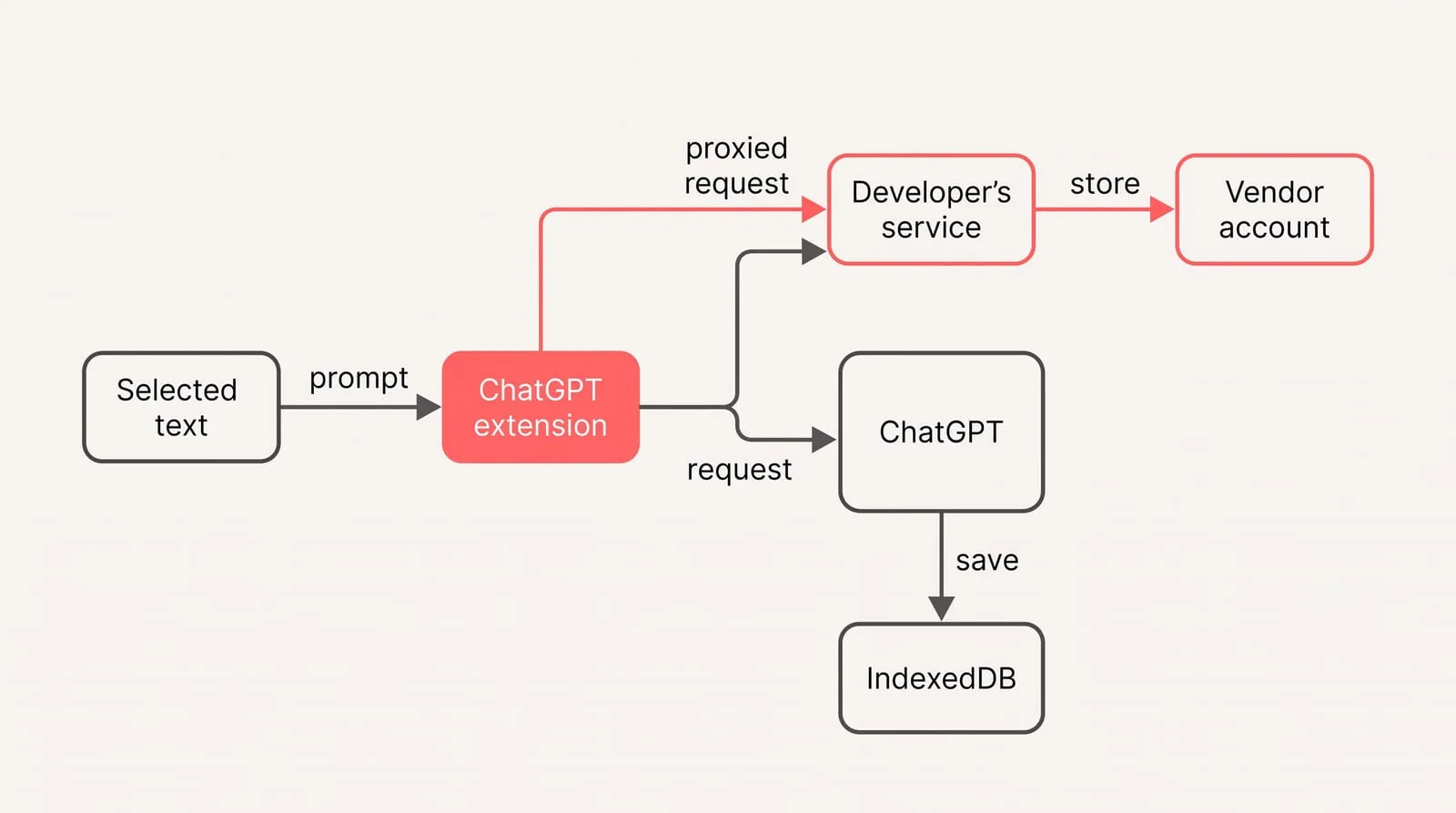
Digitally USA explains that a ChatGPT extension may connect directly to ChatGPT, use a different AI provider, or route requests through the developer’s own service, and that you should check any separate account, API key and data terms. GPT Master’s privacy policy states that optional features like Prompt Optimizer and Side Chat send your draft and recent message context to GPT Master APIs, with request content retained for up to 30 days, and that some requests route through OpenRouter to a model provider. When an extension proxies prompts via its own APIs, your chat data leaves chatgpt.com and is governed by that developer’s policies too.
Script by AI describes local archives that store conversation data in IndexedDB and offer no built-in cloud sync. StylerGPT’s comparison notes tools with server-backed conversation or workspace sync. In the local-archive model, the database lives in your browser’s IndexedDB, works offline, and the extension can run without an account; storage is limited by the browser’s quota. In server-backed models, the vendor may keep a copy so your data follows you between machines, and some features, such as PDF export in a compared product, are generated on a server first with a local fallback. Before you adopt one, confirm whether content stays only in your browser, syncs to a vendor account, or is transmitted when you invoke specific features, because it decides where content lives, how to delete it, and whether any part of a task transits a developer’s infrastructure.
How do you choose and set up a ChatGPT Chrome extension safely?
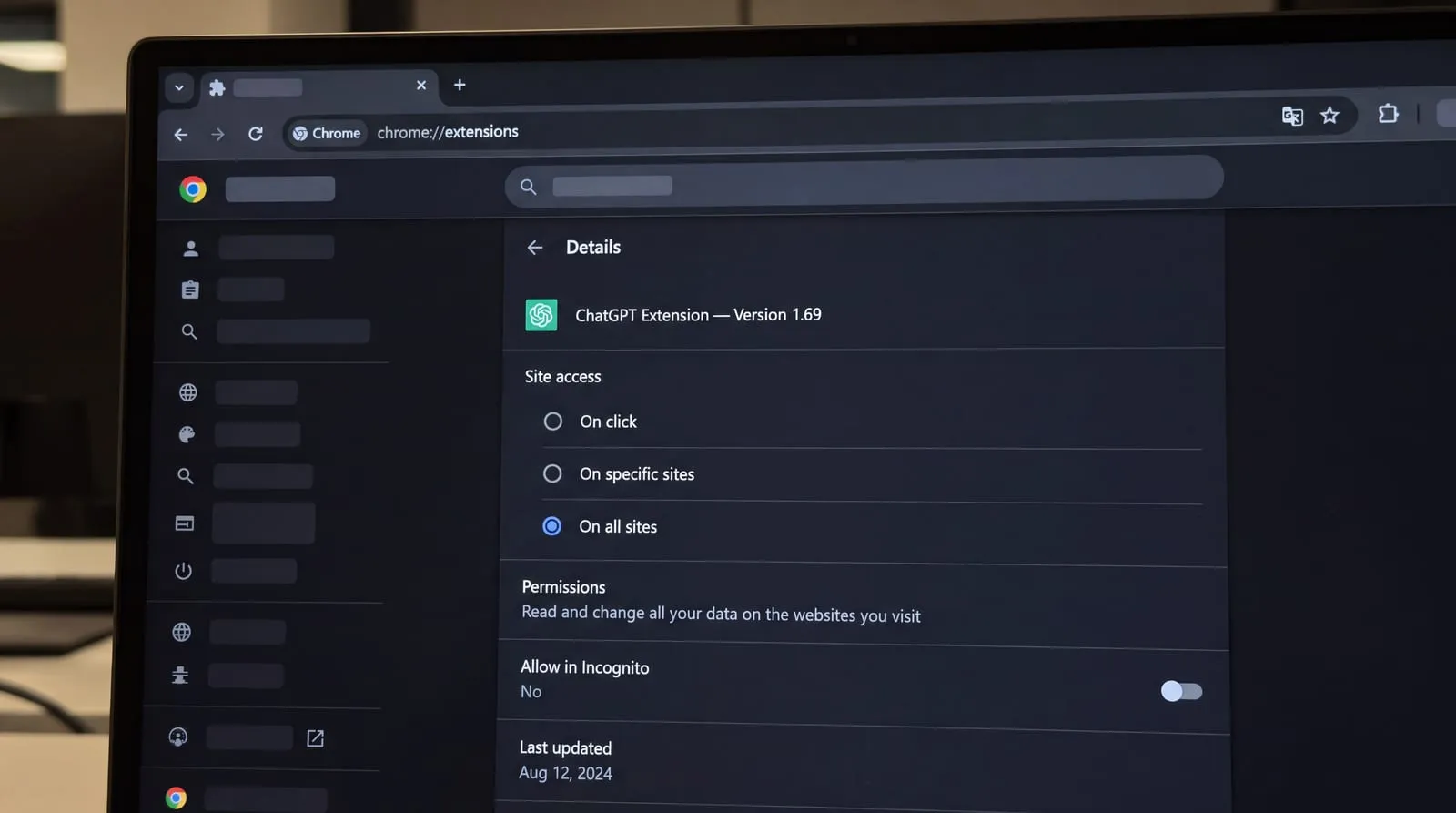
IBM Trusteer’s research highlights webRequest, scripting, and <all_urls> as permissions to scrutinize in this category. It also shows how data‑collection behaviors can be disclosed yet easy to overlook rather than malicious, which is precisely why careful review matters before you install.
A ChatGPT extension for Chrome is often simple on the surface but varies under the hood. GPTProTools reports that some add‑ons limited to chatgpt.com still request access to every site and register webRequest listeners. IBM Trusteer documented an exporter whose version 1.69 used a webRequest listener across <all_urls> to read a ChatGPT token, which the developer later narrowed in a subsequent release. If an add‑on works only on one site but requests all‑URLs and webRequest, the extra reach adds exposure and merits closer review.
Before you install, verify who operates it, how often it is maintained, how to reach support, whether the privacy policy explains what is stored and how to delete it, and which service actually processes prompts; a polished name or icon is not proof of OpenAI affiliation. Some organizations also restrict extension installs or require approvals through corporate IT.
The four-step safe extension setup configures a browser add‑on to minimize access and verify behavior before you trust it:
- Limit site access to the minimum the features need. In Chrome set site access to On click or to specific sites wherever the tool still works.
- Add sensitive domains to an explicit blocklist. In ChatGPT’s desktop Settings > Computer Use, manage an allowlist and blocklist so banks, password managers and admin consoles stay off limits without another prompt.
- Use a separate browser profile for trials and agent tasks, so only the accounts that task needs are present.
- Test with low-risk content and watch what it sends. Start with non‑sensitive examples and review permission prompts before you allow an action.
Where context injection fits
Saved context is a reusable bundle of persona, project facts and preferences that you inject into a prompt. It works alongside built-in instructions and Memories, but the scope and privacy follow the place you inject it.
NjectAI stores your context in profiles and, through a Chrome extension and web app, adds it to the prompts you write in supported AI tools so your background travels across tools and sessions. You pick a profile, write your request, and the extension appends the chosen context to the message you send on supported pages; it does not send messages for you. Pick the model for capability, but rely on your context for consistency, because model differences exist, yet stable background drives tone, facts and formats across systems.
Choose capability with clear controls
Your choice should be the smallest capability that solves your actual browser task through a data path you understand. The official extension, specialist third-party add-ons, and context-injection tools serve different jobs; treating them as interchangeable hides the controls and services involved. Capability, access, and data handling come as a package.
Treat permissions as a functional specification rather than an install-time formality. Site access should match where the feature operates, and sensitive domains should remain outside its reach. Apply the same standard to processing: determine whether content stays local, goes to the extension operator, or passes to another provider. Start with low-risk material and limited access. Trust sensitive work only after the extension’s observed behavior matches its stated purpose.