
Custom GPTs: can you create one, and what are the alternatives?
See who can still create custom GPTs, when a Project or custom instructions fit better, and how to reuse your instructions and files outside ChatGPT.
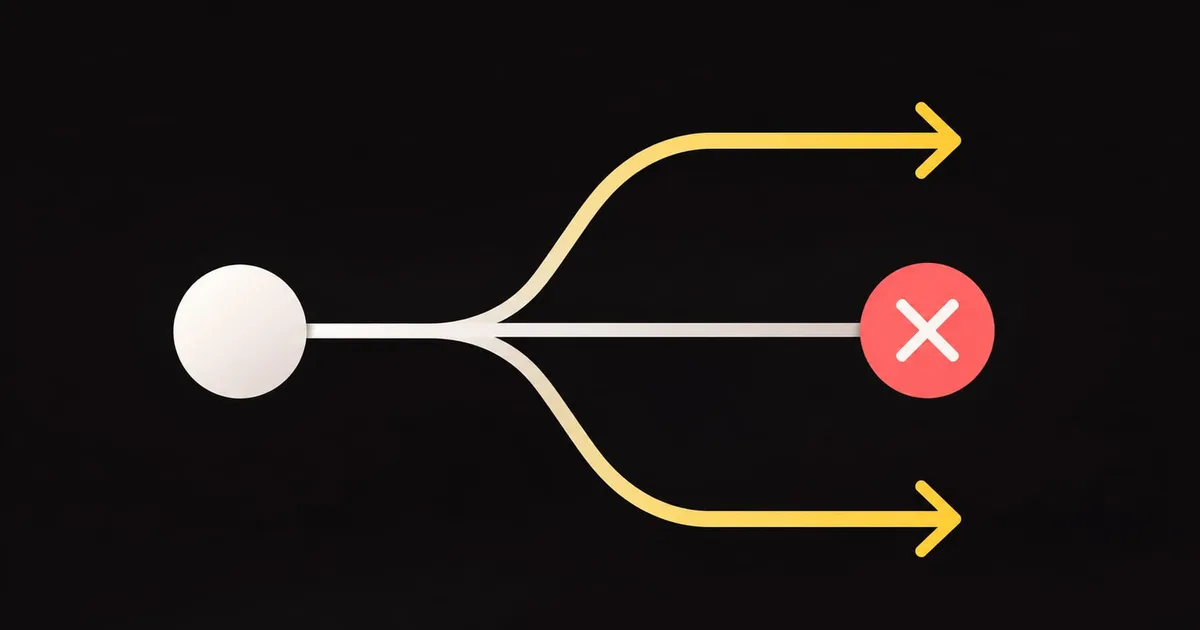
OpenAI is retiring custom GPTs, and under its current rules you can create one only in a workspace where creation is still available and your workspace settings and permissions allow it. Even a paid personal account can’t create a new GPT. After your creation cutoff, Plugin Creator is the recommended route for a new reusable workflow, while ChatGPT Projects suit ongoing work and global custom instructions suit preferences that apply across tasks.
What is a custom GPT?
OpenAI describes a custom GPT as a version of ChatGPT configured for a specific task, with saved instructions and optional reference files and tools. For example, you could use one to turn rough meeting notes into an action list without specifying the format every time.
To chat with a GPT, you need to sign in and have access to it. Personal accounts, including paid ones, also cannot publish new GPTs. In Business, Enterprise and Edu workspaces, creation, editing and publishing depend on product availability, workspace settings and your permissions. New GPT creation ended on October 26, 2026 in affected Enterprise workspaces, with FedRAMP workspaces exempt from that cutoff.
As part of the retirement, OpenAI says it will help creators move their workflows to plugins, which bring reusable instructions, reference files and connected apps together. Standard retirement is scheduled for December 11, 2026. For FedRAMP workspaces and workspaces with a qualifying approved deferral, the announced date is February 28, 2027. You can keep using an unmigrated GPT you have access to until its applicable retirement date. Editing still requires an eligible subscription and any applicable account or workspace permissions. Once a GPT has been migrated, the original becomes read-only.
Custom GPTs, Projects and custom instructions
OpenAI says a fresh chat with a custom GPT starts without your saved memories, global custom instructions or earlier conversations. The GPT responds using its own saved setup. Suppose you told it in a previous chat to spell out unfamiliar abbreviations. Give it that direction again when it matters, or, if you can edit the GPT, add it to the saved instructions for future chats.
The choice of Projects vs custom GPTs starts with what you need to carry forward. In OpenAI’s Projects guide, a project keeps related chats, files and instructions together as the work evolves. Its instructions apply only inside that project, where they take precedence over your global custom instructions.
God of Prompt recommends a GPT when the same job calls for the same setup each time and global custom instructions for broad preferences about tone or format. Here’s how the three setups compare:
| Setup | Choose it when | Example |
|---|---|---|
| Custom GPT | You have access to a GPT that fits a job you repeat with new inputs. | Turn each batch of customer feedback into the same type of summary. |
| ChatGPT Project | Each round builds on earlier work. | Plan a conference as the budget, venue shortlist and agenda change. |
| Global custom instructions | The preference applies across unrelated tasks. | Ask for plain language and short paragraphs in everyday chats. |
If a recurring task stays within one project, use project instructions to give it a consistent tone or format without changing your global preferences or creating a separate GPT.
How do you create a custom GPT?
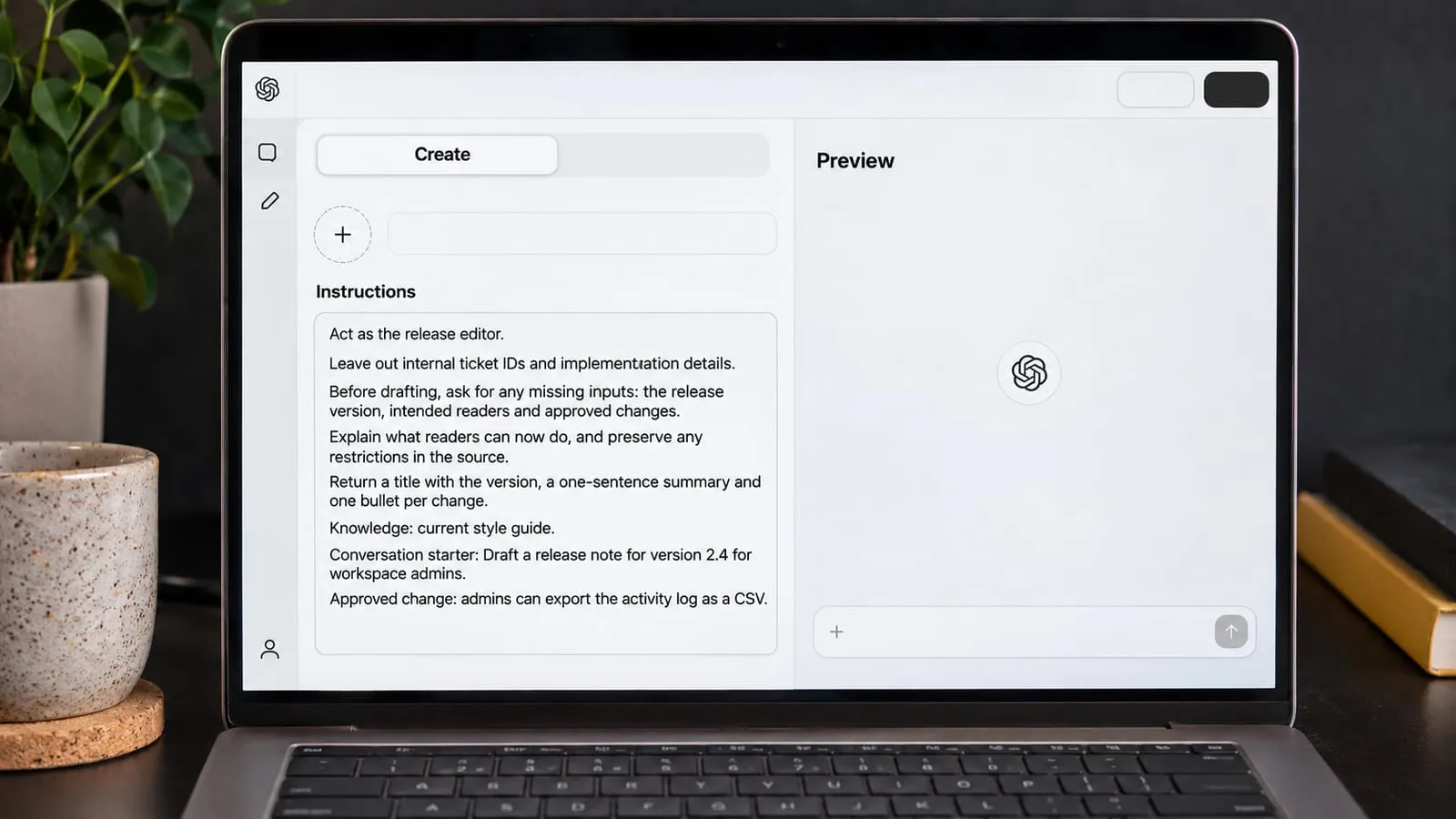
OpenAI’s setup starts in the GPTs area of ChatGPT: select Create if your workspace allows it and you have permission. If you’re updating an existing GPT, open it for editing.
God of Prompt recommends putting the job in the name and describing the GPT in one line. Suppose you call yours “Release Note Drafter” and describe it as “Turns approved product changes into customer-facing release notes.” Make the conversation starter a complete request: “Draft a release note for version 2.4 for workspace admins. Approved change: admins can export the activity log as a CSV.”
God of Prompt’s toolkit structures the instructions around four things: the role and its limits, what to ask for before drafting, how to do the work, and what to return. For this GPT, you could write: “Act as the release editor. Leave out internal ticket IDs and implementation details. Before drafting, ask for any missing inputs: the release version, intended readers and approved changes. Explain what readers can now do, and preserve any restrictions in the source. Return a title with the version, a one-sentence summary and one bullet per change.”
Knowledgework recommends keeping behavior rules in the instructions and using easy-to-read knowledge files for stable references, such as a current style guide or approved release notes. Supply each release’s changes in the request instead of storing them as standing reference material. Keep background short and dense: the facts, rules and links the job needs give the model clearer direction than a long bio, use fewer tokens and leave less text at risk of being cut off.
When an assistant looks up passages in uploaded files, it can miss the one it needs. A polished draft that says “admins can export the activity log” still gets the change wrong in this example. Before relying on a draft, check each claim against the approved change list and any relevant reference.
OpenAI lists web search and image generation as built-in capabilities. For external integrations, a GPT can use apps or actions, but not both. Either type may send relevant parts of the user’s input to the external service. An action calls an external API you define, so if you need an action, check the API schema for which requests the service accepts and what information each request needs. Also check whether the service requires authentication to grant access. Leave integrations off for this build; consider one only if the workflow needs access to another system.
Test the GPT in preview before saving:
- Run the starter. Look for the version in the title, the expected summary and change bullet, and a reference detail you can spot, such as sentence case from your style guide.
- Try the same request in a fresh preview without the approved change. The GPT should ask for the change list and wait rather than draft from an old example.
- If a check fails, clarify the relevant instruction or replace the unclear reference, then rerun both tests. Once both pass, save the draft and share it using the options your account or workspace permits.
Reusing your setup outside ChatGPT
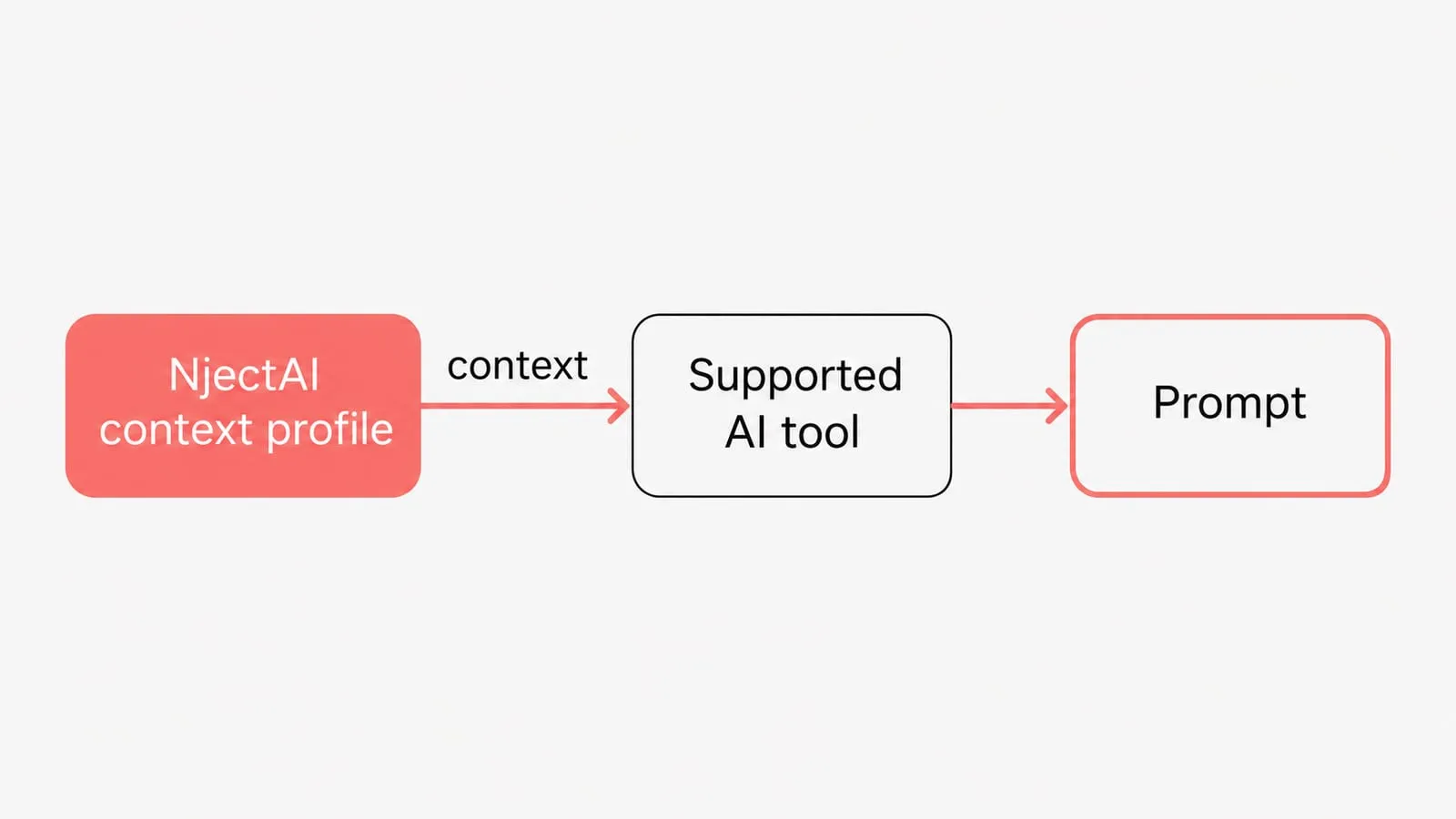
Keep a plain-text copy of your GPT’s instructions, separate copies of its reference files, and a starter you can fill in for each run. For the release-note drafter, replace the sample inputs with placeholders for [version], [audience] and [approved changes]. The three-step portable setup keeps that workflow consistent across tools by pairing a short instruction block in each tool’s settings with matching projects and files and one labeled task prompt both can follow.
If the destination has no reusable settings, paste the instructions into the chat. If it cannot take a file attachment, paste the relevant excerpt. Rerun the release-note request you already tested and compare the draft with what you expected. Different wording is fine if it preserves the approved facts and meets the required format.
OpenAI says the configured GPT runs inside ChatGPT. Keep old chats separately if you need a record, and give collaborators a new place to run the task rather than pointing them to the old sharing link. If another workflow depends on an action, check whether the destination can connect to the same service. You may need to rebuild the connection or provide the information by hand.
Manual reuse is a reasonable choice if you switch tools only occasionally. If you regularly use the same background in several tools, NjectAI is an optional Chrome extension and web app that saves context in profiles and adds it to prompts you write in supported AI tools. Before adding a team document to a profile, check whether you’re allowed to share it with every tool where you plan to use that profile.
A setup you can keep using
Choose the setup that fits the work and that you have permission to use. An existing GPT may still suit a recurring task until its retirement date, while ongoing work may be easier to keep together in a project. If you regularly switch AI tools, keep one master copy of the task’s instructions and references rather than maintaining them separately in each tool’s settings. That gives you one place to make corrections and a current version to start from in a fresh chat or with a different model. If the task also relies on a connection to another service, treat that connection as a separate part of the move.