
ChatGPT canvas: where did it go and what replaced it?
Can’t find ChatGPT canvas? See where to edit prose or code in chat and how to use an approved copy and a short brief to review changes to a long draft.
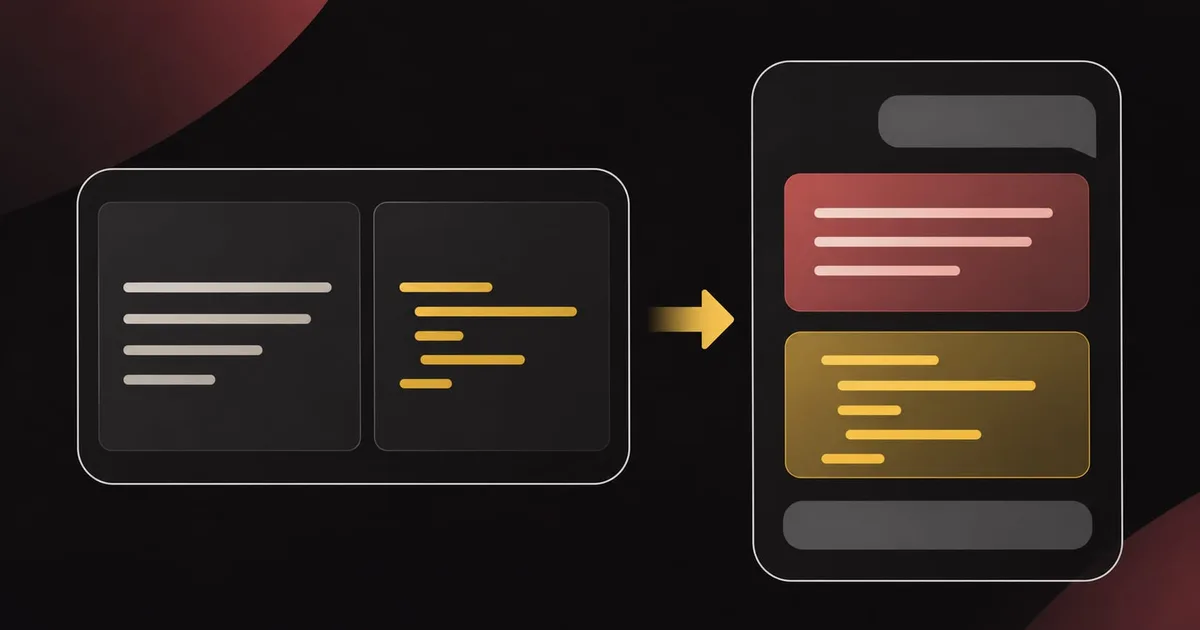
ChatGPT canvas was the editor beside the conversation. OpenAI removed it from ChatGPT’s main models on May 28, 2026. In its place, look in the chat reply for writing blocks for drafts and code blocks for code. An older tutorial can still help if you focus on what the edit was meant to accomplish. If you want to shorten an opening, for example, the useful details are how much text you want to change and what the shorter version needs to keep.
Where did ChatGPT canvas go?
If the tutorial shows a draft or a piece of code in its own panel beside the conversation, you’re looking at OpenAI canvas, the side-by-side editor described by the Strokes Team. When the tutorial tells you to switch from the chat to the draft, it means moving from the conversation to that separate panel.
You can’t find that panel because it has been removed. The ChatGPT release notes for May 28, 2026 say “canvas will no longer be available in GPT-5.5 Instant or GPT-5.5 Thinking,” and that writing and coding now happen in chat responses through writing blocks and code blocks. As of November 2026, no later release note brings canvas back.
OpenAI’s help center describes writing blocks that hold editable drafts inside the conversation. ChatGPT usually puts code in a code block, where it sits apart from the explanation in the same reply.
Choose based on what you want to change. If you’re drafting an email about a script, the email belongs in a writing block. If you want to work on the script itself, look for the code block.
Editing in writing and code blocks
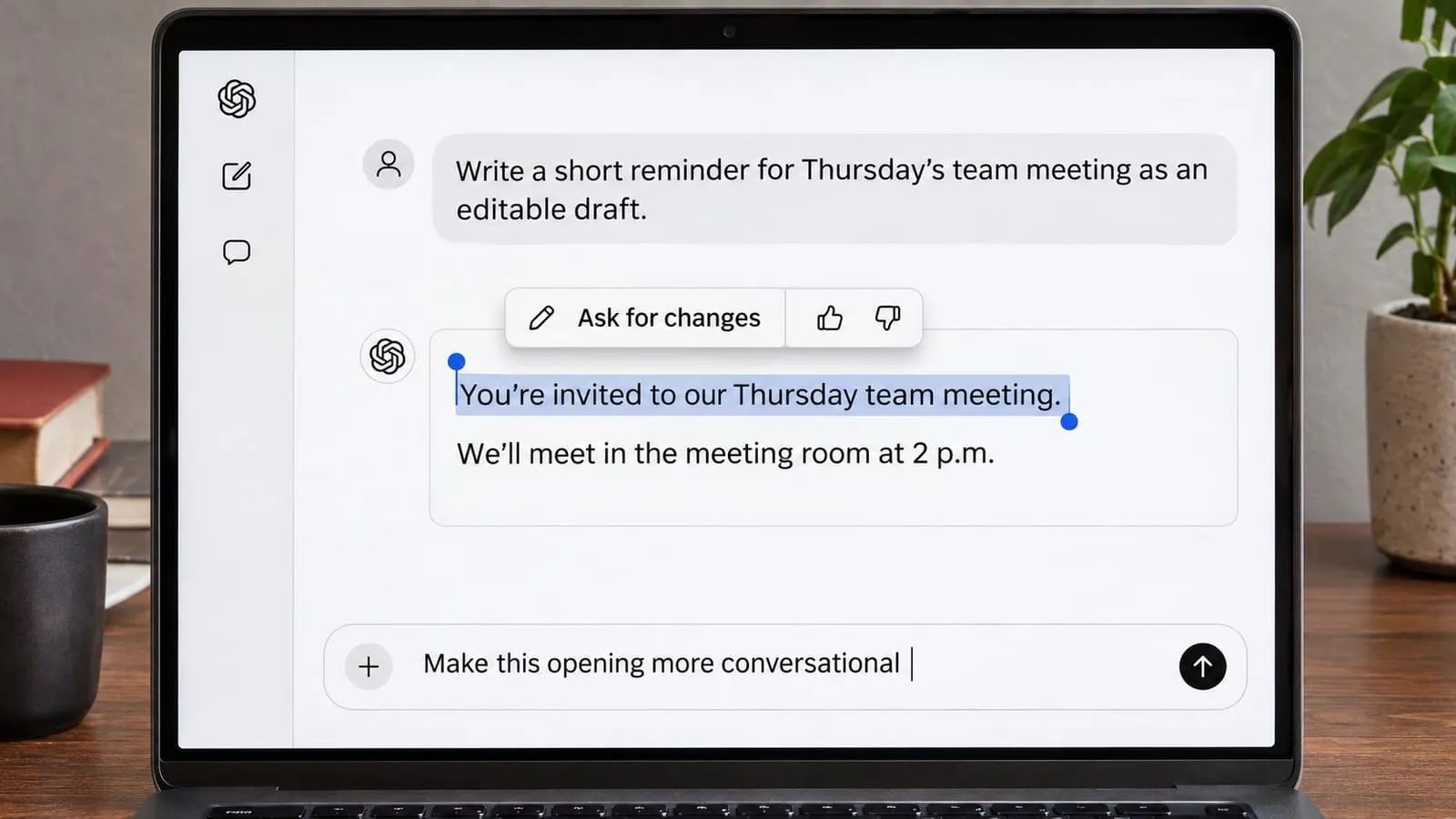
Suppose you’re writing a meeting reminder and only the opening sounds too formal.
Here’s how to draft and revise the reminder:
- OpenAI’s help center suggests asking for a draft you can edit directly in the conversation. Try: “Write a short reminder for Thursday’s team meeting as an editable draft.”
- To make a correction yourself, place the cursor in the draft and type. For example, replace “the meeting room” with “Room 204.”
- On the web, select the opening sentence and choose Ask for changes. When the selection appears in the message box, add “Make this opening more conversational” and send the request.
- For a whole-draft revision, leave the text unselected and ask in chat. Try: “Cut the reminder to two sentences and keep the time and location.”
The controls you see on writing blocks and code blocks vary by block type, device, plan, model and workspace settings. If Open editor is available, use the extra space to read a revised paragraph in context before you move on. On the web, select text and use the formatting toolbar to turn section labels into headings, group related items into a list, or apply bold or italics. To continue in another app, use Copy and paste the draft there. If Download appears, use it to save a separate copy to your device.
Suppose three sessions at an event drew 18, 24 and 13 attendees. Ask for a Python snippet that prints the total: print(18 + 24 + 13). If you want to reuse it in a script, copy the snippet when that action is offered. If the block supports direct editing, correct a count there when a session’s tally changes. To check the original total in chat, select Run on the supported Python block and look for 55 in the console, which shows the output or any errors. To see which session drew the most people, ask for a Vega-Lite bar chart and select Preview if offered.
Edits to supported blocks of either kind save with the conversation after a short delay. ChatGPT can use your latest edits when you ask a follow-up in that same chat. If you’re working in Temporary Chat, copy the draft or snippet you want to keep before you leave.
What changed, and who still has canvas?
Getting the same kind of revision and recovering an earlier draft are two different tasks.
| Editor | Getting a revision | Going back |
|---|---|---|
| Old canvas | God of Prompt describes a shortcut for shortening text. You could also edit the draft yourself or ask for suggestions. | Canvas let you restore an earlier draft. |
| Writing block | Put the goal in your request: “Shorten this to one paragraph and keep the deadline.” | OpenAI documents two controls where available: Undo reverses your last edit; Redo reapplies it. |
Reversing the sentence you just rewrote is a different job from choosing a draft from before several rounds of revisions. What carries over from the canvas panel to the reply is the ability to switch between making edits yourself and asking ChatGPT for changes.
Canvas is not gone for everyone. OpenAI’s May 28 release note says paid users can continue using it “for a limited time through legacy models until those models are sunset.” It gives no end date and does not say which legacy models still open canvas. If canvas is the reason you’re considering a paid plan or switching to a legacy model, check the latest release notes for confirmation that the model you can use still supports it. A subscription alone tells you little about whether the editor in the tutorial will open for you.
Consistent revisions for long drafts
When you revise a long draft in ChatGPT, start by writing down what should stay the same. God of Prompt’s cheat sheet recommends stating the task, supplying the relevant background and setting limits. Use a five-part revision brief to keep that background and those limits in one place as you work through the draft a section at a time.
Suppose you’re revising a staff training policy. The reader is a new employee, and the purpose is to explain who can request time for training and how to get approval. The approved rules are that full-time employees may request one training day per calendar year after 90 days of employment and must get manager approval before booking. Use “training day” throughout, and keep the tone plain and neutral.
Include the brief and the current passage when you write section-level editing prompts. For this policy, try: “Revise only the Eligibility section so a new employee can tell who qualifies and when they can first apply. Keep the rules and terminology in the brief. Return just the revised section and leave all other sections unchanged. Flag any ambiguity instead of adding a rule.”
The same cheat sheet recommends specifying that only the named part should change when a draft is nearly right. In a July 2026 OpenAI Community post, Marcus_Cordey described checking whether chapter edits weakened other parts of a roughly 170-page manuscript.
Compare the revision with the brief and the last approved copy. If “may request” became “is entitled to,” the edit changed the wording’s meaning. Then check whether the revision weakened another part of the draft. Keep the brief and the last approved copy together outside the chat. If you start a new conversation, bring the brief, the passage you’re revising and any related text needed to check it.
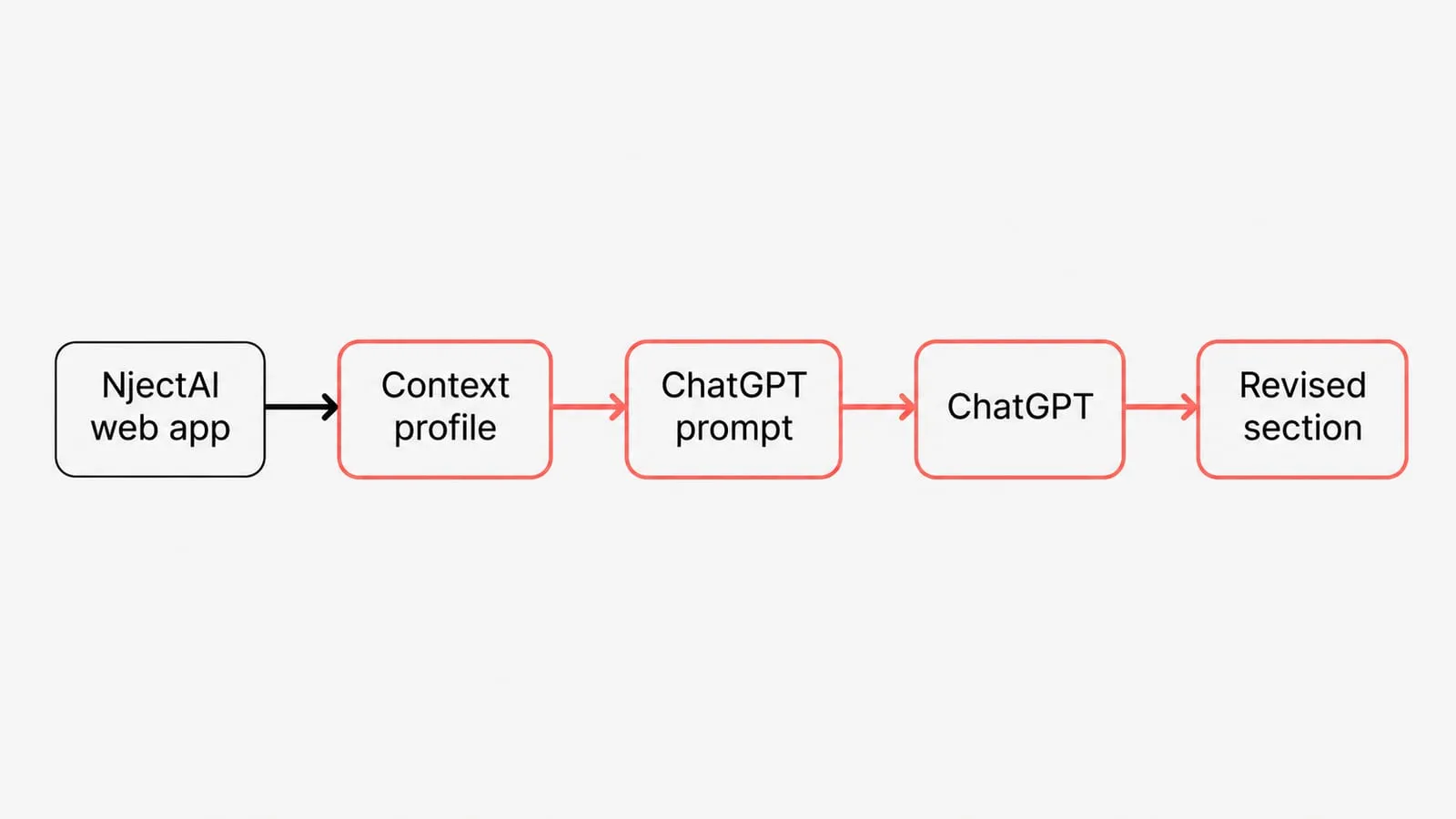
If you already use NjectAI to reuse writing context, use it for the standing brief. Keep one-off instructions such as “revise Eligibility” in the request for that edit.
Edit in chat, keep an approved copy
Use a writing block for prose or a code block for the snippet itself. For a long draft, keep the last approved copy and a short revision brief together outside the chat. The approved copy shows what you’ve already agreed to; the brief spells out what should carry through to the next revision. A paragraph can read better on its own and still conflict with another section, so judge the change in the context of the whole draft. Choose the model for the work it needs to do, and use your brief as the standard for consistency in facts, tone and format.