
Claude memory: what it remembers, how to manage it, where it stops
Learn what Claude memory carries forward, how to control it, and when Projects, files, search, or shared profiles provide steadier context at work.

Re-explaining your role, preferences, and project background in every new conversation slows down routine work. Claude memory can carry useful working context forward, but its value depends on choosing the right place for each kind of information. Preferences and recurring patterns suit memory; exact source material needs Projects or files. Account, project, chat, and local-session boundaries also determine what appears where. Understanding those boundaries lets you use memory confidently in Claude and cloud Cowork while keeping a portable profile for work that moves to other assistants.
What Claude’s memory remembers and how it differs?
Claude memory carries what it learns about you from one conversation into the next. The Claude Help Center states that memory is on by default for Free, Pro, and Max plans on the web, Desktop, and Mobile, and that it works across chat and Claude Cowork when Cowork runs in the cloud. Cowork sessions that run locally on your computer do not use memory. Claude memory saves individual topics from your chats, and you can also tell it to remember something directly. In practice, this gives you continuity for your role, preferences, and recurring workflows without re-explaining them every time. When you assign a cloud Cowork task that relies on context Claude established in chat, that background carries over automatically, whereas local sessions start clean.
Each Project has its own memory. While you work in a project, Claude uses the project's memory alongside your memory from chats outside of projects, and new memories created in those chats are saved to that project. To keep a project fully separate, turn off Use account memory under Memory on the project's page. This default blending lets personal preferences travel with you across workspaces, while the toggle provides isolation when a client engagement or internal initiative must remain strictly compartmentalized.
Claude Digest describes memory as a personalization layer: best for your role, recurring work themes, and communication or coding preferences. Files and Projects are better for source material you need to quote or check. A practical guideline is to keep preferences like writing tone, preferred response structures, or review criteria in memory, while placing policy text, source data, and client specifications in a Project or an attached file so Claude can quote the exact source.
ChatGPT also offers memory, but its controls and privacy models are distinct. Do not assume identical scopes, inheritance, or toggles across both platforms. Verify per-chat options, workspace boundaries, and export settings in each tool before relying on them for sensitive workflows. If you switch between assistants regularly, keeping an independent reference doc ensures that your essential instructions remain portable regardless of how each platform stores background details.
Manage Claude memory: view, edit, pause, or clear
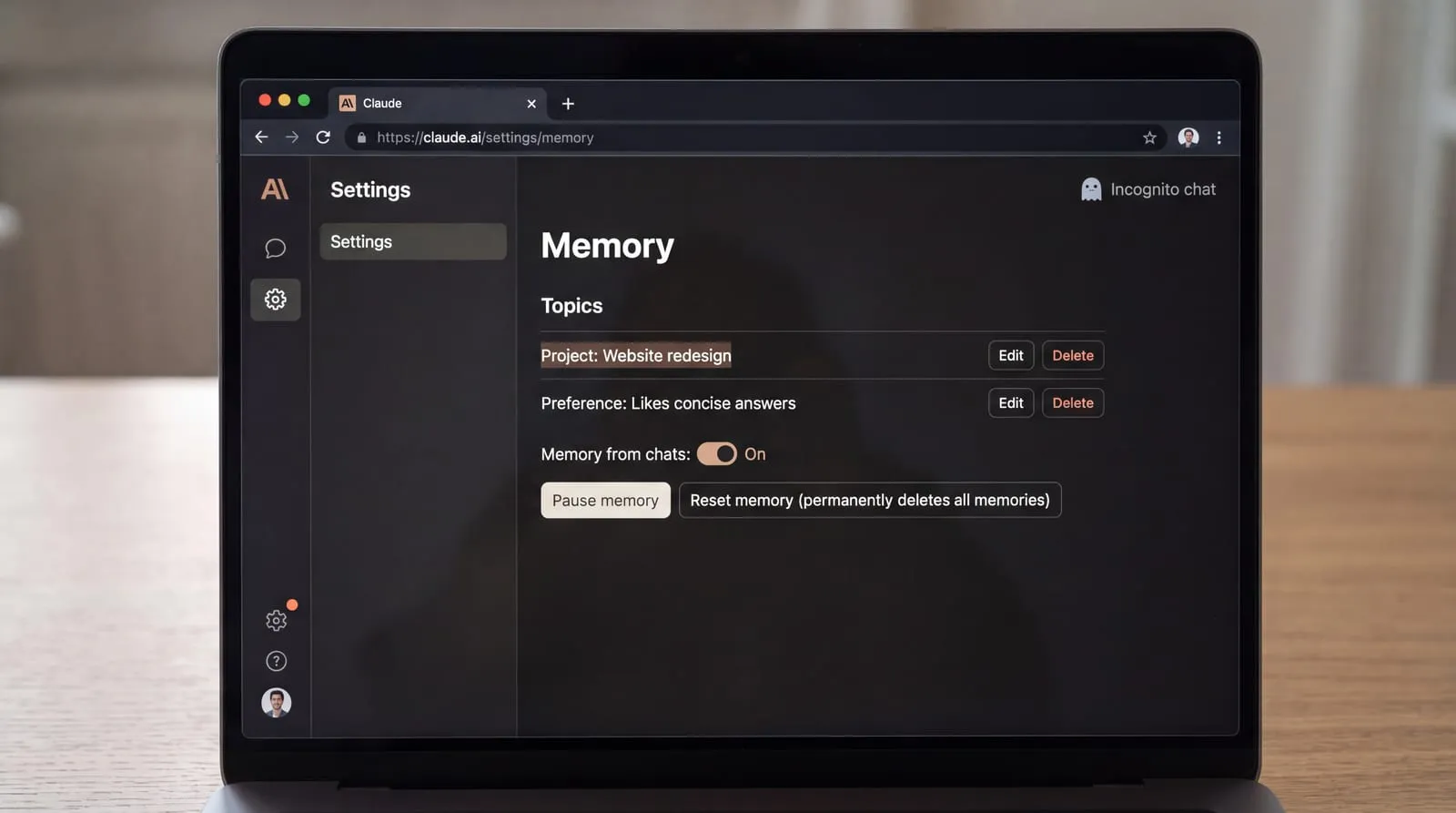
Everything Claude remembers appears under Topics in Memory settings, where you can read, edit, or delete each item. Anthropic documents every control in this section, so the steps match what you see on screen. To review or correct a topic:
- Open Settings and choose Memory.
- Under Topics, select a saved topic to review what Claude will carry into future conversations.
- Use Edit to correct details you want Claude to retain, or Delete to remove an entry entirely.
Memory can also be switched for the whole account in Settings > Your Claude. Pause keeps existing memory but stops use and new saves; Reset permanently deletes all memories, including project memories. To change it for the whole account:
- Navigate to Settings > Your Claude, or Settings > Memory in older layouts.
- Toggle Memory from chats on or off.
- Choose Pause memory to suspend memory usage and prevent new entries from being created without losing existing items.
- Choose Reset memory to permanently erase all memories, including project memories, and confirm your choice.
For a single chat, decide before you type. You need to turn memory off before your first message, and chats with memory off stay in your history. Incognito chats are not saved to your history and are excluded from search. To set it for one chat:
- Start a new conversation and, before entering text, click the plus icon in the message box.
- Select Memory to turn it off for this chat, locking the setting for the remainder of the session.
- Click the ghost icon in the top corner to open an Incognito chat when you need a temporary session that leaves no record in history or search.
Sensitive topics in memory are off by default; you can opt in and you will see a notice when one is saved. Never stored: government ID numbers, criminal history, financial account numbers, and immigration status.
To keep project workspaces isolated from broader account memory, configure the boundary directly on the project page:
- Open the project workspace you want to keep separate.
- Navigate to the project's Memory settings.
- Turn off Use account memory so the project relies solely on its dedicated workspace context.
Where Claude’s memory stops, and what to use instead?
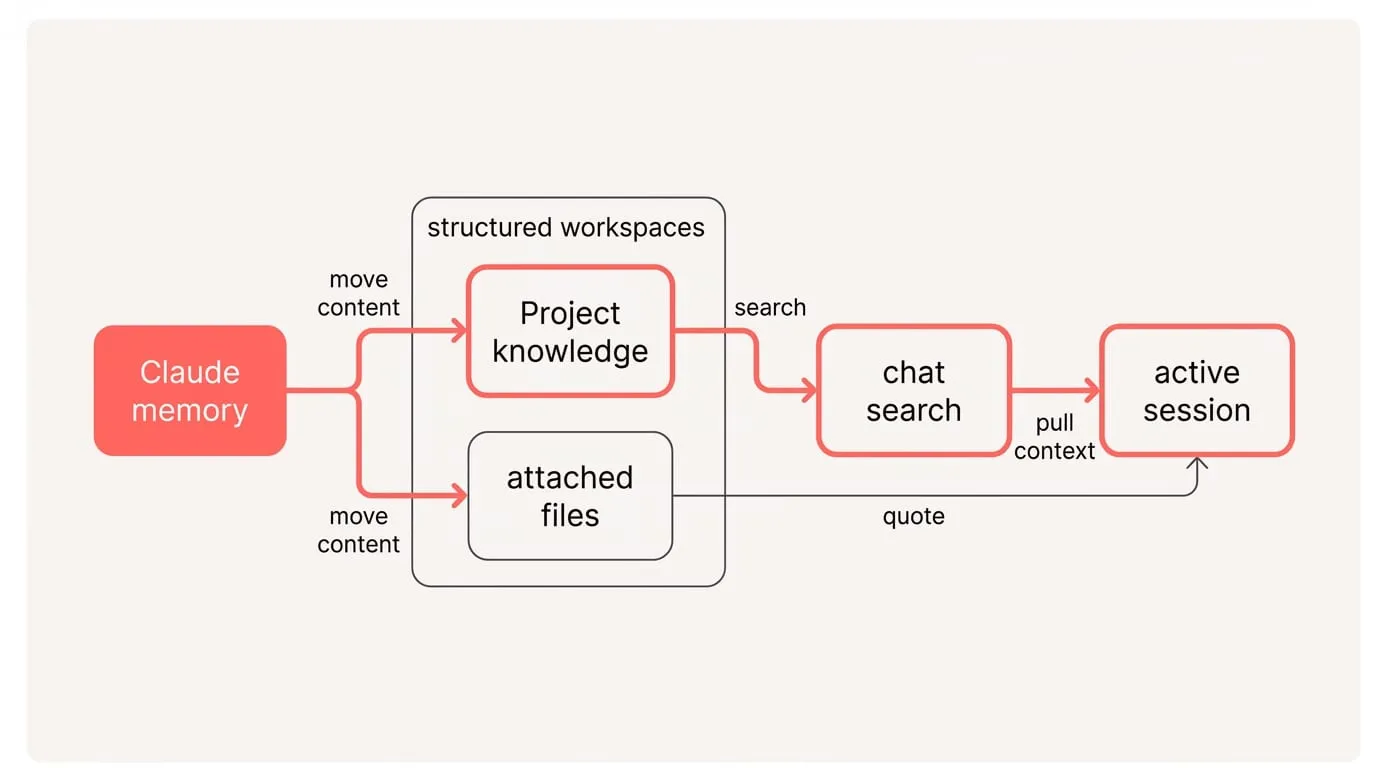
Treat Claude memory as strictly product- and account-scoped. Project memories stay separate from one another, and Cowork sessions running locally on your computer do not draw on chat memory. Because memory does not sync across different accounts or external AI tools, plan your handoffs and documentation with those boundaries in mind.
For exact text, data, or sensitive material, move that content out of memory and into structured workspaces. Claude Digest recommends treating memory as a personalization layer for preferences and patterns, and using Projects or files for exact text or data you need to quote or verify. Where each kind of material belongs:
- Policy and contract clauses: store them in Project knowledge or attached files so Claude can quote verified wording.
- Numbers, datasets, and calculations: keep them in a spreadsheet, data file, or Artifact rather than relying on memory.
- Client and team rules: record them in Project instructions so they consistently steer ongoing work.
- Decisions meant for reuse: document them in Project notes or shared instructions where colleagues can inspect them.
Use chat search when you need to find an earlier decision, quote, or draft snippet. The Claude Help Center explains that search reaches all chats outside projects and will search within each specific project's conversations, so it is the right tool for retrieval. Asking Claude to search past conversations pulls relevant context into the active session without permanently altering your stored memory.
Memory entries also follow distinct operational lifecycles. Memory entries persist even when you delete a conversation, they are included in data exports, and an organization's retention period can remove entries over time. In Enterprise workspaces, custom retention rules apply to memory entries just as they do to chats, while project memories are deleted when the project itself is removed.
Keep context consistent across assistants
A simple manual pattern keeps your context steady across Claude and other tools. Build these assets once and reuse them when opening a new chat:
- Draft a one-paragraph personal brief. State your role, audience, tone, and formatting habits, such as plain language and short headings. Save it as a reusable snippet.
- Create preference snippets for recurring needs, such as summarizing before detailing or formatting comparisons into compact tables. Keep each snippet focused on one requirement.
- Prepare a one-page project brief containing scope, owner, essential definitions, and deliverable formats to introduce the project across any tool.
- Paste the personal brief and project one-pager at the top of a new chat, attaching only the specific files needed for that conversation.
- Update briefs as project phases shift, keeping a single reference note so your context remains aligned across assistants.
If you switch tools often, NjectAI context profiles help standardize prompts. A profile lets you maintain your background, links, and style guidelines once and append them to prompts in supported tools, including Claude. Profiles standardize what you add to each prompt; they do not change what Claude stores in memory or how project boundaries function. Start with a single personal profile and one per active project, adding more only when they replace recurring manual setup.
Use memory where it helps
Claude memory is most useful as a controlled layer of working context: the preferences, role details, and recurring patterns that help Claude respond consistently. Its account, chat, and project controls let you decide when that context applies and when work needs a separate boundary. Treat exact wording, figures, policies, and source material differently. Keep them in files or Projects, and use chat search to retrieve earlier decisions rather than expecting memory to serve as a record. Memory also stays within Claude’s account and workspace boundaries. When your work moves between Claude and other assistants, a maintained brief or NjectAI context profile provides a shared, reviewable source for the instructions that need to travel.