# NjectAI
> NjectAI is a Chrome extension and web app that saves your context in profiles and adds it to your prompts in ChatGPT, Claude, Gemini, Perplexity, Grok and Google AI Mode.
Key facts:
- Profiles: up to 10 per account, each one Text, Image or Search. Files: PDF, DOCX and CSV (pictures too for Image profiles), up to 8 MB each and 10 per profile, and up to 5 links.
- Works in: ChatGPT, Claude (chat, projects, Cowork and Code), Gemini, Google AI Mode, Perplexity, Grok and Grok on X, in Chrome on a computer.
- Outside the browser: the NjectAI plugin in ChatGPT, on the web and in its phone app (https://chatgpt.com/plugins/plugin_asdk_app_6ae3ce1683e48191b43a84e72ccdc588), and an MCP server for Claude, Claude Code, Cursor and other MCP apps at https://api.nject.ai/api/mcp, with the NjectAI account as the sign-in. Guide: https://nject.ai/docs/mcp
- Improve your prompt (Enhance in some of the extension's messages) rewrites a draft of up to 1,000 characters into a clearer prompt with your context, and you send it yourself. Context Inject adds your saved context to a message as you send it, chosen from the message's first 1,000 characters. Autocomplete suggests the rest of a prompt as you type, in every tool but Google AI Mode.
- Memory: while you are signed in and the extension is on, the messages you send and the AI's finished answers in ChatGPT, Claude, Gemini, Google AI Mode, Perplexity, Grok and Grok on X are saved to your NjectAI memory, with or without a plan. Memory is powered by MidBrain.
- Plan: Nject Pro, $9 a month or $84 a year, after a 7-day trial.
- Support: info@nject.ai, with replies in up to 3 business days.
- NjectAI (also called Nject) is part of the God of Prompt ecosystem.
---
# What is NjectAI? The Chrome extension for AI memory and better prompts
URL: https://nject.ai/docs/what-is-njectai
Last updated: October 23, 2026
> NjectAI, also called Nject, is a Chrome extension and web app that saves your context in profiles and adds it to your prompts in ChatGPT, Claude, Gemini, Perplexity, Grok and Google AI Mode. One click improves a rough prompt, and one click adds your saved context to the message you send, so you stop retyping who you are.
| At a glance | NjectAI |
| --- | --- |
| What it is | A Chrome extension, listed as NjectAI in the Chrome Web Store, plus the NjectAI web app |
| Works in | ChatGPT, Claude, Gemini, Google AI Mode, Perplexity, Grok and Grok on X |
| Browser | Chrome, from the [Chrome Web Store](https://chromewebstore.google.com/detail/ojddfcbggidlmbjnlgdgiikhejhlmmeh) |
| Plan | Nject Pro: $9 a month or $84 a year, after a 7-day trial |
| Profiles | Up to 10, in three kinds: Text, Image and Search |
| Memory | Powered by MidBrain |
| Security | Tested by Argon Cyber Security in September 2026 |
| Part of | The [God of Prompt](https://godofprompt.ai) ecosystem |
| Founder | Robert Youssef, Founder, CEO |
## What does NjectAI do?
NjectAI keeps your context in profiles and brings it into the AI tool you already use. It adds a small pill to the message box with two buttons, Improve your prompt and Context Inject, and it suggests the rest of your prompt as you type. You save your context once in the NjectAI web app, and the same profiles work in every supported AI tool.
- **[Improve your prompt](https://nject.ai/docs/improve-your-prompt)** rewrites a rough request into a clearer prompt, built from your draft, your profile and your memory. The new prompt replaces your text, and you send it yourself.
- **[Context Inject](https://nject.ai/docs/context-inject)** adds your saved context to your next message. It goes out after your text when you press send.
- **[Autocomplete](https://nject.ai/docs/autocomplete)** shows a grey suggestion that continues your prompt. Press Tab to accept it.
- **[Context profiles](https://nject.ai/docs/context-profiles)** hold your interview answers, links and files. You can keep up to 10.
- **[The profile bar](https://nject.ai/docs/choose-a-profile)** asks which profile you are using when you open a new chat, and adds its context when you click Inject.
- **[Memory](https://nject.ai/docs/memory)** saves the messages you send and the AI's answers to your NjectAI account while you are signed in. NjectAI draws on it when it improves a prompt or adds your context.
## Is Nject the same as NjectAI?
Yes. NjectAI is the product's name, and the name of the extension's listing in the Chrome Web Store. Nject is the shorter name the extension carries in its own menus and windows, and the plan is called Nject Pro in the web app and in the extension. Whichever name you see, it is the same extension, the same account and the same profiles.
## Which AI tools does NjectAI work with?
NjectAI works in 7 places: ChatGPT, Claude, Gemini, Google AI Mode, Perplexity, Grok on grok.com and Grok on X. Improve your prompt, Context Inject, the profile bar and saving chats to memory work in all of them. Autocomplete works everywhere except Google AI Mode. The extension loads only on these sites and on the NjectAI web app. On Google it stays off outside AI Mode, and on X it stays off outside the Grok page.
| AI tool | Improve your prompt | Context Inject | Autocomplete | Saves chats to memory |
| --- | --- | --- | --- | --- |
| [ChatGPT](https://nject.ai/docs/chatgpt) | Yes | Yes | Yes | Yes |
| [Claude](https://nject.ai/docs/claude): chats, projects, Cowork and Claude Code | Yes | Yes | Yes | Yes |
| [Gemini](https://nject.ai/docs/gemini) | Yes | Yes | Yes | Yes |
| [Google AI Mode](https://nject.ai/docs/gemini): AI Mode only | Yes | Yes | No | Yes |
| [Perplexity](https://nject.ai/docs/perplexity) | Yes | Yes | Yes | Yes |
| [Grok](https://nject.ai/docs/grok) on grok.com | Yes | Yes | Yes | Yes |
| [Grok on X](https://nject.ai/docs/grok): the Grok page only | Yes | Yes | Yes | Yes |
The AI tool pages linked in the table list the parts of each site NjectAI covers and how it looks there.
## Why use one memory across AI tools?
Each AI tool keeps what it remembers about you inside that tool. NjectAI is a neutral layer that works with all of them: your profiles and your memory are stored in your NjectAI account, so the same context is there whichever AI you open.
NjectAI keeps one memory for your account and one for each profile, and no separate memory per AI tool. A message saved in Claude and a message saved in ChatGPT go to the same place. Your context reaches a chat only when you ask for it: with Improve your prompt, with Context Inject, with Inject in the profile bar, or when you accept an Autocomplete suggestion with Tab.
## How much does NjectAI cost?
NjectAI has one plan, Nject Pro, at $9 a month or $84 a year. The yearly price works out to $7 a month, 22% less than paying monthly. The plan starts with a 7-day trial, one per customer, and checkout asks for a payment method. Improve your prompt, Context Inject and Autocomplete all need the plan. [Plans and billing](https://nject.ai/docs/plans-and-billing) has the details, including how to cancel.
## Who makes NjectAI?
NjectAI is part of the God of Prompt ecosystem, home of the AI prompt library at [godofprompt.ai](https://godofprompt.ai). Robert Youssef is its Founder, CEO, and the company that operates it is PROMPT COPILOT - FZCO, registered in the United Arab Emirates. NjectAI's memory is powered by MidBrain. Argon Cyber Security, a Canadian penetration testing company, ran an independent security assessment of the extension, the web app and the API in September 2026.
To see how the two products fit together, read [NjectAI and God of Prompt](https://nject.ai/docs/god-of-prompt). For the security assessment and the extension's permissions, read [Is NjectAI safe?](https://nject.ai/docs/security).
## How do I start using NjectAI?
To start, install the extension from the Chrome Web Store, create an account and build your first profile. The [quick start](https://nject.ai/docs/quick-start) walks through each step.
:::steps
1. Add NjectAI to Chrome from the [Chrome Web Store](https://chromewebstore.google.com/detail/ojddfcbggidlmbjnlgdgiikhejhlmmeh).
2. Click **Get Started** in the extension to create your NjectAI account.
3. Answer the short interview to build your first context profile, and start the 7-day trial.
4. Open ChatGPT, type a rough request and click **Improve your prompt**.
:::
## Related
- [How NjectAI works](https://nject.ai/docs/how-it-works)
- [NjectAI quick start](https://nject.ai/docs/quick-start)
- [Improve your prompt](https://nject.ai/docs/improve-your-prompt)
- [Context Inject](https://nject.ai/docs/context-inject)
---
# How NjectAI works: profiles, the pill in your chat and one shared memory
URL: https://nject.ai/docs/how-it-works
Last updated: October 20, 2026
> NjectAI works in three steps. You save your context once as a profile in the NjectAI web app. You write in ChatGPT, Claude, Gemini, Perplexity, Grok or Google AI Mode as usual. Then you click Improve your prompt or Context Inject in the pill inside the message box, and you send the message yourself.
## What are the three steps to use NjectAI?
NjectAI needs one setup step outside your AI tool, then two steps inside it each time you write. You build a context profile once, and from then on the pill in the message box brings that context into your chats.
:::steps
1. **Save your context once.** In the NjectAI web app, answer a short interview about what the profile is for. Depending on the kind of profile, you can also add links and files. See [Create a profile](https://nject.ai/docs/create-a-profile).
2. **Write naturally.** Open ChatGPT, Claude, Gemini, Google AI Mode, Perplexity or Grok and type your request in the message box, as rough as you like.
3. **Improve or inject, then send.** Click **Improve your prompt** to rewrite your draft, or **Context Inject** to add your saved context to the message. Nothing reaches the AI until you press send.
:::
## What are the parts of NjectAI?
NjectAI has two parts you see, the Chrome extension and the web app, and two that work behind them, NjectAI's servers and the MidBrain memory. The extension works inside your AI tool. The web app is where you sign up, build profiles and manage your plan.
| Part | Where you find it | What it does |
| --- | --- | --- |
| The pill | In the message box, once it holds text and the site's send button shows | Two buttons: Improve your prompt and Context Inject (a syringe) |
| Autocomplete | In the message box, as you type | A grey suggestion that continues your prompt; Tab accepts it |
| The Nject button | In the site's header, on pages with a message box | Signed in: your name, Dashboard, Context Profiles (the profile panel) and Logout. Signed out: Get Started and Login |
| The profile bar | Next to the Nject button, in a chat NjectAI has not seen before, once you are signed in | Asks which profile you are using and offers Inject |
| The toolbar menu | The Nject icon in Chrome's toolbar | The Nject and Autocomplete switches, Dashboard and Logout |
| The web app | [Your dashboard](https://nject.ai/dashboard) | Sign-up, the interview, and the tabs Context Profiles, Account Settings, Support and Subscription |
| NjectAI's servers | Behind the extension | Rewrite prompts, suggest text and put your context together |
| MidBrain | Behind NjectAI's servers | Holds the memory: one for your account and one for each profile |
Hover a button on the pill for a moment to see its name. Once per browser session, after you type your first word, the pill also shows each button's name by itself for 3 seconds. The pill, the bar and NjectAI's windows follow the site's light or dark theme.
## What happens when I click Improve your prompt?
When you click Improve your prompt, NjectAI sends your draft, the site you are on, your selected profile and the chat's id to its servers. The servers write a new prompt from your draft, your profile and your memory, and the new prompt replaces your text in the message box. Nothing goes to the AI yet: you read it, change it if you like and send it yourself.
The button then reads Replay enhancement and rewrites again on a click, until you edit the text. Improve your prompt takes 3 to 1,000 characters, and it needs Nject Pro and at least one profile. More in [Improve your prompt](https://nject.ai/docs/improve-your-prompt).
## What happens when I click Context Inject?
When you click Context Inject, the syringe in the pill, NjectAI shows "Context added. Sends with your next message." and holds your context ready. Your message box does not change while you type. When you press Enter or the send button, NjectAI adds the context after your message, after a blank line, so it is part of what the AI receives and stays visible in the chat.
NjectAI uses the first 1,000 characters of what you have written when you click to pick the facts from your memory that fit it. When you click Inject in the profile bar before you write anything, it uses the message you send. Click the syringe again to clear it ("Context cleared."). A context you added is dropped if you switch to another chat before you send. More in [Context Inject](https://nject.ai/docs/context-inject).
## What does NjectAI send from my chats?
While you are signed in and the Nject switch is on, NjectAI sends every message you send and every AI answer that finishes on the page to your NjectAI memory. Chats that were already on the screen when the page opened are left alone. Both go to your account's personal memory, the same one in every AI tool, with the AI tool's name as a label.
Saving chats needs only sign-in, with or without a plan. There is no separate switch for it: to stop it, switch Nject off in the toolbar menu or sign out. Read [Memory](https://nject.ai/docs/memory) for how NjectAI uses what it saves, and [Privacy and data](https://nject.ai/docs/privacy-and-data) for what is kept and what you can delete.
## How does one memory work in every AI tool?
Your NjectAI account has one personal memory and one selected profile, and both are the same in every supported AI tool. NjectAI keeps no separate memory per tool: the tool's name is only a label on each saved message. A profile you use in ChatGPT in the morning brings the same context to Claude in the afternoon.
You choose the profile in three places: the Use profile menu in the dashboard, Context Profiles in the Nject button's menu, or the profile bar in a new chat. The choice is saved to your account, so the dashboard and your other browsers follow it. In the extension, None clears the choice. See [Choose a profile](https://nject.ai/docs/choose-a-profile).
## Why did God of Prompt build NjectAI?
NjectAI grew out of God of Prompt, the AI prompt library at [godofprompt.ai](https://godofprompt.ai). While the team worked on a better experience for God of Prompt's users, Robert Youssef had the idea that became NjectAI: deliver the prompt, with your context in it, straight into the AI tool, right where you type. The AI companies compete with each other, so a neutral layer that works with all of them keeps your context with you, whichever AI you open. More in [NjectAI and God of Prompt](https://nject.ai/docs/god-of-prompt).
## Related
- [What is NjectAI?](https://nject.ai/docs/what-is-njectai)
- [NjectAI memory](https://nject.ai/docs/memory)
- [Context profiles](https://nject.ai/docs/context-profiles)
- [Use NjectAI in ChatGPT](https://nject.ai/docs/chatgpt)
---
# How to install the NjectAI Chrome extension and sign in
URL: https://nject.ai/docs/install
Last updated: October 23, 2026
> You install NjectAI from its listing in the Chrome Web Store. Add it to Chrome, pin it to the toolbar, then click Get Started to create an account or Login to sign in. The extension has no login form of its own: it picks up your session from the NjectAI web app.
## How do I install NjectAI in Chrome?
You install NjectAI from its listing in the Chrome Web Store. Inside the extension, its menus and windows use the shorter name Nject. Adding it takes a click and a confirmation, and NjectAI then opens its sign-up page in a new tab. If you already have an account, click **Sign in** on that page instead.
:::steps
1. Open the [NjectAI listing in the Chrome Web Store](https://chromewebstore.google.com/detail/ojddfcbggidlmbjnlgdgiikhejhlmmeh).
2. Click **Add to Chrome**, then **Add extension** in the box Chrome shows.
3. Click the puzzle-piece Extensions icon in Chrome's toolbar and pin **NjectAI**, so its icon stays in view.
4. Reload any ChatGPT, Claude, Gemini, Google, Perplexity, Grok or X tab that was open before you installed it.
:::
## Can I use NjectAI in Edge, Brave or another Chromium browser?
NjectAI is a Chrome extension, published on the Chrome Web Store, and these docs describe it in Chrome. They do not cover Edge, Brave or other Chromium browsers.
## How do I sign in to the extension?
The NjectAI extension has no login form. You sign in on the NjectAI web app, and the extension picks up your session from that page, so one sign-in covers both.
:::steps
1. Click the Nject icon in Chrome's toolbar, or the Nject button in the header of a supported AI tool.
2. Click **Get Started** to create an account, or **Login**, under "Already have an account?", to sign in. Each opens the NjectAI web app in a new tab.
3. Create your account or sign in there, with your email and password or with **Continue with Google**.
4. Go back to your AI tool. The toolbar menu now shows your name.
:::
If you signed in from the extension and already have a profile, the web app greets you with "Welcome back". An account with no profile goes on to set up its first one: see the [quick start](https://nject.ai/docs/quick-start).
Your session renews by itself, so you stay signed in. **Logout** in the toolbar menu, in the Nject button's menu or in the web app signs you out of the extension and the web app together.
## How do I change my name, password or profile picture?
You change your account details in the **Account Settings** tab of the NjectAI [dashboard](https://nject.ai/dashboard?tab=account-settings). It holds your profile picture, your **First name** and **Last name**, your email and your password. A new picture is saved as soon as you pick it. For names and the password, click **Save changes**.
| What | How to change it |
| --- | --- |
| Profile picture | Click the picture and choose a JPG, PNG or WebP image of up to 5 MB |
| First name, Last name | Type the new name, up to 100 characters each |
| Email | Shown for reference only: the dashboard cannot change it |
| Password | Under **Change Password**, fill in **Current password**, **New password** and **Confirm new password** |
A new password needs at least 8 characters, with an uppercase letter, a number and a symbol. If you signed up with Google, the tab shows **Set a Password** instead: click **Set a password**, and NjectAI emails you a code first, so you can also sign in with your email.
## What if I forget my password?
Reset it from the sign-in page. NjectAI emails you a 6-digit code, and the code lets you set a new password.
:::steps
1. On the [sign-in page](https://nject.ai/sign-in), click **Forgot password?**.
2. On "Reset your password", enter your **Email Address** and click **Send reset code**.
3. On **Verify your identity**, enter the 6-digit code from your email and click **Verify code**.
4. On "Set new password", fill in **New password** and **Confirm password**, then click **Update password**.
:::
## What is in the NjectAI toolbar menu?
Clicking the Nject icon in Chrome's toolbar opens a small menu. Signed in, it shows your account, two switches and two buttons. Signed out, it offers Get Started and Login.
| Item | Shown when | What it does |
| --- | --- | --- |
| Your name and avatar | Signed in | Shows which account is signed in |
| **Nject** switch | Signed in | Turns NjectAI on or off in every tab. It reads "Extension currently active" or "Extension temporarily disabled" |
| **Autocomplete** switch | Signed in | Turns suggestions on or off: "Suggestions while you type" or "Suggestions are off". Without Nject Pro it is locked, reads "Available with Nject Pro" and shows **Upgrade to Pro** |
| **Dashboard** | Signed in | Opens your NjectAI dashboard |
| **Logout** | Signed in | Signs you out of the extension and the web app |
| **Get Started** | Signed out | Opens the sign-up page |
| **Login** | Signed out | Opens the sign-in page |
:::note
The toolbar menu has no profile picker. To choose a profile, click the Nject button in the AI tool's header and open **Context Profiles**, or use the profile bar in a new chat. See [Choose a profile](https://nject.ai/docs/choose-a-profile).
:::
## How do I turn NjectAI off?
To turn NjectAI off, open the toolbar menu and switch **Nject** off. NjectAI removes its pill, its button and its bars from every open tab and stops saving your chats, and the menu reads "Extension temporarily disabled". Switch it on again to bring everything back.
To turn off only the suggestions, switch **Autocomplete** off instead, and the rest keeps working. To remove NjectAI from Chrome, open chrome://extensions and click **Remove** on NjectAI. Removing the extension leaves your account and your profiles as they are: you delete those in the dashboard, as [Privacy and data](https://nject.ai/docs/privacy-and-data) explains.
## What permissions does NjectAI ask for?
The NjectAI extension asks Chrome for three permissions, activeTab, storage and scripting, and it has host access only to NjectAI's own servers and web app. Its scripts load only on the supported AI sites and on the NjectAI web app. It asks for no access to your tabs, your browsing history or your cookies, and it has no keyboard shortcut of its own.
| Permission | What it lets the extension do |
| --- | --- |
| activeTab | Work with the tab you are on, and only when you click the extension's toolbar button |
| storage | Keep your sign-in, your **Nject** and **Autocomplete** switches and your chosen profile in the browser |
| scripting | Pick up your session from the NjectAI sign-in page once you have signed in there |
On Google, NjectAI works in AI Mode only, and on X only on the Grok page. For the security testing behind the extension, read [Is NjectAI safe?](https://nject.ai/docs/security).
## What happens when NjectAI updates?
Chrome updates its extensions by itself. When NjectAI updates while an AI tab is open, NjectAI leaves that tab and shows "Nject was updated - reload this tab to keep using it" for 12 seconds. Reload the tab and the pill is back. Tabs you open after the update work straight away.
## Related
- [NjectAI quick start](https://nject.ai/docs/quick-start)
- [Is NjectAI safe?](https://nject.ai/docs/security)
- [NjectAI troubleshooting](https://nject.ai/docs/troubleshooting)
---
# NjectAI quick start: your first profile and your first improved prompt
URL: https://nject.ai/docs/quick-start
Last updated: October 23, 2026
> To start with NjectAI, install the extension, create an account, answer a short interview to build your first context profile and start the 7-day Nject Pro trial. Then open ChatGPT, Claude, Gemini, Perplexity or Grok, type a rough request, click Improve your prompt, review the new prompt and send it.
## What do I need to start?
To start with NjectAI you need three things: Chrome with the NjectAI extension, an email address or a Google account, and a payment method for the 7-day trial. Improve your prompt, Context Inject and Autocomplete need Nject Pro, and the trial gives you all of it.
- **Chrome with the extension.** Add NjectAI from the [Chrome Web Store](https://chromewebstore.google.com/detail/ojddfcbggidlmbjnlgdgiikhejhlmmeh). The [install guide](https://nject.ai/docs/install) shows each click.
- **An email address or a Google account.** You sign up with either one.
- **A payment method.** Checkout asks for one when the trial starts, and the first charge comes when the trial ends.
## How do I create my NjectAI account?
You create your NjectAI account on the sign-up page, which the extension opens for you after you install it, or from **Get Started** in the extension. Sign-up asks for your name, your email and a password, then for a 6-digit code from your email.
:::steps
1. Open the [sign-up page](https://nject.ai/sign-up), or click **Get Started** in the Nject toolbar menu.
2. Fill in **First name**, **Last name**, **Email Address** and **Create your password**.
3. Keep the box "By continuing, you agree to our Terms of Use and Privacy Policy" ticked. Sign-up needs it.
4. Click **Create account**.
5. On **Verify your identity**, enter the 6-digit code sent to your email and click **Verify code**.
:::
Your password needs at least 8 characters, with one uppercase letter, one number and one special character. NjectAI turns down a password that appears in known data breaches, with "This password has appeared in a data breach. Please choose a different one." If the code does not arrive, click **Resend verification code**, which counts down before you can ask again. To use your Google account instead of a password, click **Continue with Google**.
## How do I set up my first context profile?
After you verify your email, NjectAI shows a short guide of two screens: "Bring the Right Context to Any AI" and "Type It Rough. Prompt It Sharp". Click **Next**, then **Start** to open the interview. If you came from **Get Started** in the extension, you go straight to the interview.
The interview opens on "What will this profile create?". Pick a kind and click **Create Profile**.
| Kind | What the card says |
| --- | --- |
| Text | Write emails, docs and posts in your voice, for work or life. |
| Image | Make images in your style, with your references and brand colors built in. |
| Search | Research with the sources you trust, at the depth and format you want. |
Then answer the questions, one at a time. Each kind asks what the profile is for and lets you give it a name, and any optional questions come last. On your first profile you can also click **Skip interview & use a template** for a ready-made, read-only sample profile about NjectAI itself. The full walk-through is in [Create a profile](https://nject.ai/docs/create-a-profile).
## How does the 7-day trial start?
The 7-day trial starts at the end of the interview. An account without Nject Pro sees **Profile overview** ("Almost done! Let's double-check your answer!") with a summary of your answers, and the trial button below it.
:::steps
1. Choose how to pay after the trial: **Monthly** or **Yearly, save 22%**.
2. Click **Start 7-day trial**. The line under it says what you pay once the trial is over: "Then $9 a month. Cancel anytime." or the yearly price, $84 a year.
3. Enter your payment details in Stripe's form, in the window "Start your 7-day trial". Checkout accepts promotion codes.
:::
Checkout always asks for a payment method, and each customer gets one trial. Your profile is saved with your answers, and once the trial starts NjectAI reads its links and files and makes it ready to use. If you cancel before the trial ends, you keep Nject Pro until its last day and are not charged. If your account already has Nject Pro, **Continue** creates the profile and takes you to the dashboard. More in [Plans and billing](https://nject.ai/docs/plans-and-billing).
## How do I improve my first prompt?
Try Improve your prompt in ChatGPT first. It works the same way in Claude, Gemini, Google AI Mode, Perplexity and Grok.
:::steps
1. Open [ChatGPT](https://chatgpt.com) and start a new chat.
2. Type a rough request in the message box: at least 3 characters and up to 1,000.
3. When the pill appears in the message box, click its first button, **Improve your prompt**.
4. Read the new prompt, which replaces your text in the box. Change anything you like.
5. Send it as you always do.
:::
:::prompt[A rough request to try]
write a short launch email for our new booking feature, friendly, for existing customers
:::
The button now reads Replay enhancement: click it to rewrite again, or edit the text to get Improve your prompt back. If NjectAI shows "Welcome to Nject!", your account has no profile yet: click **Create your first context profile**. More in [Improve your prompt](https://nject.ai/docs/improve-your-prompt).
## How do I add my context to a new chat?
When you are signed in and open a chat NjectAI has not seen before, a bar unfolds next to the Nject button in the site's header and asks "Which profile you are using this time?". Pick a profile from its menu, and the bar reads "Inject your context". Click **Inject**, and NjectAI shows "Context added. Sends with your next message.": your context goes out after your message when you send it.
The bar goes away as soon as you start typing, so pick the profile first. Any time before you send, you can also click **Context Inject**, the syringe in the pill. More in [Context Inject](https://nject.ai/docs/context-inject).
## Related
- [How to install NjectAI](https://nject.ai/docs/install)
- [Create a context profile](https://nject.ai/docs/create-a-profile)
- [Improve your prompt](https://nject.ai/docs/improve-your-prompt)
- [Plans and billing](https://nject.ai/docs/plans-and-billing)
---
# Improve your prompt: rewrite rough requests in one click with NjectAI
URL: https://nject.ai/docs/improve-your-prompt
Last updated: October 20, 2026
> Improve your prompt is the NjectAI button that rewrites what you typed into a clearer, fuller prompt, using your active context profile and your memory. It sits in the pill inside the message box of every AI tool the NjectAI Chrome extension supports. The improved prompt replaces your draft, and you send it yourself.
## How do I improve a prompt with NjectAI?
Type your request in the message box of ChatGPT, Claude, Gemini, Perplexity, Grok or another supported tool, then click **Improve your prompt** in the NjectAI pill. NjectAI rewrites your draft with the context from your active profile and puts the new prompt in the box in place of yours. Read it, change anything you like, and send it as usual.
:::steps
1. Open a chat in a supported AI tool and type your request. Write at least 3 characters.
2. Find the NjectAI pill in the message box. It appears once the box holds text.
3. Click the first zone of the pill. Its tooltip reads "Improve your prompt".
4. Wait a moment. The improved prompt replaces your text in the box.
5. Edit it if you want, then send it with Enter or the send button.
:::
A rough request is enough. Write it the way you would say it out loud:
:::prompt[A rough request]
write a launch email for our new booking feature, keep it short
:::
Inside the extension, NjectAI is called Nject, so menus and windows show that name.
## What does NjectAI use to rewrite my prompt?
NjectAI sends your draft, the site you are on, your active profile and the id of the chat to the NjectAI server. The server gathers context around the draft before an AI model rewrites it. It reads your profile, your memory and the AI's recent answers in the chat you are in, so the improved prompt fits you and the conversation.
| Source | What NjectAI reads |
| --- | --- |
| Your draft | The text in the message box, up to 1,000 characters |
| The chat you are in | The AI's last answers in this chat, up to 10, as NjectAI saved them |
| Your active profile | Its interview answers, its memory summary and the notes that match your draft |
| The profile's files and links | A short summary of each file and the text read from its links |
| Your personal memory | Your memory summary, your rules and your recent notes |
If you chose **None** as your profile, NjectAI works from your personal memory and the chat alone. Learn how profiles and memory fill up in [context profiles](https://nject.ai/docs/context-profiles) and [memory](https://nject.ai/docs/memory).
## Who sends the improved prompt?
You do. NjectAI never sends a message for you. The improved prompt waits in the message box, where you can read it, edit it or delete it before anything reaches the AI.
After a rewrite, the first zone of the pill reads **Replay enhancement**. Click it to rewrite the prompt once more. As soon as you edit the text yourself, the zone goes back to Improve your prompt.
Improving a prompt saves nothing to your memory by itself. The message you then send is saved like any other message you send while signed in, as [memory](https://nject.ai/docs/memory) explains. There is no keyboard shortcut for Improve your prompt: use the pill.
## How long can my prompt be?
Improve your prompt works on drafts of 3 to 1,000 characters. Spaces at the start and the end do not count toward the minimum. Outside that range, NjectAI shows a small window instead of rewriting, and **Got it** closes it.
| Your draft | What you see |
| --- | --- |
| Empty | A window titled Confirm the action on "your site", with: Please enter some text first to use the "Enhance" function. |
| 1 or 2 characters | The same window, with: Please enter a bit more text to use the "Enhance" function. |
| Over 1,000 characters | A window titled Character Limit Exceeded, asking for text of 1,000 characters or less |
For a long brief, shorten it to the core request, improve that, then add the details back below it.
## Where does Improve your prompt work?
Improve your prompt works in every AI tool NjectAI supports: ChatGPT, Claude, Gemini, Google AI Mode, Perplexity, Grok and Grok on X. In Claude it works in chats, projects, Cowork and Claude Code. In Google it works in AI Mode only, never on ordinary search results. On X it works in Grok only, never in the feed.
The pill works the same way in each tool. See the page for your tool: [ChatGPT](https://nject.ai/docs/chatgpt), [Claude](https://nject.ai/docs/claude), [Gemini](https://nject.ai/docs/gemini), [Perplexity](https://nject.ai/docs/perplexity) and [Grok](https://nject.ai/docs/grok).
## What do I need to use it?
You need three things: to be signed in to NjectAI, at least one context profile, and Nject Pro, the NjectAI plan. When one of them is missing, the click opens a window that shows the next step instead of rewriting.
| Your situation | What you see when you click |
| --- | --- |
| Signed out | The Nject menu, with **Get Started** and **Login** |
| Signed in, no profile yet | **Welcome to Nject!**, with **Create your first context profile** and **Maybe later** |
| No Nject Pro | The Nject Pro window: "Enhance, autocomplete and context inject are part of Nject Pro.", with **Upgrade to Pro** |
Set these up with [install and sign in](https://nject.ai/docs/install), [create a profile](https://nject.ai/docs/create-a-profile) and [plans and billing](https://nject.ai/docs/plans-and-billing).
## What if nothing happens when I click?
If the spinner stops and your text stays the same, the rewrite did not come back. When the server answers with an empty rewrite, NjectAI shows "Please try again or contact support." for a few seconds. Other failures, such as a lost connection, a slow server or too many requests, end with no message at all. Wait a moment and click again.
- **You hit the limit.** Each account can run a set number of rewrites per minute, per hour and per day. Wait, then try again.
- **NjectAI was just updated.** Reload the tab. A notice reads "Nject was updated - reload this tab to keep using it".
- **Still stuck.** Work through [troubleshooting](https://nject.ai/docs/troubleshooting), or write to info@nject.ai.
## Related
- [Context Inject: add your saved context to your AI chats](https://nject.ai/docs/context-inject)
- [Autocomplete: prompt suggestions as you type](https://nject.ai/docs/autocomplete)
- [What is a context profile?](https://nject.ai/docs/context-profiles)
- [Troubleshooting](https://nject.ai/docs/troubleshooting)
---
# Context Inject: add your saved context to your AI chats in one click
URL: https://nject.ai/docs/context-inject
Last updated: October 20, 2026
> Context Inject is the NjectAI button that adds your saved context to the message you are about to send. Click the syringe in the pill, then send your message. NjectAI appends the context from your active profile and your memory below your text, so the AI reads both together.
## How do I add my context to a chat?
Write your message in a supported AI tool, click the syringe in the NjectAI pill, and send. NjectAI fetches the context that fits what you wrote and holds it until you send. When you press Enter or click the send button, the context is added after your message, separated by a blank line, and both go to the AI as one message.
:::steps
1. Open a chat in ChatGPT, Claude, Gemini, Perplexity, Grok or another supported tool, and write your message.
2. Click the syringe, the second zone of the NjectAI pill. Its tooltip reads "Context Inject".
3. Wait for the toast "Context added. Sends with your next message." The syringe stays highlighted while a context waits.
4. Send your message with Enter or the send button. NjectAI adds the context below your text as it goes out.
:::
Nothing appears in the message box while you type. The context joins your message at the moment you send, so you write a clean prompt and your context rides along with it.
## How do I give ChatGPT, Claude or Gemini context about my business?
Save your business once in a NjectAI context profile, make it your active profile, and click Context Inject in any chat. A work Text profile can hold your field, your role, your goal, a description of your company, your website and other links, and files such as decks, briefs or price lists. Context Inject then adds all of it to your message in ChatGPT, Claude, Gemini or any other supported tool, so you skip retyping who you are in every chat.
Build the profile in the [profile interview](https://nject.ai/docs/create-a-profile), add material with [files and links](https://nject.ai/docs/profile-files-and-links), and pick it in a new chat with the [profile bar](https://nject.ai/docs/choose-a-profile).
## What does Context Inject add?
Context Inject adds one block of text built from what you saved. It joins your personal memory summary, your active profile's memory summary, the profile's rules, the facts in that memory that share words with your message, your labelled interview answers, and the profile's links and files. No AI model rewrites the block: NjectAI puts it together from your saved context as it is.
| Part | What it holds |
| --- | --- |
| Personal memory summary | A summary of your personal memory, built from the messages you send |
| Profile memory summary | A summary of the active profile's own memory |
| Rules and matching facts | The profile's rules, plus facts that share words with your message |
| Interview answers | Your answers, each with its label, such as Used for, Area, Role, Goal and Company description |
| Links | Each link's title, address, description and text |
| Files | Each file under its name, with its full text, or its summary when it has no text |
The first 1,000 characters of your message pick the matching facts. Files and links go in as their text, so a profile with long files makes a long block. With **None** as your profile, Context Inject adds your personal memory summary only.
## Will I see the context in the chat?
Yes. The context becomes part of the message you send, so it shows in your message in the chat, below your own text. The AI tool keeps it in the chat history like anything else you send. The context stays out of sight only while you type: the message box holds your words alone until the moment you send.
## How do I cancel Context Inject before I send?
Click the syringe again. The toast reads "Context cleared." and your message goes out without the context.
A waiting context is also dropped when you move to another chat. A context you picked for one chat never rides along with the first message of the next one.
## How is Context Inject different from Improve your prompt?
Improve your prompt changes your words. Context Inject keeps your words and adds your context. Use Improve your prompt when the request itself is rough, and Context Inject when the request is fine and the AI needs to know who you are and what you work on. You can use both on one message: improve it, click the syringe, then send.
| | Improve your prompt | Context Inject |
| --- | --- | --- |
| Your words | Rewritten into a new prompt | Kept as you wrote them |
| When it acts | When you click | When you send |
| What you see before sending | The new prompt, in the message box | Your own text only |
| How it is made | An AI model writes the new prompt | Put together from your saved context, with no AI model |
| Where the context comes from | Your profile, your memory and the recent chat | Your profile and your memory |
Read more in [Improve your prompt](https://nject.ai/docs/improve-your-prompt).
## What do the Context Inject messages mean?
Context Inject answers each click with a short toast near the bottom of the page. Most of them tell you a context is waiting or gone. The others tell you why no context came, and what to do about it.
| Message | What it means |
| --- | --- |
| Context added. Sends with your next message. | A context is waiting and goes out with your next message. |
| Context cleared. | You clicked the syringe again, and the waiting context is gone. |
| Sign in to use context. | You are signed out. Sign in from the Nject menu in the site's header. |
| No context to add yet. | Your profile and memory have nothing to add. Fill in a profile first. |
| Couldn't load context. | The context did not load. Try again in a moment. |
| Sent without it. | Added after one of the three messages above when your message was already on its way. It went out without the context. |
Without Nject Pro, the Nject Pro window opens instead of a toast. For other problems, see [troubleshooting](https://nject.ai/docs/troubleshooting).
## Where does Context Inject work?
Context Inject works in ChatGPT, Claude, Gemini, Google AI Mode, Perplexity, Grok and Grok on X. It needs a signed-in account with Nject Pro, the NjectAI plan, and there is no keyboard shortcut for it.
The bar that asks "Which profile you are using this time?" in a new chat has its own **Inject** button. It stages the very same context as the syringe: pick a profile there, click Inject, and the context goes out with your first message. See [choose a profile in a new chat](https://nject.ai/docs/choose-a-profile).
## Related
- [Improve your prompt: rewrite rough requests in one click](https://nject.ai/docs/improve-your-prompt)
- [Choose a profile in a new chat](https://nject.ai/docs/choose-a-profile)
- [NjectAI memory](https://nject.ai/docs/memory)
- [Use NjectAI in ChatGPT](https://nject.ai/docs/chatgpt)
---
# NjectAI Autocomplete: prompt suggestions as you type, accepted with Tab
URL: https://nject.ai/docs/autocomplete
Last updated: October 23, 2026
> Autocomplete is the NjectAI feature that suggests the rest of your prompt while you type. The suggestion appears in grey after your text with the hint Press TAB to apply. Tab accepts it and Escape dismisses it. It draws on your active profile and your chat, and a switch in the toolbar menu turns it off.
## How do I use Autocomplete?
Type in the message box of a supported AI tool and pause. After a moment, NjectAI shows a grey suggestion that continues your prompt from where you stopped, with the hint "Press TAB to apply". Press Tab to add the suggestion to your text, press Escape to dismiss it, or keep typing.
:::steps
1. Type at least 10 characters in the message box of ChatGPT, Claude, Gemini, Perplexity or Grok.
2. Pause with the cursor at the end of your text.
3. Read the grey suggestion that appears after your words.
4. Press Tab to accept it, or Escape to dismiss it.
:::
Tab accepts a suggestion only while one is on screen. At any other moment, Tab does what the site normally does. Autocomplete is part of the NjectAI Chrome extension, which shows itself as Nject in its own menus and windows.
## When do suggestions appear?
NjectAI asks for a suggestion when your text is 10 to 1,000 characters long and the cursor sits at the end of it. It waits for a short pause: about 0.8 seconds after you stop at a space, or about 1.5 seconds after you stop in the middle of a word. Text that reads as random letters gets no suggestion.
A suggestion only ever continues your text. It never rewrites the words already in the box. When no suggestion comes back, nothing shows, and you carry on typing as usual.
Each account can ask for a set number of suggestions per minute, per hour and per day. Past that limit, no suggestion appears until the limit resets.
## What does Autocomplete use?
Each request carries your text, the site you are on, your active profile and the id of the chat. The NjectAI server reads your profile's interview answers and the AI's last answers in the chat you are in, up to 5, as NjectAI saved them. In a chat with no saved answers yet, it reads your personal memory summary instead. An AI model then writes only the continuation of what you typed.
Autocomplete keeps its context small. Each interview answer goes in cut to 300 characters, and the profile's files and the text read from its links stay out. With **None** as your profile, suggestions draw on the chat and your memory alone. Read how profiles work in [context profiles](https://nject.ai/docs/context-profiles).
## How do I switch Autocomplete off?
Click the Nject icon in your browser's toolbar to open the toolbar menu, then turn off the **Autocomplete** switch. Its line changes from "Suggestions while you type" to "Suggestions are off". Improve your prompt and Context Inject keep working. Turn the switch back on at any time.
To turn off everything NjectAI does in your browser, use the **Nject** switch above it instead. Its line then reads "Extension temporarily disabled", and NjectAI leaves every tab and saves no chats until you turn it back on. Install help is in [install and sign in](https://nject.ai/docs/install).
## Where does Autocomplete work?
Autocomplete works in ChatGPT, Claude, Gemini, Perplexity, Grok and Grok on X. Google AI Mode has no Autocomplete: there, NjectAI offers Improve your prompt and Context Inject. The table shows each feature by AI tool.
| AI tool | Autocomplete | Improve your prompt | Context Inject |
| --- | --- | --- | --- |
| ChatGPT | Yes | Yes | Yes |
| Claude | Yes | Yes | Yes |
| Gemini | Yes | Yes | Yes |
| Google AI Mode | No | Yes | Yes |
| Perplexity | Yes | Yes | Yes |
| Grok | Yes | Yes | Yes |
| Grok on X | Yes | Yes | Yes |
## Why is the Autocomplete switch locked?
The switch is locked when your account does not have Nject Pro, the NjectAI plan. It turns grey, its line reads "Available with Nject Pro", and an **Upgrade to Pro** button appears below it. Without the plan, NjectAI asks for no suggestions at all, so nothing appears as you type. With an active plan, the switch works as usual. See [plans and billing](https://nject.ai/docs/plans-and-billing).
## Related
- [Improve your prompt: rewrite rough requests in one click](https://nject.ai/docs/improve-your-prompt)
- [Install the NjectAI Chrome extension and sign in](https://nject.ai/docs/install)
- [Troubleshooting](https://nject.ai/docs/troubleshooting)
---
# Choose a profile in a new chat: the NjectAI profile bar and profile panel
URL: https://nject.ai/docs/choose-a-profile
Last updated: October 20, 2026
> The profile bar is the small NjectAI bar that unfolds from the Nject button in the site's header when you open a new chat, asking which profile you are using this time. Pick a profile, click Inject, and your context goes out with your next message. You can switch profiles at any time from the Select Profile panel.
## What is the profile bar in a new chat?
The profile bar is the NjectAI reminder to pick the right context before you start. It appears when you are signed in and open a chat this browser has not seen before, in any AI tool the NjectAI Chrome extension supports. It unfolds from the Nject button in the site's header, takes the button's place while it is open, and reads "Which profile you are using this time?". NjectAI remembers up to 300 chats in each browser, so the bar asks once per chat.
The bar has four parts:
- **The question.** "Which profile you are using this time?" opens your list of profiles.
- **The list.** Titled "Select Profile", it shows each profile with a Text, Search or Image badge, then **None** and **Add new profile**.
- **Inject.** A button that appears once you pick.
- **Close.** A button that dismisses the bar for this chat.
Nject is the name NjectAI uses inside the extension, so the button and its menus carry that name.
## How do I add my context from the profile bar?
Open a new chat, pick a profile in the bar, click Inject, and send your message. Your context then goes out below your first message, the same way it does with the syringe in the pill.
:::steps
1. Open a new chat in ChatGPT, Claude, Gemini, Perplexity, Grok or another supported tool. The bar unfolds from the Nject button in the header.
2. Click "Which profile you are using this time?" to open the list.
3. Choose a profile. The bar shows its first letter and now reads "Inject your context".
4. Click **Inject**. The toast reads "Context added. Sends with your next message."
5. Write your message and send it. Your context goes out below your text.
:::
Inject in the bar is the same [Context Inject](https://nject.ai/docs/context-inject) as the syringe. Picking a profile here also makes it your active profile everywhere, as the next sections explain.
## When does the profile bar go away?
The bar closes when you click its close button, when you click Inject, or as soon as you start typing in the message box. Once it closes, it does not come back for that chat, even after you reload the page.
Skipping the bar changes nothing. Your active profile stays as it was, and you can still use Context Inject from the pill or switch profiles from the header.
## How do I switch profiles in the middle of a chat?
Click the Nject button in the site's header, choose **Context Profiles**, and pick a profile in the **Select Profile** panel. The new choice applies to your next Improve your prompt, Context Inject or Autocomplete request. Messages already in the chat stay as they were.
The Nject button sits in the header of every page with a message box. Signed in, its menu shows your name and picture, then **Dashboard**, **Context Profiles** and **Logout**. The Select Profile panel lists:
| Row | What it does |
| --- | --- |
| Each profile, with its kind (text, search or image) | Makes that profile your active profile |
| None | Clears your choice, so no profile is active |
| Add new profile | Opens the profile interview in the NjectAI web app |
| A profile with a Pro tag | Opens the Nject Pro window: that profile needs the plan |
When your account has no profiles, the panel reads "No profiles available". The kinds are explained in [context profiles](https://nject.ai/docs/context-profiles), and the dashboard's own controls in [manage profiles](https://nject.ai/docs/manage-profiles).
## Does my choice follow me everywhere?
Yes. Your chosen profile belongs to your NjectAI account, so picking one saves it on the NjectAI server. The dashboard, every other browser where you are signed in, and every supported AI tool then use the same profile. Choosing a profile on the dashboard with **Use profile** changes it in the extension too. When you sign out, NjectAI removes the copy kept in this browser.
## What does None do?
None clears your choice, so no profile is active. Improve your prompt and Autocomplete then work from your personal memory and the chat alone, and Context Inject adds your personal memory summary only. Pick a profile again whenever you want its context back.
## What if the profile list does not load?
If the list in the profile bar reads "Couldn't load profiles · Retry", NjectAI could not reach your profiles. Click it to try again. While the list loads, it reads "Loading…".
If the Select Profile panel reads "No profiles available", your account has no profiles yet. Click **Add new profile** to create one in the [profile interview](https://nject.ai/docs/create-a-profile). Escape closes the list and any NjectAI window. For anything else, see [troubleshooting](https://nject.ai/docs/troubleshooting).
## Related
- [Context Inject: add your saved context to your AI chats](https://nject.ai/docs/context-inject)
- [Manage NjectAI profiles](https://nject.ai/docs/manage-profiles)
- [What is a context profile?](https://nject.ai/docs/context-profiles)
---
# NjectAI memory: what it saves from your chats and how your profiles use it
URL: https://nject.ai/docs/memory
Last updated: October 20, 2026
> NjectAI memory is the long-term context behind your prompts, powered by MidBrain. Your account has a personal memory, and every profile has its own. While you are signed in and NjectAI is on, the messages you send and the AI's finished answers in supported tools are saved to your personal memory, so your context grows as you chat.
## What is in my NjectAI memory?
NjectAI keeps two kinds of memory, and MidBrain, the NjectAI memory partner, holds both. Your personal memory holds your chats: the messages you send and the answers the AI gives in every supported tool. Each profile's memory holds what you gave that profile: its interview answers, the text read from its links, and the text of its files.
| Memory | What it holds | When it fills |
| --- | --- | --- |
| Personal memory | The messages you send and the AI's answers, from every supported AI tool | As you chat, while you are signed in and NjectAI is on |
| Profile memory | The profile's interview answers, the text of its links, the text of its files, and a written reading of its pictures | When you create the profile, edit it or add files |
| Ready-made template profiles | Sample content about NjectAI itself | Never: their memory is shared and read-only |
A picture in an Image profile is kept as a written description of its look and its colours, without the picture itself. A profile you make before your Nject Pro plan starts gets its memory once the plan is active. Learn what each profile kind asks for in [context profiles](https://nject.ai/docs/context-profiles).
## Does NjectAI save my chats?
Yes. While you are signed in and the Nject switch is on, NjectAI saves your chats in supported AI tools to your personal memory. Each message you send is saved with its text, the site and its language. Each AI answer that finishes while the page is open is saved with its text, the tool, the chat it belongs to and, where the page shows it, the name of the AI model.
Answers already on screen when you open a page are left out. NjectAI saves what happens from then on.
Saving chats needs a signed-in account only, so it also runs when your account has no Nject Pro. Each account has a cap on how many messages it saves per minute, per hour and per day, and messages over the cap are dropped, so memory can miss messages during very heavy use. What is stored, and how to delete it, is covered in [privacy and data](https://nject.ai/docs/privacy-and-data).
## Which AI tools does NjectAI learn from?
NjectAI saves chats from every AI tool it supports: ChatGPT, Claude, Gemini, Google AI Mode, Perplexity, Grok and Grok on X. All of them feed one memory. The tool's name is only a label on each message, so what you tell ChatGPT sits in the same memory NjectAI reads in Claude or Gemini.
| AI tool | Your messages | The AI's answers | Model name saved |
| --- | --- | --- | --- |
| ChatGPT | Saved | Saved | Yes, for each answer |
| Claude | Saved | Saved | Yes, from the model picker |
| Gemini | Saved | Saved | Yes, from the model picker |
| Google AI Mode | Saved | Saved | No |
| Perplexity | Saved | Saved | No |
| Grok | Saved | Saved | Yes, from the model picker |
| Grok on X | Saved | Saved | No |
## Do my profiles learn from my chats?
Your chats go into your personal memory, and every profile draws on it. When you use Improve your prompt, Context Inject or Autocomplete, NjectAI reads your personal memory next to the active profile's own memory. MidBrain builds a summary, facts and rules from the messages you send, and keeps the AI's answers as the history of each chat.
Your chats are saved to your personal memory only. A profile's own memory holds what you gave it: its answers, its links and its files. To teach a profile something that lasts, add a file to it on the dashboard, as [files and links](https://nject.ai/docs/profile-files-and-links) shows.
## How is memory used?
Each NjectAI feature reads memory in its own way. [Improve your prompt](https://nject.ai/docs/improve-your-prompt) reads the most: your personal memory, the active profile's memory and up to 10 of the AI's last answers in the chat. [Context Inject](https://nject.ai/docs/context-inject) adds a block put together from your memory and your profile, with no AI rewrite. [Autocomplete](https://nject.ai/docs/autocomplete) reads the profile's answers and up to 5 of the AI's last answers in the chat.
| Feature | What it reads |
| --- | --- |
| Improve your prompt | Personal memory summary, rules and notes; the profile's answers, memory, file summaries and links; up to 10 of the AI's last answers in the chat |
| Context Inject | Personal memory summary; the profile's memory summary, rules, matching facts, answers, links and files |
| Autocomplete | The profile's answers; up to 5 of the AI's last answers in the chat, or your personal memory summary in a chat with no saved answers yet |
Your active profile decides which profile each feature reads. Pick it in the profile bar or the Select Profile panel, as [choose a profile](https://nject.ai/docs/choose-a-profile) shows.
## How do I stop NjectAI from saving my chats?
Turn off the Nject switch in the toolbar menu, or sign out. Click the Nject icon in your browser's toolbar to open the menu. With the switch off, its line reads "Extension temporarily disabled", NjectAI leaves every tab and saves nothing.
There is no separate switch for saving chats. Improve your prompt, Context Inject and Autocomplete stop too while NjectAI is off, and turning off Autocomplete alone does not stop saving.
## Can I see or delete my memory?
Deleting a file or a profile deletes the memory made from it. Your personal memory, which holds your chats, has no view or delete button in the NjectAI app or the dashboard today. For anything about your personal memory, write to info@nject.ai.
| You delete | What goes |
| --- | --- |
| A file | The file's text in the profile's memory. The dashboard warns: "Nject will also forget what it learned from this file." |
| A profile | Its answers, links, files and the profile's own memory |
| Your account | Your profiles, with their answers, links and memory |
Chats saved in your personal memory stay when you delete a profile, and they also stay when you delete your account. Read the full picture in [privacy and data](https://nject.ai/docs/privacy-and-data) and the steps in [manage profiles](https://nject.ai/docs/manage-profiles).
## Related
- [How NjectAI works](https://nject.ai/docs/how-it-works)
- [NjectAI privacy: what is stored and how to delete it](https://nject.ai/docs/privacy-and-data)
- [Context Inject: add your saved context to your AI chats](https://nject.ai/docs/context-inject)
- [Manage NjectAI profiles](https://nject.ai/docs/manage-profiles)
---
# What is a context profile? NjectAI profile kinds, limits and the active profile
URL: https://nject.ai/docs/context-profiles
Last updated: October 23, 2026
> A context profile is the saved background NjectAI (also called Nject) adds to your prompts: what you do, what you want to make, your links, your files and a sample of how you write, kept in the profile's own memory. Each profile is a Text, Image or Search profile, and one account can hold up to 10 profiles.
## What is a context profile?
A context profile is a saved description of you and one kind of work, kept in your NjectAI account. The NjectAI Chrome extension uses the active profile when you click **Improve your prompt** or **Context Inject** in an AI chat, and when Autocomplete suggests the rest of your prompt. The AI gets your background without you typing it again.
You make a profile in the NjectAI web app by answering a short interview: what the profile is for, your field or your kind of research, and a few optional extras such as your website, files or a writing sample. NjectAI keeps your answers, reads your links and files, and writes all of it into the profile's own memory, powered by MidBrain.
The same profile works in every AI tool NjectAI supports: ChatGPT, Claude, Gemini, Google AI Mode, Perplexity, Grok and Grok on X. Keep one profile per job, and switch the active one when the job changes. Install the extension from the [Chrome Web Store](https://chromewebstore.google.com/detail/ojddfcbggidlmbjnlgdgiikhejhlmmeh), then follow [How to create a context profile](https://nject.ai/docs/create-a-profile).
## What is the difference between Text, Image and Search profiles?
The kind of a profile decides what it is for and which questions the interview asks. You pick it on the interview's first screen, "What will this profile create?". A Text profile is for writing, an Image profile is for making pictures in your style, and a Search profile is for research. A Text profile is either Work or Personal, which you choose with its first question.
| Kind | Made for (the interview's card) | What the interview asks | Optional extras in the interview |
| --- | --- | --- | --- |
| Text, Work | Write emails, docs and posts in your voice, for work or life. | Your field, your role, what the profile should help you make | Your company, links, files, a writing sample |
| Text, Personal | Write emails, docs and posts in your voice, for work or life. | The part of life, what the profile should help you make | A writing sample |
| Image | Make images in your style, with your references and brand colors built in. | What the images are for, where you make them, the default look | Reference pictures or a brand guide, brand colors and style notes |
| Search | Research with the sources you trust, at the depth and format you want. | The kind of research, the answer format, the sources you trust, the depth | None |
Every kind of profile can take files later in the dashboard. Each question and its choices are listed in [How to create a context profile](https://nject.ai/docs/create-a-profile).
## What does a NjectAI profile store?
A NjectAI profile stores its name, its kind, your interview answers, the text NjectAI read from your links and files, and its own memory in MidBrain. When Context Inject adds a profile to your message, it labels each answer, so the AI can tell your goal from your field. The labels in this table are the ones it uses.
| Kind | Answers it keeps |
| --- | --- |
| Text | Used for (work or personal), Area (your field or part of life), Role (work only), Goal, Company website, Company description (up to 2,000 characters) |
| Search | Goal (the kind of research), Preferred format, Preferred sources (up to 3), Preferred depth |
| Image | Goal (what the images are for), Image generation tool, Visual style, Style notes (up to 2,000 characters) |
A profile's name can be up to 120 characters. Its memory holds the interview, the links and the text of its files. A profile has no field for your audience or your tone of voice: how you write comes from the optional writing sample in a Text profile's interview, "Show it how you write". Chats NjectAI captures from your AI tools go to your account's personal memory, which sits outside your profiles. See [NjectAI memory](https://nject.ai/docs/memory).
## How many profiles can I have in NjectAI?
You can have up to 10 profiles in one NjectAI account, across all three kinds. The limit is the same on every account. Template profiles count toward it, and so do profiles you made before your plan started.
When you reach 10, the dashboard hides the **Create new profile** button and card, the interview sends you back to the dashboard, and NjectAI refuses any new profile with "You already have 10 profiles, the most an account can hold." To make room, delete a profile you no longer use, as [Manage NjectAI profiles](https://nject.ai/docs/manage-profiles) shows.
Each profile has limits of its own: up to 10 files, and a work Text profile takes up to 5 links. See [Files and links in a NjectAI profile](https://nject.ai/docs/profile-files-and-links).
## What is the active profile?
The active profile is the one profile NjectAI uses right now. Your account has one active profile at a time, and NjectAI saves the choice on its server, so the dashboard and the extension in every browser where you are signed in follow it. Improve your prompt, Autocomplete and Context Inject all use the active profile.
You can set it in three places:
- **In the dashboard:** click **Use profile** on a card, then the AI tool to open. The card shows **Active**.
- **In an AI tool:** click the Nject button in the site's header, then **Context Profiles**, which opens the **Select Profile** panel.
- **In a new chat:** use the bar that asks "Which profile you are using this time?".
Choose **None** in the extension to clear the choice, so no profile is active. When you create a profile with an active plan and no other profile is active, the new one becomes active. More in [Choose a profile in a new chat](https://nject.ai/docs/choose-a-profile).
## What are template profiles?
Template profiles are three ready-made sample profiles that NjectAI wrote about itself: **NjectAI Copy** (Text), **NjectAI Brand Visuals** (Image) and **NjectAI Market Research** (Search). Their answers, links and files describe NjectAI itself, so they show how a finished profile works before you write yours.
The interview offers one, matching the kind you picked, through **Skip interview & use a template**, and only when you make your first profile. A template needs Nject Pro. Without a plan, the overview reads "Here's the ready-made profile you'll start with." and NjectAI makes the template once your 7-day trial starts, when you come back from the payment or next open the dashboard in the same browser.
Templates are read-only. You can't rename one or add or remove its files, and NjectAI answers "Template profiles are read-only" if you try. You can delete a template like any other profile, and it counts toward your 10.
## When should I make more than one profile?
Make a new profile for each job you want the AI to do well, for example one for work and one for personal life. The interview's hint says it plainly: "One profile, one job. A CEO can have a profile just for emails." A profile with one clear goal gives Improve your prompt and Context Inject context that fits the task in front of you.
Good reasons for another profile:
- **Work and personal life.** Keep a work Text profile for client emails and a personal one for family plans and messages.
- **More than one brand.** Give each brand its own Image profile, with its own reference pictures and colors.
- **Different research.** Keep one Search profile for market research and another for legal or technical questions.
Switch between them by changing the active profile. Your account holds up to 10, so delete the ones you stop using.
## Related
- [How to create a context profile with the NjectAI interview](https://nject.ai/docs/create-a-profile)
- [Files and links in a NjectAI profile](https://nject.ai/docs/profile-files-and-links)
- [Manage NjectAI profiles: switch, rename and delete](https://nject.ai/docs/manage-profiles)
- [Choose a profile in a new chat](https://nject.ai/docs/choose-a-profile)
---
# How to create a context profile with the NjectAI interview
URL: https://nject.ai/docs/create-a-profile
Last updated: October 20, 2026
> You create a context profile by answering the NjectAI interview in the web app. Choose Text, Image or Search, answer a few questions about your field, your goal and your style, then add optional links, files or a writing sample. Without Nject Pro, the last step starts the 7-day trial.
## How do I start the interview?
You start the NjectAI interview from the dashboard of the NjectAI web app, or from the NjectAI extension inside an AI tool. The interview asks one question at a time, each under the last, and turns your answers into a [context profile](https://nject.ai/docs/context-profiles). You can change any earlier answer before you finish.
:::steps
1. Open the [dashboard](https://nject.ai/dashboard) and stay on the **Context Profiles** tab.
2. Click **Create new profile**, at the top of the tab or on the card after your profiles.
3. On "What will this profile create?", pick **Text**, **Image** or **Search**.
4. Click **Create Profile** to start the questions.
:::
In ChatGPT, Claude or another supported AI tool, **Add new profile** in the extension's **Select Profile** panel opens the same interview. An account without a profile is sent there after sign-in, through a short guide whose **Start** button opens the interview, or straight away when you came from the extension's **Get Started**.
When you make your first profile, the first screen also offers **Skip interview & use a template**. It makes a ready sample profile of the kind you picked. See [template profiles](https://nject.ai/docs/context-profiles#what-are-template-profiles).
## What does the interview ask for a Text profile?
A Text profile starts with "Is this for work or for life?". **Work** and **Personal** lead to different questions. Picking a choice answers the question and brings the next one. Where a question says "You can select up to 3.", you can pick up to three. **Other** opens a field for your own answer: type it and press Enter.
For a work profile:
| Question | Your choices |
| --- | --- |
| Which field are you in? | Up to 3: Marketing & Advertising, Technology & Software, Finance & Accounting, Education & Training, Healthcare & Wellness, E-commerce & Retail, Real Estate & Property, Legal & Compliance, Media & Entertainment, Other |
| And your role there? | One role from the fields you picked, such as Product Marketing or Brand Strategist for Marketing & Advertising, or Other |
| What should this profile help you make? | One of: Emails & messages, Campaign plans & briefs, Documents & proposals, Reports & analysis, Content & copy, Presentations, SOPs & templates, Meeting notes & summaries, Project plans, Other |
| Profile name | Optional |
For a personal profile:
| Question | Your choices |
| --- | --- |
| What part of life? | Up to 3: Relationships & Family, Health & Wellbeing, Home & Daily Life, Learning & Hobbies, Money & Paperwork, Travel & Planning, Other |
| What should this profile help you make? | One of: Messages & invites, Letters & emails, Plans & lists, Journal entries, Social posts, Stories & creative writing, Cards & greetings, Notes & reminders, Forms & applications, Other |
| Profile name | Optional |
## What does the interview ask for an Image profile?
An Image profile asks three questions about the pictures you make, then its name, then one optional question for your brand. Each question takes one choice, or **Other** to type your own. The answers tell NjectAI what your images are for, which image tool you write prompts for, and the look to aim for when you do not say otherwise.
| Question | Your choices |
| --- | --- |
| What do you make images for? | Social posts, Ads & marketing, Product shots, Blog & article art, Presentations, Thumbnails, Concept art, Personal & creative, Other |
| Where do you generate them? | Midjourney, ChatGPT / DALL·E, Gemini / Nano Banana, Ideogram, Flux, Leonardo, Other |
| What look should it default to? | Photographic, Illustration, 3D render, Flat / vector, Cinematic, Minimal, Mixed, Other |
| Profile name | Optional |
| Brand or reference | Optional: "Upload reference pictures or a brand guide, or paste brand colors and style notes." |
The **Brand colors and style notes** field takes up to 2,000 characters. NjectAI reads each reference picture for its look and measures its colors, as [Files and links in a NjectAI profile](https://nject.ai/docs/profile-files-and-links) explains.
## What does the interview ask for a Search profile?
A Search profile asks four questions about how you research, then its name. It has no optional questions, so the interview asks for no links or files. You can still add files to a Search profile later in the dashboard. The answers tell NjectAI what you research, how you want answers laid out, which sources you trust and how deep to go.
| Question | Your choices |
| --- | --- |
| What kind of research do you do? | Market & competitive, Technical & product, Academic & scientific, Financial & investment, Legal & regulatory, News & current events, Buying decisions, Other |
| How should answers come back? | Up to 3: Bullet summary, Detailed report, Comparison table, Step-by-step, Timeline, Multi-perspective, Other |
| Which sources do you trust most? | Up to 3: Academic papers, Market research, News articles, Industry blogs, Legal documents, Social media, Government data, Other |
| How deep should answers go? | Explain it simply, Working knowledge, the expert level that skips the basics, Other |
| Profile name | Optional |
## Which interview questions are optional?
The profile name and every question after it are optional. Once the required questions are answered, the profile name appears, and under it the optional questions come together after the line "The rest is optional. Whatever you add helps it sound like you." An Image profile says "Whatever you add helps your pictures look like your brand." instead. A Search profile has only the name. Skip any of them and press **Continue**.
| Profile | Optional questions |
| --- | --- |
| Text, Work | Profile name, Your company, Add links, Add files, Show it how you write |
| Text, Personal | Profile name, Show it how you write |
| Image | Profile name, Brand or reference |
| Search | Profile name |
- **Your company:** "A few words about what you do. Or add your website below and it reads the rest."
- **Add links:** "Your website first, then any page that tells it more about you. Up to 5."
- **Add files:** "Decks, briefs, price lists. Anything it should know."
- **Show it how you write:** "Upload a document with two or three things you've written that sound like you."
If you leave the name empty, NjectAI names the profile from your answers, such as what it should help you make. You can rename it later in the dashboard.
## What limits apply to my answers?
Each field in the interview stops at its limit as you type, and a file over a limit is refused with a message that names it, while your other answers stay. These are the limits of the NjectAI web app. NjectAI also turns away typed text that holds code or HTML tags, and marks that answer in red so you can reword it.
| What | Limit |
| --- | --- |
| Choices on a question that says "up to 3" | 3 |
| Your own answer (Other) and the profile name | 120 characters each |
| Links | 5, your website included, 500 characters each |
| Your company | 2,000 characters |
| Add files | Up to 5 files, PDF, DOCX and CSV, 8 MB each |
| Brand or reference | Up to 5 files, PNG, JPG, WebP, PDF or DOCX, 8 MB each |
| Show it how you write | One PDF or DOCX, up to 8 MB |
| Brand colors and style notes | 2,000 characters |
| Profiles per account | 10 |
The writing sample is stored as one of the profile's files, and a profile holds up to 10 files in all.
## What happens when I finish?
What happens when you press **Continue** depends on your plan. With Nject Pro, a trial included, NjectAI creates the profile at once. Without it, you see the profile overview and start the 7-day trial, and NjectAI saves the profile to read once the trial starts.
**With Nject Pro.** The button shows "One moment..." and "Creating...", then "Reading your links..." if you added links, then "Adding your files..." if you added files. NjectAI writes your answers into the profile's memory, reads every link and file, and takes you to the dashboard with "Your profile is ready". If no other profile is active, the new one becomes your active profile. A file that could not go up is named in a message, and you can add it on the dashboard.
**Without a plan.** The **Profile overview** screen ("Almost done! Let's double-check your answer!") lists your answers. Under **How to pay after the trial**, choose **Monthly** or **Yearly, save 22%**, then click **Start 7-day trial**. NjectAI saves the profile and opens the payment window, "Start your 7-day trial", which takes a payment method. Until your plan starts, the profile waits: NjectAI keeps your answers, links and files, and reads none of them. Once the plan starts, it reads them all. See [NjectAI pricing](https://nject.ai/docs/plans-and-billing).
:::note
If a work profile has a website and you left **Your company** empty, NjectAI writes the company description from your website: the site's own description or bio, or else the first 500 characters of its text.
:::
## Related
- [What is a context profile?](https://nject.ai/docs/context-profiles)
- [Files and links in a NjectAI profile](https://nject.ai/docs/profile-files-and-links)
- [NjectAI quick start](https://nject.ai/docs/quick-start)
---
# Files and links in a NjectAI profile: types, sizes and what is kept
URL: https://nject.ai/docs/profile-files-and-links
Last updated: October 23, 2026
> A NjectAI profile can hold up to 10 files, and a work Text profile up to 5 links. File types are PDF, DOCX and CSV, and Image profiles also take PNG, JPG and WebP pictures, up to 8 MB each. NjectAI reads every file and link, writes what it learns into the profile's memory, and keeps the text rather than your original file.
## What files can I add to a profile?
You can add PDF, DOCX and CSV files to any NjectAI profile, and an Image profile also takes PNG, JPG and WebP pictures. Each file can be up to 8 MB, and a profile holds up to 10 files in all. Add files in the interview when you create the profile, or later in the dashboard.
The interview asks for files only on some kinds of profile. The dashboard takes files for every kind.
| Profile | In the interview | In the dashboard |
| --- | --- | --- |
| Text, Work | Up to 5 files (PDF, DOCX and CSV) and one writing sample (PDF or DOCX) | PDF, DOCX and CSV |
| Text, Personal | One writing sample (PDF or DOCX) | PDF, DOCX and CSV |
| Image | Up to 5 references: PNG, JPG, WebP, PDF or DOCX | PDF, DOCX and CSV, plus PNG, JPG and WebP |
| Search | None | PDF, DOCX and CSV |
The writing sample counts as one of the profile's 10 files. Uploads also have a per-account limit per minute, per hour and per day. If you reach it, wait a while and try again.
## How does NjectAI read my files?
NjectAI turns each PDF, DOCX or CSV file into text and writes that text into the profile's memory in MidBrain. An AI model then writes a short summary of the file from its first 30,000 characters. NjectAI keeps the text, the summary and the file name, and does not keep your original file once it has been read.
A scanned PDF with no text in it is read with text recognition on NjectAI's server, with no outside service, for English and Ukrainian, up to its first 30 pages. A file with nothing readable in it is refused with "No text could be extracted from the file".
NjectAI uses what it read when you work in an AI tool. Improve your prompt draws on the file summaries, and Context Inject can add a file's text to your message. See [Improve your prompt](https://nject.ai/docs/improve-your-prompt) and [Context Inject](https://nject.ai/docs/context-inject).
:::note
Files you add before your plan starts are stored as they are, unread. Once the plan starts, NjectAI reads them as above and deletes the stored originals.
:::
## How does NjectAI read pictures?
In an Image profile, NjectAI reads each PNG, JPG or WebP picture as a style or brand reference. It measures the picture's colors, shrinks it to at most 1024 pixels a side, and has an AI model describe its look. NjectAI keeps that written description and a short summary, and does not keep the picture itself.
If the model returns nothing useful, NjectAI keeps the measured colors only. If it cannot open the picture, you see "The picture could not be read". If it finds neither a description nor colors, you see "Nothing could be read from the picture".
An Image profile's interview also takes **Brand colors and style notes** under **Brand or reference**, up to 2,000 characters, kept as the profile's style notes. A brand guide as a PDF or DOCX is read like any other document.
## What links can I add?
A work Text profile asks for links in the interview: "Your website first, then any page that tells it more about you. Up to 5." That is your website plus four more pages, 5 in all. Each link must be an http or https address of up to 500 characters. NjectAI reads every link when the profile is made, or once your plan starts.
How NjectAI reads a link:
- **LinkedIn and X links** are read through an outside scraping service, with a direct fetch of the page as the fallback.
- **Any other address** is fetched once, as a single page. NjectAI follows no further links on the site, waits up to 15 seconds and reads up to 5 MB.
- **Addresses on private networks** are refused.
Each link adds two notes to the profile's memory: the page's main details (its title, company, description and bio where it has them, with up to 10,000 characters of its text) and the raw text NjectAI read from the page. If you left **Your company** empty, NjectAI writes your company description from your website when the site gives it one. Personal Text, Image and Search profiles get no links question in the interview.
## How do I add or remove files later?
You add and remove a profile's files in the **Profile Details** panel of the NjectAI dashboard. Any kind of profile takes files there, up to 10 in all. Removing a file also removes what NjectAI learned from it.
To add files:
:::steps
1. Open the **Context Profiles** tab of the [dashboard](https://nject.ai/dashboard).
2. Click the pencil on the profile's card to open **Profile Details**.
3. Under **Downloaded File**, click **Add file** and pick one or more files.
:::
NjectAI confirms with "File added" or the number of files added. To remove a file:
:::steps
1. In **Profile Details**, click the remove button next to the file.
2. In **Confirm Delete File**, click **Delete File**.
:::
The dialog warns "Nject will also forget what it learned from this file. This action cannot be undone." NjectAI deletes the file's text, its summary and its note in the profile's memory. Template profiles are read-only, so their files can't be changed.
## Can I change a profile's links or answers later?
The dashboard edits a profile's name and its files only. **Profile Details** shows your interview answers and your links as read-only cards. To change answers or links, create a new profile with the interview, then delete the old one.
Text NjectAI read from a link stays in the profile's memory until you delete the profile. Deleting the profile removes it, along with the profile's answers, files and memory. See [Manage NjectAI profiles](https://nject.ai/docs/manage-profiles).
## Why was my file refused?
NjectAI names the reason when a file can't be added. The dashboard checks the type, the size and the count before anything is sent, and NjectAI's server checks again when it reads the file.
| Message | What it means |
| --- | --- |
| Only PDF, DOCX and CSV files can be added | The file is another type. An Image profile lists its picture types too. |
| A file can be up to 8 MB | The file is over 8 MB. |
| A profile holds up to 10 files | The profile already has 10 files. Remove one first. |
| A profile can have at most 10 files (currently N) | The server's count says the profile is full. |
| Unsupported file type | The server does not take this type of file. |
| No text could be extracted from the file | NjectAI found no readable text, even with text recognition. |
| The picture could not be read | NjectAI could not open the picture. |
| Nothing could be read from the picture | NjectAI got no description and no colors from the picture. |
| Template profiles are read-only | Templates can't take files. |
## Related
- [How to create a context profile with the NjectAI interview](https://nject.ai/docs/create-a-profile)
- [Manage NjectAI profiles: switch, rename and delete](https://nject.ai/docs/manage-profiles)
- [NjectAI memory](https://nject.ai/docs/memory)
- [NjectAI privacy](https://nject.ai/docs/privacy-and-data)
---
# Manage NjectAI profiles: switch, rename and delete
URL: https://nject.ai/docs/manage-profiles
Last updated: October 20, 2026
> You manage profiles in the Context Profiles tab of the NjectAI dashboard. There you can make a profile active and open a new chat with it, rename it, add or remove its files, and delete it. Deleting a profile removes its answers, links, files and its own memory, and it cannot be undone.
## Where do I manage my profiles?
You manage your NjectAI profiles in the **Context Profiles** tab of the NjectAI dashboard, which reads "Manage your AI assistant profiles for different use cases". It is the first item in the dashboard's sidebar, above **Account Settings**, **Support**, **Subscription** and **Logout**. Open it at [/dashboard?tab=context-profiles](https://nject.ai/dashboard?tab=context-profiles).
Each profile is a card with:
- a chip with its kind: **Text**, **Image** or **Search**
- its name
- **Active**, on the profile your account uses now
- a **Use profile** button
- a pencil button, which opens the profile's **Profile Details** panel
**Create new profile**, at the top of the tab, opens the interview. Under the title, a row of 10 numbered places shows how many of your account's 10 profiles you have made, and the next free place opens the interview too. While you have fewer than 10 profiles, a **Create new profile** card after your profiles does the same and says how many are left. See [How to create a context profile](https://nject.ai/docs/create-a-profile).
## How do I switch the active profile?
You switch the active profile in the NjectAI dashboard by choosing where to use it. **Use profile** opens a new chat in the AI tool you pick and makes that profile your account's active one. NjectAI keeps one active profile at a time, and the extension follows the change.
:::steps
1. On the profile's card, click **Use profile**, or click anywhere else on the card.
2. Pick **Claude**, **GPT**, **Gemini**, **Perplexity** or **Grok**.
3. A new chat in that tool opens in a new tab, and the card shows **Active**.
:::
**GPT** opens ChatGPT. Inside an AI tool, you can also switch from the Nject button's **Context Profiles** panel, or from the bar that asks "Which profile you are using this time?" in a new chat. See [Choose a profile in a new chat](https://nject.ai/docs/choose-a-profile).
If the switch fails, the dashboard shows an error and asks you to try again.
## How do I rename a profile?
You rename a profile in its **Profile Details** panel in the NjectAI dashboard. The name is the only text in a profile you can change, and it can be up to 120 characters.
:::steps
1. Click the pencil on the profile's card.
2. In **Profile Details**, edit the name under **Profile Name**.
3. Click **Save changes**.
:::
NjectAI confirms with "Profile name updated successfully". Template profiles are read-only and keep their names.
## How do I delete a profile?
You delete a profile from its **Profile Details** panel in the NjectAI dashboard, and you confirm it once more before anything is removed. Deleting can't be undone.
:::steps
1. Click the pencil on the profile's card.
2. In **Profile Details**, click **Delete Profile**.
3. In **Confirm Delete Profile**, click **Delete Profile** again.
:::
The dialog asks whether you are sure, with the profile's name, and warns "This action cannot be undone. All data associated with this profile will be permanently removed." Chats NjectAI captured stay in your personal memory, as the next section shows. If the deleted profile was your active one, no profile is active until you choose another. A deleted profile no longer counts toward your 10.
## What does deleting a profile remove?
Deleting a NjectAI profile removes everything kept in that profile: its interview answers, its links and the text read from them, the text and summaries of its files, any original files still waiting for your plan to start, and the profile's own memory in MidBrain. Chats NjectAI captured from your AI tools stay, because they live in your account's personal memory, outside any profile.
| Removed with the profile | Stays after you delete it |
| --- | --- |
| The profile's name and interview answers | Chats NjectAI captured from your AI tools, your messages and the AI's answers, in your account's personal memory |
| Its links and the page text NjectAI read from them | Messages you already sent with your context in them, in each AI tool's own chat history |
| Its files' text, summaries and names | |
| Original files stored until your plan started | |
| The profile's own memory: its interview, links and file text | |
If removing the profile's memory fails at first, a cleanup that runs every 5 minutes removes it. The dashboard has no control to view or delete your personal memory. To ask about it, email info@nject.ai. More in [NjectAI privacy](https://nject.ai/docs/privacy-and-data).
## Why can't I see my profiles?
The NjectAI dashboard shows your profiles only while your account has an active Nject Pro plan, a trial included. Without one, the **Context Profiles** tab shows a **Create your first profile** card ("Answer a few questions") and the Nject Pro card with **Get Pro**, even if you made profiles before.
Your profiles are kept. NjectAI deletes no profile, file or memory when a plan ends or before one starts. Click **Get Pro** to open the **Subscription** tab with the payment form, and your profiles show again once the plan starts. Profiles you made before paying are read then. See [NjectAI pricing](https://nject.ai/docs/plans-and-billing).
## Related
- [What is a context profile?](https://nject.ai/docs/context-profiles)
- [Choose a profile in a new chat](https://nject.ai/docs/choose-a-profile)
- [Files and links in a NjectAI profile](https://nject.ai/docs/profile-files-and-links)
- [NjectAI privacy](https://nject.ai/docs/privacy-and-data)
---
# Use NjectAI in ChatGPT: better prompts and your context in every chat
URL: https://nject.ai/docs/chatgpt
Last updated: November 15, 2026
> NjectAI (also called Nject), the Chrome extension for AI memory, works inside ChatGPT on chatgpt.com. The message box gets Improve your prompt and Context Inject, Autocomplete suggests as you type, and a profile bar appears in new chats. Your messages and ChatGPT's answers go to the same NjectAI memory you use in Claude, Gemini, Perplexity and Grok.
## What does NjectAI do in ChatGPT?
In ChatGPT, NjectAI adds a small pill to the message box once you start typing and ChatGPT's send button is showing. The pill has two buttons. **Improve your prompt** rewrites your draft into a clearer prompt, and **Context Inject** adds your saved context to the message you send. **Autocomplete** offers the rest of your sentence in grey, and the Tab key accepts it.
When you are signed in and open a chat this browser has not seen before, a profile bar asks "Which profile you are using this time?", so you can pick a profile and inject it before you write. While you are signed in and Nject is switched on, the messages you send and the answers ChatGPT finishes are saved to your NjectAI memory. Every feature of the extension works in ChatGPT.
| Feature | In ChatGPT | What it does there |
| --- | --- | --- |
| Improve your prompt | Yes | Rewrites your draft in the message box, and you send it yourself |
| Context Inject | Yes | Adds your saved context after your message when you send |
| Autocomplete | Yes | Suggests the rest of your prompt as you type, accepted with Tab |
| Profile bar | Yes | Asks which profile to use in a chat this browser has not seen |
| Saving chats to memory | Yes | Saves your messages and ChatGPT's answers, with the model name when the page marks it |
:::note
Improve your prompt, Context Inject and Autocomplete are part of Nject Pro. See [plans and billing](https://nject.ai/docs/plans-and-billing) for the price and the 7-day trial. To set NjectAI up, add it from the [Chrome Web Store](https://chromewebstore.google.com/detail/ojddfcbggidlmbjnlgdgiikhejhlmmeh) and follow the [install guide](https://nject.ai/docs/install).
:::
## Where on chatgpt.com does NjectAI run?
NjectAI runs on chatgpt.com in every chat: a new chat, the chats in your history, your projects and the chats inside them, and chats with a custom GPT. It stays off in two places. One is the GPT Store, at chatgpt.com/gpts and the pages under it. The other is a GPT's own page, at chatgpt.com/g/ followed only by the GPT's id, where the GPT introduces itself before a chat begins.
So custom GPTs work with NjectAI once the chat has started. Your first message to a GPT goes out from its own page, without NjectAI. As soon as the chat gets its own address, NjectAI turns on and works there as in any other chat. The extension works on chatgpt.com in your browser. ChatGPT's phone app is outside the browser: there the [NjectAI plugin](https://nject.ai/docs/mcp) brings your profiles into ChatGPT itself.
| Page on chatgpt.com | NjectAI |
| --- | --- |
| A new chat and the chats in your history | On |
| Projects and the chats inside them | On |
| A chat with a custom GPT, after the first message | On |
| A GPT's own page, before the first message | Off |
| The GPT Store | Off |
## How do I add my business context to ChatGPT?
Save your business details once in a NjectAI context profile, then add them to any ChatGPT message with Context Inject. Click the syringe in the pill, or **Inject** in the profile bar, and NjectAI shows "Context added. Sends with your next message." The message box stays as it is while you write. When you send, NjectAI puts your saved context after your message, with a blank line between them, so ChatGPT reads both and you can see the context in the chat.
NjectAI uses the first 1,000 characters of your message to choose which saved facts fit it. Click the syringe again to take the context back, and NjectAI shows "Context cleared." Moving to another chat before you send also drops it. More in [Context Inject](https://nject.ai/docs/context-inject).
:::steps
1. [Create a context profile](https://nject.ai/docs/create-a-profile) with your field, your role, your goal and, if you like, your company.
2. Open a new chat in ChatGPT. In the bar that asks "Which profile you are using this time?", pick the profile and click **Inject**. If the bar has gone, type your message first and click **Context Inject** in the pill.
3. Write your message as usual.
4. Send it. Your context goes out after your message.
:::
:::tip
You can start from the dashboard too. On a profile card, open **Use profile** and choose **GPT**: NjectAI makes that profile your active one and opens ChatGPT in a new tab.
:::
## How do I improve a prompt in ChatGPT?
Type a rough request in ChatGPT's message box and click **Improve your prompt**, the first button in the NjectAI pill. NjectAI sends your draft and your selected profile to its backend, then puts a fuller, clearer prompt in the box in place of your text. Nothing reaches ChatGPT until you press send, so you can read the new prompt and change it first.
After a rewrite, the button reads "Replay enhancement" and writes another version each time you click it, until you edit the text. A draft needs at least 3 characters and can be up to 1,000 characters long. Past that, NjectAI shows "Character Limit Exceeded". Improve your prompt works from a profile, so with no profile yet it offers to create your first one. More in [Improve your prompt](https://nject.ai/docs/improve-your-prompt).
:::steps
1. Click in ChatGPT's message box and write what you want in your own words.
2. Click **Improve your prompt** in the pill.
3. Read the new prompt and edit it if you like.
4. Press send.
:::
## Can ChatGPT share a memory with Claude and Gemini?
Yes, through NjectAI. ChatGPT, Claude and Gemini each keep their own memory inside their own app. NjectAI keeps one memory for your account across ChatGPT, Claude, Gemini, Google AI Mode, Perplexity, Grok and Grok on X. A profile you build once works in all of them, and what you send in ChatGPT is saved to the same memory as what you send in Claude or Gemini.
When you use Context Inject or Improve your prompt in any of these tools, NjectAI draws on that one memory and on your profile, wherever the chats took place. So a detail you gave ChatGPT on Monday can shape a prompt you write in Claude on Tuesday. Read [NjectAI memory](https://nject.ai/docs/memory) for what it saves and how your profiles use it.
## Does NjectAI save my ChatGPT chats?
Yes. While you are signed in and Nject is switched on, NjectAI saves each message you send in ChatGPT and each answer ChatGPT finishes while the page is open. Each answer is saved with the chat it belongs to and its place in the thread. When ChatGPT's page marks an answer with the model that wrote it, the model name is saved too. Older messages that were already on the screen are left alone.
Everything goes to the personal memory of your NjectAI account, the one NjectAI draws on whichever profile you pick. Saving runs with or without Nject Pro, and it has no switch of its own. To stop it, switch Nject off in the toolbar menu, or sign out. [NjectAI privacy](https://nject.ai/docs/privacy-and-data) explains what is stored and what you can delete.
## Related
- [Use NjectAI in Claude](https://nject.ai/docs/claude)
- [NjectAI over MCP and the ChatGPT plugin](https://nject.ai/docs/mcp)
- [Use NjectAI in Gemini and Google AI Mode](https://nject.ai/docs/gemini)
- [Context Inject](https://nject.ai/docs/context-inject)
- [Improve your prompt](https://nject.ai/docs/improve-your-prompt)
---
# Use NjectAI in Claude: chats, projects, Cowork and Claude Code
URL: https://nject.ai/docs/claude
Last updated: November 15, 2026
> NjectAI (also called Nject) works inside Claude on claude.ai, in new chats, existing chats, projects, Cowork and Claude Code sessions. It adds Improve your prompt and Context Inject to the message box, suggests text with Autocomplete, and saves your messages and Claude's answers to the memory you share with every other supported AI tool.
## What does NjectAI do in Claude?
In Claude, NjectAI adds a small pill to the message box once you start typing and Claude's send button is showing. **Improve your prompt** rewrites your draft into a fuller, clearer prompt, and **Context Inject** adds your saved context to the message you send. **Autocomplete** offers the rest of your sentence in grey as you type, and the Tab key accepts it.
When you are signed in and open a chat this browser has not seen before, a profile bar asks "Which profile you are using this time?", so you can choose a profile and inject it first. While you are signed in and Nject is switched on, your messages and Claude's finished answers are saved to your NjectAI memory, the same memory ChatGPT, Gemini, Perplexity and Grok use. Every feature of the extension works in Claude, Claude Code on the web included.
| Feature | In Claude | What it does there |
| --- | --- | --- |
| Improve your prompt | Yes | Rewrites your draft in the message box, and you send it yourself |
| Context Inject | Yes | Adds your saved context after your message when you send |
| Autocomplete | Yes | Suggests the rest of your prompt as you type, accepted with Tab |
| Profile bar | Yes | Asks which profile to use in a chat this browser has not seen |
| Saving chats to memory | Yes | Saves your messages and Claude's answers, in chats and in Claude Code |
:::note
Improve your prompt, Context Inject and Autocomplete are part of Nject Pro. See [plans and billing](https://nject.ai/docs/plans-and-billing) for the price and the 7-day trial. To set NjectAI up, add it from the [Chrome Web Store](https://chromewebstore.google.com/detail/ojddfcbggidlmbjnlgdgiikhejhlmmeh) and follow the [install guide](https://nject.ai/docs/install).
:::
## Which Claude pages does NjectAI run on?
NjectAI runs on the claude.ai pages where you write to Claude: a new chat, your existing chats, a project's page, Cowork, and Claude Code on the web, both its home screen and each session. Pages without a message box, such as settings and your list of chats, are left alone. Under claude.ai/code only the home screen and the sessions count, so other Claude Code pages stay off, such as an artifact viewer or the page Claude shows when Claude Code is unavailable to an account.
The extension works on claude.ai in your browser. The Claude desktop and phone apps, and Claude Code in a terminal, are outside the browser: [NjectAI's MCP server](https://nject.ai/docs/mcp) reaches them.
| Page | Address | NjectAI |
| --- | --- | --- |
| New chat | `claude.ai/new` | On |
| A chat | `claude.ai/chat/...` | On |
| A project | `claude.ai/project/...` | On |
| Cowork | `claude.ai/cowork` | On |
| Claude Code home | `claude.ai/code` | On |
| A Claude Code session | `claude.ai/code/session_...` | On |
| Other Claude Code pages | `claude.ai/code/...` | Off |
| Settings, your chat list and other pages | | Off |
## How do I give Claude context about my business?
Save your business details once in a NjectAI context profile, then add them to a Claude message with Context Inject. Click the syringe in the pill, or **Inject** in the profile bar, and NjectAI shows "Context added. Sends with your next message." Your message box does not change while you write. When you press Enter or the send button, NjectAI adds your saved context after your message, with a blank line between them, so Claude gets both and the context shows in the chat.
The context comes from your selected profile and your NjectAI memory, chosen with the first 1,000 characters of your message. Click the syringe a second time to take it back ("Context cleared."). Switching to another chat before you send drops it too. More in [Context Inject](https://nject.ai/docs/context-inject).
:::steps
1. [Create a context profile](https://nject.ai/docs/create-a-profile) with your field, your role, your goal and, if you like, your company and its website.
2. Open a new chat in Claude. In the bar that asks "Which profile you are using this time?", pick the profile and click **Inject**. If the bar has gone, type your message first and click **Context Inject** in the pill.
3. Write your message, in a chat, a project or a Claude Code session.
4. Send it. Your context goes out after your message.
:::
:::tip
From the dashboard, open **Use profile** on a profile card and choose **Claude**. NjectAI makes that profile your active one and opens a new Claude chat in a new tab.
:::
## How do I improve my prompts in Claude?
Write a rough request in Claude's message box and click **Improve your prompt**, the first button in the NjectAI pill. NjectAI sends your draft and your selected profile to its backend and puts a fuller, clearer prompt in the box, in place of your text. Claude sees nothing until you send it, so you can read the new prompt, change any part of it and then send.
The button then reads "Replay enhancement" and writes a fresh version each time you click it, until you edit the text. Your draft needs at least 3 characters and can be up to 1,000 characters long. Improve your prompt works from a profile, so it offers to create your first one if you have none. More in [Improve your prompt](https://nject.ai/docs/improve-your-prompt).
:::steps
1. Click in Claude's message box and write what you want in your own words.
2. Click **Improve your prompt** in the pill.
3. Read the new prompt and edit it if you like.
4. Send it.
:::
## Does NjectAI work in Claude Code?
Yes, in Claude Code on the web at claude.ai/code. NjectAI runs on the Claude Code home screen, where you start a task, and in each session. The pill, Context Inject, Autocomplete and the profile bar work in the session's message box as they do in a chat. Context Inject can hand Claude Code your saved background, such as your field, your role and your goal, along with the task you write.
The answers Claude Code writes are saved to your NjectAI memory like chat answers. Other pages under claude.ai/code stay off. Claude Code in a terminal and in the desktop app runs outside the browser, so NjectAI does not reach it.
## Does NjectAI save my Claude chats?
Yes. While you are signed in and Nject is switched on, NjectAI saves each message you send in Claude and each answer Claude finishes while the page is open, in Claude chats and in Claude Code sessions. Each answer is saved with its chat and, when Claude's model picker shows one, the name of the model chosen there. Messages that were already on the screen from before are left alone.
Everything goes to the personal memory of your NjectAI account, the one NjectAI draws on whichever profile you pick. Saving runs with or without Nject Pro, and it has no switch of its own. Switch Nject off in the toolbar menu, or sign out, to stop it. See [NjectAI memory](https://nject.ai/docs/memory) for what it saves and how NjectAI uses it.
## Related
- [Use NjectAI in ChatGPT](https://nject.ai/docs/chatgpt)
- [Use NjectAI in Gemini and Google AI Mode](https://nject.ai/docs/gemini)
- [NjectAI over MCP: the Claude apps and Claude Code](https://nject.ai/docs/mcp)
- [Context Inject](https://nject.ai/docs/context-inject)
- [NjectAI memory](https://nject.ai/docs/memory)
---
# Use NjectAI in Gemini and Google AI Mode
URL: https://nject.ai/docs/gemini
Last updated: October 20, 2026
> NjectAI (also called Nject) works in Gemini on gemini.google.com and in Google AI Mode in Google Search. Both get Improve your prompt, Context Inject and the profile bar, and your messages and answers go to your NjectAI memory. Autocomplete runs in Gemini only, and NjectAI stays off in ordinary search results and the AI Overview.
## What does NjectAI do in Gemini and Google AI Mode?
In Gemini and in Google AI Mode, NjectAI adds a small pill to the message box once you type and the send button is showing. The pill holds **Improve your prompt**, which rewrites your draft into a clearer prompt, and **Context Inject**, which adds your saved context to the message you send. When you are signed in, both places also get the profile bar in a chat this browser has not seen, asking "Which profile you are using this time?".
While you are signed in and Nject is switched on, NjectAI saves your messages and the finished answers in both places to your NjectAI memory, the same memory ChatGPT, Claude, Perplexity and Grok use. The one difference is Autocomplete. It suggests the rest of your prompt in Gemini, and it stays off in Google AI Mode.
| Feature | Gemini | Google AI Mode |
| --- | --- | --- |
| Improve your prompt | Yes | Yes |
| Context Inject | Yes | Yes |
| Autocomplete | Yes | No |
| Profile bar | Yes | Yes |
| Saving chats to memory | Yes, with the model shown in Gemini's picker | Yes, without a model name |
:::note
Improve your prompt, Context Inject and Autocomplete are part of Nject Pro. See [plans and billing](https://nject.ai/docs/plans-and-billing) for the price and the 7-day trial. To set NjectAI up, add it from the [Chrome Web Store](https://chromewebstore.google.com/detail/ojddfcbggidlmbjnlgdgiikhejhlmmeh) and follow the [install guide](https://nject.ai/docs/install).
:::
## How do I give Gemini context about my business?
Save your business details once in a NjectAI context profile, then add them to a Gemini message with Context Inject. Click the syringe in the pill, or **Inject** in the profile bar, and NjectAI shows "Context added. Sends with your next message." The message box stays as you left it. When you send, NjectAI adds your saved context after your message, with a blank line between them, so Gemini reads both and the context shows in the chat.
The same steps work in Google AI Mode. NjectAI picks the saved facts that fit your message using its first 1,000 characters. Click the syringe again to take the context back, and NjectAI shows "Context cleared." Opening another chat before you send drops it too. More in [Context Inject](https://nject.ai/docs/context-inject).
:::steps
1. [Create a context profile](https://nject.ai/docs/create-a-profile) with your field, your role, your goal and, if you like, your company.
2. Open a new chat in Gemini. In the bar that asks "Which profile you are using this time?", pick the profile and click **Inject**. If the bar has gone, type your message first and click **Context Inject** in the pill.
3. Write your message as usual.
4. Send it. Your context goes out after your message.
:::
:::tip
From the dashboard, open **Use profile** on a profile card and choose **Gemini**. NjectAI makes that profile your active one and opens a new Gemini chat in a new tab.
:::
## Where in Google Search does NjectAI run?
Only in Google AI Mode, the chat in Google Search. NjectAI turns on when the address carries AI Mode's mark, udm=50, or starts with google.com/ai, and on a search page that still shows AI Mode's own message box. Ordinary search results stay untouched, and so does the AI Overview at the top of them, its follow-up box included. You see no pill, no profile bar and no header button there, and nothing from those pages is saved.
NjectAI loads on `google.com` and `www.google.com`. Google's country sites, such as `google.co.uk`, are outside its list, so AI Mode on those sites runs without NjectAI.
| Page on Google | NjectAI |
| --- | --- |
| Google AI Mode on google.com | On, without Autocomplete |
| Ordinary search results | Off |
| The AI Overview and its follow-up box | Off |
| Google's country sites, such as google.co.uk | Off |
## Why is there no Autocomplete in Google AI Mode?
The extension switches Autocomplete off for Google AI Mode, so no grey suggestion appears there, even when the **Autocomplete** switch in the toolbar menu is on. Everything else works in AI Mode: Improve your prompt and Context Inject in the pill, the profile bar, and saving your messages and the answers to your NjectAI memory.
In Gemini, Autocomplete works as it does in the other tools. Once you have typed at least 10 characters, with the cursor at the end of your text, NjectAI suggests the rest of your prompt in grey with the badge "Press TAB to apply". Tab accepts the suggestion and Escape dismisses it. More in [Autocomplete](https://nject.ai/docs/autocomplete).
## Does NjectAI save my Gemini and AI Mode chats?
Yes, in both. While you are signed in and Nject is switched on, NjectAI saves each message you send and each answer that finishes while the page is open. A Gemini answer is saved with the model shown in Gemini's model picker. An AI Mode answer is saved without a model name, because AI Mode shows no model picker. Messages already on the screen from before are left alone.
Everything goes to the personal memory of your NjectAI account, the one NjectAI draws on whichever profile you pick. Saving runs with or without Nject Pro, and it has no switch of its own. Switch Nject off in the toolbar menu, or sign out, to stop it. [NjectAI privacy](https://nject.ai/docs/privacy-and-data) explains what is stored and what you can delete.
## Related
- [Use NjectAI in ChatGPT](https://nject.ai/docs/chatgpt)
- [Use NjectAI in Perplexity](https://nject.ai/docs/perplexity)
- [Context Inject](https://nject.ai/docs/context-inject)
- [NjectAI Autocomplete](https://nject.ai/docs/autocomplete)
---
# Use NjectAI in Perplexity: research prompts with your Search profile
URL: https://nject.ai/docs/perplexity
Last updated: October 20, 2026
> NjectAI (also called Nject) works inside Perplexity on perplexity.ai and labs.perplexity.ai. It adds Improve your prompt and Context Inject to the question box, suggests text with Autocomplete and saves your questions and Perplexity's answers to your NjectAI memory. A Search profile tells it your research type, answer format, trusted sources and depth.
## What does NjectAI do in Perplexity?
In Perplexity, NjectAI adds a small pill to the question box once you type and Perplexity's send button is showing. **Improve your prompt** turns a rough question into a fuller, clearer prompt, and **Context Inject** adds your saved context to the question you send. **Autocomplete** offers the rest of your question in grey as you type, and the Tab key accepts it.
When you are signed in, a thread this browser has not seen brings the profile bar, which asks "Which profile you are using this time?". While you are signed in and Nject is switched on, your questions and Perplexity's finished answers are saved to your NjectAI memory, the same memory you use in ChatGPT, Claude, Gemini and Grok. Every feature of the extension works in Perplexity.
| Feature | In Perplexity | What it does there |
| --- | --- | --- |
| Improve your prompt | Yes | Rewrites your question in the box, and you send it yourself |
| Context Inject | Yes | Adds your saved context after your question when you send |
| Autocomplete | Yes | Suggests the rest of your question as you type, accepted with Tab |
| Profile bar | Yes | Asks which profile to use in a thread this browser has not seen |
| Saving threads to memory | Yes | Saves your questions and Perplexity's answers, without a model name |
:::note
Improve your prompt, Context Inject and Autocomplete are part of Nject Pro. See [plans and billing](https://nject.ai/docs/plans-and-billing) for the price and the 7-day trial. To set NjectAI up, add it from the [Chrome Web Store](https://chromewebstore.google.com/detail/ojddfcbggidlmbjnlgdgiikhejhlmmeh) and follow the [install guide](https://nject.ai/docs/install).
:::
## Which Perplexity pages does NjectAI run on?
NjectAI runs on `perplexity.ai`, `www.perplexity.ai` and `labs.perplexity.ai`: on the home page where you ask a new question, and in every thread. It stays off in four places: Spaces, your Library, and the artifacts and connectors pages under `perplexity.ai/computer`. On those pages NjectAI adds nothing at all, so you see no header button, no pill and no suggestions, and nothing there is saved.
| Page on Perplexity | NjectAI |
| --- | --- |
| The home page and a new question | On |
| A thread | On |
| labs.perplexity.ai | On |
| Spaces (`perplexity.ai/spaces`) | Off |
| Library (`perplexity.ai/library`) | Off |
| Artifacts and connectors (`perplexity.ai/computer/...`) | Off |
## Why use a Search profile in Perplexity?
A Search profile is the NjectAI profile kind made for research, which suits Perplexity well. Its interview asks what kind of research you do, how answers should come back, which sources you trust most and how deep answers should go. When you use Context Inject, those answers travel with your question under clear labels, so Perplexity reads your preferred format, sources and depth along with what you asked. Improve your prompt uses the same answers when it rewrites a question.
You can use any of your profiles in Perplexity, and a Text profile about your work fits questions about your own business. The Search interview asks no questions about links or files, and you can add files to the profile later in the dashboard (PDF, DOCX and CSV, up to 8 MB each). See [context profiles](https://nject.ai/docs/context-profiles) for all three kinds.
| Search interview question | Choices | Label in your context |
| --- | --- | --- |
| What kind of research do you do? | Market & competitive, Technical & product, Academic & scientific, Financial & investment, Legal & regulatory, News & current events, Buying decisions, or your own | Goal |
| How should answers come back? | Up to 3 of Bullet summary, Detailed report, Comparison table, Step-by-step, Timeline, Multi-perspective, or your own | Preferred format |
| Which sources do you trust most? | Up to 3 of Academic papers, Market research, News articles, Industry blogs, Legal documents, Social media, Government data, or your own | Preferred sources |
| How deep should answers go? | Explain it simply, Working knowledge, an expert level that skips the basics, or your own | Preferred depth |
## How do I add my research context to Perplexity?
Create a Search profile once, then add it to any Perplexity question with Context Inject. Click the syringe in the pill, or **Inject** in the profile bar, and NjectAI shows "Context added. Sends with your next message." Your question box does not change while you write. When you send, NjectAI adds your saved context after your question, with a blank line between them, so Perplexity reads both and the context shows in the thread.
NjectAI uses the first 1,000 characters of your question to pick the saved facts that fit it. Click the syringe again to take the context back ("Context cleared."), and moving to another thread before you send drops it. More in [Context Inject](https://nject.ai/docs/context-inject).
:::steps
1. [Create a profile](https://nject.ai/docs/create-a-profile) and choose **Search** when the interview asks "What will this profile create?". Answer its four questions and, if you like, give the profile a name.
2. Open Perplexity and start a new thread. In the bar that asks "Which profile you are using this time?", pick your Search profile and click **Inject**. If the bar has gone, type your question first and click **Context Inject** in the pill.
3. Type your question.
4. Send it. Your research context goes out after your question.
:::
:::tip
From the dashboard, open **Use profile** on a profile card and choose **Perplexity**. NjectAI makes that profile your active one and opens Perplexity in a new tab.
:::
## Does NjectAI save my Perplexity threads?
Yes. While you are signed in and Nject is switched on, NjectAI saves each question you send in Perplexity and each answer Perplexity finishes while the page is open. Answers from Perplexity are saved with their thread and their place in it, without a model name. Questions and answers that were already on the screen from before are left alone.
Everything goes to the personal memory of your NjectAI account, the one NjectAI draws on whichever profile you pick. Saving runs with or without Nject Pro, and it has no switch of its own. Switch Nject off in the toolbar menu, or sign out, to stop it. [NjectAI privacy](https://nject.ai/docs/privacy-and-data) explains what is stored and what you can delete.
## Related
- [What is a context profile?](https://nject.ai/docs/context-profiles)
- [Create a context profile](https://nject.ai/docs/create-a-profile)
- [Use NjectAI in Gemini and Google AI Mode](https://nject.ai/docs/gemini)
- [Use NjectAI in Grok](https://nject.ai/docs/grok)
---
# Use NjectAI in Grok on grok.com and on X
URL: https://nject.ai/docs/grok
Last updated: October 20, 2026
> NjectAI (also called Nject) works in Grok on grok.com, including Imagine and projects, and in Grok on X at x.com/i/grok. Both get Improve your prompt, Context Inject, Autocomplete and the profile bar, and your messages and Grok's answers go to your NjectAI memory. NjectAI stays off in the X feed and on Grok's skills and connectors settings.
## What does NjectAI do in Grok?
In Grok, NjectAI adds a small pill to the message box once you type and the send button is showing, both on grok.com and in Grok on X. **Improve your prompt** rewrites your draft into a fuller, clearer prompt, and **Context Inject** adds your saved context to the message you send. **Autocomplete** offers the rest of your sentence in grey as you type, and the Tab key accepts it.
When you are signed in, a chat this browser has not seen brings the profile bar, which asks "Which profile you are using this time?". While you are signed in and Nject is switched on, your messages and Grok's finished answers are saved to your NjectAI memory, the same memory you use in ChatGPT, Claude, Gemini and Perplexity. Every feature of the extension works in both places.
| Feature | grok.com | Grok on X |
| --- | --- | --- |
| Improve your prompt | Yes | Yes |
| Context Inject | Yes | Yes |
| Autocomplete | Yes | Yes |
| Profile bar | Yes | Yes |
| Saving chats to memory | Yes, with the model shown in Grok's picker | Yes, without a model name |
:::note
Improve your prompt, Context Inject and Autocomplete are part of Nject Pro. See [plans and billing](https://nject.ai/docs/plans-and-billing) for the price and the 7-day trial. To set NjectAI up, add it from the [Chrome Web Store](https://chromewebstore.google.com/detail/ojddfcbggidlmbjnlgdgiikhejhlmmeh) and follow the [install guide](https://nject.ai/docs/install).
:::
## Which Grok pages does NjectAI run on?
On grok.com, NjectAI runs on the pages where you write to Grok: a new chat, your chats, Imagine for pictures, and your projects. The one grok.com page it skips is skills and connectors, a settings page. Pages with no message box show no pill, since the pill appears only next to a box that holds text.
In Imagine, Improve your prompt rewrites your picture prompt, and Context Inject adds your saved context to it. An Image profile suits Imagine best: it holds what you make pictures for, the look you want by default, and any brand colors and style notes you added. See [context profiles](https://nject.ai/docs/context-profiles) for the three kinds of profile.
| Page | NjectAI |
| --- | --- |
| A new chat and your chats on grok.com | On |
| Imagine on grok.com | On |
| Projects on grok.com | On |
| Skills and connectors on grok.com | Off |
| Grok on X (`x.com/i/grok`) | On |
| The X feed and the rest of X | Off |
## Does NjectAI work in Grok on X?
Yes, on X's own Grok page, at x.com/i/grok or twitter.com/i/grok. That page gets the full set: the pill with Improve your prompt and Context Inject, Autocomplete, the profile bar, and saving your messages and Grok's answers to your NjectAI memory. NjectAI runs nowhere else on X, so your feed, posts and profiles stay untouched.
Answers from Grok on X are saved without a model name, while answers on grok.com carry the model shown in Grok's picker. Your profiles and memory are the same in both places, so context you saved for grok.com works on X too.
## How do I give Grok context about my work?
Save your work details once in a NjectAI context profile, then add them to a Grok message with Context Inject. Click the syringe in the pill, or **Inject** in the profile bar, and NjectAI shows "Context added. Sends with your next message." The message box stays as you left it. When you send, NjectAI adds your saved context after your message, with a blank line between them, so Grok reads both and the context shows in the chat.
NjectAI uses the first 1,000 characters of your message to pick the saved facts that fit it. Click the syringe again to take the context back ("Context cleared."), and opening another chat before you send drops it. More in [Context Inject](https://nject.ai/docs/context-inject).
:::steps
1. [Create a context profile](https://nject.ai/docs/create-a-profile) with your field, your role, your goal and, if you like, your company. For Imagine, create an Image profile.
2. Open a new chat on grok.com or at x.com/i/grok. In the bar that asks "Which profile you are using this time?", pick the profile and click **Inject**. If the bar has gone, type your message first and click **Context Inject** in the pill.
3. Write your message as usual.
4. Send it. Your context goes out after your message.
:::
:::tip
From the dashboard, open **Use profile** on a profile card and choose **Grok**. NjectAI makes that profile your active one and opens grok.com in a new tab.
:::
## Does NjectAI save my Grok chats?
Yes, on grok.com and on X. While you are signed in and Nject is switched on, NjectAI saves each message you send to Grok and each answer Grok finishes while the page is open. On grok.com an answer is saved with the model shown in Grok's model picker, and on X without a model name. Messages already on the screen from before are left alone.
Everything goes to the personal memory of your NjectAI account, the one NjectAI draws on whichever profile you pick. Saving runs with or without Nject Pro, and it has no switch of its own. Switch Nject off in the toolbar menu, or sign out, to stop it. See [NjectAI memory](https://nject.ai/docs/memory) for what it saves and how NjectAI uses it.
## Related
- [Use NjectAI in ChatGPT](https://nject.ai/docs/chatgpt)
- [Use NjectAI in Perplexity](https://nject.ai/docs/perplexity)
- [Context Inject](https://nject.ai/docs/context-inject)
- [NjectAI memory](https://nject.ai/docs/memory)
---
# NjectAI over MCP: your profiles in Claude, Claude Code, Cursor and ChatGPT
URL: https://nject.ai/docs/mcp
Last updated: November 15, 2026
> NjectAI (also called Nject) runs an MCP server at https://api.nject.ai/api/mcp. An AI app that connects to it reads your context profiles, fetches the saved context that fits a request, searches your memory, improves a prompt and saves a note you ask it to keep. In ChatGPT the same server comes as the NjectAI plugin, and a skill tells the assistant when and how to use it.
## What is NjectAI's MCP server?
MCP, the Model Context Protocol, is the standard way an AI app reaches outside tools. NjectAI runs an MCP server, so an app that speaks MCP can use your NjectAI account directly. It reads your context profiles, fetches the saved context that fits what you ask, searches your memory, improves a prompt with your profile, and saves a note when you ask it to.
It is the same account, the same profiles and the same memory as in the Chrome extension. The extension works in the browser on a computer. The MCP server reaches the places a browser extension cannot: the Claude desktop and phone apps, Claude Code in a terminal, Cursor, and ChatGPT's phone app.
The server's address is `https://api.nject.ai/api/mcp`. You sign in with your NjectAI account in a browser window the app opens, so there is no key to copy.
| Where | How NjectAI gets there |
| --- | --- |
| ChatGPT, on the web and in its phone app | The NjectAI plugin |
| Claude, on the web, in the desktop app and on the phone | A custom connector with the server's address |
| Claude Code | One command in the terminal |
| Cursor | An entry in `mcp.json` |
| Another app that connects to remote MCP servers | The server's address |
:::note
Fetching context, searching memory, improving a prompt and saving a note are part of Nject Pro. Listing and switching profiles work on any connected account. See [plans and billing](https://nject.ai/docs/plans-and-billing).
:::
## How do I add NjectAI to ChatGPT?
In ChatGPT, NjectAI comes as a plugin with the MCP server behind it, so there is no address to paste. It works on chatgpt.com and in ChatGPT's phone app.
:::steps
1. Open [NjectAI in ChatGPT](https://chatgpt.com/plugins/plugin_asdk_app_6ae3ce1683e48191b43a84e72ccdc588). The **Add To ChatGPT** buttons on nject.ai and in your dashboard lead to the same page.
2. Connect it, and sign in with your NjectAI account on the page that opens.
3. Click **Allow**.
4. In a chat, ask ChatGPT to show your NjectAI profiles, pick one, and write as usual.
:::
## How do I connect Claude?
Claude takes NjectAI as a custom connector. Once added, it is there on claude.ai, in the Claude desktop app and in the phone apps.
:::steps
1. In Claude, open **Connectors** and choose **Add custom connector**.
2. Name it NjectAI and paste `https://api.nject.ai/api/mcp` as the address.
3. Sign in with your NjectAI account when Claude opens the page, and click **Allow**.
4. In a chat, switch the connector on.
:::
On a Team or Enterprise plan of Claude, an owner adds the connector for the organization first. Each member then connects their own NjectAI account.
## How do I connect Claude Code?
Run one command in your terminal:
```bash
claude mcp add --transport http njectai https://api.nject.ai/api/mcp
```
Then start Claude Code, run `/mcp`, choose njectai and sign in in the browser window it opens. To take it out again, run `claude mcp remove njectai`.
## How do I connect Cursor?
Add NjectAI to Cursor's MCP file: `~/.cursor/mcp.json` for every project, or `.cursor/mcp.json` inside one project.
```json
{
"mcpServers": {
"njectai": {
"url": "https://api.nject.ai/api/mcp"
}
}
}
```
Cursor then asks you to sign in, and opens the NjectAI page in your browser.
## How do I connect another MCP app?
Add a remote MCP server with the Streamable HTTP transport and the address `https://api.nject.ai/api/mcp`. The app opens a browser window for the NjectAI sign-in. NjectAI registers the app by itself when it first connects, so there is no client ID or secret to ask for.
## What happens the first time an app connects?
The app opens nject.ai in your browser. You sign in with Google or with your email. A new account chooses its plan and creates a first profile on the way. The last page says which app is requesting access to your NjectAI account, with two buttons, **Allow** and **Deny**. After **Allow**, the browser hands you back to the app, connected.
If that page says "This connection request has expired", go back to the app and connect again. A request waits for an hour.
## What can an AI app do once it is connected?
| It can | Needs Nject Pro |
| --- | --- |
| Open a session for the chat, and pick or switch the profile it uses | No |
| List your profiles and preview one | No |
| Show your NjectAI dashboard in the chat: profiles, plan and recording | No |
| Read or change the automatic recording setting, when you ask | No |
| Fetch the saved context that fits your request | Yes |
| Search your memory | Yes |
| Improve a prompt with your profile's context | Yes |
| Save a note you ask it to keep | Yes |
Profiles are made and edited on nject.ai, in your [dashboard](https://nject.ai/dashboard). A connected app reads them and switches between them. When you ask an assistant to switch profiles, the new one also becomes your account's selected profile, the one the extension and new chats start from, unless the assistant keeps the switch to that chat.
## What does a connected app see?
A connected app sees what its assistant asks NjectAI for, and the answers: your profiles, and the context or memories that match a request. NjectAI sees the request the assistant sends. The words of a lookup go to NjectAI to answer that call, and they stay out of your memory. Your other chats in that app stay where they are. A note reaches your memory when you ask the assistant to save it.
[NjectAI privacy](https://nject.ai/docs/privacy-and-data) explains what is stored and what you can delete.
## What is the NjectAI skill?
The connection gives an assistant NjectAI's tools. The skill tells it how to use them well: open one session per chat, say which profile it is using, fetch your context before it writes for you, keep one client's profile apart from another's, and save a note only when you ask. It is a folder of Markdown files in the Agent Skills format, which Claude, Claude Code and other apps read.
- [Download the skill](https://nject.ai/skill/njectai.zip) as a ZIP.
- [Read SKILL.md](https://nject.ai/skill/njectai/SKILL.md), its main file.
**Claude.** Open **Customize**, then **Skills**, click **+**, choose **Create skill**, then **Upload a skill**, and pick the ZIP. Claude asks for code execution to be switched on before it takes a skill.
**Claude Code.** Unpack the ZIP into your skills folder, so the main file sits at `~/.claude/skills/njectai/SKILL.md`:
```bash
unzip njectai.zip -d ~/.claude/skills/
```
**Other apps.** An app that reads Agent Skills takes the same folder: unpack the ZIP where that app keeps its skills.
The skill works with the connection, so connect NjectAI first.
## How do I disconnect an app?
Remove NjectAI in the app itself: from its connectors in Claude and in ChatGPT, with `claude mcp remove njectai` in Claude Code, and by taking the entry out of `mcp.json` in Cursor. For anything else about a connection, write to info@nject.ai.
## Related
- [Use NjectAI in ChatGPT](https://nject.ai/docs/chatgpt)
- [Use NjectAI in Claude](https://nject.ai/docs/claude)
- [NjectAI memory](https://nject.ai/docs/memory)
- [Context profiles](https://nject.ai/docs/context-profiles)
---
# NjectAI and God of Prompt: how the two fit together
URL: https://nject.ai/docs/god-of-prompt
Last updated: October 20, 2026
> NjectAI is part of the God of Prompt ecosystem, the company behind the prompt library at godofprompt.ai. In your NjectAI dashboard, the Works with God of Prompt card opens its library of 7,000+ prompts and its prompt generator in a new tab. Copy a prompt there, paste it into your AI tool and add your context with NjectAI.
## What is God of Prompt?
God of Prompt is the company behind the prompt library at [godofprompt.ai](https://godofprompt.ai). By its own count, the library holds 7,000+ prompts across 21 categories, organised by AI tool, and God of Prompt lets anyone browse it and copy its prompts. Each prompt page has a **Copy** button, and a prompt with blanks has a **Fill in the variables** panel where you fill them in.
God of Prompt also runs a [prompt generator](https://godofprompt.ai/prompt-generator). You sign in to God of Prompt, describe your goal in the box ("Describe what you want to accomplish"), click **Generate**, and it writes a prompt for you. The generator is God of Prompt's own product, with its own pricing shown on its page.
The library size, the categories and the generator's terms are God of Prompt's figures. NjectAI does its work somewhere else: inside the AI tools where you type.
## How is NjectAI related to God of Prompt?
NjectAI, also called Nject, is part of the God of Prompt ecosystem. It has its own site, [nject.ai](https://nject.ai), its own account and its own plan, Nject Pro. Robert Youssef founded God of Prompt and is the Founder, CEO of NjectAI. The service itself is operated by PROMPT COPILOT - FZCO, as the [Terms of Service](https://nject.ai/terms-of-service) say.
The idea came from God of Prompt. While the team worked to improve the experience for God of Prompt's users, Robert had the idea to deliver the prompt, with your context in it, straight into the AI tool, right where you type. So NjectAI works inside the AI tool: it rewrites your prompt with your context in it, or adds your saved context to your message.
The AI companies compete with each other, and NjectAI is a neutral layer that works with all of them: one set of [context profiles](https://nject.ai/docs/context-profiles) for ChatGPT, Claude, Gemini, Google AI Mode, Perplexity, Grok and Grok on X.
## What does the Works with God of Prompt card do?
The **Works with God of Prompt** card sits under the sidebar of your NjectAI [dashboard](https://nject.ai/dashboard). It carries the title "Engineered AI prompts that already work" and a link to godofprompt.ai. Its two buttons open God of Prompt's own pages in a new tab, so your dashboard stays open.
| Button | What it opens |
|---|---|
| **Customize my prompt** | The God of Prompt prompt library, godofprompt.ai/prompt-library |
| **Generate custom prompt** | The God of Prompt prompt generator, godofprompt.ai/prompt-generator |
Both pages are God of Prompt's. You browse, fill in and copy prompts there, then bring them into your AI tool, where NjectAI adds your context. The next section shows the steps.
## How do I use a God of Prompt prompt with my NjectAI context?
Copy the prompt from godofprompt.ai, paste it into a new chat in your AI tool, and click **Context Inject** in the NjectAI pill before you send. Your saved context then goes out with the prompt, so the AI gets both the structure of a tested prompt and the facts about you and your work.
:::steps
1. Open a prompt in the [God of Prompt library](https://godofprompt.ai/prompt-library). Fill in the variables it asks for, if any, then click **Copy**.
2. Open a new chat in ChatGPT, Claude, Gemini, Perplexity or Grok. If the profile bar asks "Which profile you are using this time?", pick the profile that fits.
3. Paste the prompt into the message box. The NjectAI pill appears in the box.
4. Click **Context Inject**, the syringe in the pill. A toast reads "Context added. Sends with your next message."
5. Send the message. Your context is added after the prompt.
:::
:::tip
[Improve your prompt](https://nject.ai/docs/improve-your-prompt) works on up to 1,000 characters. Many library prompts are longer, so [Context Inject](https://nject.ai/docs/context-inject) is the better fit for them.
:::
## Related
- [What is NjectAI?](https://nject.ai/docs/what-is-njectai)
- [Context Inject: add your saved context in one click](https://nject.ai/docs/context-inject)
- [Improve your prompt](https://nject.ai/docs/improve-your-prompt)
---
# NjectAI pricing: the Nject Pro plan, the 7-day trial and billing
URL: https://nject.ai/docs/plans-and-billing
Last updated: October 20, 2026
> NjectAI has one plan, Nject Pro, at $9 a month or $84 a year, which works out to $7 a month. It starts with a 7-day trial that asks for a payment method at checkout. Pro unlocks Improve your prompt, Context Inject, Autocomplete and your profiles, and you can cancel any time from the Subscription tab.
## How much does NjectAI cost?
Nject Pro costs $9 a month when you pay monthly, or $84 a year when you pay yearly. The yearly price works out to $7 a month, 22% less than twelve monthly payments. Prices are in US dollars. Either way, the plan starts with a 7-day trial for a customer who has not had one.
| Billing | Price | Works out to |
| --- | --- | --- |
| Monthly | $9 a month | $9 a month |
| Yearly | $84 a year | $7 a month, save 22% |
## What does Nject Pro include?
Nject Pro unlocks every NjectAI feature: Improve your prompt, Context Inject, Autocomplete and your context profiles. You can keep up to 10 profiles, of any kind, and your first one can start from a ready-made template. The profile limit is the same for every account and counts every profile, templates included.
| Feature | With Nject Pro | Without a plan |
| --- | --- | --- |
| [Improve your prompt](https://nject.ai/docs/improve-your-prompt) | Yes | Opens the Nject Pro window |
| [Context Inject](https://nject.ai/docs/context-inject) | Yes | Opens the Nject Pro window |
| [Autocomplete](https://nject.ai/docs/autocomplete) | Yes | The switch is locked: "Available with Nject Pro" |
| [Context profiles](https://nject.ai/docs/context-profiles) | Up to 10 | Hidden in the dashboard until you subscribe |
| Template profiles | Yes | No |
Improve your prompt, Autocomplete and file uploads have per-user limits per minute, per hour and per day.
## Can I use NjectAI without a subscription?
Nject Pro is the only NjectAI plan, so NjectAI's features need it. Without the plan, Improve your prompt and Context Inject open the Nject Pro window, which says "Enhance, autocomplete and context inject are part of Nject Pro." and offers **Upgrade to Pro**. The Autocomplete switch in the toolbar menu stays locked.
You can still create an account and finish the interview. The profile is saved and waits for payment, and NjectAI reads its links and files once your plan starts. Until then, the dashboard shows a "Create your first profile" card and the Nject Pro card with **Get Pro** instead of your profiles.
:::note
Saving chats to memory needs only sign-in. While you are signed in and the Nject switch is on, NjectAI saves the messages you send and the AI's answers, with or without a plan. See [Privacy and data](https://nject.ai/docs/privacy-and-data).
:::
## How does the 7-day trial work?
The 7-day trial gives you all of Nject Pro. Checkout always asks for a payment method, and the first charge comes when the trial ends: $9 a month or $84 a year, whichever you chose. Each customer gets one trial, so if you have had one before, the paid plan starts right away.
If you cancel during the trial, you keep Nject Pro until the trial's last day and are not charged. If the trial ends with no payment method on file, the subscription is cancelled. You start the trial at the end of the interview with **Start 7-day trial**, or from **Get Pro** in the Subscription tab: see the [quick start](https://nject.ai/docs/quick-start).
## How do I pay, change my card or see invoices?
You manage payment in the **Subscription** tab of your [dashboard](https://nject.ai/dashboard?tab=billing). Without a plan, it shows "No active plan", a choice of **Monthly** or **Yearly, save 22%**, the price and **Get Pro**. Get Pro opens "Get Nject Pro" with Stripe's form inside the page, and checkout accepts promotion codes.
With a plan, the tab shows Nject Pro with the date it renews or ends, and these controls:
| To do this | Use this |
| --- | --- |
| See invoices and receipts | **Billing history**, which opens Stripe's billing portal |
| Add a card | **Add card** in the **Payment method** card, which opens Stripe's portal |
| Remove a card | The remove button beside the card, then **Remove card** in "Remove this card?" |
| Cancel or resume | The **Manage plan** card |
You cannot remove the only card paying for your plan. NjectAI then says "This is the only card paying for your plan. Add another card first, or cancel your plan."
## How do I cancel Nject Pro?
You cancel Nject Pro in the Subscription tab, and you keep the plan until the end of the period you paid for, or of the trial. Nothing is charged after that.
:::steps
1. Open the **Subscription** tab of your [dashboard](https://nject.ai/dashboard?tab=billing).
2. Open the **Manage plan** card. It reads "Edit Plan" when open.
3. Click **Cancel subscription**.
4. In "Cancel your Pro plan?", click **Cancel subscription** to confirm, or **Keep Pro** to stay.
:::
The dialog tells you the date you keep Pro until, and during a trial it adds that you won't be charged. A message then confirms that your plan won't renew and names that date. Until then, **Resume subscription** in the same card puts the plan back, and it renews as usual.
## What happens to my profiles when my plan ends?
When Nject Pro ends, Improve your prompt, Context Inject and Autocomplete stop working, and NjectAI deletes nothing. Your profiles, their files and your memory stay on your account. The dashboard hides your profiles and shows the Nject Pro card with **Get Pro** in their place. Subscribe again and your profiles are back.
To delete a profile or your account, see [Manage profiles](https://nject.ai/docs/manage-profiles) and [Privacy and data](https://nject.ai/docs/privacy-and-data).
## Can I get a refund?
Cancelling stops the next renewal, and it issues no refund by itself. Refunds follow section 9 of the [Terms of Service](https://nject.ai/terms-of-service#9-refunds-and-withdrawal), "Refunds and withdrawal". To ask about one, write to info@nject.ai or use the **Support** tab in your dashboard. Support replies in up to 3 business days.
## What if my payment does not go through?
If a renewal fails, the Subscription tab shows "Your last payment didn't go through. Update your card to keep Pro." Add a working card with **Add card** in the Payment method card.
NjectAI also emails you about your plan, from Nject.ai:
| Email subject | When it comes |
| --- | --- |
| Your Nject plan is active | Your plan or trial has started |
| Your Nject plan is cancelled | You cancel your plan, or it is cancelled straight away |
| Your Nject payment did not go through | A payment failed and will be tried again |
## Related
- [NjectAI quick start](https://nject.ai/docs/quick-start)
- [Manage profiles](https://nject.ai/docs/manage-profiles)
- [Privacy and data](https://nject.ai/docs/privacy-and-data)
- [NjectAI FAQ](https://nject.ai/docs/faq)
---
# NjectAI privacy: what is stored, who owns it and how to delete it
URL: https://nject.ai/docs/privacy-and-data
Last updated: October 31, 2026
> NjectAI stores your account, your profiles with their answers, files and links, and a memory built from them and from your chats in supported AI tools while you are signed in. Under the Terms of Service you keep all rights in your content. You can delete a file, a profile or your whole account from the dashboard.
## Who owns my data in NjectAI?
You do. Section 6 of the NjectAI [Terms of Service](https://nject.ai/terms-of-service) says you keep all rights in the prompts, profiles, memory entries and other material you create or upload. You also own the improved prompts and other output made for you, to the extent the law allows.
The same section says NjectAI does not use your content to train or fine-tune machine learning models, and does not sell it to data brokers or advertisers. In return you give NjectAI a licence to host and process your content as needed to provide, secure and improve the service for you.
How your personal data is handled, and the rights you have over it in your country, are set out in the [Privacy Policy](https://nject.ai/privacy-policy). The rest of this page explains what the extension sends, what is kept and what deleting removes.
## What does the extension send to NjectAI?
The NjectAI extension runs only on supported AI pages and the NjectAI web app, and it sends data only while you are signed in and the **Nject** switch in its toolbar menu is on. Yes, it reads your chats there: each message you send and each finished AI answer go to your NjectAI memory. Chats already on screen when the page opens are not sent.
| Action | What is sent |
|---|---|
| **Improve your prompt** | Your text, the site, your chosen profile and the chat's id |
| **Autocomplete** | The text you have typed, the site, your chosen profile and the chat's id |
| **Context Inject** | The first 1,000 characters of your message, to find the context that fits it |
| Each message you send | Its text, the site's address, a language, and any Autocomplete suggestion shown for it, with whether you accepted it |
| Each finished AI answer | Its text, the chat's id, the AI tool, the model name where the page shows it, the time, its place in the chat and its message id |
When you use Context Inject, your saved context becomes part of the message you send, so the AI tool receives it like any text you type. Saving chats needs only that you are signed in: it runs with or without an active plan.
## What does NjectAI store?
NjectAI keeps what it needs to run your profiles and your memory. It sets no expiry date on your profiles, files, links or memory.
- **Your account:** your name, email address, your profile picture (one you add, or the one from your Google account when you sign up with Google), and your password as a bcrypt hash.
- **Your profiles:** each profile's kind, name and interview answers.
- **Files:** the text taken from each file, a short AI summary and the file name. Once NjectAI has read a file, it keeps no copy of the original. A file you add before your plan starts waits in storage until then. For a picture on an Image profile, it keeps a written reading of the style and the measured colours, without the picture.
- **Links:** the text read from each page you add.
- **Memory:** your memory lives with MidBrain, the memory service behind NjectAI. Your account has a personal memory, which holds your saved chats, and each profile has its own memory, which holds its answers, link text and file text. Your saved chats go to your personal memory only.
Improving a prompt adds nothing to your memory by itself; the message you then send is saved like any other. The [Privacy Policy](https://nject.ai/privacy-policy) allows NjectAI to keep prompt enhancement requests and their results for up to 30 days, for abuse prevention and debugging. When NjectAI's server logs a request to improve or complete a prompt, or a chat it saves, it writes your text as its length ("[REDACTED:n chars]").
## Which services process my data?
NjectAI uses a small set of outside services, each for one job. The Privacy Policy lists its service providers with their locations, and you can ask for the current list of sub-processors, including the AI model providers, at info@nject.ai.
| Service | What it does with your data |
|---|---|
| MidBrain | Stores and searches your personal and profile memory |
| AI model providers | Improve your prompts, write Autocomplete suggestions, summarise files and read pictures |
| Apify | Reads the LinkedIn and X links you add to a profile |
| Stripe | Takes payments and runs your subscription |
| Postmark | Sends emails such as codes and plan notices |
| Sequenzy | Sends marketing and product emails, if you agreed to them |
| Railway and Cloudflare | Host the app and its database, and carry its traffic |
| Google | Runs Continue with Google, if you sign in that way |
| Sentry | Receives error reports |
The extension acts only on the supported AI pages and the NjectAI web app. See [Is NjectAI safe?](https://nject.ai/docs/security) for the permissions it asks for.
## How do I stop NjectAI from saving my chats?
Switch NjectAI off, or sign out. Click the Nject icon in Chrome's toolbar and turn off the **Nject** switch; the status changes to "Extension temporarily disabled". That removes NjectAI from every open tab and stops it from sending your messages and the AI's answers. Signing out with **Logout** in the same menu does the same.
There is no separate switch for saving chats. The **Autocomplete** switch only turns suggestions on or off. While NjectAI is off, Improve your prompt, Autocomplete and Context Inject are off too.
Turn the **Nject** switch back on when you want them again. Chats you have while it is off are never sent.
## What does deleting a file or a profile remove?
You delete a file from the profile's panel in the [dashboard](https://nject.ai/dashboard?tab=context-profiles), and a whole profile with **Delete Profile** in the same panel. Neither can be undone.
| You delete | What goes | What stays |
|---|---|---|
| A file | The file's text, its summary and its copy in the profile's memory | The rest of the profile |
| A profile | Its name and answers, its links and their text, its files, and the profile's own memory | Your saved chats, your messages and the AI's answers, in your personal memory |
No control in the dashboard shows or deletes your personal memory. To have it erased, write to info@nject.ai with the subject "Privacy request", from your account's email address. The [Manage profiles](https://nject.ai/docs/manage-profiles) page shows each step in the dashboard.
## How do I delete my NjectAI account?
Delete your account in the dashboard's **Account Settings**, in the section called **Danger Zone**. NjectAI first emails you a 6-digit code to confirm it is you, then deletes the account when you enter it.
:::steps
1. Open [Account Settings](https://nject.ai/dashboard?tab=account-settings) in the dashboard.
2. In the **Danger Zone**, click **Delete account**. NjectAI emails a 6-digit code to your address, with the subject "Your account deletion code".
3. Enter the code and click **Delete account** again. The code works for 10 minutes and allows 5 tries. If it runs out, click **Send a new code**, which you can do after 60 seconds.
4. You land on the page "Your account is deleted".
:::
Confirming cancels your subscription at once and ends your sign-in sessions. The page warns "If you delete your account, there is no going back. Please be certain."
## What does deleting my account remove?
Deleting your account removes your account details, your profiles with their answers, files and links, and your sign-in sessions, and cancels your Nject Pro subscription at once. Each profile's own memory is removed shortly after. Your personal memory stays.
| What goes | What stays |
|---|---|
| Your account, your profiles with their answers, files and links, each profile's own memory, and your sign-in sessions | Your personal memory with your saved chats, your profile picture and any file still waiting for a plan to start, and your billing records |
To have your personal memory, including your saved chats, erased too, write to info@nject.ai with the subject "Privacy request", from the email address on your account, before you delete the account. The [Privacy Policy](https://nject.ai/privacy-policy) explains how requests are handled and how long billing records are kept.
## Related
- [Is NjectAI safe?](https://nject.ai/docs/security)
- [NjectAI memory: how your profiles learn from your chats](https://nject.ai/docs/memory)
- [Manage NjectAI profiles](https://nject.ai/docs/manage-profiles)
- [NjectAI FAQ](https://nject.ai/docs/faq)
---
# Is NjectAI safe? Security testing, permissions and password checks
URL: https://nject.ai/docs/security
Last updated: October 20, 2026
> Argon Cyber Security, a Canadian penetration testing company, assessed NjectAI's extension, web app and API in September 2026 against OWASP ASVS Level 1, a subset of the OWASP checks. The extension asks for three permissions and has host access only to NjectAI's own servers, and passwords are stored as hashes and checked against known data breaches.
## Has NjectAI been security tested?
Yes. In September 2026, ethical hackers from [Argon Cyber Security](https://www.argonsecurity.ca), a Canadian penetration testing company, ran an independent security assessment of NjectAI. They tested all three parts of the product: the Chrome extension, the web app with your dashboard, and the API behind both.
| What | Detail |
|---|---|
| Tested by | Argon Cyber Security, Canada |
| When | September 2026 |
| Parts tested | 3: the extension, the web app and the API |
| Standard | OWASP ASVS Level 1, a subset of the OWASP checks |
ASVS is the Application Security Verification Standard from OWASP, the open project behind widely used web security checklists. Level 1 is its baseline level of checks.
The rest of this page covers what the extension can reach in your browser, how your password is protected and what NjectAI logs.
## What permissions does the NjectAI extension ask for?
The NjectAI extension asks Chrome for three permissions. Its host access, the sites it may talk to in the background, covers only NjectAI's own API and web app. It asks for no AI site as a host permission, and it has no global keyboard shortcut.
| Permission | What it allows |
|---|---|
| activeTab | Chrome's standard access to the tab you are on, given only when you click the extension's toolbar button |
| storage | Keeps your sign-in session, your **Nject** and **Autocomplete** switches and your chosen profile in the browser |
| scripting | Picks up your session from the NjectAI sign-in page once you have signed in there |
For how to add the extension, see [How to install NjectAI](https://nject.ai/docs/install).
## Can NjectAI see the other sites I visit?
No. NjectAI's page code runs only on the supported AI sites and on the NjectAI web app, and it does nothing on any other site. It does not ask for the permissions that read your tabs, your browsing history or your cookies.
The supported sites are chatgpt.com, claude.ai, gemini.google.com, google.com, perplexity.ai, grok.com, x.com and twitter.com. On google.com it acts only in Google AI Mode, never on ordinary results or the AI Overview. On x.com and twitter.com it acts only on the Grok page, never in your feed.
On the AI pages, NjectAI does read your chats while you are signed in and switched on: it saves the messages you send and the AI's finished answers to your memory. [NjectAI privacy](https://nject.ai/docs/privacy-and-data) lists exactly what is sent, and how to stop it.
## How does NjectAI protect my password?
NjectAI stores your password only as a bcrypt hash, so the password itself is never kept. A new password needs at least 8 characters, with an uppercase letter, a number and a special character.
When you create an account, set a password, reset it or change it, NjectAI checks it against the list of breached passwords at Have I Been Pwned. Only the first 5 characters of the password's SHA-1 hash leave NjectAI's server, so the password is never sent. A password found in a breach is refused with "This password has appeared in a data breach. Please choose a different one."
You can also sign in with **Continue with Google** and skip the password. Deleting your account needs a 6-digit code sent to your email, valid for 10 minutes. Signing out of the extension or the web app signs you out of both.
## Does NjectAI log my prompts?
When NjectAI's server logs a request to improve or complete a prompt, or a chat it saves, it writes your text as its length, "[REDACTED:n chars]", in place of the words. The log line shows that the request came in and how long its text was. Under the [Privacy Policy](https://nject.ai/privacy-policy), server logs are kept for up to 90 days.
Your prompts are still stored, as memory. While you are signed in and the **Nject** switch is on, each message you send and each finished AI answer go to your NjectAI memory, so NjectAI can draw on them when it improves a prompt or adds your context. That storage is described in full on [NjectAI privacy](https://nject.ai/docs/privacy-and-data), with how to switch it off and what deleting removes.
## How do I report a security issue?
Email info@nject.ai with the subject "Security", as the [Privacy Policy](https://nject.ai/privacy-policy) asks. Describe what you found, the page or part of NjectAI it affects, and the steps to see it again.
## Related
- [NjectAI privacy: what is stored and how to delete it](https://nject.ai/docs/privacy-and-data)
- [How to install the NjectAI Chrome extension](https://nject.ai/docs/install)
- [NjectAI memory](https://nject.ai/docs/memory)
---
# NjectAI troubleshooting: fix the pill, Context Inject and Autocomplete
URL: https://nject.ai/docs/troubleshooting
Last updated: October 20, 2026
> Most NjectAI problems have a quick fix. Check that you are signed in, that the Nject switch in the toolbar menu is on, that you have an active Nject Pro plan and at least one profile, and that you are on a supported page. After an update, reload the tab, then work through the questions below.
## Why doesn't the NjectAI pill appear?
The NjectAI pill appears in the message box only when the box holds text and the site's own send button is visible. Type a word first. If the pill still does not show, check the three things below in order.
- **The Nject switch.** Click the Nject icon in Chrome's toolbar. The **Nject** switch must be on, with the status "Extension currently active". Turned off, NjectAI leaves every tab.
- **A supported page.** NjectAI runs in ChatGPT, except the GPT Store and a GPT's start page; in Claude's new chat, chats, projects, Cowork and Claude Code; in Gemini; in Google AI Mode only; in Perplexity, except Spaces, Library and the Computer artifacts and connectors pages; on grok.com, except skills and connectors; and on Grok on X, at x.com/i/grok or twitter.com/i/grok only.
- **An update.** When the extension updates under an open tab, a notice says "Nject was updated - reload this tab to keep using it". Reload the tab.
The pill appears whether or not you are signed in. Each AI tool's page, such as [Use NjectAI in ChatGPT](https://nject.ai/docs/chatgpt), lists where it works.
## Why does nothing happen when I click Improve your prompt?
What you see after clicking **Improve your prompt** tells you the cause. Most cases open a window or a menu that says what is missing. One case shows nothing at all: the spinner stops and your text stays as it was, which means the request did not get through.
| What you see | Why | What to do |
|---|---|---|
| The Nject menu with **Get Started** and **Login** | You are signed out | Click **Login** and sign in on the web app |
| "Welcome to Nject!" | You have no profile yet | Click **Create your first context profile** |
| The Nject Pro window | Your account has no active plan | Click **Upgrade to Pro** |
| "Please try again or contact support." | The server sent back an empty result | Click again |
| The spinner stops, nothing changes | A network problem, a busy server, a timeout, or too many requests in a short time | Wait a minute and try again |
Improve your prompt and Autocomplete each have a per-user limit on how often they run per minute, hour and day, so a long run of clicks can be paused for a while. See [Improve your prompt](https://nject.ai/docs/improve-your-prompt) for how the feature works.
## What does Character Limit Exceeded mean?
"Character Limit Exceeded" means your text is longer than Improve your prompt accepts. The feature works on up to 1,000 characters, and the window reads: 'To use the "Enhance" function, please enter text no longer than 1,000 characters. Your current input exceeds this limit.' Click **Got it**, then shorten the text or split it into parts.
The opposite message appears for very short text. With an empty box you see 'Please enter some text first to use the "Enhance" function.', and with one or two characters 'Please enter a bit more text to use the "Enhance" function.' Improve your prompt needs at least 3 characters.
For a long prompt, such as one copied from a prompt library, use [Context Inject](https://nject.ai/docs/context-inject) instead. It adds your saved context to a message of any length.
## What do the Context Inject messages mean?
Context Inject answers each click with a short message on the page. "Context added. Sends with your next message." means it worked: your context is ready and goes out after your message when you send. The other messages tell you why nothing was added.
| Message | What it means | What to do |
|---|---|---|
| "Context cleared." | You clicked the syringe a second time | Click it again to add your context back |
| "Sign in to use context." | You are signed out | Sign in with **Login** in the Nject menu in the site's header |
| "No context to add yet." | Your profile and memory had nothing to add | Choose a profile, or add files to it in the dashboard |
| "Couldn't load context." | A network or server problem | Try again in a moment |
| A message ending in "Sent without it." | Your message was already on its way, so it went out without the context | Click the syringe again before your next message |
| The Nject Pro window | Your account has no active plan | Click **Upgrade to Pro** |
A context you added is dropped if you switch to another chat before sending. Click the syringe again in the new chat.
## Why don't I see Autocomplete suggestions?
Autocomplete shows a grey suggestion after your text, with the badge "Press TAB to apply", only when all of these are true:
- Your account has an active Nject Pro plan. Without it, the toolbar menu shows the switch locked with "Available with Nject Pro".
- The **Autocomplete** switch in the toolbar menu is on, with the subtitle "Suggestions while you type".
- Your text is between 10 and 1,000 characters long, and the cursor sits at its very end.
- You paused. Suggestions wait for a short pause in your typing.
- You are on a page where Autocomplete runs. It works on every supported AI tool except Google AI Mode.
- Your text reads as real words. Random letters get no suggestion.
Press **Tab** to accept a suggestion and **Escape** to dismiss it. See [NjectAI Autocomplete](https://nject.ai/docs/autocomplete) for more.
## Why can't I see or add profiles?
Without an active Nject Pro plan, the dashboard's **Context Profiles** tab shows no profiles, including ones you made before. It shows a "Create your first profile" card and a plan card with **Get Pro** instead. Your profiles are kept: an ended plan deletes no profile, file or memory.
An account can hold 10 profiles in total, across Text, Search and Image. At that number the **Create new profile** button and card disappear, the interview takes you back to the dashboard, and a new profile is refused with "You already have 10 profiles, the most an account can hold." Delete one you no longer use to make room.
In the extension, a profile marked **Pro** in the profile list is locked until your plan is active. See [Manage NjectAI profiles](https://nject.ai/docs/manage-profiles).
## Why was my file refused?
A file is refused when its type, its size or the profile's file count is outside what NjectAI takes, or when no text can be read from it. The message names the cause.
| Message | Why | What to do |
|---|---|---|
| "Only ... files can be added" or "Unsupported file type" | The type is not accepted | Use PDF, DOCX and CSV, or PNG, JPG and WebP pictures on an Image profile |
| "A file can be up to 8 MB" | The file is too big | Compress it or split it |
| "A profile holds up to 10 files" | The profile is full | Remove a file first |
| "No text could be extracted from the file" | No text could be read from it, even by text recognition on a scan | Use a version of the file that holds the text, such as a PDF or DOCX saved from your editor |
The interview takes up to 5 files. In the dashboard you can add more later, up to 10 per profile. Uploads also have a per-user limit per minute, hour and day, so after many uploads in a row, wait and try again. See [Files and links in a NjectAI profile](https://nject.ai/docs/profile-files-and-links).
## Why does the profile bar say Couldn't load profiles?
"Couldn't load profiles · Retry" means the profile bar could not fetch your profile list. Click that line to try again. If it keeps failing, reload the tab, then sign out with **Logout** in the toolbar menu and sign in again.
If the profile panel reads "No profiles available", your account has no profile yet. Click **Add new profile** to open the interview. See [Choose a profile in a new chat](https://nject.ai/docs/choose-a-profile).
## How do I contact NjectAI support?
Open the **Support** tab in the [dashboard](https://nject.ai/dashboard?tab=support). Under "How can we help you?", fill in a **Subject** and a **Message** of at least 10 characters, then click **Send message**. Your message goes to info@nject.ai, and you can also email that address directly. The team replies in up to 3 business days.
Say which AI tool you were on, what you clicked and the exact message you saw. That helps the team find the cause.
## Related
- [How to install NjectAI](https://nject.ai/docs/install)
- [Improve your prompt](https://nject.ai/docs/improve-your-prompt)
- [Context Inject](https://nject.ai/docs/context-inject)
- [NjectAI FAQ](https://nject.ai/docs/faq)
---
# NjectAI FAQ: AI memory, better prompts, profiles, pricing and privacy
URL: https://nject.ai/docs/faq
Last updated: October 20, 2026
> NjectAI is a Chrome extension that keeps one memory of your context for ChatGPT, Claude, Gemini, Google AI Mode, Perplexity, Grok and Grok on X, and improves your prompts in one click. This FAQ answers the questions people ask most, from memory and profiles to pricing and privacy, and each answer links to the page with the details.
## What is NjectAI?
NjectAI is a Chrome extension and web app that saves your context in profiles and adds it to your prompts in ChatGPT, Claude, Gemini, Perplexity, Grok and Google AI Mode. NjectAI, also called Nject, adds a small pill to the message box of each AI tool. One click on **Improve your prompt** turns a rough request into a clear prompt that uses your saved context. One click on **Context Inject** adds that context to your message. You save your context once, in profiles you create with a short interview, and the same profiles work in every supported tool. NjectAI is part of the God of Prompt ecosystem. More on [What is NjectAI?](https://nject.ai/docs/what-is-njectai)
## What is the most convenient way to use the same AI memory in ChatGPT, Claude and Gemini?
Use one NjectAI profile in all of them. Your profiles and your memory live in your NjectAI account, apart from each AI tool's own memory, so the same profile works in ChatGPT, Claude, Gemini, Google AI Mode, Perplexity, Grok and Grok on X. Pick it in the profile bar when you start a new chat, then click **Context Inject** to add your context to your message, or **Improve your prompt** to fold it into a rewritten prompt. The messages you send in any of these tools go into the same NjectAI memory, and your chosen profile follows you to every browser you sign in to. See [NjectAI memory](https://nject.ai/docs/memory).
## How do I improve my prompts in ChatGPT or Claude?
Type your request in ChatGPT or Claude, even a rough one, and click **Improve your prompt** in the NjectAI pill. NjectAI rewrites it into a clear, structured prompt that draws on your chosen profile, and puts it in the message box in place of your text. You read it, edit it if you like, and send it yourself. It works on 3 to 1,000 characters. If you want another version, click the same spot again, now labelled **Replay enhancement**. See [Improve your prompt](https://nject.ai/docs/improve-your-prompt).
## How do I give ChatGPT, Claude or Gemini context about my business?
Create a Text profile for work in NjectAI, then add it to your chats with Context Inject. The interview asks your field, your role and what the profile should help you make. You can add a few words about your company, up to 5 links starting with your website, and files such as PDF, DOCX and CSV. If you give a website and no description, NjectAI fills in the description from your site. In ChatGPT, Claude or Gemini, click **Context Inject** before you send, and your business context goes out with your message. See [Create a profile](https://nject.ai/docs/create-a-profile).
## How does NjectAI work with God of Prompt?
NjectAI is part of the God of Prompt ecosystem, the company behind the prompt library at godofprompt.ai. The **Works with God of Prompt** card in your NjectAI dashboard opens God of Prompt's library of 7,000+ prompts and its prompt generator in a new tab. Copy a prompt there, paste it into your AI tool, and click **Context Inject** to send it with your saved context. See [NjectAI and God of Prompt](https://nject.ai/docs/god-of-prompt).
## Who owns my data in NjectAI?
You do. Section 6 of the [Terms of Service](https://nject.ai/terms-of-service) says you keep all rights in the prompts, profiles, memory entries and files you create or upload, and that NjectAI does not train models on your content or sell it to data brokers or advertisers. Deleting a profile removes its answers, links, files and its own memory. Your saved chats, your messages and the AI's answers, stay in your personal memory; to have that erased, write to info@nject.ai. See [NjectAI privacy](https://nject.ai/docs/privacy-and-data).
## Does NjectAI save my chats?
Yes. While you are signed in and the **Nject** switch is on, NjectAI sends each message you send, and each finished AI answer, on supported AI pages to your NjectAI memory. This happens with or without an active plan. Chats already on screen when a page opens are not sent. To stop it, turn off the **Nject** switch in the toolbar menu, or sign out. See [NjectAI memory](https://nject.ai/docs/memory).
## How much does NjectAI cost?
Nject Pro costs $9 a month, or $84 a year if you pay yearly, which works out at $7 a month and saves 22%. New customers start with a 7-day trial. Prices are in US dollars, and taxes are added where they apply. See [NjectAI pricing](https://nject.ai/docs/plans-and-billing).
## Can I use NjectAI without a subscription?
Nject Pro is the only plan, and Improve your prompt, Autocomplete and Context Inject all need it. It starts with a 7-day trial, one per customer. Checkout asks for a payment method, and if you cancel before the trial ends, you are not charged. Without an active plan you can still sign in, but the features stay locked and the dashboard shows no profiles. See [NjectAI pricing](https://nject.ai/docs/plans-and-billing).
## How many profiles can I have?
You can have 10 profiles in total, across the three kinds: Text, Search and Image. The limit is the same for every account, and a ready-made template profile counts toward it. Each profile holds up to 10 files, and a work Text profile takes up to 5 links in the interview. See [What is a context profile?](https://nject.ai/docs/context-profiles)
## Which browsers does NjectAI work in?
NjectAI is a Chrome extension for Google Chrome. You install it from the [Chrome Web Store](https://chromewebstore.google.com/detail/ojddfcbggidlmbjnlgdgiikhejhlmmeh) and sign in once. See [How to install NjectAI](https://nject.ai/docs/install).
## Does NjectAI work in Google AI Mode?
Yes, in AI Mode only. On ordinary Google results and the AI Overview, NjectAI does nothing. In AI Mode, Improve your prompt, Context Inject and the profile bar work, and your chats are saved to memory. Autocomplete does not run there. See [Use NjectAI in Gemini and Google AI Mode](https://nject.ai/docs/gemini).
## Does NjectAI send my prompt for me?
No, you send it yourself. **Improve your prompt** puts the improved prompt in the message box, where you can read and edit it. **Context Inject** adds your context when you press Enter or the send button. A message goes out only when you press one of them. See [Improve your prompt](https://nject.ai/docs/improve-your-prompt).
## Is NjectAI safe?
In September 2026, Argon Cyber Security, a Canadian penetration testing company, assessed NjectAI's extension, web app and API against OWASP ASVS Level 1. The extension asks Chrome for three permissions, activeTab, storage and scripting, and its host access covers only NjectAI's own servers. Passwords are stored as hashes and checked against known data breaches. See [Is NjectAI safe?](https://nject.ai/docs/security)
## How do I delete my NjectAI data?
You delete a file or a whole profile from its panel in the dashboard's **Context Profiles** tab. To delete your account, open **Account Settings**, click **Delete account** in the **Danger Zone** and confirm with the 6-digit code NjectAI emails you. To have your personal memory, with your saved chats, erased, write to info@nject.ai. See [NjectAI privacy](https://nject.ai/docs/privacy-and-data).
## How do I contact NjectAI support?
Use the **Support** tab in your [dashboard](https://nject.ai/dashboard?tab=support), or email info@nject.ai. Replies take up to 3 business days. See [NjectAI troubleshooting](https://nject.ai/docs/troubleshooting) for quick fixes first.
## Related
- [What is NjectAI?](https://nject.ai/docs/what-is-njectai)
- [NjectAI troubleshooting](https://nject.ai/docs/troubleshooting)
- [NjectAI privacy](https://nject.ai/docs/privacy-and-data)
- [NjectAI pricing and billing](https://nject.ai/docs/plans-and-billing)
---
# Grok vs ChatGPT: how do you keep context across both?
URL: https://nject.ai/blog/all-about-grok-vs-chatgpt
Last updated: November 18, 2026
Grok vs ChatGPT comes down to what your work depends on. Grok is the better choice when you need what is happening on X right now, because it searches X directly and can show the posts behind its answer. ChatGPT is the better choice for polished long-form drafting, broader web work and structured output. You keep context across both by holding your bio, constraints and style in one short profile and bringing it into each tool, instead of rebuilding it for every chat.
## How do they differ on live X data and prompts?
[TwitterAPI.io](https://twitterapi.io/blog/chatgpt-vs-grok) says Grok has built-in X Search, while ChatGPT reaches X through web search or a connector. Treat Grok as native for live X questions and treat ChatGPT as web-first unless you attach an X data source (an app or connector).
For live retrieval in Grok, [God of Prompt](https://godofprompt.ai/guides/grok-mastery-guide) teaches a six-part prompt:
- Job: one line on what you want back, stated as an action (for example, “Find five posts that started the conversation about X”).
- Time window: how far back to look (“Last 24 hours only” or an exact range).
- Source filters: where to look and what to skip (handles to include or exclude, minimum replies, ignore news accounts).
- Evidence requirement: show the posts, with handles and links, so you can open them.
- Output format: the structure you need next (for example, a table with handle, claim, replies, link).
- Exclusions: remove what you already know (your account, the official brand account, prior coverage you supplied).
The clock and evidence lines keep answers current and checkable; without them, you get a vague summary of whatever was loud when you asked. Grok’s built-in X search is what makes a time-windowed, source-filtered prompt work; ChatGPT needs an attached X source before the same prompt can return posts you can check.
[UIUX Studio](https://uiux.studio/blog/grok-vs-chatgpt) warns that X is one platform and that posts can be wrong or misleading, so treat any summary as a signal to check, not a fact. Include citations and open the sources before you repeat a claim. Provide source text from files and trusted links before asking the AI to reason, because supplying the material yields reproducible answers and avoids shallow or failed browsing.
## Tone, guardrails and setting the register
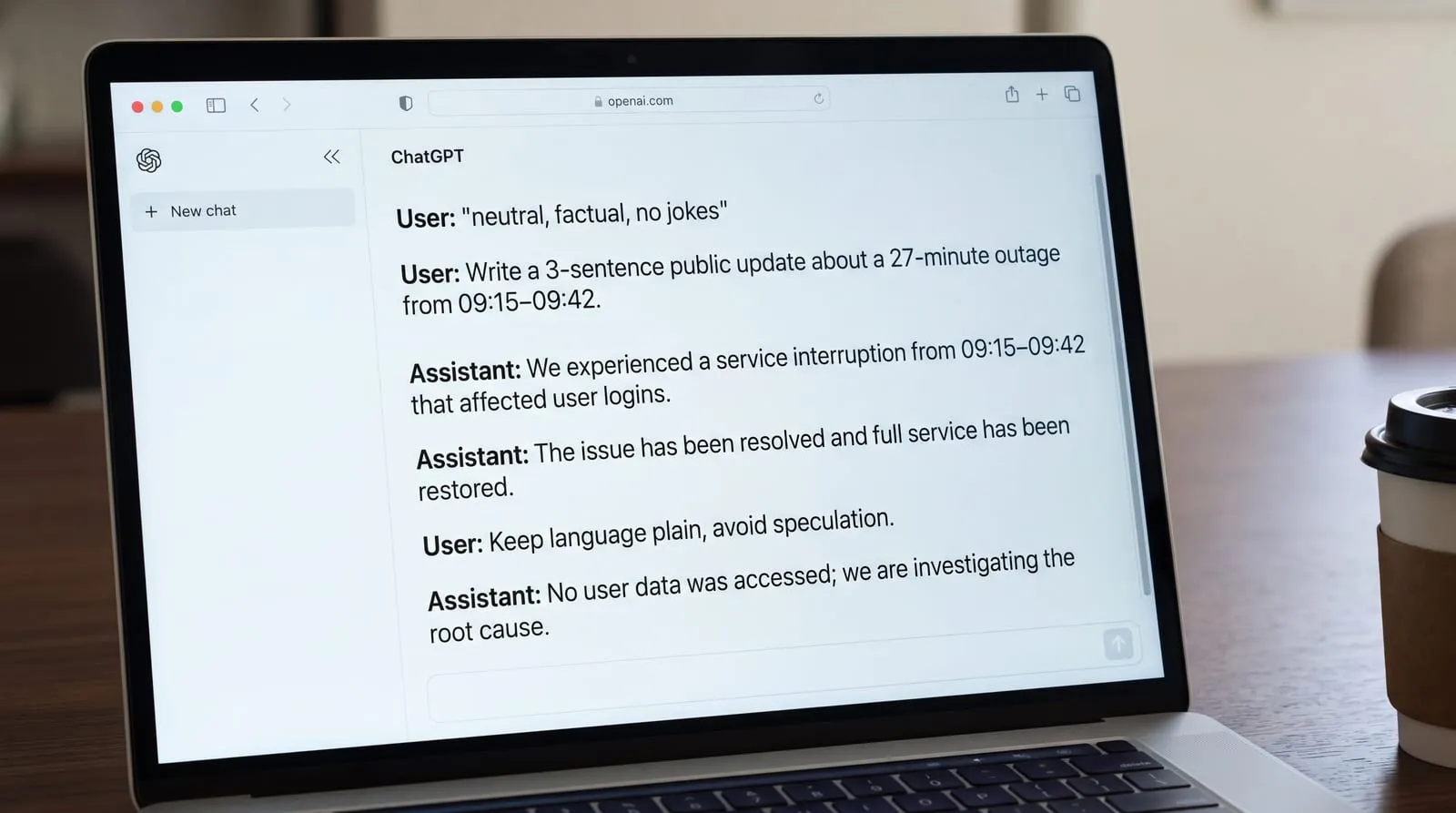
[GEroundtable](https://geroundtable.com/grok-vs-chatgpt-how-they-differ/) describes Grok as irreverent, humorous and less filtered by default, while ChatGPT tends to be more measured with stronger refusals or softer answers on sensitive topics. In practice, Grok is more willing to keep the witty, poster-like voice unless you rein it in; ChatGPT is more likely to nudge toward safer phrasing or decline borderline requests. Neither style is automatically better. If you are drafting public updates or reacting to a live thread, the lighter touch can read more human; if you are writing for clients, education or regulated subjects, the stricter guardrails can help you avoid accidental overreach.
Make the tone explicit before the task: put one line at the top that sets the register, then keep examples short. For instance: "neutral, factual, no jokes"; or "polite, first person, 2 short paragraphs; avoid hyperbole". A single tone line at the top turns Grok's default edge up or down. The same line works in ChatGPT: it honors clear, concise constraints, and you can reinforce them with a tiny example of the style you want. If the model drifts, restate the line and continue. Treat word count as another control, for example "answer in 4 sentences" or "bulleted, maximum 6 items" to keep outputs tight.
## What do images, video, voice and plans add?
[NOXI](https://noxi.ai/blog/grok-vs-chatgpt)’s 30 October 2026 read of the official plan pages shows both assistants start at 8 dollars a month, with Grok Premium at 30 dollars and ChatGPT Plus at 20; the top tiers sit higher. If you expect to move beyond the entry plan, budget for that 10-dollar difference every month. On billing, Grok offers yearly prices (Plus 80 dollars, Premium 300), while ChatGPT’s Go and Plus are monthly only. Grok’s page notes prices exclude taxes and fees. At the top end, Grok lists Super at 100 dollars and Ultra at 200, while ChatGPT Pro ranges from 100 to 500 dollars.
For video inside the chat, Grok Premium is the documented route: it generates clips up to 15 seconds, images up to 2K resolution, and text to video at 720p, and Grok marks generated media with a watermark. In practice, that makes Premium useful for quick motion beats you can review in the same thread before handing off to design tools. ChatGPT’s plan page lists image creation but no stated video spec. Neither vendor publishes a quality measure, so this compares what each plan gives you access to, not the results. Grok also lets you restyle, edit and iterate without leaving the conversation.
Beyond price, the middle tiers diverge in scope. ChatGPT Plus publishes a 256K reasoning context window. Grok does not publish a consumer figure. Grok lists custom connectors for all users, while custom MCP servers on ChatGPT are documented for Pro and a developer mode on Plus. On surfaces, ChatGPT ships a browser extension and Office add-ins, while xAI documents Office add-ins but no browser extension.
Both generate images and support voice, and only Grok documents video from Premium. [G2](https://learn.g2.com/grok-vs-chatgpt)’s reviewer reports that ChatGPT was the all‑purpose powerhouse for polished, structured output, while Grok stood out for speed, real‑time takes and video generation. Choose by asset type: Grok’s Premium video suits quick clips, while ChatGPT’s polish and structure favor longer drafting.
## Memory, personalisation and portable context
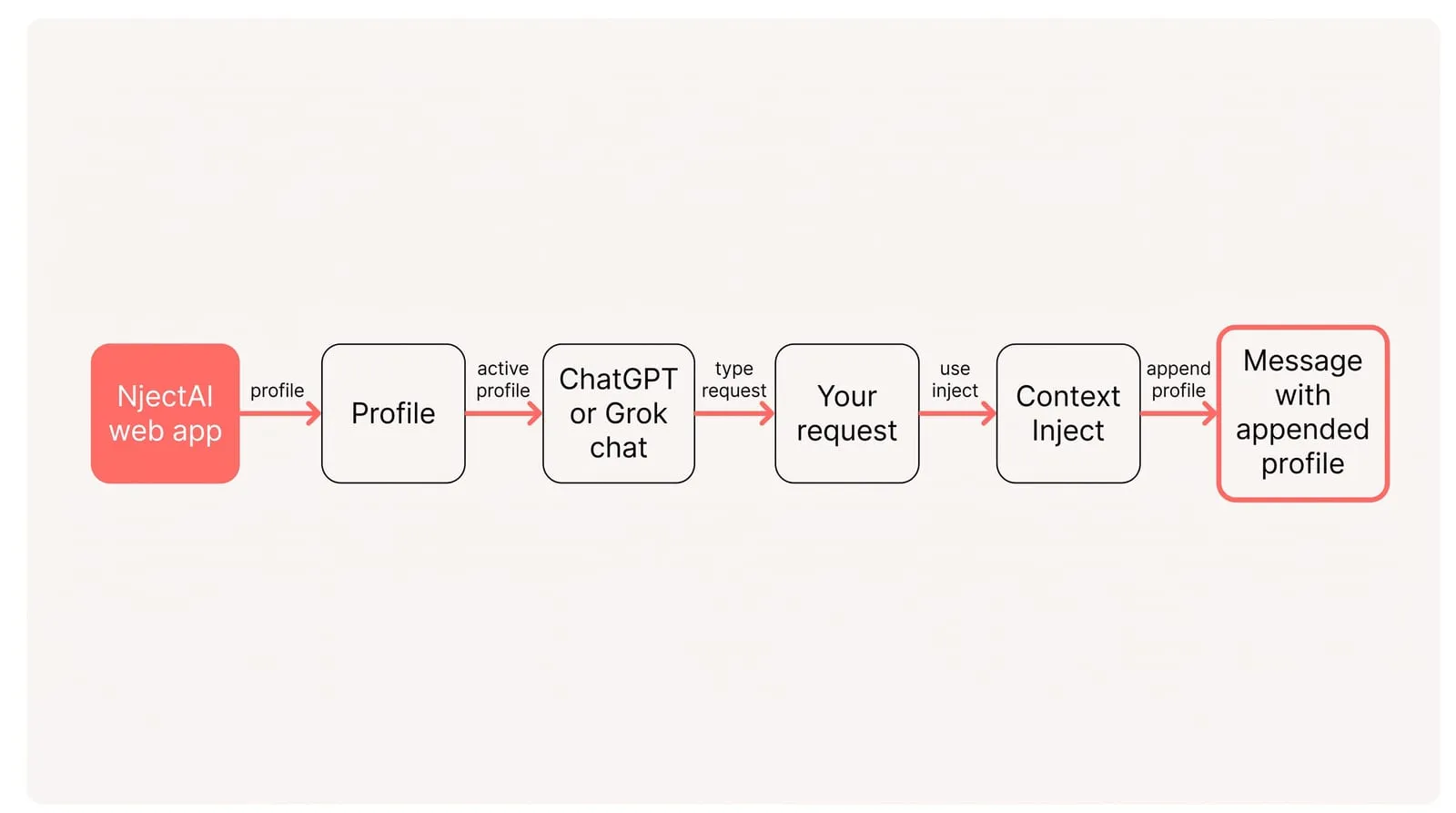
[AI Memory Blog](https://aimemory.pro/blog/grok-vs-chatgpt) says ChatGPT's Memory automatically saves personal details, preferences and explicit instructions across conversations. Use it for the facts that should travel with you (bio, recurring preferences, house style, must‑avoid topics), keep it concise so the saved context stays accurate, and review what it keeps when your role or projects change. [Pair Memory with your instruction settings](https://nject.ai/blog/all-about-ai-memory) so each new chat starts from the same baseline, then add task‑specific details in the message itself.
DigitalOcean describes Personas and Projects in Grok that change how it responds and let you work with a shared set of instructions and files for a session. For day‑to‑day work, start each Grok chat with a short preamble and your chosen mode or persona. Reuse a lightweight preamble you can paste or store: bio and role; goals and constraints; sources you trust; output format; tone; one short example; and explicit exclusions. For live queries, repeat job‑specific defaults such as the time window or source handles in the task itself. Prompts tuned for Grok work best when they fix the role, context, task and format, and set the tone explicitly.
To carry the same profile into both tools with NjectAI in Chrome:
1. Install the Chrome extension and sign in to the NjectAI web app.
2. [Create one profile](https://nject.ai/docs/context-profiles) with your bio, role, goals, constraints and trusted sources; add a short style example and any links or files you want on hand.
3. In a new ChatGPT or Grok chat in the browser, confirm your active profile so both tools see the same background.
4. Write your request, then click Context Inject so your profile is appended after your message when you press send.
5. Keep using the same profile in both tools; when something about you changes, update it once and reuse it everywhere.
[My AI Guide](https://myaiguide.co/blog/grok-vs-chatgpt) shows a two-step flow: use Grok first to pull live signal from X and the web, then move to ChatGPT to draft, restructure and polish with your saved context. That split keeps freshness and consistency without re‑explaining yourself in every chat.
## Choose by freshness, keep context portable
Choose Grok when current X activity is the source that matters, and use ChatGPT when the job benefits more from broader research, structured output or sustained long-form drafting. Let the asset and access you need determine whether a paid plan is worthwhile, rather than assuming a higher tier is automatically better.
Keep the working context independent of that choice. Maintain one concise profile for your role, goals, constraints, trusted sources and style. Use it with ChatGPT Memory and a Grok preamble, or choose the NjectAI workflow described above. Centralized memory across AI tools beats [tool-specific custom instructions](https://nject.ai/blog/all-about-chatgpt-custom-instructions) because one source of truth prevents drift and cuts setup effort when you switch models or start a new chat.
---
# Perplexity vs ChatGPT: when is each more reliable?
URL: https://nject.ai/blog/all-about-perplexity-vs-chatgpt
Last updated: November 18, 2026
Perplexity vs ChatGPT has no single winner. Perplexity is the more reliable choice for facts you need to check, because its answers come with sources you can open. ChatGPT is the more reliable choice for drafting, analysis and revision, which benefit from sustained conversation and consistent instructions. That makes reliability a workflow choice rather than a single product verdict. You can compare the tools by how they handle those jobs, verify important claims with a short routine, judge whether a paid tier removes a real constraint, and carry one context block between them.
## What are the core differences, and how should you prompt each?
Perplexity vs ChatGPT comes down to how they look for and show sources. [God of Prompt](https://godofprompt.ai/best-ai-tools/perplexity) says Perplexity returns a synthesized answer with numbered inline citations you can click to verify, and that every answer includes inline citations to sources. [Shila](https://shila.so/blog/perplexity-vs-chatgpt) reports that ChatGPT searches automatically when a question seems to need current information and only shows inline citations when it searched. Expect Perplexity to read the web; expect ChatGPT to converse and sometimes browse.
[God of Prompt](https://godofprompt.ai/guides/perplexity-mastery-guide)’s guide teaches a six-line, scope-first prompt for Perplexity. [Zapier](https://zapier.com/blog/perplexity-vs-chatgpt/) notes you can limit Perplexity’s search to certain sources and see transparent citations. Together, that means a scoped, source-first prompt exploits Perplexity’s filters and citations so you spend less time verifying. Use this six-line, scope-first prompt:
- Question: one clear question scoped to the task.
- Time window: set recency, for example “sources from the last 6 months.”
- Source rules: state what counts, such as “prefer official docs; skip aggregator blogs.”
- Comparison axes: name the variables you want compared.
- Output shape: specify the format, for example “table with a source in every cell.”
- Disagreement handling: say what to do when sources conflict, and ask to show both.
Plan longer back‑and‑forth in ChatGPT. [G2](https://learn.g2.com/perplexity-vs-chatgpt) says ChatGPT supports memory across sessions, while Perplexity doesn’t have long‑term memory, based on the reviewer’s observation. [XDA](https://www.xda-developers.com/chatgpt-perplexity-cut-cut-research-friction/) reports Perplexity remembers what you discussed in a session and can also use its own Memory feature across conversations. Treat memory availability and scope as settings that can change by account and date.
Adopt the simple split: research and collect links in Perplexity; paste the findings into ChatGPT to outline and draft; then verify figures against the sources.
## Reliability, failure modes and a short verification routine
On important facts, treat Perplexity as only as good as the pages it finds. ChatGPT can produce a confident answer without a source when it answers from training. For numbers and dates, rely on an answer with a citation you can open before you use it.
Run this short verification routine before you rely on a sourced answer:
1. Open the source behind any claim you plan to repeat.
2. Check the publication or last-updated date for recency.
3. Confirm the page supports the wording, not just the topic.
4. Watch for circular sourcing; trace back to the primary document.
5. If the first pass leans on secondary pages, rerun with stricter source rules.
6. Keep a dated prompt-and-links log so you can answer where a number came from.
[Perplexity AI Magazine](https://perplexityaimagazine.com/perplexity-hub/how-to-combine-perplexity-and-chatgpt-for-research/) recommends simple triage rules: prefer primary over secondary, current over old, and use official docs for product limits. [Sagnik Bhattacharya](https://sagnikbhattacharya.com/blog/perplexity-vs-chatgpt-business-research) adds that you should label each statement as an observation, an inference or a recommendation so judgement does not become fact. State preferred sources and depth explicitly when you research with AI, because naming where to look and how deep to go reduces hallucination and mismatched formats.
Hasmord Research’s 2026 study found that Perplexity cited sources in all 180 answers, with a median of nine sites per answer, and repeated 96 percent of its cited sites across three runs, while ChatGPT’s answers were about three times longer and repeated only 15 percent of sources. Shila’s comparison characterizes ChatGPT’s browsing as selective, with citations shown only on searched answers. Taken together, always-on search likely drives Perplexity’s steady citations, while ChatGPT’s selective browsing yields more variable source lists.
Run the routine in Perplexity, before anything reaches ChatGPT. Move only checked facts into ChatGPT so later steps cannot introduce new, unchecked sources.
## What do the paid plans add at common tiers?
Perplexity Pro is a $20 plan that leans into real-time, cited research and model choice; ChatGPT is an all-purpose AI assistant. Both offer a $20 plan and a $200 plan with higher limits and extra features:
| Plan | Emphasis | Research options | Model options |
| --- | --- | --- | --- |
| Perplexity Pro | Real-time search with transparent citations | Limit search to certain sources; Deep Research mode | Choose between leading models |
| ChatGPT Plus | Broader creation, analysis and conversational toolkit | Click Search to ensure real-time results | Auto-selects a model by default; can be set manually |
Two Perplexity features matter most for research. Premium Sources pull paywalled data, and Pro subscribers can access them by running searches through Perplexity Computer. Zapier names Statista, PitchBook and CB Insights among those sources. Model Council is Max-only. It runs one question across several models at once and shows where they agree and where they diverge, which suits a high-stakes question you would not trust to a single model. Choose the upgrade for sustained research depth or for broader team creation needs, whichever removes your bottleneck.
Decide upgrades by bottleneck: pick Perplexity tiers when research throughput, sourcing and multi-model synthesis are the constraint; pick ChatGPT tiers when collaboration, creation features or memory matter more.
Quotas, included models and prices change. Confirm limits and monthly versus annual rates on official pricing pages before you rely on a number.
## Carry the same personal context into both
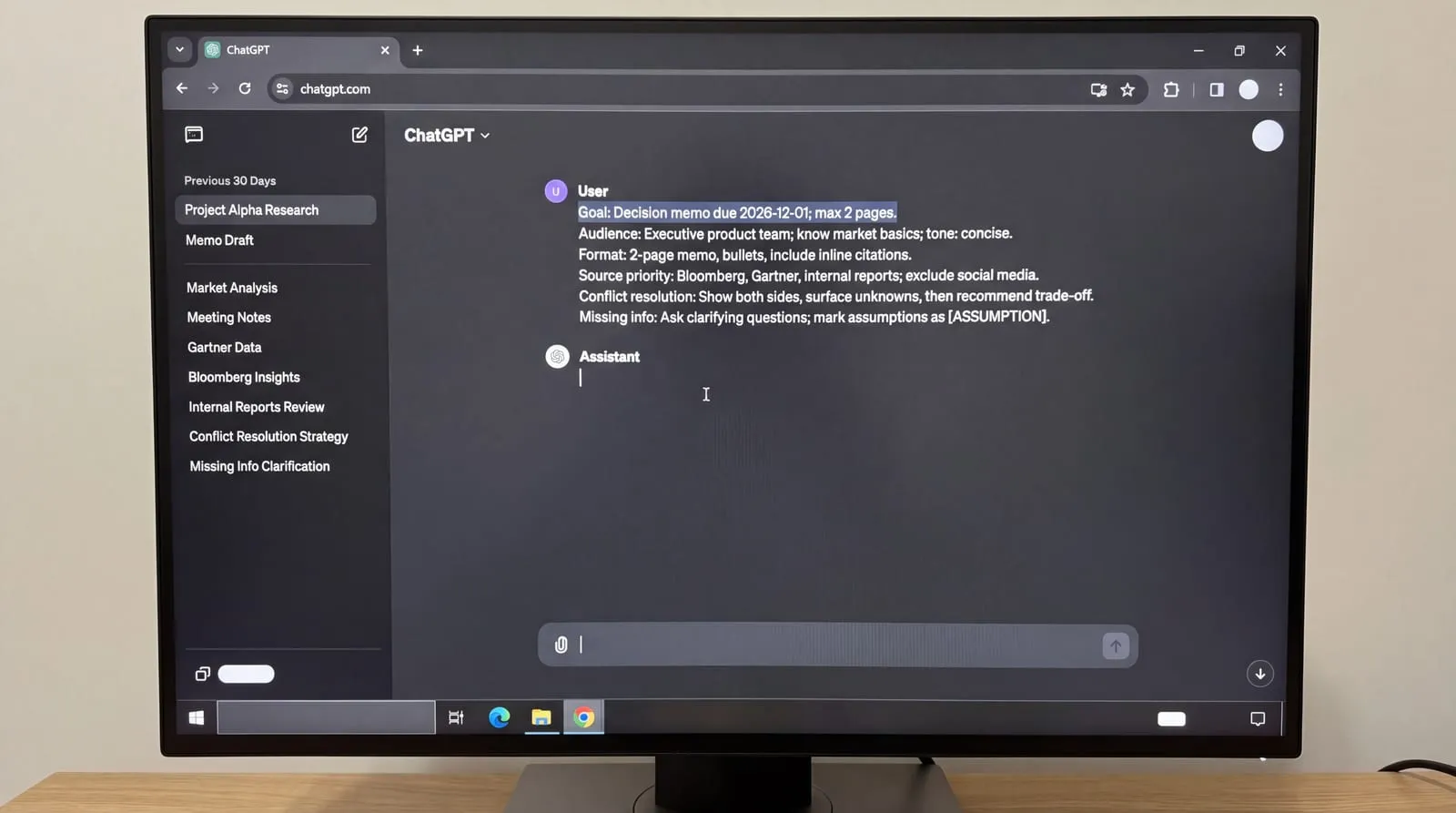
Use the six-part instruction template to build a portable context block you can paste into Perplexity or ChatGPT. Its six parts tell either assistant what you want, for whom and from which sources:
1. Goal. State the decision or outcome, the deadline and any hard constraints.
2. Audience. Say who will read the result, what they already know and the tone to use.
3. Format rules. Specify structure, length, tables or bullets, and where citations must appear. Include file types only when the tool can produce them.
4. Source priority. Name approved sources and exclusions, set a recency window and say when to rerun the search with stricter rules.
5. Conflict resolution. Tell the assistant how to handle disagreements and show unknowns. Require it to surface both sides before proposing a trade-off.
6. Missing information handling. Say what to assume, what to ask back and how to mark unknowns. Ban silent guesses on requirements that drive the decision.
NjectAI lets you save that block as a [context profile](https://nject.ai/docs/context-profiles) and add it to prompts in Perplexity and ChatGPT so each answer follows the same rules. Pick a profile in a supported chat and send your request; NjectAI appends the profile after your message. Avoid uploading customer lists, payment details or other sensitive data when it is not needed for the task. Keep one set of context per job or audience; one pile for everything serves none of them, because focused context keeps irrelevant background out of the answer.
## Use citations for facts, conversation for creation
Use citations as the boundary between research and creation. For anything you plan to publish or act on, begin with an answer whose sources you can open, and run the verification routine on it. Transfer only those checked facts into the drafting conversation. From there, use ChatGPT or Perplexity according to the work at hand: sustained iteration favors ChatGPT, while fresh factual research favors Perplexity's visible sourcing. A portable instructions block keeps the goal, audience, format, source priorities and handling rules consistent when you switch. The practical choice is therefore task by task, rather than permanent. Reliability comes from preserving the chain between claim and evidence while keeping your working context stable.
---
# Few shot prompting: how many examples do you need?
URL: https://nject.ai/blog/all-about-few-shot-prompting
Last updated: November 16, 2026
Few shot prompting is most useful when a clear request still leaves too much room for variation in structure, labels or tone. The challenge is choosing examples that demonstrate the desired pattern without adding noise or consuming unnecessary context. For many routine classification, extraction and rewriting tasks, start with three to five concise, realistic examples in a consistent scaffold. Then test the same cases, adjust the set when outputs drift, and keep the prompt portable across ChatGPT, Claude and Gemini.
## Few-shot vs zero-shot vs one-shot: when to use each?
[God of Prompt](https://godofprompt.ai/blog/few-shot-prompting/) explains that few-shot prompting means placing a few input→output examples inside your prompt so the model follows the pattern, and you are not training the model. The examples show what “good” looks like: by seeing a handful of pairs, the model infers the labels to use, the structure to return, what to ignore and how to phrase the answer. That is why examples are the most direct way to steer format and tone without code or fine-tuning. Zero-shot prompting is asking with no examples; one-shot prompting gives a single seed example. You will choose among the three based on how much structure and consistency the task needs.
When to use each approach, plus what you give the model:
| Approach | When it fits | What you provide | Typical targets |
| --- | --- | --- | --- |
| Zero-shot | Straightforward general knowledge or definitional questions where broad world knowledge suffices. | Zero-shot means no examples. | Quick lookups, short factual summaries, basic translations. |
| One-shot | A simple task where one seed fixes layout or delimiter choices. | One-shot means one example. | Short transformations, a single structured record, a compact template. |
| Few-shot | You need tight consistency of format, tone or scope; classification/extraction/style tasks that benefit from a clear pattern. | Few-shot means a few examples; best for consistent format or tone. | Data formatting, sentiment or tone analysis, brand voice matching. |
[Anthropic](https://godofprompt.ai/blog/anthropic-prompting-guide/)’s best practices recommend separating the parts with XML-like tags, so a compact scaffold many models follow looks like this:
- \ State the goal, the few hard rules, and the exact output format to return. \
- \ Include multiple \ items that mirror real inputs and outputs. \
- \ or \ Paste the new case here, separate from examples and instructions. \
- Optionally name the answer block, for example: \ Return only this block in the final output. \
## Choose and format examples for stable prompts
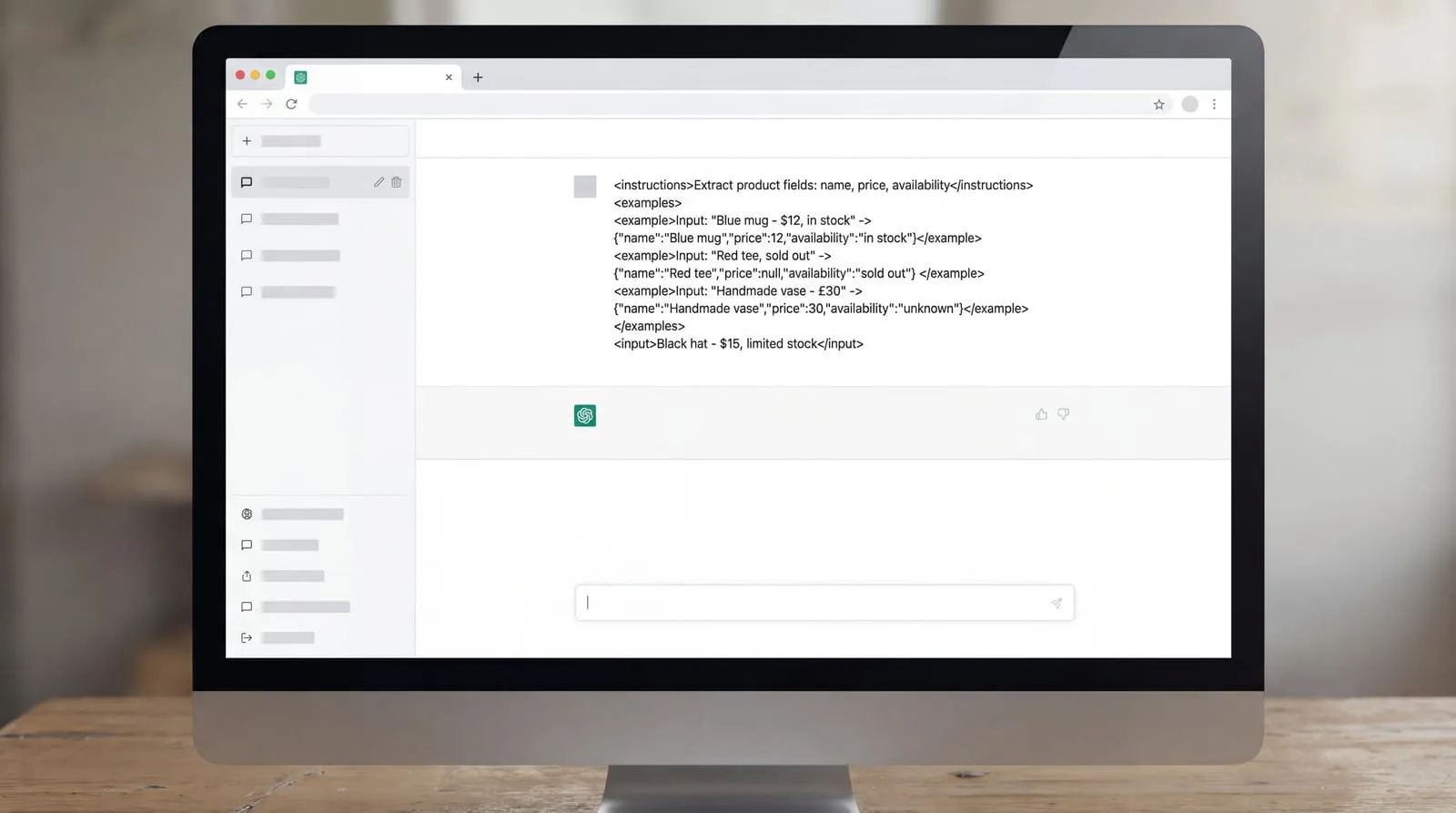
Anthropic’s best practices recommend using three to five relevant, diverse examples and wrapping them in \ with \ items so the model copies the format and tone you want. Examples that mirror real cases and cover edge conditions do the steering; the tags keep them separate from instructions and the new input.
[Google’s Gemini guide](https://ai.google.dev/gemini-api/docs/prompting-strategies?hl=en) recommends including few-shot examples, experimenting with the number, and warns that too many can cause overfitting; clear examples can even replace some instructions. It also asks you to keep formatting identical across the examples, which we apply below in the formatting checklist. That page also explains what few-shot examples actually do: they are often used to regulate the formatting, phrasing, scoping or general patterning of responses. Models like Gemini can often pick up these patterns from a few examples, so start small, then adjust the count in tests before adding more.
Two practitioner guides add concrete selection rules you can apply today:
- [LLMs Blog](https://www.llms.blog/posts/few-shot-prompting-examples-templates) suggests covering each label at least once; for extraction, include one case with a missing field and one phrased oddly so the model learns how to handle gaps and ambiguity.
- Make examples look like the real inputs you will paste later: similar length, tone and messiness, not cleaned-up textbook cases.
- [TeachYou Academy](https://teachyou.ai/blog/prompt-few-shot-selection) recommends three to six examples for style transfer or tone matching so the examples span the target style’s range.
From Google’s Gemini guide, formatting choices that keep outputs stable:
- Use stable labels in every example: the same field names, headings and answer labels, spelled the same way.
- Keep exact tag names identical across all examples, for instance \, \, \, \.
- Match whitespace: the same line breaks, indentation and surrounding spaces where the answer begins and ends.
- Use one consistent example splitter between examples, and do not mix styles within the same block.
Keep examples short. Show the minimum text that proves the pattern and stops: one or two sentences for a classification, a compact before/after for rewriting, a tiny JSON for extraction. Short examples conserve tokens and keep attention on the new input, which is where errors matter.
Apply the scaffold you set in the previous section: place your 3 to 5 chosen examples together in one \ block, keep labels and tag names identical across them, then paste the new case in \. If the prompt approaches your token budget, trim examples first, starting with the ones that repeat a pattern already shown.
## Where do examples fail, and what fixes work?
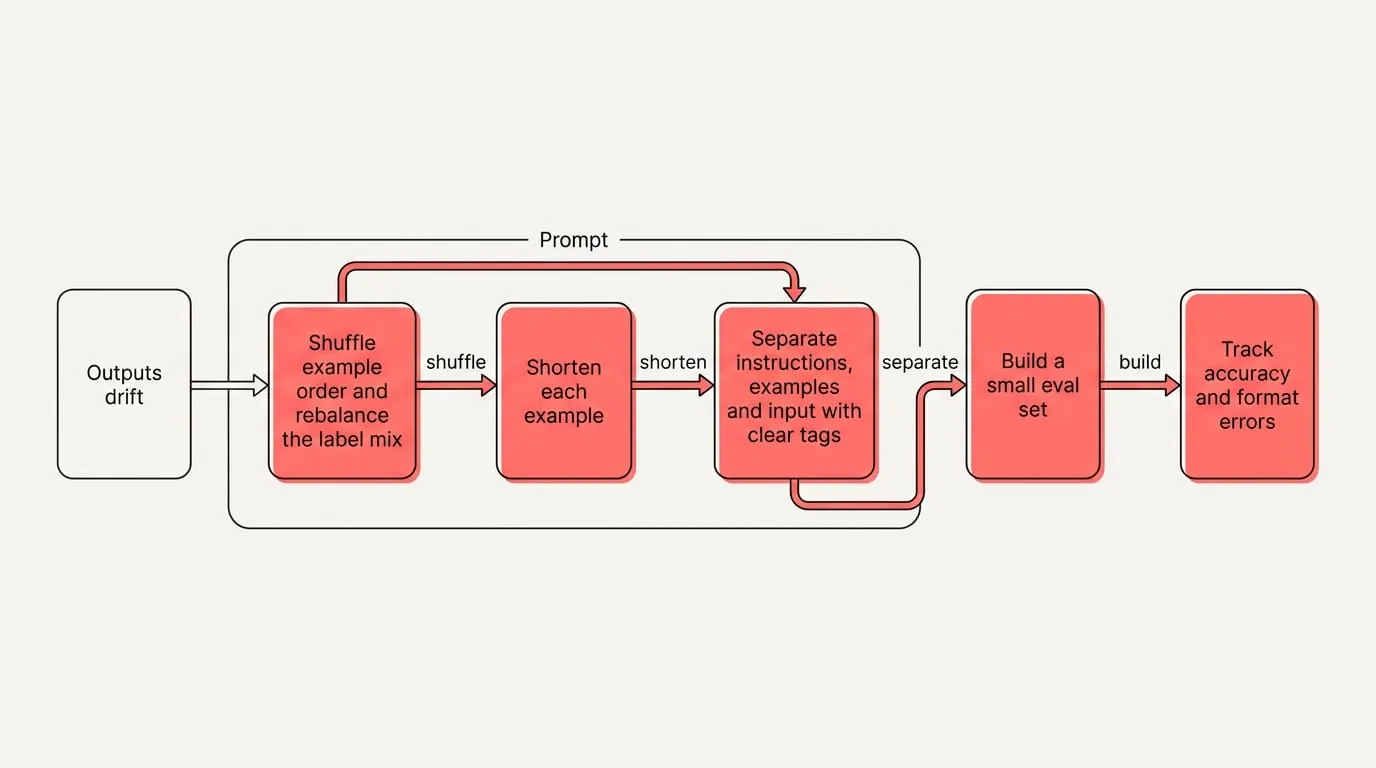
LLMs Blog reports that Min et al. (2022) found demonstrations mostly teach the label space, the kind of input to expect and the overall output format rather than facts. Zhao et al. (2021) showed that few-shot accuracy can swing with format and even the order of examples, with a bias toward answers near the end of the prompt or common in pretraining. Those findings were on 2020 to 2022 models, so treat them as cues to test your prompt rather than fixed expectations.
When outputs drift, overuse a label, or copy stray wording, run this quick mitigation loop:
1. Shuffle example order and rebalance the label mix; compare runs on the same inputs.
2. Shorten each example to the minimum that shows the pattern; remove filler.
3. Separate instructions, examples and input with clear tags so parts cannot blur.
4. Build a small eval set and track accuracy and format errors across 3 to 5 runs.
Use chain-of-thought only when the task truly needs multi-step reasoning, and expect extra verbosity and the risk of leaking details from examples into the answer. Anthropic’s best practices say explicit chaining still earns its place when you want to inspect the steps, even as current models handle much reasoning internally. LLMs Blog also reports that DeepSeek R1 found few-shot degraded its performance and recommends zero-shot prompts instead, so try a plain prompt before you add demonstrations.
## Keep examples reusable across ChatGPT, Claude and Gemini
Standardize on one scaffold and one canonical example set you can reuse everywhere. Treat the examples as the source of truth and change only the count per run: raise it when you have room, lower it when context is tight. Keep outputs tagged, for instance wrap the required result in \, so your parser does not depend on how each UI echoes markdown. Keep the canonical set outside the chat so you can reinsert it unchanged.
To reuse the same examples across ChatGPT, Claude and Gemini with NjectAI:
1. Install the [NjectAI Chrome extension](https://nject.ai/docs/what-is-njectai) and sign in to the web app.
2. Create a [context profile](https://nject.ai/docs/create-a-profile) in the web app by answering the short interview, then add your scaffold to it as a file: \, the canonical \ block, and an empty \.
3. Draft your request. Click [Context Inject](https://nject.ai/docs/context-inject) to stage your profile so it is appended after your message when you press send; or click Improve your prompt to rewrite your draft using the profile, then review and send.
## Good examples, reused well
A compact set of concise, realistic examples can establish the labels, structure and tone you want. Consistency and coverage matter alongside count: each example should use the same tags, field names, spacing and answer shape, while the set covers cases that genuinely differ. Treat that set as a maintained prompt asset rather than rebuilding it inside each chat. Keep one canonical scaffold outside the conversation, insert the current input separately, and vary the example count when the task or context budget calls for it. Reuse the same version in ChatGPT, Claude and Gemini, then compare it on a small, stable evaluation set. Small tests reveal whether order, imbalance or stray wording is steering the output before you revise the examples.
---
# Claude vs Gemini for prose, code and Workspace
URL: https://nject.ai/blog/all-about-claude-vs-gemini
Last updated: November 11, 2026
The Claude vs Gemini decision rarely stays abstract for long. Each week, you may edit delicate copy, inspect a long report, change code, analyse media or work from files already in Google Workspace. The hidden cost appears when you repeatedly upload material, restate instructions and move results between tools. A better choice starts with workflow fit: which assistant handles a specific job with the least transfer work while preserving the context you need? One controlled run on your own material can turn a broad comparison into a defensible working default.
## Where Claude leads and where Gemini leads
Use these defaults and cautions to choose the right model for everyday tasks:
- Writing and editing: [Atlas Workspace](https://www.atlasworkspace.ai/blog/claude-vs-gemini) recommends defaulting to Claude for careful prose, tone-sensitive editing and long-form restructuring; watch-out: when your drafting depends directly on live research or Google Docs context, switch to Gemini.
- Long documents and research: default to Claude when you supply files and want project knowledge to persist across chats; watch-out: for Search-led, cited reports that pull dynamically from the open web plus Drive or Gmail where available, use Gemini Deep Research.
- Coding: default to Claude for code review, refactoring, architecture discussion and multi-file changes; watch-out: if you are exploring an entire code folder or importing a GitHub repository, Gemini is useful where supported.
- Multimodal work: default to Gemini for images, video and broad file inputs; watch-out: verify accepted file formats, size limits and quotas on your specific account tier.
- Workspace tasks: default to Gemini when day-to-day work lives in Gmail, Docs and Google Drive; watch-out: actual access and behavior depend on your subscription tier, account type and administrator toggles.
Before relying on any Workspace-linked workflow, verify your subscription tier, account eligibility, activity settings and organization-level toggles. As Atlas Workspace notes regarding Google features, plan and administrator dependencies require verification before you commit to any workflow.
On multimodal tasks, [Nesyona](https://nesyona.com/articles/gemini-vs-claude)’s May 2026 head-to-head found Gemini won all three multimodal tasks and noted that Gemini handles native audio while Claude required a transcript. [God of Prompt](https://godofprompt.ai/prompt-library/tool/gemini) describes Gemini as Google’s flagship multimodal AI built into Workspace that handles text, images, audio, video and long documents natively. Independent tests align with the pitch: Gemini’s native multimodal design tracks with its wins on image and audio tasks.
On coding benchmarks, Nesyona reported that Claude won five of six coding tasks with one tie, often adding tests unprompted and handling cross-file changes more reliably, while Gemini was competitive on isolated snippets. [God of Prompt](https://godofprompt.ai/prompt-library/tool/claude) describes Claude as built for serious reasoning, long documents and agentic coding with large context windows. Claude’s coding wins on cross-file changes echo its positioning as strong at agentic, whole-project code work.
When your team already lives in Google Workspace, working natively reduces transfer steps because files already sit in Docs, Gmail and Drive. [HinterBuild](https://hinterbuild.com/blog/chatgpt-vs-claude-vs-gemini-daily-use) notes Gemini is the path of least resistance in that setting, and side-panel drafting in Docs helps teams adopt the habit. Moving outside those tools requires uploading files and pasting copy between windows, which introduces friction to daily routines.
## Projects and Gems: how personalization differs
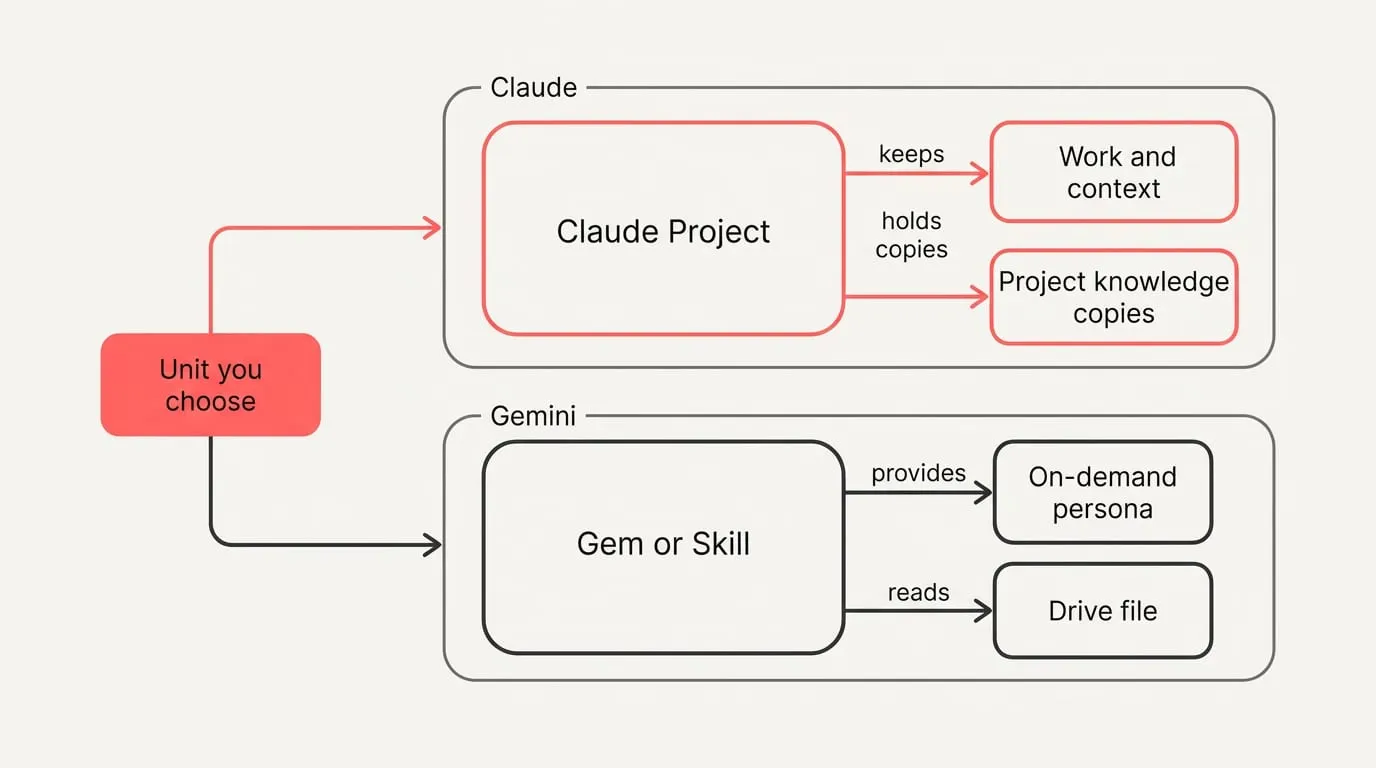
[Fenbs](https://fenbs.ai/blog/claude-projects-vs-gemini-gems) explains that a Claude Project is a workspace scoped to one body of work where chats, knowledge, instructions and memory live together, while a Gemini Gem is a reusable assistant you pick when you want the same behavior across unrelated chats. Google’s migration turns Gems into Skills on personal accounts from November 2026, on Workspace business, enterprise and nonprofit from March 2027, and on education from June 2027. The unit you choose determines what travels with you: in a project, work and context stay together, whereas a Gem or Skill provides an on-demand persona across separate conversations.
Knowledge handling reflects this architectural difference. In Gemini, a Gem that uses a Drive file reads the current version and will cite the knowledge sources unless you disable citations. In Claude, a Project holds copies you replace when originals change; on paid plans, when project knowledge nears the context window, Claude switches to searching that knowledge instead of loading it verbatim, which can expand usable capacity by up to ten times. If your files update regularly in Drive and you need inline citations, Gems or Skills align naturally, whereas Claude fits a stable packet of reference documents.
Personalization scope also diverges across both tools. Claude’s memory is kept as editable Topics you can review and correct. The Gems help pages describe no Gem-specific memory. Skills act as reusable saved instructions you can stack when you need voice or formatting behavior across chats. Claude’s memory remains linked to a single project, whereas Gemini focuses on selecting modular instruction sets and referencing live files. Recurring work needs a stable context layer more than clever wording, because reused background, rules and links raise consistency across tools, while one-off phrasing tricks fade between chats.
## How should you set them up?
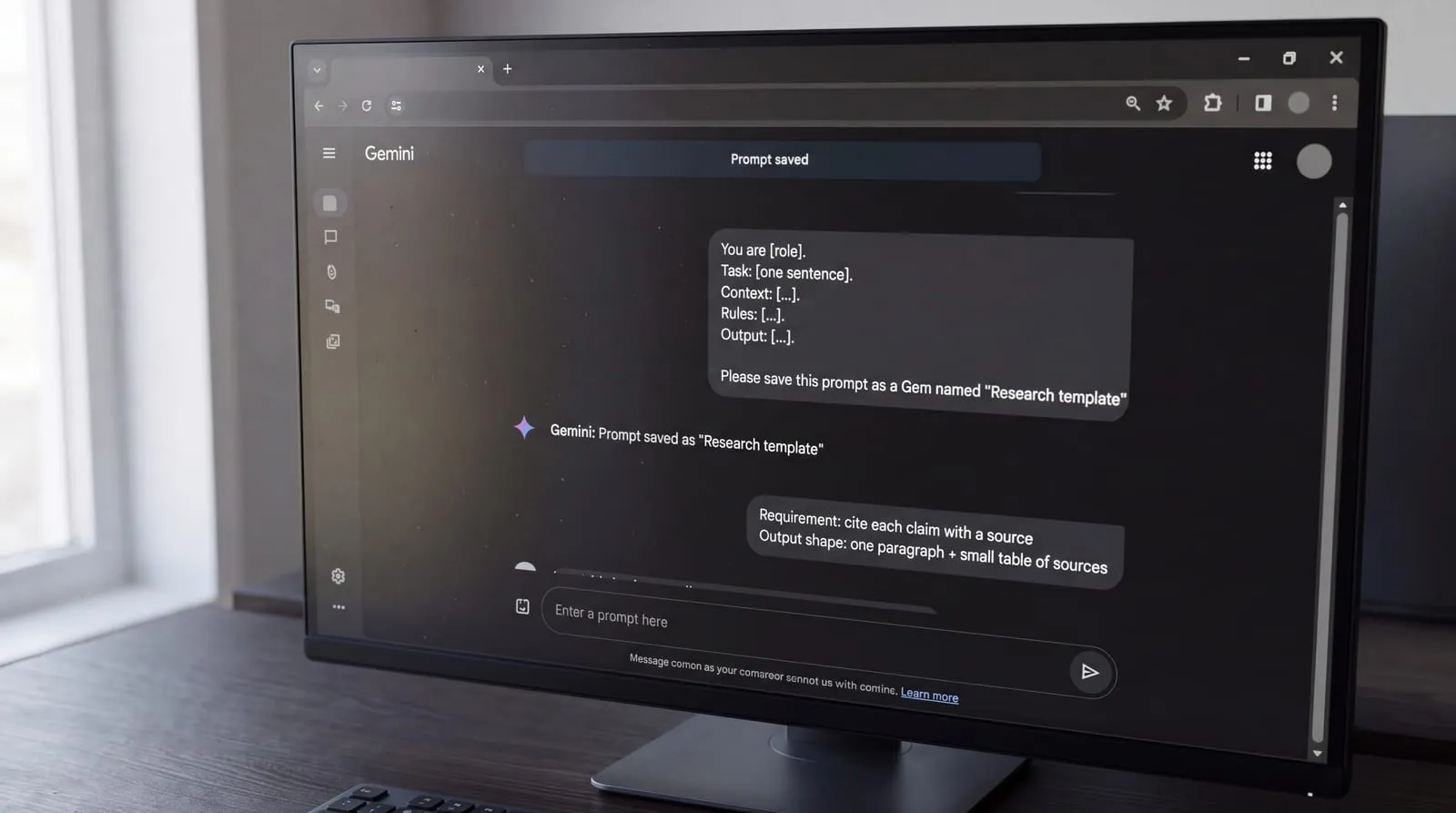
To set up Claude for multi-session work and clearer outputs:
1. [Start a Project](https://nject.ai/blog/all-about-claude-projects) for work that will last more than one session so its instructions and files travel with every chat inside it.
2. Put the real material in the conversation by pasting or attaching the docs the prompt will work on.
3. Ask for an Artifact when the output is a document or code so you can edit and version the result.
4. For analysis and multi-step problems, have Claude think before it answers; turn on extended thinking for deeper reasoning.
5. When you work on a repository, run the same prompts in Claude Code from the terminal.
6. Use a compact template Claude follows reliably: You are \[role\]. Task: \[one sentence\]. Context: \[…\]. Rules: \[…\]. Output: \[…\]. Make the format the final line.
To set up Gemini for Google-connected work and reproducible prompts:
1. Decide where the material is: in Workspace, name the file or email thread in the prompt; in the Gemini app, paste or attach it.
2. Paste your prompt and state the shape of the answer you want, such as a table, five bullets or a one-page memo.
3. For research, require that each claim shows its source.
4. For images and video, keep one subject and style, name one light source, and make one change per follow-up.
5. Save any prompt you reuse as a Gem so the instruction is ready next time.
6. Use a repeatable research pattern: start with search; give a one-paragraph answer; then add a small table of sources with what each adds and how recent it is.
## A short, verifiable choice method
Capability among leading assistants has converged, so prompt and workflow clarity now matter more than rankings. Run this one-task bake-off weekly:
1. Pick one recurring job and write a short success checklist plus one measurable outcome.
2. Freeze inputs: use the same brief, source files and constraints across both tools.
3. Require citations for any factual claim and ask for inline quotes.
4. Spot-check passages against those sources and mark unsupported lines.
5. Note current plan limits and context figures before comparing runs, and date-stamp them.
6. Log misses and needed edits, pick the default for that job, and rerun if tools update.
If you split roles, use [NjectAI context profiles](https://nject.ai/docs/what-is-njectai) to carry your audience, rules and key facts into prompts in Claude and Gemini. The Chrome extension runs on the assistants’ pages and appends your chosen profile after your message when you press send, keeping context consistent across tools. Treat outputs as drafts until you have checked citations and source passages. State preferred sources and depth explicitly when you research with AI, because naming where to look and how deep to go reduces hallucination and mismatched formats.
## Prove your choice on one real task
Choose at the level of the job, because no single headline ranking captures the value of careful editing, repository work, multimodal inputs and Workspace access in the same way. Use one recurring, verifiable task to compare the assistants with identical inputs, explicit success criteria and checked sources. The result gives you a practical default for that job rather than a permanent verdict on either product. If Claude and Gemini win different parts of your week, a split setup is reasonable. Keep live or authoritative files in the system where they are maintained, and carry reusable audience details, rules and key facts into each assistant. That reduces transfer work without forcing every task through the same tool. Recheck the choice when your work, plan access or the products change.
---
# Gemini vs ChatGPT, which is better?
URL: https://nject.ai/blog/all-about-gemini-vs-chatgpt
Last updated: November 10, 2026
The Gemini vs ChatGPT decision rarely has one answer across a working day. You may draft prose in one app, inspect a long source pack in another, switch to code, then refine an image. The practical choice is the assistant that creates the shortest path from your inputs to the finished work, including the apps and files around it. Because that choice can change by task, your background should travel with you: a portable brief can preserve your audience, tone, facts and output rules when you move between tools.
## Gemini vs ChatGPT: which fits each job?
To set practical defaults across your regular knowledge tasks, weigh each job against where your work actually finishes:
- Writing and editing: [Everyday AI Explained](https://everythingaiexplained.com/compare/chatgpt-vs-gemini/) says ChatGPT is the stronger standalone general AI workspace, while Gemini has a clear native advantage inside Google Workspace. Draft in ChatGPT when you are moving between apps; default to Gemini when you are writing directly in Gmail or Docs.
- Research and long documents: Both offer capable research modes. Gemini's paid app context can reach up to one million tokens on consumer plans, which helps when you need to keep huge source packs in one view. If your sources are modest, either assistant works, because the export and citation flow matters more than the headline number.
- Coding: [Bluehost](https://www.bluehost.com/blog/gemini-vs-chatgpt/)'s comparison says ChatGPT holds an edge in software development with dedicated coding features and reasoning modes. Use Gemini when your code work sits alongside Workspace files or Android tooling; otherwise ChatGPT is a reliable general default for individual developers.
- Images and media: Both generate and analyze images. Pick Gemini for the broader Google creative bundle across image, video and music, and pick ChatGPT when you want conversational image editing inside a single workspace.
[Taku](https://taku.ai/blog/gemini-vs-chatgpt) argues that Gemini has a structural advantage when your documents and mail live in Google Workspace, while ChatGPT leads on third-party integrations and custom assistants. [ToolRankers](https://toolrankers.com/comparisons/chatgpt-vs-gemini/) says ChatGPT is the better default general workspace for most buyers, and that Gemini is the better pick when your working life already sits in Gmail, Drive, Docs and Sheets. Because Gemini lives in Gmail/Docs while ChatGPT offers a broader standalone/plugin ecosystem, your primary app stack often decides which feels faster day to day.
[Being AI Ready](https://beingaiready.com/blog/how-to-use-chatgpt-claude-gemini-well) explains that a model only sees what fits in its context window, so in long chats the earliest messages fall out of view. [G2](https://learn.g2.com/gemini-vs-chatgpt)'s 2026 hands-on review reports that Gemini supports larger context windows and is effective for long documents, while ChatGPT also supports very large inputs. A larger context window expands what fits in view, but task quality still depends on model strengths and supplied sources, not the raw token limit.
When evaluating visual tasks, separate document analysis from creative production. Native multimodal understanding allows an assistant to inspect charts, extract data tables, and identify interface elements alongside surrounding text. Conversational image editing, by contrast, focuses on refining visual assets through successive prompts. Choosing the right tool depends on whether you require deep document-level visual reasoning or iterative image adjustments inside your primary workspace.
## Personalization: Gems, Projects, Saved Info and Memory
[God Of Prompt](https://godofprompt.ai/blog/gemini-gems-vs-chatgpt-projects/)'s guide distinguishes the two clearly: Gems are quick, reusable instruction shortcuts you launch inside Gemini, while ChatGPT Projects are heavier workspaces that combine standing instructions with uploaded files and keep a topic focused.
Use this side-by-side comparison to choose the right container for the task:
| Aspect | Gems (Gemini) | Projects (ChatGPT) |
| --- | --- | --- |
| Setup and feel | Light, fast shortcut | Deeper, structured workspace |
| Data handling | Instructions only | Instructions plus file uploads |
| Typical scope | Single-task helper | Research or document-heavy work |
| Best moment to reach for it | When you repeat the same small step often | When a topic will run for weeks and needs its own files and rules |
[Custom instructions](https://nject.ai/blog/all-about-chatgpt-custom-instructions) provide a short standing brief added to every new conversation. Write them once, and they apply consistently until you manually edit them. They establish standing preferences for your professional role, target audience, tone, and formatting constraints across daily tasks. [Memory functions differently](https://nject.ai/blog/all-about-ai-memory): it accumulates details you mention in conversation and can be viewed, edited or turned off. Use memory for recurring preference notes that are useful to recall later, while keeping sensitive details out unless you have verified your account settings and intent.
Memory is global across chats, so anything an assistant remembers can appear in later conversations. To keep scope clean, prefer a project-style workspace when a stream of work needs isolation, because its conversation history lives inside that workspace rather than your global account. When your work involves confidential client material, unmanaged global memory risks leaking details across unrelated threads. If a chat includes sensitive client details, review the saved memories and either delete specific items or switch memory off for a while.
## How do you keep the same context?
To build a portable context brief that you can reuse across tools, document these core elements:
- Role: who you are and what you do day to day.
- Audience: who you write for and what they already know.
- Tone and style: voice, reading level, spelling variant and formatting preferences.
- Hard rules: must-include phrases, must-avoid terms, approval or citation rules.
- Recurring references: style guide links, example outputs to match, canonical sources you trust.
- Edge cases: facts to treat cautiously, topics to defer, compliance or jurisdiction notes.
To map that brief across your accounts so background context travels with you, follow these steps:
1. Put the short, always-on parts into Custom instructions or Saved info so your baseline rules apply across every fresh exchange.
2. Create a Project in ChatGPT when a stream of work will run for weeks and needs its own files and focus: Projects are heavier workspaces that combine standing instructions with uploaded files to keep a topic focused.
3. Create a Gem in Gemini for the single-task shortcuts you repeat: Gems are light reusable instruction shortcuts you set once in Gemini.
4. Attach essentials once: your style guide, two or three on-brand examples, and current source files or links so you stop re-uploading.
5. Test with one real task in each container and refine the instructions or files until the output matches your standard.
If you switch tools during the week, use [NjectAI](https://nject.ai/docs/what-is-njectai) to save your brief once as a context profile and add it to prompts in supported AI tools in Chrome. Pick your active profile in the chat bar, write your request, and use [Context Inject](https://nject.ai/docs/context-inject) to stage your profile so the context appends to your message when you press send. Add a monthly tidy-up: remove stale files, update tone notes, and clear or edit any remembered details that no longer apply. Centralized memory across AI tools beats tool-specific custom instructions, because one source of truth prevents drift and cuts setup effort when you switch models or start a new chat.
## Decide fast with a 3‑task test
The three-case test validates a setup before everyday use: run an easy, a typical and an awkward input, score each, then rerun after fixes. [SophiAI](https://sophiai.pro/chatgpt-projects-claude-projects-gemini-gems-ai-workspace/) advises you to run three tasks you have already done by hand and compare results:
1. Run an easy real input.
2. Run a typical real input.
3. Run an awkward or edge input.
4. Score each output against your standard.
5. Tighten rules or examples: Fix the instructions rather than correcting inside the chat, so the fix sticks next time.
6. Rerun all three and compare deltas.
Time each run and count corrections. After the rerun, set the default per job and note the one or two cases where you will switch.
Apply this decision framework to lock in your defaults:
- Start where files live: Gemini reaches Google Workspace files with no extra integration step; if your work sits elsewhere, pick ChatGPT for integration breadth.
- For coding and cross-app workflows: the surrounding tooling and the editor you already use matter more than the model.
- Break ties with voice: ChatGPT's voice mode is the most natural.
- Break ties with media and long docs: Gemini handles video and audio natively; both have large context windows.
## Pick by job, keep context portable
Choose the assistant that removes the most friction between a task’s source material and its finished destination. That may produce different defaults for writing, research, coding and visual work. Keep those choices coherent by carrying one brief across them, with the same audience, tone, trusted references and hard rules.
Treat each default as a tested working choice rather than a permanent verdict. A short comparison using real inputs can reveal where each setup needs tighter instructions or examples. Pick the model for capability, but rely on your context for consistency: model differences shape what each tool can do, while stable background keeps tone, facts and formats aligned across systems. The result is a predictable workspace even when the preferred assistant changes by job.
---
# Claude Skills for repeatable workflows across tools
URL: https://nject.ai/blog/all-about-claude-skills
Last updated: November 6, 2026
Repeatedly explaining the same workflow costs time and invites small differences in format, checks and handling of missing information. Claude Skills give that recurring work a stable home, while leaving project background and personal preferences in the settings designed for them. The practical challenge is choosing the right layer, writing a clear SKILL.md and testing whether its description triggers as intended. Once the procedure is sound, you can also adapt it into a compact prompt template for tools that do not support Skills.
## What is a Claude Skill, and when should you use it?
Claude Skills package one repeatable job in a folder you can reuse across chats and in Claude Code. [Anthropic](https://claude.com/docs/skills/how-to)'s documentation defines a custom Skill as a folder with a SKILL.md of instructions that Claude loads when a task matches the skill's description. You can also add optional files next to SKILL.md, such as references, templates and scripts, and point to each from the step where it is needed.
[Craig Hewitt's Claude Playbook](https://craighewitt.com/claude-playbook/foundations/projects-memory-skills) distinguishes project instructions from Skills: project context loads in every conversation inside that project, while a Skill is loaded only when relevant. [Anthropic's Agent Skills overview](https://platform.claude.com/docs/en/agents-and-tools/agent-skills/overview) describes Skills as loading on demand, with Claude matching your request to a Skill's description before reading its SKILL.md. Since Project instructions load every time but Skills load only when triggered, moving procedures into Skills cuts token overhead and keeps your background lean.
[God of Prompt](https://godofprompt.ai/claude-skills-mini-course)'s comparison sums up when to use each:
| Item | What it is | When it loads | Best for |
| --- | --- | --- | --- |
| Skill | A folder with SKILL.md and optional scripts and reference files | Only when a task matches its description | One repeatable job, done the same way |
| Project | A workspace with its own files and standing instructions | Every chat opened inside that project | Ongoing work on one client, product or topic |
| Custom instruction | Standing preferences about tone and formats | Every chat, everywhere | How you like answers written, whatever the task |
| Saved prompt | A block of text you paste in when needed | Only when you paste it | A task you run by hand now and then |
The rule of thumb: if the same job shows up in more than one project, make it a Skill; if it belongs to one body of work, a Project; if it is about you rather than the job, use custom instructions; if you will do it only a couple of times, a saved prompt is enough.
Anthropic's documentation says good candidates are tasks you repeat and keep correcting the same way, including:
- A report format your team uses
- A review checklist with must-include checks
- A multi-step procedure with ordered steps
- Work that needs a reference file or a script to come out right
## Create and validate your first Skill
Every custom skill begins with a directory containing a required SKILL.md file. Anthropic's documentation requires that the file open with YAML frontmatter containing two mandatory fields: name and description. The name field permits lowercase letters, numbers, and hyphens only, up to a maximum of 64 characters, and it must match the enclosing folder name exactly. The description field accepts up to 1,024 characters, matching the limit set by the Agent Skills specification. Claude reads this description to determine when the skill applies, so you must clearly specify both what the skill does and the exact circumstances when it should load. Keep the main SKILL.md file under 500 lines, delegating detailed reference documentation to separate supporting files.
Write the body instructions below the frontmatter the way you would brief a careful colleague. A repeated manual briefing is the primary signal that a workflow belongs in a skill: whenever you find yourself explaining the same task to Claude three times by hand, turn that guidance into a reusable specification.
Structure the SKILL.md body around four core components:
- Numbered steps that guide Claude through the procedure in chronological order.
- An explicit output format defining the required structure, such as table columns or JSON keys.
- Instructions detailing how to handle missing inputs or incomplete data without guessing.
- One short worked example pairing a sample input with the desired output to anchor quality.
Because Claude reads the complete SKILL.md file whenever a skill activates, moving detailed background, file templates, and code into dedicated subdirectories keeps the skill lightweight. Keeping each supplementary file focused on a single responsibility prevents unnecessary content from consuming conversation context.
Add resources and code using standard directory conventions:
1. Create optional folders beside SKILL.md: references/ for documentation Claude reads when called, assets/ for templates to copy or fill, and scripts/ for code.
2. Mention each supporting file by path at the specific instruction step where Claude needs it so it opens only on demand.
3. Write script invocation paths using ${CLAUDE\_SKILL\_DIR} so execution resolves reliably wherever the skill is installed.
4. Keep scripts focused on deterministic tasks, avoiding hardcoded credentials and relying on external connectors when outside services are needed.
Testing verifies that Claude recognizes trigger conditions, loads instructions dynamically, and adheres to your specified output formats.
Follow these steps to activate and validate your skill:
1. Compress the skill folder into a ZIP archive where the directory is at the top level, upload it, and turn the skill on under Customize in settings.
2. Send test prompts that should trigger the skill, then inspect Claude's thinking process to confirm that it loaded the instructions.
3. If Claude does not trigger when expected, refine the frontmatter description and adjust the procedural steps before retesting.
4. Test after every significant edit by running the skill on a realistic task rather than assessing prompts in the abstract.
A short rough draft plus one rewrite beats an over-engineered prompt, because separating intent from syntax lets you iterate fast and keeps control when the conversation shifts.
## How do Skills load and run across Claude?
Anthropic documents progressive disclosure: Skill metadata loads into system prompt context at startup at approximately 100 tokens per skill. Claude reads the SKILL.md body from the filesystem only after an incoming request matches the frontmatter description, keeping prompt overhead under 5,000 tokens during execution. Linked reference files load only when an instruction step explicitly calls them, and scripts execute via bash in Claude's code execution environment so that only terminal output enters context. Because the underlying virtual machine provides filesystem access and command execution, you can bundle extensive reference materials and automated tools without paying upfront context penalties for unread files.
Anthropic also provides pre-built document Agent Skills for PowerPoint (pptx), Excel (xlsx), Word (docx), and PDF (pdf) files, which activate automatically when you work with documents. Custom Skills operate across Claude's product lineup: you can develop them in Claude Code, upload them through the API, or add them within claude.ai settings. However, custom Skills do not sync across surfaces automatically, meaning you must upload and manage them separately for each interface where your team works.
For persistent background information, keep your reference materials in a Project. [Anthropic's guide](https://claude.com/resources/articles/skills-explained) describes Projects as self-contained workspaces featuring a 200K context window; when your uploaded documentation approaches capacity limits, Claude enables RAG mode to expand retrieval capacity by up to about 10 times. Reach for MCP connectors when you need live connections to external services, repositories, or databases, because MCP connects Claude to data while Skills teach Claude the procedures to process that data.
## Keep instructions portable across tools
[Anthropic's Claude Code docs](https://code.claude.com/docs/en/skills) say Claude Code skills follow the Agent Skills open standard, which works across multiple AI tools. [Anthropic's Complete Guide](https://resources.anthropic.com/hubfs/The-Complete-Guide-to-Building-Skill-for-Claude.pdf) says skills work identically across Claude.ai, Claude Code, and the API when the environment supports any dependencies the skill requires.
The three-step portable setup keeps your instructions and references consistent across tools with three repeatable steps:
1. Put a short standing block in each tool's settings. If a tool lacks Skills, keep this block in account or project instructions, or use [NjectAI context profiles](https://nject.ai/docs/what-is-njectai) to carry the same block across supported tools.
2. Mirror the same projects and files in both. Keep the same task folders and reference files in each tool, so any templates, checklists or scripts you rely on are available by the same names.
3. Run one labeled task prompt both can follow. Copy the SKILL.md description and steps into a compact prompt template that names the job, when to run it, the required output format and one short example; use the same label every time you run it.
## Choose the right lever, then standardize
Consistency starts with separating procedure, background and preference. Put a repeatable method in a Skill, keep client or product material in its Project, and reserve custom instructions for standing preferences about how you want responses written. That separation makes the trigger easier to judge and keeps each layer focused on the job it is meant to do.
The durable asset is the instruction set, rather than any one interface. Keep the Skill’s description, steps, output format and example in a [compact prompt template](https://nject.ai/blog/all-about-prompt-templates) as well as SKILL.md. When another host lacks Skills, use that template with the same reference files and context you maintain there. You can then compare outputs and revise one shared specification instead of rebuilding the workflow for every tool.
---
# Should you use ChatGPT or Claude for the job?
URL: https://nject.ai/blog/all-about-chatgpt-vs-claude
Last updated: November 5, 2026
Treat ChatGPT vs Claude as a routing decision for each job rather than a permanent choice. The assistants differ in how they handle long material, varied media and tool-rich workflows, but switching between them creates a second problem: your role, source files and output rules can drift. A better setup separates model capability from working context. Choose the assistant that fits the assignment, then carry one consistent context package across both. That turns memory, projects and instructions into storage layers you can standardize instead of competing reasons to stay with one tool.
## ChatGPT vs Claude: which for which jobs?
If your job runs on long drafts, source-heavy reading, or extended terminal sessions, start with Claude. In [God of Prompt](https://godofprompt.ai/guides/claude-mastery-guide)’s Claude guide, giving two samples of your own writing lets Claude hold tone across a long piece instead of drifting into generic marketing copy. For dense research or contract review, you can ask for the exact quotes that support each point so you can verify them against your source. When dealing with software development, it can operate from the command line against real files through Claude Code, avoiding the friction of copying snippets back and forth.
Reach for ChatGPT when your workflow requires broad multimodal flexibility, quick daily coordination, or cited research. ChatGPT adds native image generation and editing, quick web lookups and voice, on mobile and desktop. When your day involves switching frequently between different media, running quick administrative queries, or managing varied tasks across multiple devices, ChatGPT functions as an adaptable all-rounder. You can draft an outline, produce an accompanying diagram, and summarize live web pages within a single thread, keeping fast-moving operational tasks unified in one place.
Deciding when to use Claude vs ChatGPT is less about synthetic benchmarks and more about your workflow shape. A 2026 comparison reports that Claude leads on context window size and long-document analysis, while ChatGPT leads on ecosystem breadth and multimodal capabilities. A [HackerNoon](https://hackernoon.com/claude-vs-chatgpt-an-ai-power-users-perspective) power-user’s seven-week test found Claude better at following layered instructions and more consistent over long sessions, while ChatGPT was faster for quick queries and had tighter web search integration. Claude’s depth and large context suit long, source-heavy work; ChatGPT’s multimodal breadth fits convenience-led, cross-app tasks.
Choosing between the two assistants comes down to matching your immediate assignment to the operational pattern that supports it best. Forcing a complex, multi-page analysis into a tool built for rapid conversational turns often leads to dropped constraints and lost nuance. Conversely, initiating an extended analytical session just to reformat a short note or check a current fact adds unnecessary latency. Routing work intentionally lets each engine handle the cognitive load it handles best.
Match your immediate assignment to the tool designed for that operational pattern:
| Workstream demand | Starting assistant | Key operational advantage |
| --- | --- | --- |
| Long-form drafts in a preserved tone | Claude | Maintains consistent stylistic voice when provided reference samples |
| Analyzing lengthy reports or contracts | Claude | Extracts verbatim quotes for rapid source verification |
| Direct terminal and repository engineering | Claude | Executes file modifications directly through Claude Code |
| Image creation, voice prompts, and varied media | ChatGPT | Native multimodal generation and editing tools |
| Rapid web lookups and day-to-day coordination | ChatGPT | Fast response latency and integrated web search |
## Memory, projects and context windows
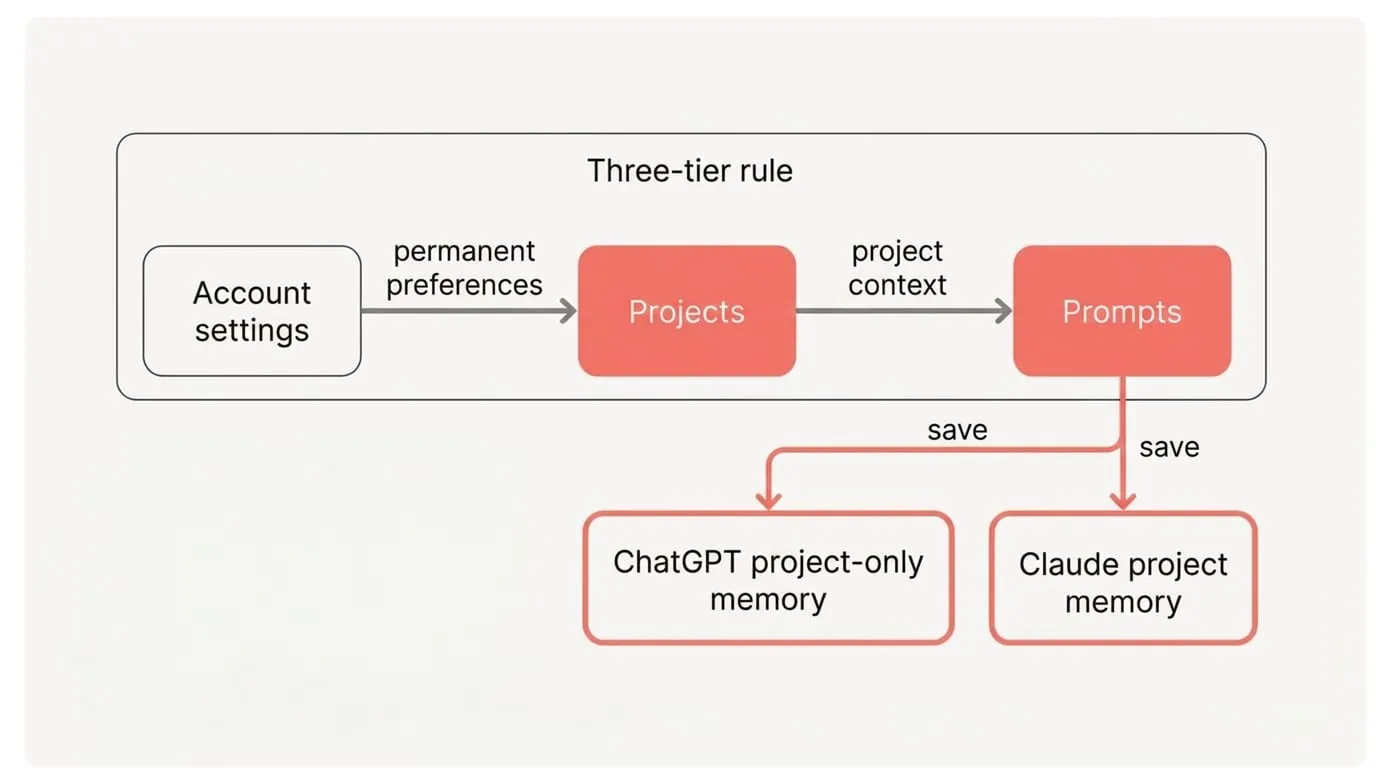
Managing context effectively across ChatGPT and Claude requires establishing clear boundaries before you enter a prompt. When permanent professional preferences, evolving client facts, and one-off execution details share the same unstructured space, assistants become unpredictable and instructions begin to clash.
[Future Factors](https://futurefactors.ai/effective-ai-prompts-chatgpt-and-claude/) recommends organizing assistant context according to a three-tier rule:
- Account settings: store permanent habits such as your professional role, default audience, tone preferences, and non-negotiable constraints so all fresh conversations inherit them.
- Projects: store reference files, data tables, and ongoing operational guidelines for a single client or engagement, keeping that context isolated from unrelated work.
- Prompts: supply today’s immediate objective, fresh inputs, and temporary constraints, using explicit labels to separate directives from raw material.
Projects define the operational boundary of what each assistant accesses. In ChatGPT, project instructions apply only inside that project and override your global custom instructions, and in Claude the project’s knowledge is used across its chats and the project has its own memory. This workspace isolation ensures that custom instructions, tone settings, and uploaded reference files remain scoped to a single engagement. In ChatGPT, you can select project-only memory so conversations inside the project stay sealed from your broader conversational history, while Claude isolates memory between projects automatically. Structuring work into projects prevents client confidentiality guidelines and conflicting style instructions from spilling across different clients or engagements.
Context windows govern how much information the model can evaluate simultaneously. Extended sessions and large file uploads eventually approach this ceiling, causing models to drop earlier instructions or drift away from established formatting rules. In [Claude projects](https://nject.ai/blog/all-about-claude-projects), when project knowledge nears the context window it switches to retrieval, and exact limits vary by model and plan. When retrieval activates, the system searches and retrieves relevant document sections instead of reading the entire collection at once. When working on extensive compilations or multi-turn research, verify your tier’s parameters and ask for exact source citations rather than assuming unlimited full-text attention.
[The AI Agent Factory](https://agentfactory.panaversity.org/docs/claude-chatgpt-101-crash-course) reference notes that incognito chats in Claude and temporary chats in ChatGPT omit conversations from history and memory, but vendors retain an internal copy for around thirty days for safety review. Treat these ephemeral modes as memory-free, not trace-free. Because temporary sessions do not bypass retention entirely, they are intended for avoiding conversational clutter rather than bypassing organizational data governance. Separate work and personal profiles and keep their memories apart, because boundaries stop tone and fact bleed-through and make privacy reviews simpler.
## How do you keep context aligned in both?
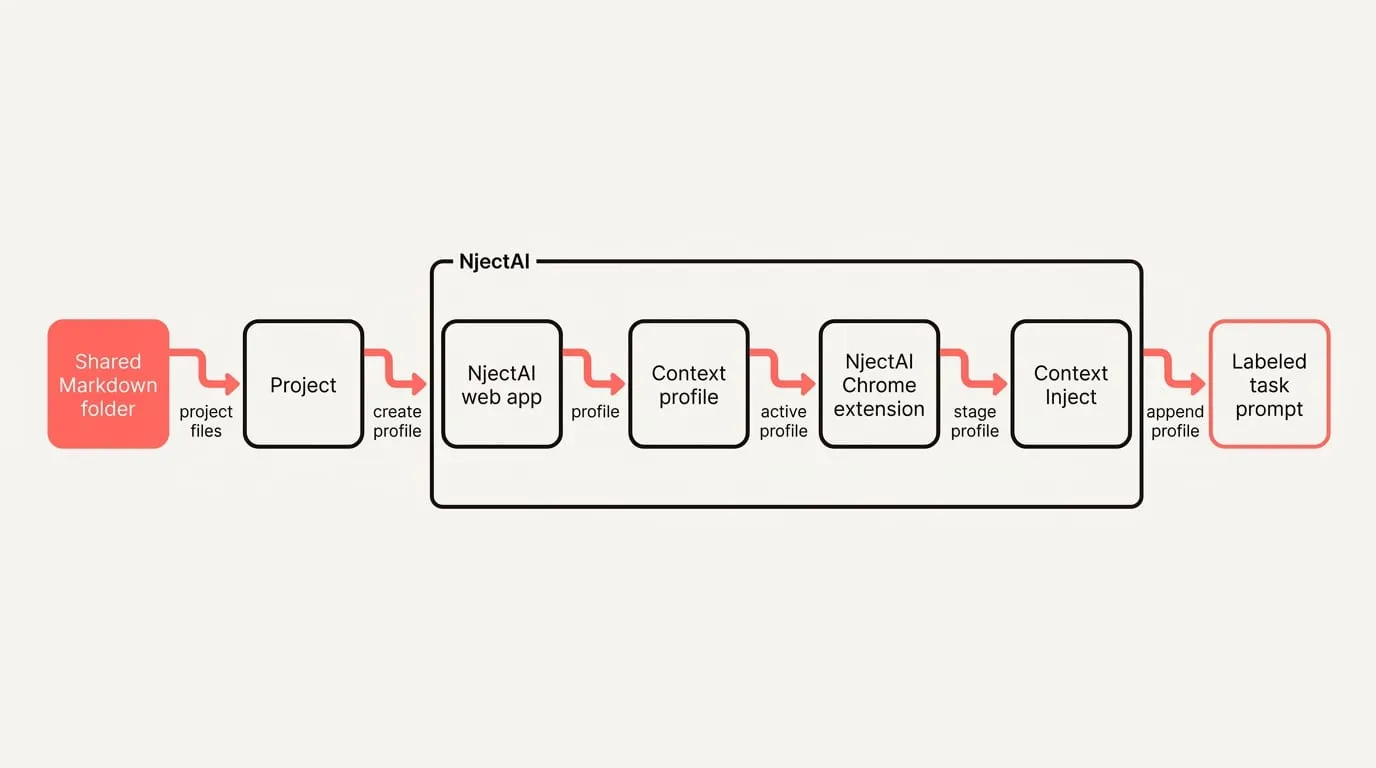
Keep instructions and references consistent across ChatGPT and Claude with three repeatable steps, using the three-step portable setup:
1. Put a short standing block in each tool’s settings. Place your role, audience description, and house formatting guidelines in [ChatGPT Custom Instructions](https://nject.ai/blog/all-about-chatgpt-custom-instructions) and Claude Instructions. Keeping your persistent habits in settings leaves the prompt focused on the task.
2. Mirror the same projects and files in both. Build the project first, because it holds your brand voice, product facts, and formatting rules, ensuring every conversation opened inside it begins fully briefed.
3. Run one labeled task prompt both can follow. Use uppercase delimiters like TASK, RULES, and MATERIAL to cleanly isolate procedural directives from reference data.
[Tatara](https://www.tatara.app/blog/share-context-across-claude-chatgpt-and-gemini) points out that Claude, ChatGPT, and Gemini maintain memory strictly inside isolated vendor accounts with no shared interchange format, meaning common facts must reside in a repository every assistant can access. [BlitzMetrics](https://blitzmetrics.com/move-chatgpt-to-claude-with-context/) emphasizes that chat histories do not transfer cleanly between assistants, but practical context can move as a structured Markdown package whose canonical version remains in local files you control. Because tools don’t share memory, a shared Markdown folder is the durable way to keep context portable across ChatGPT and Claude.
Evaluate both platforms identically to determine each tool's fit:
1. Select one recurring deliverable, such as a client summary or release brief, and prepare identical prompt wording alongside identical source attachments.
2. Execute the prompt in both platforms within mirrored project containers, avoiding phrasing changes so differences reflect model handling rather than prompt variation.
3. Compare the resulting outputs directly against your primary reference documents rather than comparing the assistants to each other, marking every answer against the source, whichever tool wrote it, before assigning each workstream to its stronger fit.
For automated context delivery, [NjectAI](https://nject.ai/docs/what-is-njectai) provides context profiles through a Chrome extension and web app that attach your background rules and project facts directly to prompts in supported AI tools. In chatgpt.com or claude.ai, the extension lets you choose an active profile. Clicking [Context Inject](https://nject.ai/docs/context-inject) stages your profile so NjectAI appends that context after your message when you press send, while Improve your prompt sends your draft to NjectAI servers to rewrite and replace the text in your input box for your manual review. You always review and send the message yourself, keeping your context consistent without re-entering instructions manually.
## Run both without drift
Apply these core disciplines to prevent drift and reduce repetitive rework across assistants:
- Maintain one project per client or initiative. [Equerry](https://getequerry.app/guides/how-to-use-chatgpt-and-claude-together)'s guide recommends never splitting one engagement across both assistants, ensuring context remains consolidated in a single workspace.
- Mirror reference assets systematically so both environments retain identical source documentation, format constraints, and reference guidelines.
- Avoid drip-feeding context into chats; paste the entire brief or document upfront so the assistant reasons across complete source material.
- When extracting facts from dense materials, ask for the exact sentence that supports each claim to allow direct verification.
- Treat the first answer as a proposal; if output tone drifts, verify your style setting, personality dial, or project instructions before rewriting prompts, then specify corrections in a concise second-turn instruction.
## Choose by job, keep context portable
Choose the assistant according to the work in front of you. Claude is the stronger starting point for long drafts, source-heavy analysis and repository work; ChatGPT for multimodal tasks, quick web-supported queries and workflows that span several media. Treat these as routing rules that can change with the assignment. Running the same recurring task against the same references gives you a clearer basis for deciding where it belongs.
Model capability determines where you begin, but your context determines whether the work stays consistent. Keep one canonical set of role, audience, style, facts and source files, then mirror it across each tool’s settings and projects. Use the same labeled task prompt in both. This portable layer gives each assistant the same basis for tone, factual grounding and output formats, even when you switch between them.
---
# What are Gemini Gems, and when should you build one?
URL: https://nject.ai/blog/all-about-gemini-gems
Last updated: November 5, 2026
Gemini Gems can remove repeated prompt setup from recurring work, but only when the job has a stable purpose and standard. The harder decision is whether your task needs reusable instructions, traceable answers from supplied sources, or a workspace built around multiple files. That distinction separates a focused Gem from NotebookLM or a Project. Once the fit is clear, a compact instruction model and a three-case test give you a practical way to build, evaluate and refine the helper before relying on it for routine work.
## Gemini Gems, Projects, or NotebookLM?
A Gemini Gem is a saved helper configured for one specific job, reopened whenever that task comes round. [Google](https://blog.google/products-and-platforms/products/gemini/google-gems-tips/)’s 2024 overview describes Gems as custom experts you can create inside Gemini with your own context that you can revisit when needed, highlighting them for repetitive work so you do not have to retype the same prompt each time.
Deciding which workflows warrant a dedicated Gem requires clear evaluation rules. Choose a task you repeat weekly with the same rules, scoring candidates 0 to 2 across five operational questions, where any task scoring 7 or more is worth building as a Gem and 4 or less is better handled outside a Gem. [Mejba Ahmed](https://www.mejba.me/blog/notebooklm-gemini-gems-pact-framework) describes a gem as a saved configuration whose instructions and optional knowledge persist across conversations and recommends giving each one job rather than several to keep behavior consistent. A Gem pays off when the task is frequent, single-purpose, and runs to fixed rules.
When choosing between Gemini Gems and ChatGPT Projects, God of Prompt compares scope, setup time, and information storage across the two environments:
| Tool | What it is | Setup | Data handling | Use when |
| --- | --- | --- | --- | --- |
| Gemini Gems | Light shortcut for a single task with saved instructions | A minute or two to set up | Stores instructions for reuse | Quick, repeatable drafting or rewrites |
| ChatGPT Projects | Workspace for deeper research that remembers instructions and organizes files | More initial setup | Instructions plus file uploads for multi-file work | Long-term, document-heavy research and analysis |
A Gem and NotebookLM differ in citation grounding and in what each is for:
| Tool | Core behavior | Best application |
| --- | --- | --- |
| NotebookLM | Answers only from your provided documents and shows the passage each answer came from | You need traceable, cited answers to what a document says |
| Gemini Gem | Produces outputs to a known standard without document-level citation constraints | You are drafting to an agreed format or rule set |
## Write effective Gem instructions
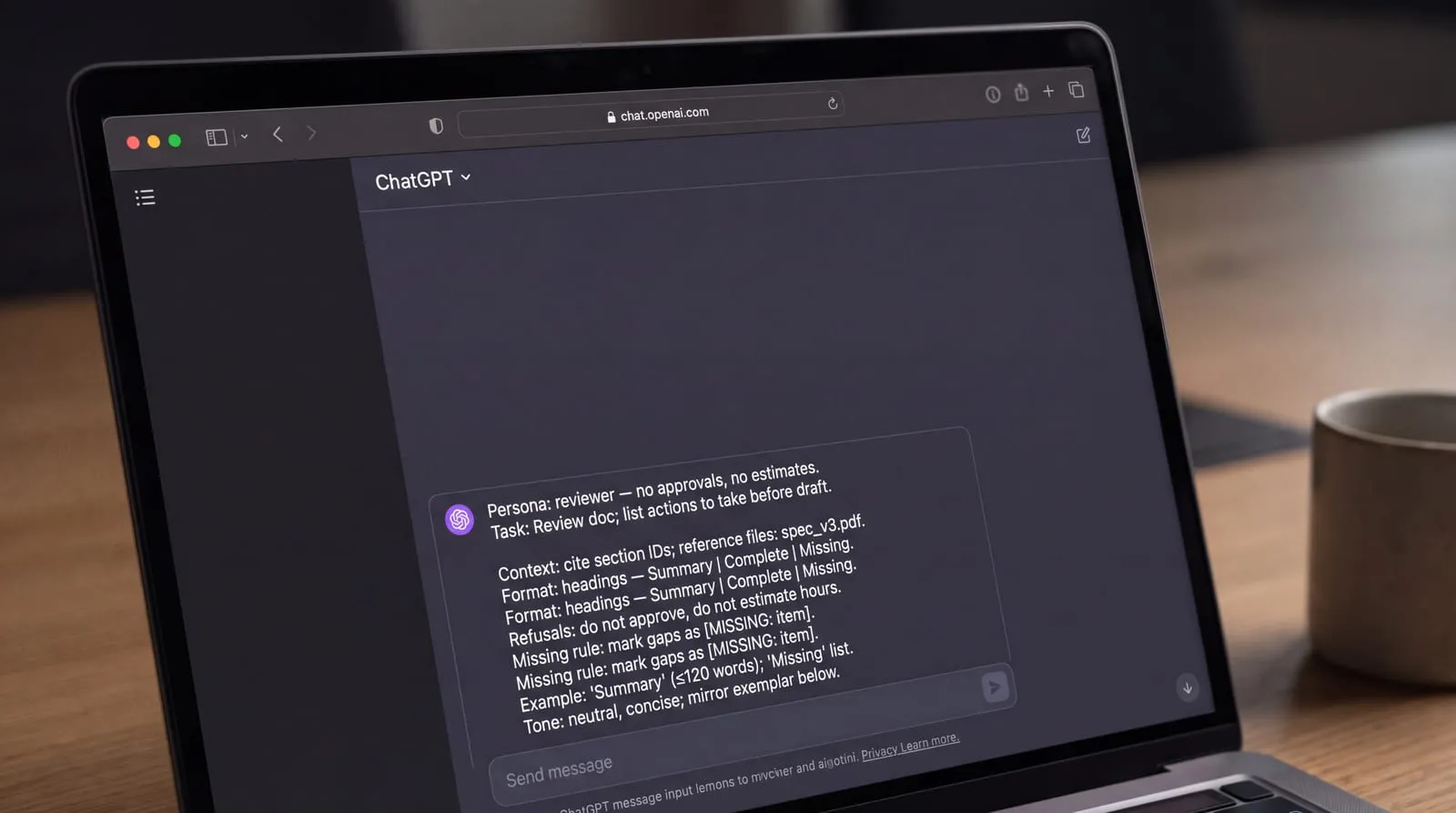
Building a durable Gem starts with an explicit structure so the model understands its exact role and boundaries. [Google](https://support.google.com/gemini/answer/15235603)’s help page groups good Gem instructions into four areas: persona, task, context and format. State a narrow persona that rules out unrelated work. Use the task to define what to do and what steps to take before generating answers. Use context to define governing rules, referenced files, and required tone. Use format to lock in headings, sequence, and overall length. [Engineered prompt libraries](https://nject.ai/blog/all-about-prompt-templates) show prompts that fix the role, the context, the task and the output format before you type a word, establishing consistent architecture from the start. Keep background dense and short: the few facts, rules and links the job needs, not a biography, because high-signal context guides a model better than a long bio and costs less in tokens and truncation.
Add explicit refusals and negative constraints so answers remain factual and checkable. An assistant without stated refusals naturally fills gaps on its own. Practical instruction sets therefore establish strict boundaries: always cite the governing section, never approve or reject a submittal, never estimate an hours figure, and, when a source is unclear, state ambiguity plainly rather than choosing a likelier reading. A coordinator reviewing paperwork is not authorized to deliver formal approval, so barring verdicts prevents the tool from exceeding its authority. Specifying exactly what the model must never decide turns plausible drafting into a verifiable review that team members can safely inspect against source documents.
Include a single missing-information rule: mark gaps as \[MISSING: item\] and proceed. Without that instruction, Gemini tends to fill missing details with plausible guesses, which creates dangerous errors in product specifications, pricing, and operational summaries. When drafting catalog entries or operational updates, an invented dimension, material, or delivery window can slip past casual inspection. A dedicated missing-token rule preserves workflow momentum by allowing drafting to finish while making absent facts immediately visible for human review. Anyone checking the final draft can scan directly for the bracketed tag, verify the unconfirmed item with the supplier or owner, and replace it before publishing.
Define the output shape precisely and attach exemplars so tone and structure match your expectations. Explicitly name the required section headings, expected length, and display order. Vague requests like asking to summarize a document yield unpredictable formats, whereas ordering the Gem to list what is complete and what is missing produces an actionable checklist. Rather than relying on abstract prose guidelines, attach a strong example output and instruct the Gem to mirror it. Demonstrating the format works better than describing it, and for tone-heavy drafting, concrete examples anchor style far more reliably than descriptive rules alone. When team members reference an approved example, the model captures nuances like neutral phrasing and clean section flow without needing dozens of granular stylistic rules.
## How do you build and test a Gem?
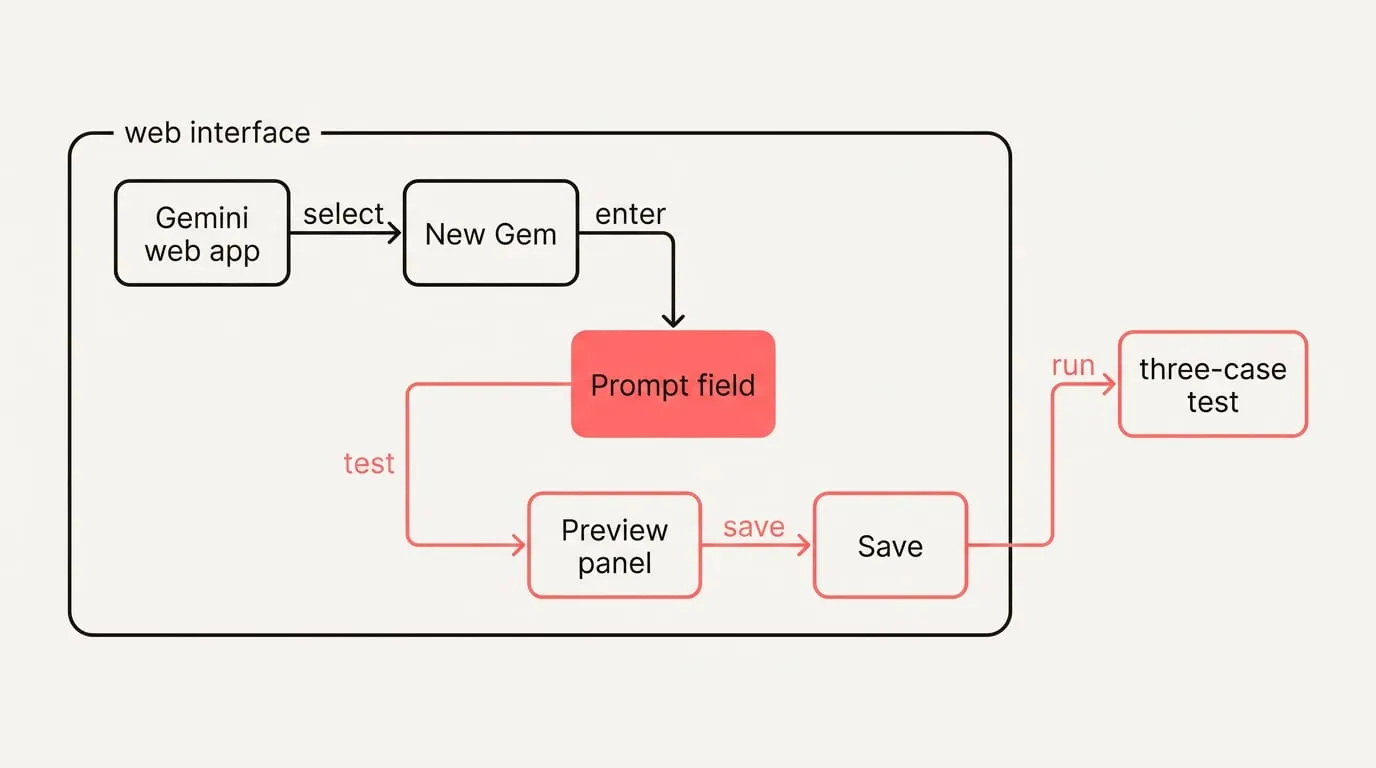
To create and configure a new custom Gem in the web interface:
1. Open the Gemini web app on your device and select Explore Gems, then click New Gem.
2. Enter an identifiable name for the Gem and paste your structured instructions into the prompt field.
3. Review the instructions manually, or optionally select Use Gemini to re-write instructions to inspect proposed expansions.
4. Enter a test prompt in the preview panel on the right to examine how the assistant responds.
5. Click Save to store the Gem. Using the preview does not automatically save your configuration.
Attach only the reference material your task strictly requires. Under Knowledge, you can add reference files from your local device or directly from Google Drive. Reported limits have been about ten files per Gem, and you can also add a Gemini Notebook as a source. Provide source text from files and trusted links before asking the AI to reason, because supplying the material yields reproducible answers and avoids shallow or failed browsing.
Before a Gem enters routine use, run the three-case test: an easy, a typical and an awkward input, each scored against your standard, with every fix rerun across all three.
To run it on a candidate Gem:
1. Run an easy real input to verify standard formatting and baseline accuracy.
2. Run a typical real input that mirrors regular daily operational requests.
3. Run an awkward or edge input designed to trigger refusals or the missing-information rule.
4. Score each output against your standard to identify exact gaps or hallucinated items.
5. Tighten rules or examples in the instruction box until all three return correct results.
6. Rerun all three test cases after each modification, because a new rule can break an old case.
## Operate and maintain Gems reliably
When a Gem's outputs drift or miss, diagnose with these adjustments:
- Trim sprawling instructions down to essentials and move detailed context into a knowledge file, because long instruction sets tend to be followed selectively.
- If outputs ignore reference sources, name the exact file that the Gem must use directly within the task instructions.
- Reset operational assumptions when autonomy is expected: a Gem consists of saved instructions and reference files and does not run by itself or on a schedule.
Maintaining reliability over time requires disciplined ownership. Keep each Gem narrow; if an assistant expands to cover disparate tasks, split it into separate Gems so instructions stay specific. Prefer attaching files from Google Drive rather than local uploads, because Drive links stay synchronized as source documents evolve while local uploads remain frozen at the moment of attachment. Designate an owner for every Gem, since maintaining multiple instruction sets and knowledge files requires regular review. When your organization relies on multiple tools, use [NjectAI context profiles](https://nject.ai/docs/what-is-njectai) to store shared brand rules and context centrally, allowing you to append consistent background across Gemini and other supported AI workspaces without retyping.
## Pick the right tool, then narrow
A Gem is the right fit when one recurring task follows a stable standard and you can judge whether each output meets it. Keep the instructions compact: define the role, task, necessary context, output format, boundaries and treatment of missing information. Then test easy, typical and awkward real cases, tightening the rules or examples and rerunning all three after each change. This makes reliability something you evaluate against your own standard rather than assume from a polished first response. Match NotebookLM to work centred on sourced answers, and a Project to research organised around files. The narrower the job and clearer the acceptance criteria, the stronger the case for a Gem.
---
# How do you set up Claude Projects, and when should you use one?
URL: https://nject.ai/blog/all-about-claude-projects
Last updated: November 4, 2026
Repeating the same background in every chat wastes time and invites small inconsistencies. Claude Projects give recurring work a stable home, but only when the material and rules remain useful across conversations. The practical question is larger than how to create a workspace: you need durable instructions, dependable source files, and a way to check what Claude can retrieve. A fast setup works best with clear boundaries, including when a single chat, Claude Code, or a cross-tool context layer is the better fit.
## What are Claude Projects, and when should you start one?
Claude Projects organize recurring work around a few stable parts: standing instructions, uploaded knowledge files, scoped conversations, and dedicated memory. [Claude Help Center](https://support.claude.com/en/articles/9519177-how-can-i-create-and-manage-projects) documents that the project knowledge base is used across all chats within a project. You can set project instructions that Claude uses for all chats in the project. Each project has its own memory. Chats inside a project do not share context unless you save the information to project knowledge. This separation keeps individual conversations clean while ensuring every new request draws on the same foundation.
Projects are available to all users, including free accounts, and free users can create up to five projects. On Team and Enterprise plans, you can share projects within your organization and set view or edit permissions. Memory is on by default on Free, Pro, Max and Ultra, while Team and Enterprise owners control whether memory is available. Taken together, a free account is enough to try the whole approach: up to five projects, each with its own memory, before any paid tier comes into it.
[God of Prompt](https://godofprompt.ai/guides/claude-mastery-guide) puts it simply: if you have typed the same background twice, it belongs in a project. Start a project when the task repeats against the same source material, templates, style rules or definitions, so every chat starts briefed. Recurring work needs a stable context layer more than clever wording, because reused background, rules and links raise consistency across tools, while one-off phrasing tricks fade between chats.
If you used ChatGPT Projects, treat a Claude Project as the same kind of workspace: it carries your files and standing instructions between conversations so each new request starts from the same brief. The interface labels differ slightly, but the practical objective is identical: avoiding repeated setup by keeping persistent context in one dedicated location.
## Create and configure a working Project
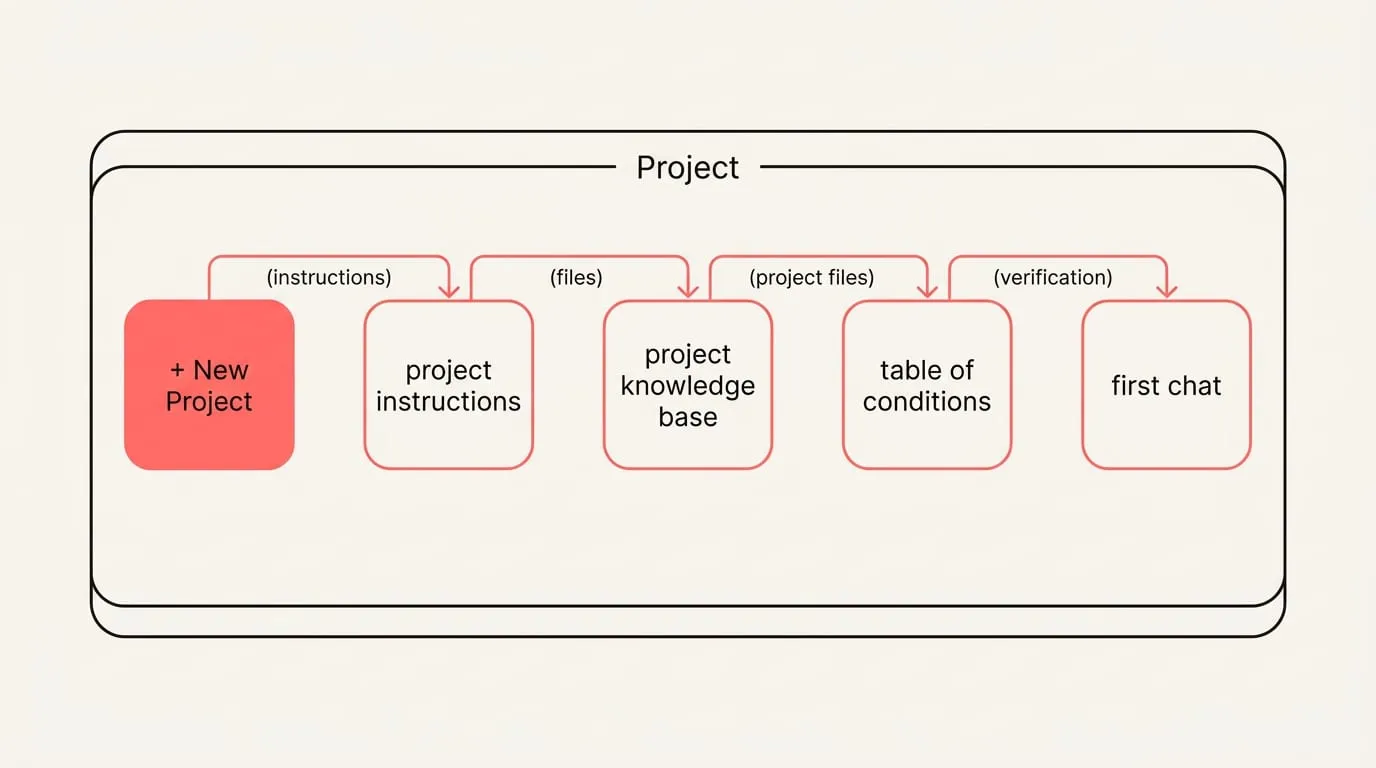
To create your first Claude project quickly, follow this sequence:
1. Click Projects, then + New Project.
2. Enter a name and description; Claude does not read these fields as context.
3. If you are on Team or Enterprise, choose visibility: keep it private, or share to your organization where admins allow it.
4. Open Set project instructions and save the rules Claude should follow for every chat.
5. Upload files to the project knowledge base so every chat in the project can use them.
6. Start your first chat inside the project and make the initial request.
Write project instructions with the six-part instruction template: a single note that makes Claude behave predictably in every conversation. State the goal, name the audience, set the format rules, define which source wins, say how to handle a conflict between sources, and say what to do when information is missing. For example, tell Claude which file holds current terms, instruct it to show both sides when sources disagree, and direct it to ask a clarifying question rather than inventing prices or dates. Write each rule so you can check an answer against an observable standard.
[Neaptide](https://www.neaptide.ai/en/blog/claude-projects-guide) describes a quick verification before you draft: have Claude work only from project files to produce a table of conditions with file citations, and a list of conflicts and missing information:
1. Ask Claude to read only the project files and pause on drafting. Request a structured table: condition, current status, and the file and section it comes from.
2. Review the cited sources yourself. If a fact conflicts across files, require Claude to show both statements and explain the choice; if a key detail is missing, ask it to flag the gap rather than fill it.
3. When the foundations check out, proceed to your first deliverable in a dedicated chat. Star the project so it appears in your sidebar for quick access while you are actively working on it, and archive the project when the work is complete.
## What belongs in knowledge, and how do you keep it accurate?
[Claude Academy](https://academy.claude.com/courses/claude-101/introduction-to-projects) explains that documents you add to project knowledge are considered in every conversation in that project:
- Policies and standards your outputs must follow.
- Specs and technical documentation you will cite often.
- Approved templates and checklists for repeatable formats.
- Examples of finished work to emulate, with notes on why they work.
- Final drafts and accepted decisions you want later chats to rely on.
To keep knowledge dependable as your project grows, set lightweight structure and a single source of truth:
- Use clear, descriptive file names with dates that match what is inside.
- Add status in the file and name (Draft, Proposed, Approved) so reviewers see it at a glance.
- Nominate one document that holds current terms; point project instructions to it by name.
- Remove or clearly mark superseded versions to prevent duplicates from winning retrieval.
- Assign one owner to maintain the decisions document so conflicting edits are reconciled before saving.
- Split genuinely different contexts into separate projects to reduce conflicts.
Claude Help Center notes that each project has its own memory and that you can turn off Use account memory to keep a project's context separate. Inside a project, Claude uses project memory alongside your outside chats, but never draws memory from other projects. You can also turn off memory for an individual chat in the plus menu before sending your first message so that conversation neither reads nor updates project memory. When knowledge approaches the context window limit on paid plans, Claude automatically enables retrieval augmented generation to expand capacity. In practice, keep projects with different rules or audiences distinct, and help retrieval by naming key documents explicitly in your requests.
[Claudekit](https://claudekit.ai/guides/claude-projects/) lists common project file types such as PDF, DOCX, CSV and TXT, noting that files support up to 30MB each and use text extraction, except for multimodal PDFs. Non-PDF files may not have embedded images parsed, so diagrams placed inside those documents may require separate attention. Size and feature limits change over time, so confirm details on the current Help page before relying on them.
Before the first draft, check that the files themselves hold up:
1. Open the newest file and confirm that its date and status label match what the name promises; a stale file wins retrieval as easily as a fresh one.
2. For a scan or a diagram, ask Claude about one exact page and compare its answer with the original; visual detail can be lost in extraction.
3. Ask which document holds the current terms and confirm it is the one you nominated; if Claude cites a superseded version, remove or relabel that file.
4. Repeat the check whenever you replace a file: project knowledge is a snapshot taken on the day you attach it.
## Pick another path when a Project won’t fit

Claude Code projects coordinate multi-threaded work: the Claude Code documentation describes them running threads in parallel, and part of the work can go on a schedule as a cloud scheduled task. They suit builds or migrations that outlast a single session. For small or volatile work, pick a lighter path: a task that fits in one session belongs in a single cloud session, and one-off tasks, or work whose reference material changes daily, are poor fits for a project.
Guard confidentiality and stale-data risk. For legally sensitive matters, [Bridgit](https://gobridgit.com/blog/how-to-set-up-claude-projects-for-crew-planning/) advises that anything under a specific confidentiality undertaking does not belong in a project. Because knowledge files are a snapshot taken on the day you attach them, a project can answer confidently from out-of-date inputs unless you maintain it. If you still need the same background in multiple tools, use [NjectAI context profiles](https://nject.ai/docs/what-is-njectai) to carry that context across prompts without uploading files into Claude. Centralized memory across AI tools beats tool-specific [custom instructions](https://nject.ai/blog/all-about-chatgpt-custom-instructions), because one source of truth prevents drift and halves setup effort when you switch models or start a new chat.
## Use projects where they pay off
A Claude Project pays off when the same work returns to the same sources and standards. Keep its instructions testable, maintain one current source of truth, verify uploaded material before drafting, and decide deliberately how memory and retrieval should shape answers. For isolated or rapidly changing tasks, use a single chat; when coding requires automation or must span multiple threads and sessions, choose Claude Code sessions.
When background must travel beyond Claude, keep it in a cross-tool context layer rather than rebuilding project knowledge in every service. This keeps the tool choice aligned with where the context needs to work, while Claude Projects remain focused on recurring work inside Claude.
---
# Prompt templates that travel across ChatGPT, Claude and Gemini
URL: https://nject.ai/blog/all-about-prompt-templates
Last updated: November 3, 2026
Rewriting the same instructions in ChatGPT, Claude and Gemini wastes time and lets small differences creep into the result. Prompt templates give you a stable starting point: reusable instructions with clearly marked inputs, constraints and output requirements. The practical aim is one master version that can move between assistants, with small platform notes instead of separate copies. A tool-agnostic library keeps that version searchable and reviewable, while NjectAI can attach recurring context in supported tools. This creates a workflow you can test, refine and reuse without rebuilding each prompt from scratch.
## How do you write a reusable prompt template?
A durable prompt template delivers predictable outputs across tools by functioning as an operational spec. [God of Prompt](https://godofprompt.ai/blog/build-reusable-prompt-templates-steps/) recommends organizing reusable templates into role and context, step-by-step instructions, output format and explicit constraints.
Every solid template relies on five structural components:
- Role: the persona, domain expertise and perspective the model should adopt.
- Background: audience profile, project facts and guidelines governing the work.
- Task or steps: direct action verbs organized as a numbered sequence of operations.
- Constraints: explicit boundaries such as exclusions, negative constraints, and tone rules.
- Output instructions: the exact target structure, including schemas, sections or field lists.
Variables turn static instructions into flexible workflows without creating maintenance friction. Choose 2 to 4 key variables for dynamic inputs and mark them consistently throughout your prompt. Pick one variable syntax and use it everywhere so the model never confuses fixed prompt instructions with swappable fields.
To keep variables maintainable across sessions:
- Select descriptive names like {audience\_level} or {topic\_scope} that clarify expected values.
- Standardize on a single delimiter pattern, such as double curly braces or square brackets.
- Keep variable declarations separate from fixed constraints so rules cannot be accidentally edited.
- Attach a sample value to each variable to document intended usage for your team.
Output variance causes repeated prompts to fail when models drift into conversational chatter. Structure responses into formats like bullet points, tables or JSON schemas and set measurable limits such as exact counts or word caps.
Define measurable output limits using these rules:
- Name the structural container, whether a markdown table, ordered list or JSON schema.
- State numerical boundaries directly, requesting exactly 5 bullet points or at most 150 words.
- Avoid subjective qualifiers like brief or thorough in favor of explicit limits.
- Provide explicit instructions on handling incomplete data before the model generates text.
- List expected table columns or data fields in order to guarantee repeatable schemas.
Examples guide output style far more effectively than abstract rules. Providing two or three few-shot examples allows the model to mirror your intended formatting and vocabulary without guessing. In your template instructions, direct the model to pause and ask clarifying questions whenever required user inputs are incomplete or contradictory.
Before putting a template into production, run a validation pass to ensure stability across inputs.
Follow this validation sequence to test and refine your template:
1. Run test prompts using standard cases, edge scenarios and messy inputs filled with shorthand or typos.
2. Verify that the generated response strictly follows your assigned output schema, length limits and formatting rules.
3. Adjust one variable or constraint at a time, retesting against the same test cases to isolate performance impacts.
4. Establish objective success benchmarks, such as formatting accuracy and length compliance, before making edits.
5. Store the verified template alongside evaluation inputs to revalidate performance after future model updates.
## Adapt one template across tools
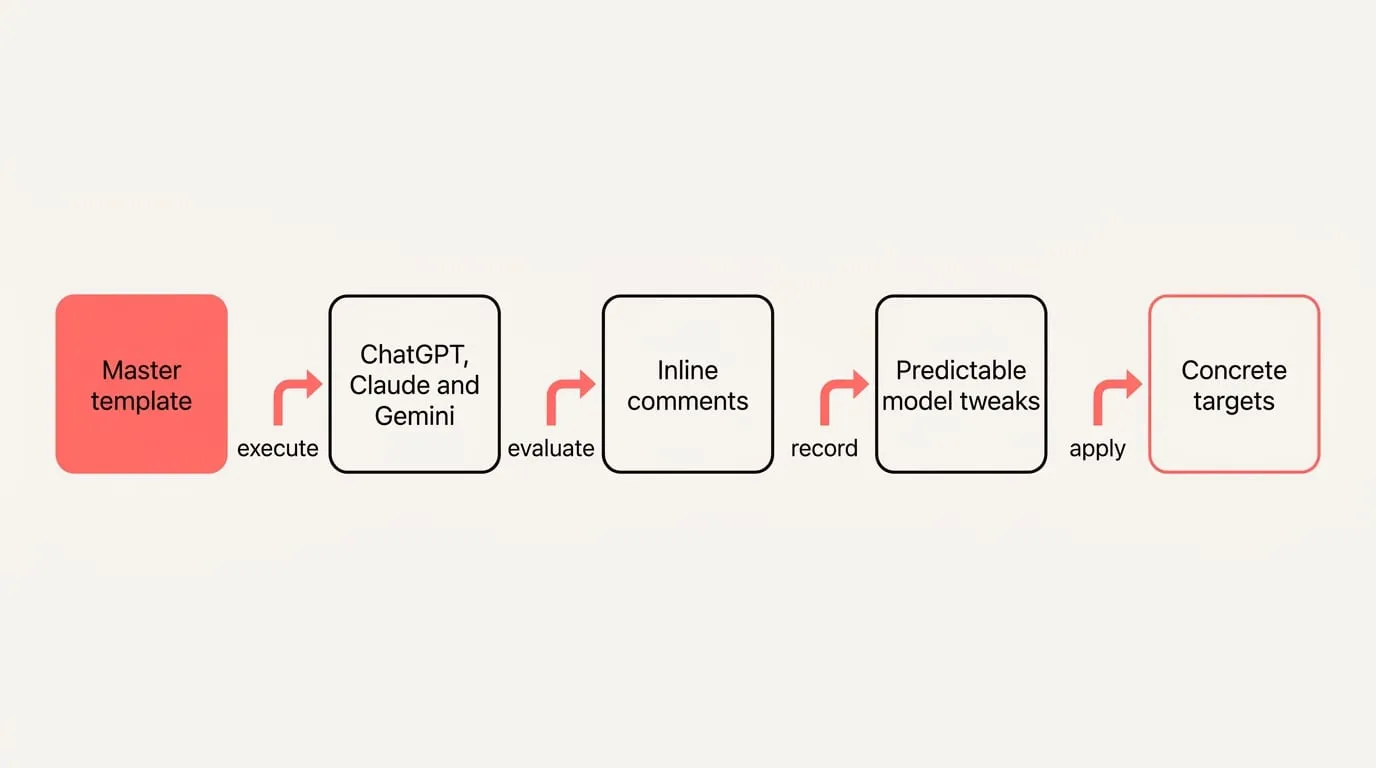
Authoring separate prompts for each assistant creates synchronization debt and version drift. Establishing durable cross-tool workflows requires maintaining a single tool-neutral master text while accommodating platform nuances through lightweight notes. Build an adaptable core rather than duplicating instructions.
Follow these steps to keep one template portable across tools:
1. Write your master template in clean, tool-neutral markdown without vendor-specific markup.
2. Execute the template across ChatGPT, Claude and Gemini to evaluate where baseline responses differ.
3. Record minor per-platform adjustments as inline comments inside the master template rather than generating separate files.
4. Avoid creating independent prompt copies unless two target workflows diverge fundamentally in scope.
Prompt Architects documented in 2026 that roughly 90 percent of well-structured prompts port cleanly across ChatGPT, Claude and Gemini without core changes, while the remaining 10 percent require modest, predictable adjustments. Because core prompting strategies carry over cleanly, you only need to manage minor syntax variations at paste time.
Apply these predictable model tweaks and character constraints when preparing to send:
- Claude: enclose complex multi-section inputs inside semantic XML tags such as context or instructions when structure needs reinforcement.
- ChatGPT: organize sections using clear markdown headings, and place standing voice instructions inside [Custom Instructions](https://nject.ai/blog/all-about-chatgpt-custom-instructions) to keep templates compact.
- Gemini: add explicit instructions directing the model to ground factual claims and provide source citations.
- Vendor limits: platform features enforce varying field caps, meaning you should keep a concise core template and verify current limits before deployment.
Output variance between assistants drops significantly when format and length are stated explicitly. Specifying concrete targets such as capping text under 150 words or prescribing an exact three-column table eliminates divergent default behaviors across models.
## Where should you store prompt templates?
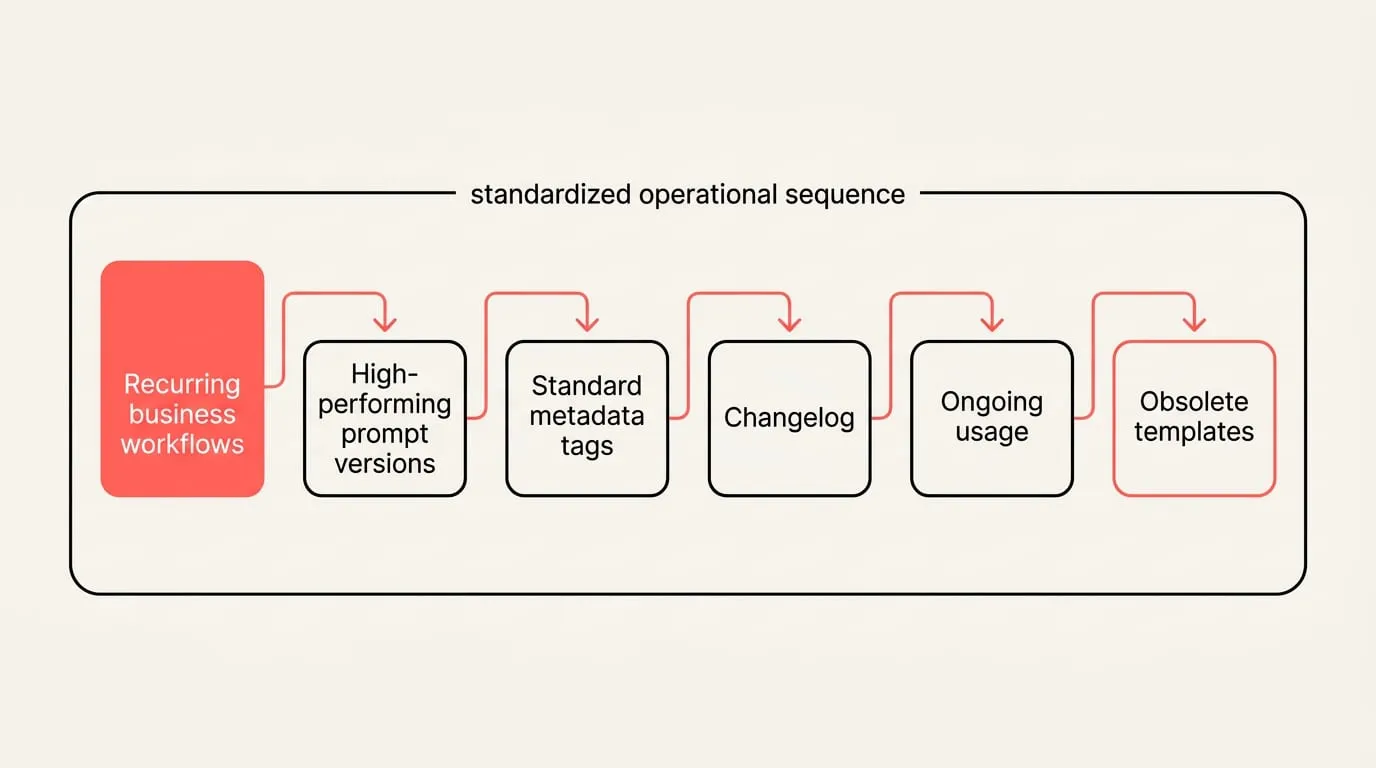
[Woyable](https://woyable.com/en/posts/personal-prompt-library-system) points out that your primary source of truth should reside in a tool-agnostic environment, as native AI platforms do not offer automated cross-tool library exports. Selecting the right storage architecture ensures your prompt repository remains durable regardless of changes to vendor features.
Evaluate these four common storage patterns based on your operational needs:
- Native vendor features: convenient for quick local chat access, but offer low portability outside the host ecosystem and require manual versioning.
- Notes applications: provide broad cross-device portability and straightforward search, though version control depends heavily on external features.
- Git repositories: store templates as plain markdown files with full commit histories and branch reviews, ideal for engineering teams.
- Snippet managers: enable immediate keyboard insertion into any browser window, but frequently lack multi-user collaboration controls.
A reliable prompt library balances structured governance with light administrative overhead so it remains dependable over time.
Establish your library using this standardized operational sequence:
1. Catalog recurring business workflows and isolate the prompts currently used to complete them.
2. Collect high-performing prompt versions and refine any prompts that regularly generate conversational pushback.
3. Attach standard metadata tags to every entry, recording target model, functional role, output format, expected variables, author and update date.
4. Track version changes in a changelog and retest critical prompts whenever an underlying model receives an update.
5. Monitor ongoing usage across projects and archive obsolete templates that no longer see active deployment.
Effective prompt management converts messy conversation threads into durable assets without hoarding unnecessary prompt variations. Isolate reusable logic from project-specific details to keep the library clear.
Curate and refine your personal prompt library with these practices:
1. Extract the final successful prompt text from your chat logs, remove session-specific details, add a concise goal summary, and assign an action-oriented name.
2. Replace specific parameters with standard placeholders such as {{audience}} or {{tone}} to ensure adaptability.
3. Name each template directly after the functional task it performs so it remains quickly searchable.
4. Focus your repository on an initial foundation of 3 to 5 high-impact prompts before expanding your collection.
5. Conduct regular maintenance passes, such as monthly reviews, to delete unused prompts and keep project-specific context outside template files.
Protect your team workspace and data privacy with these conflict and security protocols:
- Use a last-write-wins protocol for routine day-to-day edits where the newest change is presumed accurate.
- Apply explicit version tags like v2 or v3 to mission-critical templates before editing to prevent accidental overwrites.
- Designate an authoring computer as the single source for edits, or manually merge contradictory updates.
- Implement a strict two-library split: store generic templates with empty placeholders in cloud-synced storage, and retain customer data, credentials and proprietary documents in local-only environments.
## Reuse templates with NjectAI context
NjectAI [context profiles](https://nject.ai/docs/context-profiles) allow you to maintain a lean, portable template library while automatically attaching standing organizational background inside supported AI tools. By pairing your external markdown templates with saved context profiles, your core prompts remain clean while audience rules, brand tone and formatting expectations attach dynamically at send time.
To execute a portable prompt template using NjectAI in supported AI tools:
1. Open your AI assistant in Chrome and [choose the context profile](https://nject.ai/docs/choose-a-profile) containing the relevant background for your task.
2. Copy your master prompt template from your library, paste it into the message input, and populate the dynamic variables.
3. Review your instructions to ensure clear structural formats and numerical limits remain in place.
4. Check total input length against the specific character limits of the target AI assistant, trimming optional context if needed.
5. Apply any necessary per-platform syntax adjustment noted in your master template, then send the prompt directly.
## Make one good template portable
Portability comes from separating stable instructions from changing inputs and platform details. A clear master template gives each assistant the same role, task, constraints and output target, while variables hold the details that change. Keep platform-specific syntax or length adjustments as short notes unless the workflows truly diverge. Store that master in a tool-agnostic library with names, metadata, version history and test cases that make changes visible. Keep customer data, credentials and other sensitive material outside shared template files by using empty placeholders instead. This setup reduces repeated drafting, limits version drift and makes output consistency easier to evaluate across ChatGPT, Claude and Gemini. Start with a small set of recurring tasks, then expand the library as tested templates prove useful.
---
# AI memory explained: layers, limits and one portable context
URL: https://nject.ai/blog/all-about-ai-memory
Last updated: November 2, 2026
AI memory can feel inconsistent because ChatGPT, Claude and Gemini retain different information, under different settings, and only within their own products. A detail that shapes one conversation may be absent from the next tool, while an outdated preference can keep influencing answers after your work has changed. The useful response is to separate what the model sees now from what the platform stores and what you control. That perspective makes it easier to audit drift, correct stale context and carry a stable working profile between assistants.
## What are the three layers of AI memory?
You can think about AI memory in three distinct operational layers:
- Context window: the model's working memory for the active turn. It holds the text currently being processed, such as recent messages, system prompts, and tool outputs. When this window reaches capacity, older text falls out or gets summarized.
- In-product memory: facts, instructions, and preferences that a specific platform stores on your behalf. The tool pulls these records into future prompts so the model behaves consistently across separate chats.
- Portable context you control: a structured profile you maintain outside any single platform. It separates enduring facts about your role from short-term priorities, allowing you to establish the exact same starting point wherever you work.
The context window is the model's immediate working memory. It holds only a bounded amount of text during a turn. Once that limit is reached, earlier conversation turns are truncated or compressed into summaries. That compression often drops precise details such as project deadlines, numeric parameters, or edge cases. Long threads gradually lose precision, which makes scoping conversations to specific goals or restating critical constraints necessary.
When people talk about LLM memory or AI assistant memory, they usually mean in-product memory. This information does not modify underlying model weights. Instead, external middleware retrieves stored records and injects them into the prompt before generation begins. TanStack's documentation describes a memory middleware that recalls relevant items and adds them to the system prompts before the model runs, then saves the finished turn for later use. Because this context is retrieved dynamically at generation time, updates take effect on your next query.
## How major assistants handle memory and where it breaks
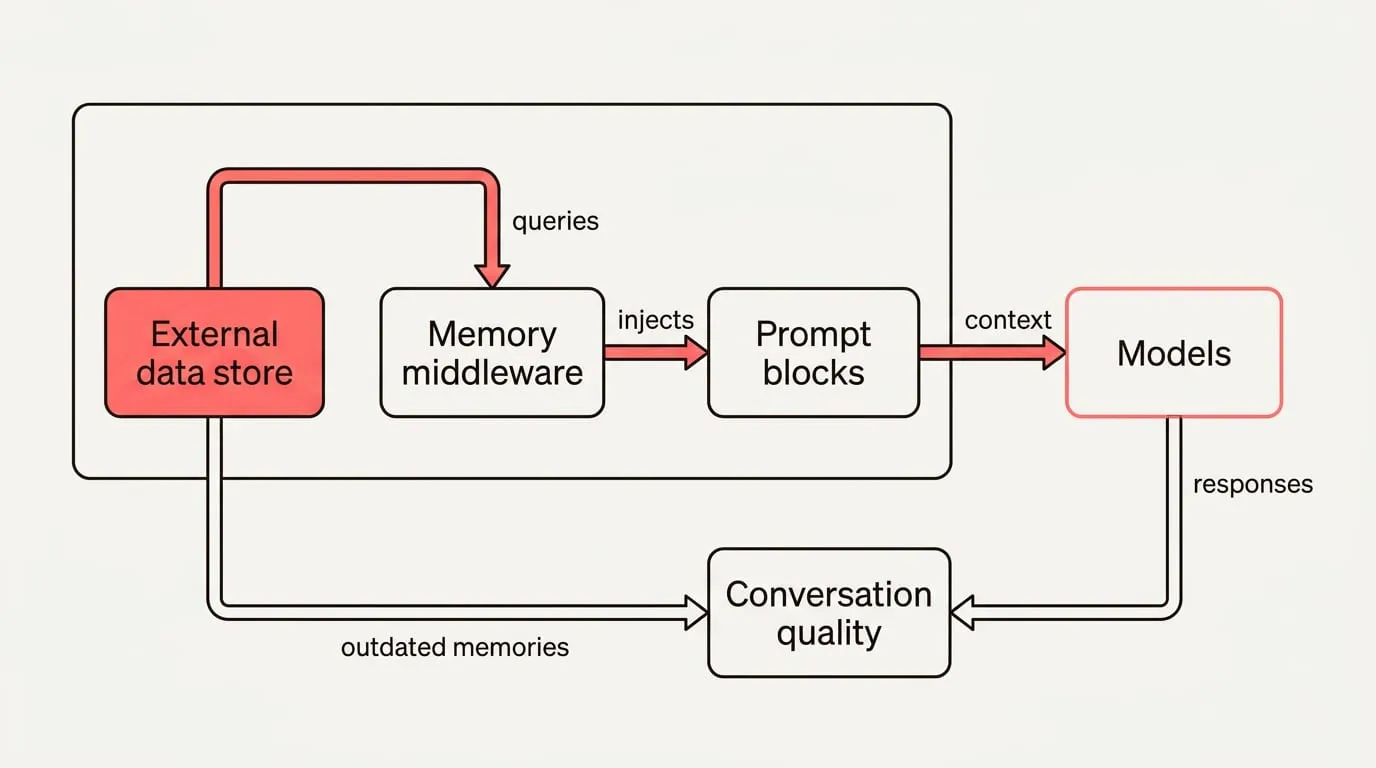
ChatGPT memory draws on several internal stores. OpenAI Help Center explains that, when Memory is on, ChatGPT can use past chats, saved memories, [custom instructions](https://nject.ai/blog/all-about-chatgpt-custom-instructions), saved files and content from connected apps, and it provides a memory summary plus controls to ask what it remembers, correct entries, or delete remembered information. The documentation notes that deleting a chat does not automatically remove a separate saved memory created from that chat, and choosing Don't mention this again reduces future references without deleting the underlying source. These features can vary by plan, region, platform and workspace settings.
Claude and Gemini take different approaches to managing continuity. Claude keeps an editable memory summary alongside Projects that scope context to one piece of work, while Gemini builds personal context from past chats and, where connected, Google Workspace. Feature names, regional access, and administrative defaults differ depending on whether you use a personal, team, or enterprise workspace. Because these capabilities change across subscription tiers, you must check your account settings to see whether profile preferences or project scopes apply to a given conversation.
Memory does not travel between these tools because personalization is completely external to the underlying models. [TanStack](https://tanstack.com/ai/latest/docs/memory/overview) documentation illustrates that memory middleware queries an external data store during recall and injects relevant context into prompt blocks before generation begins. Each vendor operates an isolated external database. Nothing you discuss with ChatGPT updates model weights, meaning Claude or Gemini cannot access facts recorded in a separate product.
When memory drifts without maintenance, old records actively degrade conversation quality. An EMNLP 2022 study by NAVER CLOVA found that outdated or contradictory memories reduce quality in long-term conversations, and that selectively updating and pruning them outperformed simply accumulating everything across sessions, especially in later sessions. When a system merely piles up past turns, obsolete details linger. If an assistant remembers an abandoned requirement alongside its replacement, conflicting instructions produce repeated errors and answers that feel inconsistent.
Learn With Param notes why shoving full histories into the prompt fails: context windows fill fast and old context can contradict current instructions, so agents should store structured facts and recall only what is relevant. In their engineering pattern, a short session recap is retrieved only on explicit continuity cues and is capped to the most recent sessions. Truncating transcripts and scoping facts to specific projects prevents irrelevant conventions from polluting active work, so rules from one codebase do not spill into another.
## How do you audit, correct and keep memory clean?
To audit the active context an assistant holds about you, execute these steps:
1. Ask the assistant directly what it believes is true. AI Work Commons suggests asking "What do you remember about me?" as a fast baseline.
2. Inspect the product's memory management interface or profile view and compare the listed items against your actual current requirements.
3. Flag stale milestones, contradictory conventions, or sensitive operational details that should not persist across sessions.
4. Use temporary or incognito chat modes whenever working with confidential or throwaway topics. AI Work Commons advises reviewing what your tool remembers, deleting wrong or sensitive items, and using a temporary or incognito chat when you do not want information carried forward.
In ChatGPT, open Settings, select Personalization, and open the Memory Summary. [OpenAI Help Center](https://help.openai.com/en/articles/8590148-memory-in-chatgpt) says you can correct entries, choose Don't mention this again, or Delete and turn off memory in the memory summary. Choosing Don't mention this again reduces future references while keeping source records intact. If you choose Delete and turn off memory, the tool clears the remembered summary, but Delete and turn off memory does not delete past chats, which remain in your history unless explicitly removed.
When an assistant repeats an incorrect or outdated fact, apply this systematic correction procedure:
1. Locate the erroneous record and cite the correction clearly. AGNT recommends writing a new record that supersedes the old entry.
2. Mark the previous entry as superseded in the system so it remains accessible for historical provenance without being retrieved during normal generation.
3. Re-index any vector retrieval databases or search indexes that reference the old text to prevent stale embeddings from resurfacing.
4. Rerun the task that failed to verify that the model's output reflects the updated constraint.
5. Works With Agents advises saving the correction as a durable memory entry immediately so you do not repeat the same fix next session.
For high-value tasks, Gemora recommends a pre-answer check: ask the model to summarize the relevant context it believes is currently true before it answers. Once the model confirms its premises, evaluate whether the query requires summary memory or exact record history. Durable memory suits enduring constraints and preferred communication styles. Gemora advises that you use retrieval when you need exact wording or the original reasoning from prior conversations, rather than relying on compressed memory alone.
## Keep one context across assistants
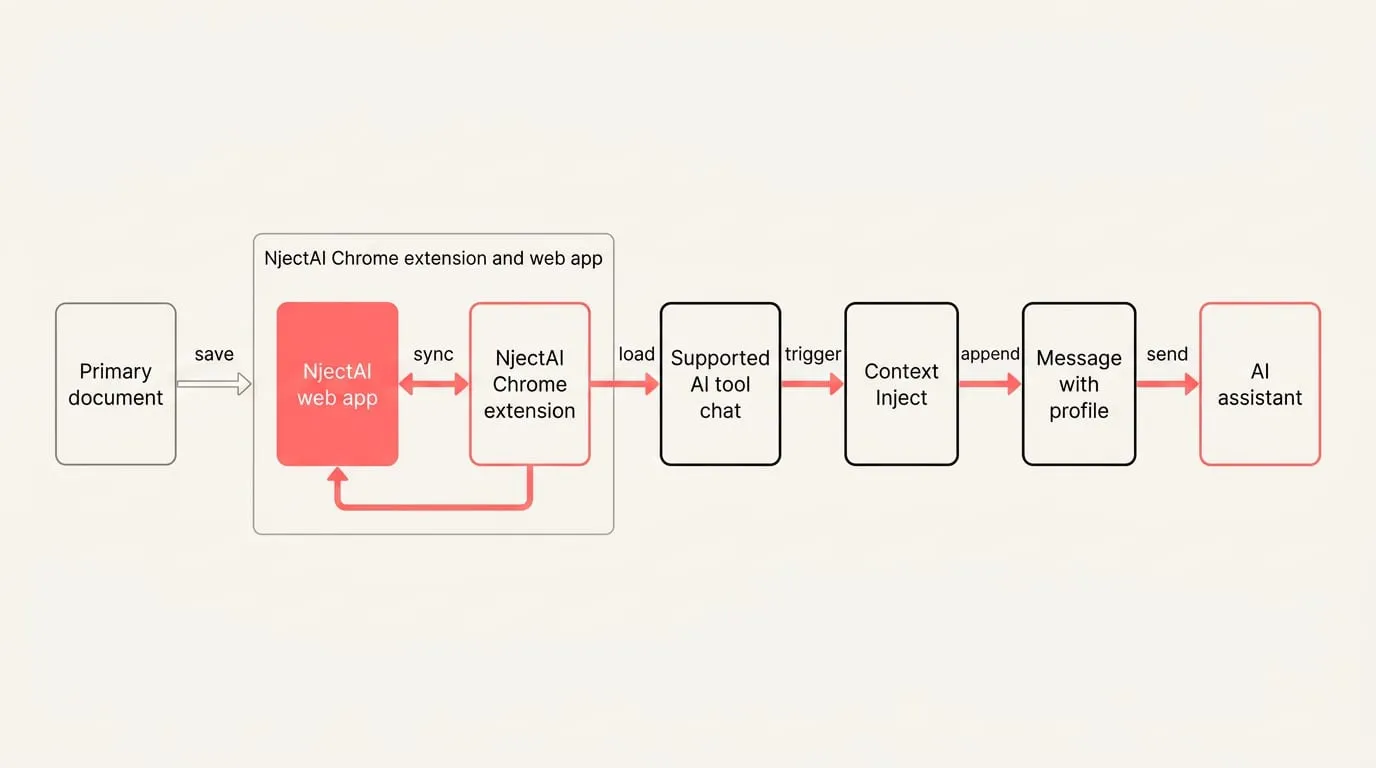
Gemora outlines a four-layer personal context architecture that you can maintain as a clean document outside any single tool:
- Stable section: your professional role, persistent technical constraints, language requirements, and preferred formatting rules.
- Active section: immediate project priorities, active sprint milestones, and constraints valid only for the current month.
- Source history pointer: direct references to canonical project documentation, repository locations, or key conversation transcripts.
- Portable summary: a concise, plain-text block summarizing the sections above, formatted to be pasted directly into a new chat.
To keep this context synchronized across every assistant you use, follow this weekly maintenance sequence:
1. Update the active section in your primary document with current sprint milestones and completed objectives.
2. Paste the updated portable summary into each tool when opening a new project thread for the week.
3. Run a verification prompt asking the model to summarize its understanding of active constraints before generating work.
4. Correct any misremembered or outdated details immediately in the thread.
5. Record any confirmed operational changes back into your master document so every assistant benefits from the correction.
Where NjectAI helps is in automating this routine across your browser. By storing [context profiles](https://nject.ai/docs/context-profiles) in the NjectAI Chrome extension and web app, you can inject your saved background, project constraints, and files into prompts across ChatGPT, Claude, and Gemini. [Context Inject](https://nject.ai/docs/context-inject) appends your selected profile to your prompt when you send a message, keeping your working environment consistent without changing the vendor-stored memories inside each platform.
## Make context a habit
Reliable continuity comes from treating memory as three layers with different owners and limits. The context window supports the current exchange, each platform manages its own stored personalization, and your portable context provides the shared source you can inspect and update. Keeping those roles separate makes stale or conflicting details easier to find instead of assuming every assistant knows the same facts.
For important work, confirm the active premises before requesting the answer, then correct both the conversation and your portable source when they have drifted. Vendor memories remain separate, while your portable source gives ChatGPT, Claude and Gemini a consistent starting point. You can change tools with less repeated setup while retaining control over which durable facts, current priorities and source references enter the prompt.
---
# Claude memory: what it remembers, how to manage it, where it stops
URL: https://nject.ai/blog/all-about-claude-memory
Last updated: November 2, 2026
Re-explaining your role, preferences, and project background in every new conversation slows down routine work. Claude memory can carry useful working context forward, but its value depends on choosing the right place for each kind of information. Preferences and recurring patterns suit memory; exact source material needs Projects or files. Account, project, chat, and local-session boundaries also determine what appears where. Understanding those boundaries lets you use memory confidently in Claude and cloud Cowork while keeping a portable profile for work that moves to other assistants.
## What Claude’s memory remembers and how it differs?
Claude memory carries what it learns about you from one conversation into the next. The Claude Help Center states that memory is on by default for Free, Pro, and Max plans on the web, Desktop, and Mobile, and that it works across chat and [Claude Cowork](https://nject.ai/docs/claude) when Cowork runs in the cloud. Cowork sessions that run locally on your computer do not use memory. Claude memory saves individual topics from your chats, and you can also tell it to remember something directly. In practice, this gives you continuity for your role, preferences, and recurring workflows without re-explaining them every time. When you assign a cloud Cowork task that relies on context Claude established in chat, that background carries over automatically, whereas local sessions start clean.
Each Project has its own memory. While you work in a project, Claude uses the project's memory alongside your memory from chats outside of projects, and new memories created in those chats are saved to that project. To keep a project fully separate, turn off Use account memory under Memory on the project's page. This default blending lets personal preferences travel with you across workspaces, while the toggle provides isolation when a client engagement or internal initiative must remain strictly compartmentalized.
Claude Digest describes memory as a personalization layer: best for your role, recurring work themes, and communication or coding preferences. Files and Projects are better for source material you need to quote or check. A practical guideline is to keep preferences like writing tone, preferred response structures, or review criteria in memory, while placing policy text, source data, and client specifications in a Project or an attached file so Claude can quote the exact source.
ChatGPT also offers memory, but its controls and privacy models are distinct. Do not assume identical scopes, inheritance, or toggles across both platforms. Verify per-chat options, workspace boundaries, and export settings in each tool before relying on them for sensitive workflows. If you switch between assistants regularly, keeping an independent reference doc ensures that your essential instructions remain portable regardless of how each platform stores background details.
## Manage Claude memory: view, edit, pause, or clear
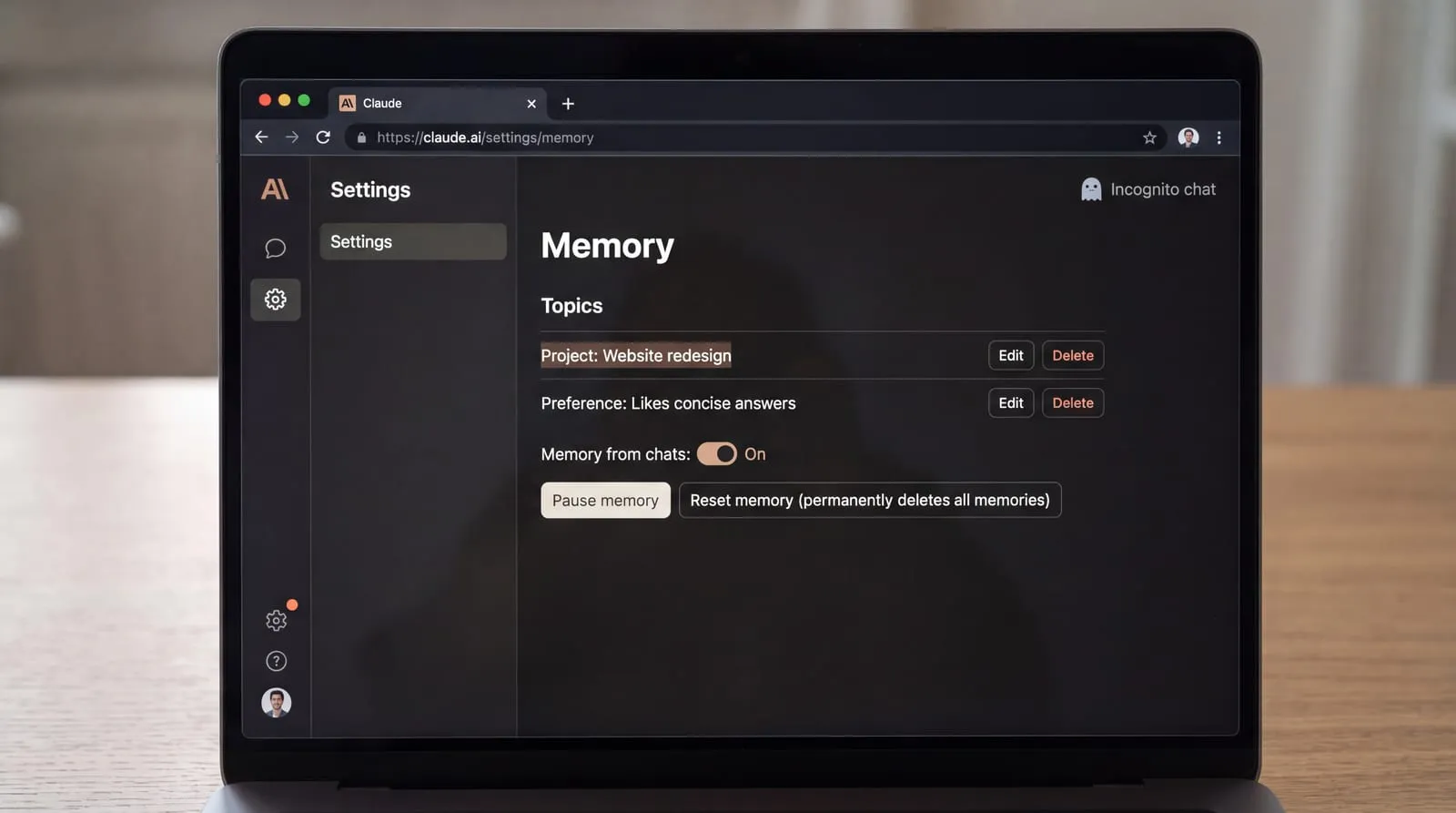
Everything Claude remembers appears under Topics in Memory settings, where you can read, edit, or delete each item. Anthropic documents every control in this section, so the steps match what you see on screen. To review or correct a topic:
1. Open Settings and choose Memory.
2. Under Topics, select a saved topic to review what Claude will carry into future conversations.
3. Use Edit to correct details you want Claude to retain, or Delete to remove an entry entirely.
Memory can also be switched for the whole account in Settings \> Your Claude. Pause keeps existing memory but stops use and new saves; Reset permanently deletes all memories, including project memories. To change it for the whole account:
1. Navigate to Settings \> Your Claude, or Settings \> Memory in older layouts.
2. Toggle Memory from chats on or off.
3. Choose Pause memory to suspend memory usage and prevent new entries from being created without losing existing items.
4. Choose Reset memory to permanently erase all memories, including project memories, and confirm your choice.
For a single chat, decide before you type. You need to turn memory off before your first message, and chats with memory off stay in your history. Incognito chats are not saved to your history and are excluded from search. To set it for one chat:
1. Start a new conversation and, before entering text, click the plus icon in the message box.
2. Select Memory to turn it off for this chat, locking the setting for the remainder of the session.
3. Click the ghost icon in the top corner to open an Incognito chat when you need a temporary session that leaves no record in history or search.
Sensitive topics in memory are off by default; you can opt in and you will see a notice when one is saved. Never stored: government ID numbers, criminal history, financial account numbers, and immigration status.
To keep project workspaces isolated from broader account memory, configure the boundary directly on the project page:
1. Open the project workspace you want to keep separate.
2. Navigate to the project's Memory settings.
3. Turn off Use account memory so the project relies solely on its dedicated workspace context.
## Where Claude’s memory stops, and what to use instead?
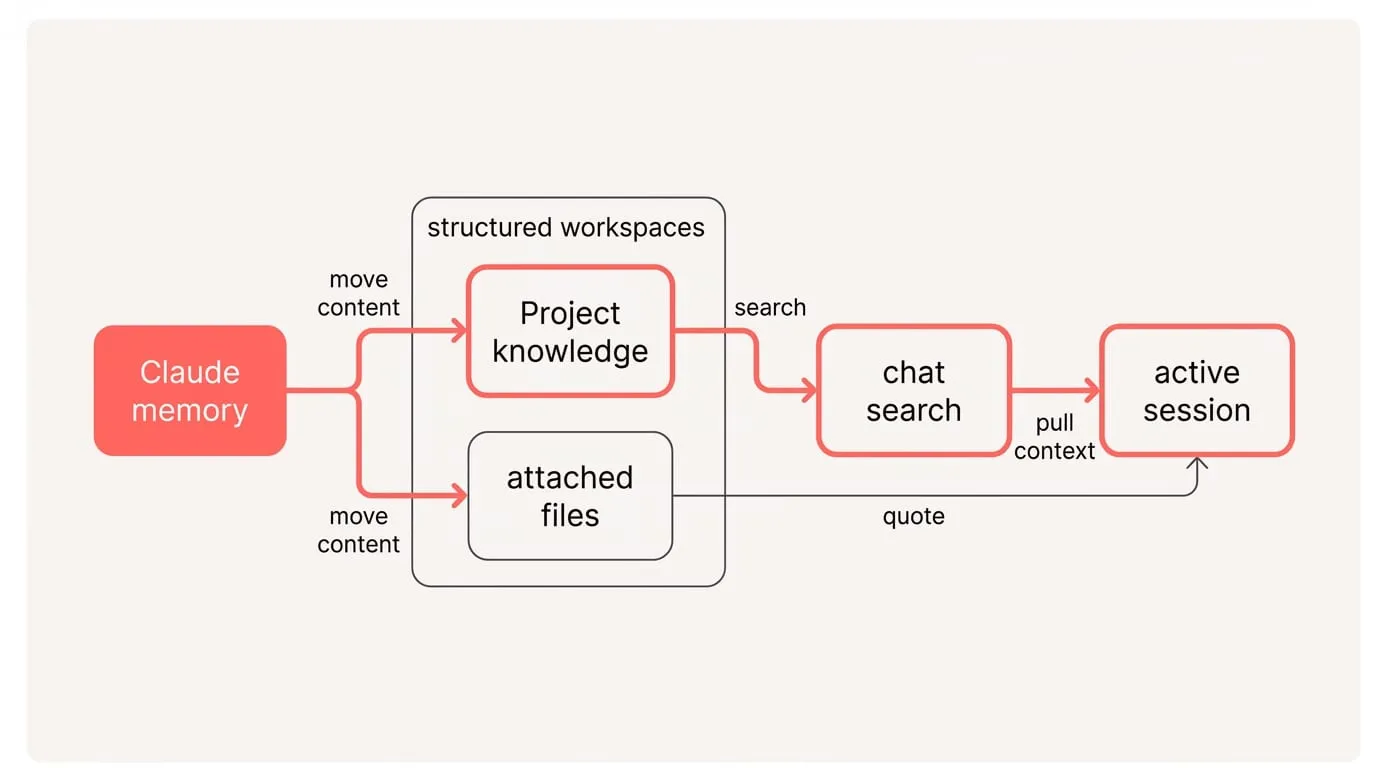
Treat Claude memory as strictly product- and account-scoped. Project memories stay separate from one another, and Cowork sessions running locally on your computer do not draw on chat memory. Because memory does not sync across different accounts or external AI tools, plan your handoffs and documentation with those boundaries in mind.
For exact text, data, or sensitive material, move that content out of memory and into structured workspaces. Claude Digest recommends treating memory as a personalization layer for preferences and patterns, and using Projects or files for exact text or data you need to quote or verify. Where each kind of material belongs:
- Policy and contract clauses: store them in Project knowledge or attached files so Claude can quote verified wording.
- Numbers, datasets, and calculations: keep them in a spreadsheet, data file, or Artifact rather than relying on memory.
- Client and team rules: record them in Project instructions so they consistently steer ongoing work.
- Decisions meant for reuse: document them in Project notes or shared instructions where colleagues can inspect them.
Use chat search when you need to find an earlier decision, quote, or draft snippet. The [Claude Help Center](https://support.claude.com/en/articles/11817273-use-claude-s-chat-search-and-memory-to-build-on-previous-context) explains that search reaches all chats outside projects and will search within each specific project's conversations, so it is the right tool for retrieval. Asking Claude to search past conversations pulls relevant context into the active session without permanently altering your stored memory.
Memory entries also follow distinct operational lifecycles. Memory entries persist even when you delete a conversation, they are included in data exports, and an organization's retention period can remove entries over time. In Enterprise workspaces, custom retention rules apply to memory entries just as they do to chats, while project memories are deleted when the project itself is removed.
## Keep context consistent across assistants
A simple [manual pattern keeps your context steady](https://nject.ai/blog/all-about-context-engineering) across Claude and other tools. Build these assets once and reuse them when opening a new chat:
1. Draft a one-paragraph personal brief. State your role, audience, tone, and formatting habits, such as plain language and short headings. Save it as a reusable snippet.
2. Create preference snippets for recurring needs, such as summarizing before detailing or formatting comparisons into compact tables. Keep each snippet focused on one requirement.
3. Prepare a one-page project brief containing scope, owner, essential definitions, and deliverable formats to introduce the project across any tool.
4. Paste the personal brief and project one-pager at the top of a new chat, attaching only the specific files needed for that conversation.
5. Update briefs as project phases shift, keeping a single reference note so your context remains aligned across assistants.
If you switch tools often, [NjectAI context profiles](https://nject.ai/docs/context-profiles) help standardize prompts. A profile lets you maintain your background, links, and style guidelines once and append them to prompts in supported tools, including Claude. Profiles standardize what you add to each prompt; they do not change what Claude stores in memory or how project boundaries function. Start with a single personal profile and one per active project, adding more only when they replace recurring manual setup.
## Use memory where it helps
Claude memory is most useful as a controlled layer of working context: the preferences, role details, and recurring patterns that help Claude respond consistently. Its account, chat, and project controls let you decide when that context applies and when work needs a separate boundary. Treat exact wording, figures, policies, and source material differently. Keep them in files or Projects, and use chat search to retrieve earlier decisions rather than expecting memory to serve as a record. Memory also stays within Claude’s account and workspace boundaries. When your work moves between Claude and other assistants, a maintained brief or NjectAI context profile provides a shared, reviewable source for the instructions that need to travel.
---
# ChatGPT custom instructions: what to write, examples and limits
URL: https://nject.ai/blog/all-about-chatgpt-custom-instructions
Last updated: October 27, 2026
ChatGPT custom instructions are most useful when your work has stable requirements: a recurring role, a consistent audience, and clear rules for tone, structure, or safety. The practical challenge is deciding which preferences deserve to become defaults and which belong in a specific prompt or project. A durable profile should be concise enough to scan, precise enough to guide responses, and easy to adapt when your role changes. That means shaping the two fields around priorities, working within account caps, and keeping separate role profiles ready for other AI tools.
## What ChatGPT custom instructions do and where to set them?
ChatGPT custom instructions set your defaults. [OpenAI Academy](https://openai.com/academy/personalization/) defines them as settings that tell ChatGPT what it should know about you and how you prefer it to respond, and they apply to new conversations until you change, disable, or remove them. In practice, you stop repeating your role, background, tone, and output format in every prompt, and every new chat starts with those preferences automatically. This ensures consistent responses while saving time across daily tasks.
[OpenAI Help Center](https://help.openai.com/en/articles/8096356-chatgpt-custom-instructions) states custom instructions are available on Web, Desktop, iOS, and Android. To configure, update, or deactivate them, navigate through the settings on your device:
1. Web or Desktop: in Settings, select Personalization, ensure Enable customization is ON, then enter your instructions.
2. iOS or Android: in Settings, select Customize ChatGPT, ensure Enable customization is ON, then enter your instructions.
3. To disable or remove them: toggle Enable customization OFF and optionally delete your instructions.
Character limits vary significantly depending on your account tier. According to the OpenAI Help Center, Free and Go allow up to 1,500 characters; Plus, Pro, Enterprise, Business and Education allow up to 5,000 characters. These caps apply across the combined total of both input fields. Users on lower limits must prioritize their most impactful constraints, whereas paid tiers provide ample room for specialized formatting instructions.
Updates to your instructions affect only future conversations, and you can clear earlier threads to remove prior instruction effects. Existing chat sessions retain the instruction context that was active when they began. In addition, there is no API for custom instructions; use a system message in the Chat Completions API for a similar effect when automating responses programmatically.
## Write effective custom instructions
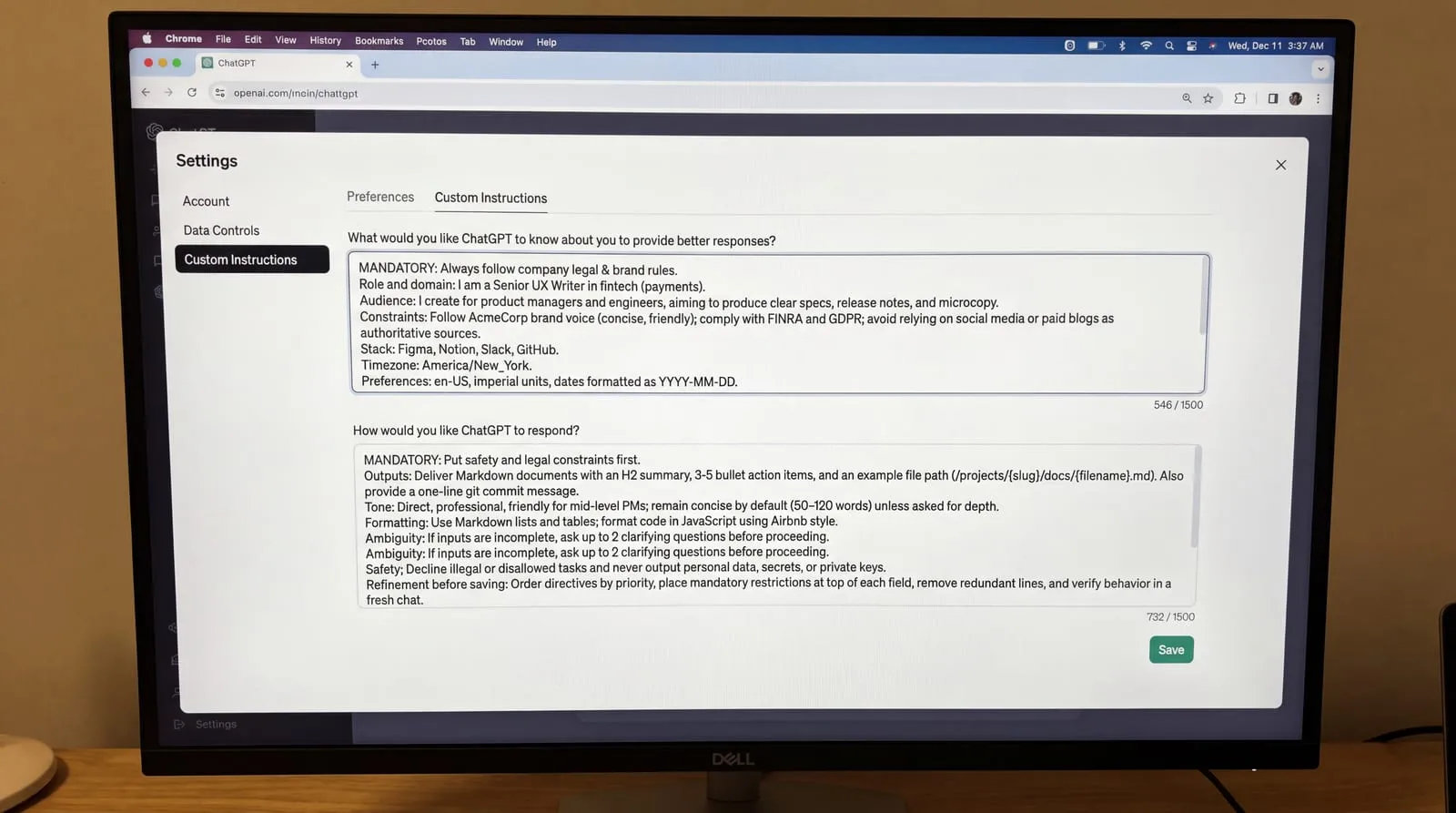
Write instructions as short, specific rules in order of importance. Use this checklist to cover what matters without conflicts:
- Start with essentials about you: role, domain, audience, goals, and constraints that alter responses.
- Specify outputs: exact deliverables, expected layout, preferred file structures, and default naming patterns.
- Set tone and depth: target voice, reader level, and concise length bounds for standard replies.
- Give formatting rules: preferences for tables or bullet points, language regionalisms, units, and date notations.
- Add guardrails: disallowed references, sensitive topics, privacy boundaries, and brand guidelines.
- Ask when unsure: instruct the model to pose up to three clarifying questions when inputs lack context.
- Use conditional statements: prefer explicit if-then directions, such as keeping answers brief unless asked to expand.
- Remove contradictions: eliminate opposing directives, such as asking for exhaustive depth while demanding extreme brevity.
Use this two-field template. Copy it into Custom instructions, replace the brackets, and keep it concise so it stays readable and within plan limits:
- Field 1 (What ChatGPT should know about you): Role and domain: I am a \[role\] in \[industry\]. Audience: I create for \[audience\] aiming for \[primary goal\]. Constraints: Follow \[compliance or brand rules\] and avoid \[unwanted sources\]. Stack: I use \[core tools\] and work in \[timezone\]. Preferences: Use \[language variant\], \[metric or imperial\] units, and \[YYYY-MM-DD\] dates.
- Field 2 (How you want ChatGPT to respond): Outputs: Deliver \[primary output type\] with \[structure\]. Tone: Use \[tone\] tailored for \[audience level\]; remain concise unless asked for depth. Formatting: Use \[markdown tables or lists\]; format code in \[language\] following \[style\]. Ambiguity: If inputs are incomplete, ask up to \[1-3\] clarifying questions before proceeding. Safety: Decline \[unsupported tasks\] and never output \[sensitive data\].
- Refinement before saving: Order directives by priority, put mandatory restrictions at the very beginning of each field, cut unused lines, and verify behavior in a fresh chat.
## What do good custom instructions look like for common jobs?
Software developer worked example: this configuration ensures code samples match production architecture without repetitive conversational filler. In What ChatGPT should know about you, state: I am a full-stack engineer working primarily with TypeScript, React, and Node.js. I deploy containerized microservices on AWS and follow strict test-driven development practices. In How you want ChatGPT to respond, state: Output TypeScript code blocks first, followed by at most two sentences explaining architectural trade-offs. Prefer standard language libraries over third-party dependencies. Flag security vulnerabilities and performance bottlenecks automatically. Skip introductory remarks and do not explain basic syntax.
Digital marketer worked example: this setup aligns generated copy with funnel objectives and audience segments. In What ChatGPT should know about you, specify: I manage acquisition and lifecycle email marketing for a B2B SaaS platform. My primary KPIs are qualified trial signups and demo conversions. The target audience consists of operations leaders. In How you want ChatGPT to respond, specify: Provide copy in three distinct variations: concise, benefit-focused, and narrative. Maintain a confident, direct, and conversational brand voice. Avoid marketing clichés such as game-changing or revolutionary. Include estimated reading times and suggested subject lines for all drafts.
University student worked example: this profile emphasizes foundational conceptual learning while preserving academic integrity. In What ChatGPT should know about you, write: I am a third-year undergraduate majoring in statistics and data science. I am currently taking courses in machine learning theory and applied regression. In How you want ChatGPT to respond, write: Act as an academic tutor. When I ask about a topic, explain the core concept simply, provide one numerical example, and ask one question to check my comprehension. Never write complete essays or solve graded assignment problems for me. Prompt me to attempt intermediate calculation steps.
Writer and story writing worked example: this template preserves stylistic consistency and narrative constraints across creative drafting sessions. In What ChatGPT should know about you, state: I write speculative science fiction set in realistic, low-resource space habitats. My style is grounded and character-focused, drawing influence from hard science fiction. In How you want ChatGPT to respond, state: Prioritize sensory environmental details and consistent character motivation. When reviewing drafts, critique passive phrasing, dialogue pacing, and exposition dumps. Offer concrete line edits instead of generic praise, and do not generate new scenes without an agreed outline.
## Limits, memory and reuse across tools
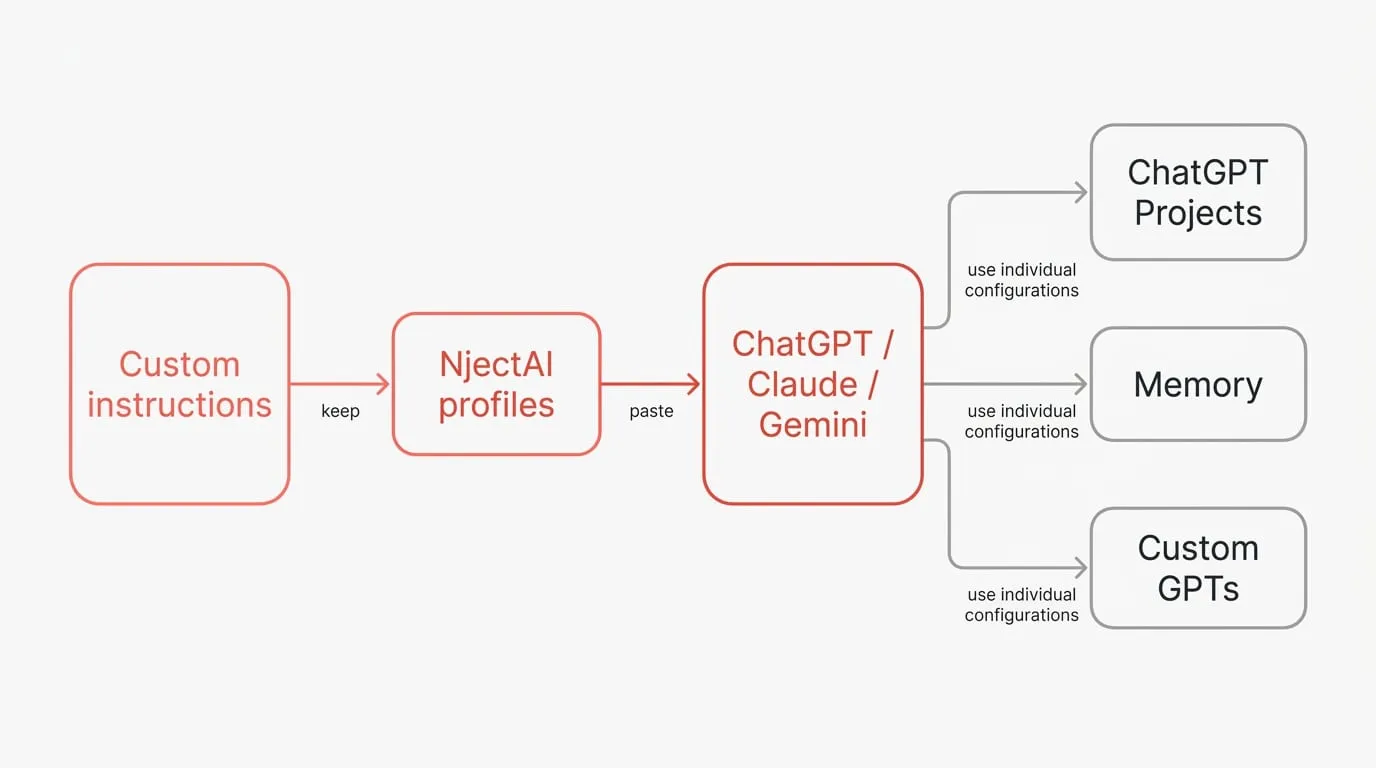
Custom instructions are strictly scoped to the application where you enter them. The PromptXXL guide says they stay in one app and that ChatGPT has one global set, with separate instructions available inside Projects. Furthermore, Claude and Gemini expose their own areas for these settings under different names. Custom GPTs also ignore your personal custom instructions and saved memory, relying instead on their individual configurations. Because these settings do not sync across services, you need a workflow to maintain instructions across platforms.
ChatGPT multiple custom instructions are easiest to manage with Projects for scoped work and named profiles you keep outside the app. OpenAI Academy describes Memory as a feature that, when enabled, lets ChatGPT remember preferences and recurring details across conversations, while project instructions define style and tone for specific bodies of work. Regarding data privacy, the OpenAI Help Center says information from your use of custom instructions may be used to improve model performance unless you opt out. It also notes that plug-ins may receive relevant details from your instructions, so use only plug-ins you trust. Your instructions are included in your data export, and they are deleted within 30 days when you delete your account. To maintain consistent defaults across different platforms, you can keep [role profiles](https://nject.ai/docs/context-profiles) in NjectAI and paste them directly into ChatGPT, Claude, or Gemini.
## Set clear defaults, know the limits
Effective custom instructions work best as compact operating rules. Put durable context in the first field and clear response requirements in the second, prioritizing the constraints that matter most. Keep each role profile focused enough to review, test it in a new conversation, and revise ambiguous or conflicting directions. Treat the saved profile as a ChatGPT default with defined boundaries, and select the appropriate profile separately when your work moves to another context or AI service. Named profiles make those boundaries easier to manage. A prompt manager such as [NjectAI](https://nject.ai/docs/what-is-njectai) can keep role-based versions in one place so you can paste the relevant instructions into ChatGPT, Claude, Gemini, or Perplexity and adapt them to the task at hand.
---
# Context engineering for everyday AI
URL: https://nject.ai/blog/all-about-context-engineering
Last updated: October 27, 2026
When daily AI work depends on repeatedly pasting your role, project background and formatting rules, small omissions can produce uneven answers. Context engineering gives you a more deliberate approach: decide which facts matter for the current task, package recurring details once, and add heavier references only when they become relevant. You can then place that material in ChatGPT, Claude or Gemini features, or keep a portable profile for use across them. The result is a clearer working setup with less retyping and fewer opportunities for essential constraints to disappear.
## What is context engineering?
Context engineering is the practice of choosing and maintaining the information the model will see before it answers. Context engineering vs prompt engineering comes down to scope: curating what information enters the window versus phrasing the instruction. [Anthropic](https://www.anthropic.com/research/effective-context-engineering-for-ai-agents) (2025) describes it as curating and maintaining the optimal set of tokens the model sees at inference, while prompt engineering focuses on writing and organizing instructions. In their framing, context is the set of tokens included when sampling from an LLM. In everyday chats, you use prompt engineering to craft direct instructions, define tone, and format the immediate request. You use context engineering to select the project facts, examples, constraints, and conversational history the model should consider for each turn. Rather than rewriting prompts repeatedly, you curate the exact working state available during inference.
Two technical limits explain why selection beats stuffing all available text into a single prompt. Anthropic reports context rot: as you add more tokens to the window, the model's ability to recall the right detail tends to drop. This degradation emerges across models because LLMs operate on a finite attention budget. Under the hood, the transformer forces every token to attend to every other token, creating roughly n squared pairwise relationships, and most training examples are shorter sequences, so models have less practice with long-range dependencies; together this creates an attention budget and reduced precision at very long contexts. As context length grows, the model's capacity to track those pairwise relationships stretches thin. Instead of hitting an abrupt cutoff, performance drops along a gradual gradient, leading to lower precision during detailed retrieval.
Context engineering AI boils down to this rule of thumb: edit the prompt to change phrasing or tone; engineer context to decide what the model sees next. When a response misses required background or relies on outdated project assumptions, adjust the reference material you surface. If the output is structurally wrong, change the inputs the model sees. If the tone or phrasing is off, adjust your prompt instruction.
## Prepare and structure your context
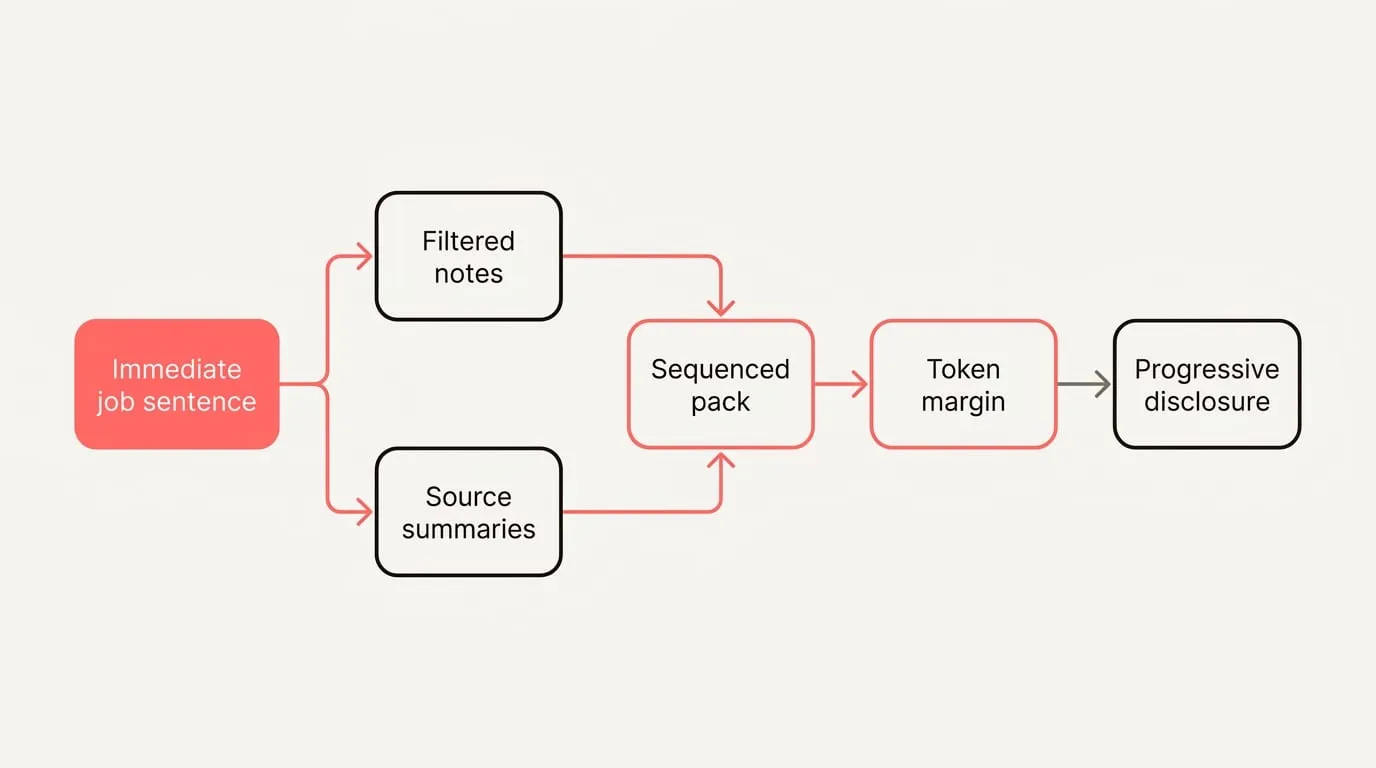
A compact context pack has five parts. Each gives the model a distinct signal it will use in its next decision:
- Who you are and preferences: Your role, audience, tone, and specific style rules to establish an operating voice.
- Project objective: A concise definition of the immediate goal, scope boundaries, and core criteria for success.
- Constraints and resources: Explicit policies, deadlines, permitted sources, and boundaries on tool execution.
- Canonical examples: Two or three high-quality reference snippets that illustrate expected structure and tone.
- Desired output format: Concrete layout specifications, such as structured markdown tables, bullet counts, or schemas.
Build and stage your context with progressive disclosure. Anthropic advises treating context as a finite resource with an attention budget and to curate the smallest set of high-signal tokens you can.
Follow these steps to assemble and stage your material cleanly:
1. Define the immediate job and required deliverables in a single sentence.
2. Filter notes to isolate high-signal facts that directly alter decisions, setting aside general narrative.
3. Summarize heavy source documents into concise bullet points, reserving verbatim excerpts only for mandatory citations.
4. Sequence the pack logically: task statement first, followed by constraints, canonical examples, and format rules.
5. Reserve a dedicated token margin for the model response by pruning unneeded contextual setup.
6. Anthropic describes using progressive disclosure to load the right context at the right times, so keep opening prompts lean and supply reference texts only when requested.
7. Demarcate distinct sections with clear structural headers such as Constraints, Examples, and Output.
8. Inspect the compiled text to eliminate conflicting guidelines and contradictory instructions before sending.
In 2023, Anthropic reported that extracting relevant quotes before answering and adding dynamic, contextual examples improved long context recall on 70K and 95K token documents. They also observed that performance at the very end of the document can be degraded when you add examples, so put instructions at the end of the prompt. Generic examples on external knowledge did not seem to help.
Suppose you need a 200-word announcement email for an analytics feature. In message one, establish the baseline: Role: SaaS product manager writing for administrators. Objective: Announce Usage Analytics 2.0 and prompt trial activations. Constraints: No unreleased roadmap mentions, no competitor comparisons, plain tone. Format: Subject line, preview snippet, two short body paragraphs, and a call-to-action link. If the initial draft requires technical grounding, supply references in message two: 'The new dashboard tracks active seats weekly and monthly with plan filters, and administrators can export CSV summaries directly to billing.'
Overstuffed, brittle system prompts are a common failure. Anthropic’s right altitude guidance warns that hardcoded, brittle logic in system prompts creates fragility, while vague, high level guidance gives too little signal; aim for specific yet flexible instructions. They also advise striving for the minimal set of information that fully outlines the expected behavior. In practice, keep rules that change decisions, remove the rest, and push long references and edge cases to later turns when the model actually needs them.
## How can you reuse context?
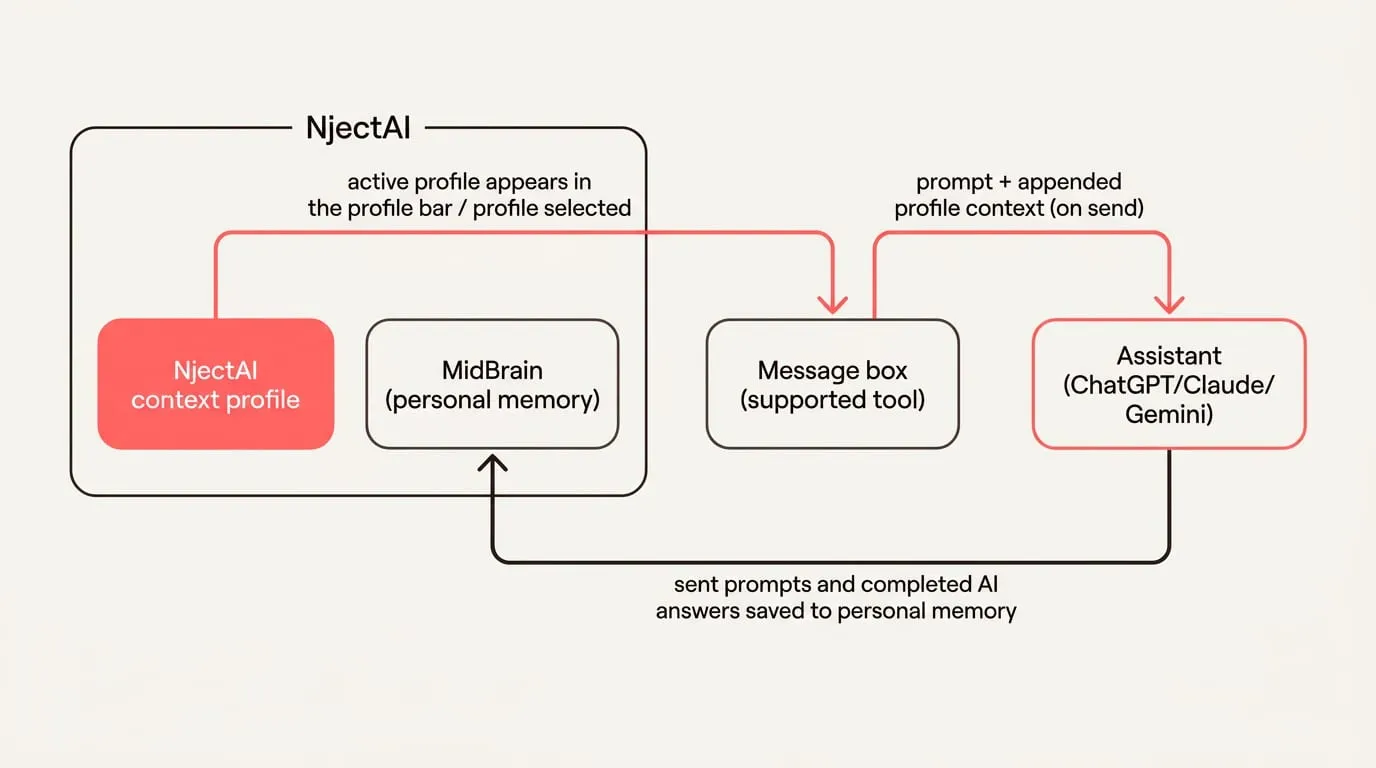
Context engineering sessions memory provides the layer that persists user instructions across individual conversations. Major platforms store this data in specific environments:
- ChatGPT: [AI Academy by Anthropos](https://aiacademy.anthropos.work/chapters/modern-prompt-stack/) lists Custom Instructions in ChatGPT as a place to persist your preferences across chats.
- Claude: Anthropic’s Claude guide says much of your context can be assembled from the system prompt, Skills, CLAUDE.md files, and memory. Claude now has memory, artifacts, and skills that can load and share context across sessions. AI Academy by Anthropos presents Claude Projects as scoped workspaces between global defaults and a single chat.
- Gemini: Gemini Gems are a reusable layer for guidance alongside product preferences.
Andy Bromberg explains that memory lives at the application layer and does not travel across assistants; the app retrieves relevant memories and attaches them to the request before sending it to the model. In practice, this means a memory you saved in one product will be used only when that product includes it in the next call.
To maintain unified parameters across multiple providers without retyping, set up an [NjectAI context profile](https://nject.ai/docs/context-profiles):
1. Install the NjectAI Chrome extension from the Chrome Web Store and sign in to the web application.
2. Create a context profile in the web app by completing the [short setup interview](https://nject.ai/docs/create-a-profile) and optionally attaching recurring reference documents.
3. Navigate to a supported tool such as ChatGPT, Claude, or Gemini, start a new conversation, and verify your active profile in the profile bar.
4. Enter your prompt text. Optionally click [Improve your prompt](https://nject.ai/docs/improve-your-prompt) to let NjectAI rewrite your draft in place for your review before dispatching.
5. Click [Context Inject](https://nject.ai/docs/context-inject) to stage your profile context so it appends to your prompt payload upon submission.
6. Continue standard conversational work; sent prompts and completed model outputs are indexed to personal memory for future injection runs.
Choose the reuse option that matches your setup requirements and cross-platform needs:
| Option | Setup Time | Applies Where | Portability | Best When |
| --- | --- | --- | --- | --- |
| Pasteable templates | Minimal | Directly in any active input box | High across all applications | Running isolated one-off queries |
| Native platform memory | A few minutes | Confined to a single provider account | Low across different assistants | Working exclusively within one model ecosystem |
| NjectAI context profiles | One-time setup | Supported web interfaces in Chrome | High across supported AI models | Maintaining consistent context across multiple assistants |
## Keep context effective over time
AI agent memory helps long-horizon, tool-using workflows keep state outside a single chat. For everyday chats, keep your checks and fixes lightweight:
- Track efficiency metrics: Monitor first-attempt task completion, the frequency of required follow-up corrections, and prompt re-ask counts to identify context drift.
- Mitigate distraction: When responses include irrelevant details, prune conversational logs, summarize extensive documentation into key points, and defer secondary examples.
- Resolve conflicting guidelines: Remove obsolete rules, designate a single authoritative source for disputed definitions, and specify precedence explicitly.
- Prevent context contamination: Clearly delineate untrusted external reference material from core instructions, noting origin and authenticity.
- Anthropic defines agents as LLMs autonomously using tools in a loop. For complex operations, Use compaction to summarize the conversation near the context window limit and start a new context, and deploy structured note-taking (agentic memory) that stores notes outside the context window and pulls them back in later.
## Design the input, not just the prompt
Reliable everyday AI use starts with treating the model’s attention as limited and giving each task the smallest useful set of background, constraints, examples and output rules. A compact context pack makes those decisions explicit. Staging long references only when they become relevant keeps the working material focused, while prompt edits can handle the immediate wording, tone and format.
Reuse depends on where that pack lives. Native instructions, memory and project features can carry context within their own assistants, while a pasteable template or portable profile can keep the same baseline available across ChatGPT, Claude and Gemini. This separation gives you a practical way to reduce repeated setup and improve the odds of a useful first response: maintain stable context once, then adjust only what the current task requires.
---
# Long-term AI memory: what to store, how to retrieve it, and the trade-offs
URL: https://nject.ai/blog/all-about-long-term-ai-memory
Last updated: October 27, 2026
Long-term AI memory becomes a product decision once conversations outlast a single context window. Keeping every prior turn in the prompt raises token use and latency, while repeated summaries can lose details that later decisions depend on. The practical alternative is selective persistence: decide which facts, episodes, and operating rules deserve to survive, place them in storage suited to their relationships, and retrieve only the context needed for the current task. This turns memory from an ever-growing transcript into a system you can govern, budget, and evaluate.
## What is long-term AI memory?
Chatbot memory represents durable information an assistant preserves across sessions to personalize answers, maintain continuity, and prevent repetitive queries. In long term memory AI, systems implement cross-session storage and retrieval of facts, interaction history, and operational rules that outlive the prompt tokens of any single turn. Short-term context, by contrast, is confined to the immediate prompt or tool buffer; it resets when a call finishes and becomes increasingly expensive and unwieldy as conversations stretch. The [ACM Transactions on Information Systems survey](https://dl.acm.org/doi/full/10.1145/3748302) defines agent memory narrowly as information retained within a single trial and broadly as knowledge that spans multiple trials and external sources. Relying on external storage allows agents to maintain continuity without attempting to pack entire histories into every prompt.
To structure durable storage, organize information into three complementary categories: semantic, episodic, and procedural memory. Semantic memory stores stable facts and standing preferences, such as a user timezone, deployment target, or team roster. Episodic memory records discrete events and interaction outcomes: the ticket reopened yesterday, the database migration script that failed, or the exact rationale behind a past configuration change. Procedural memory preserves reusable workflows, guidelines, and behavioral patterns, including coding standards, incident triage checklists, or custom formatting preferences. Semantic memory eliminates redundant questions, episodic memory supplies historical context and accountability, and procedural memory ensures your assistant consistently executes tasks in line with operational standards.
Durable memory provides the greatest return where interactions span days or weeks. In personal assistants, it preserves preferences, recurring tasks, and naming conventions so you never need to repeat setup instructions. In customer support agents, it carries forward account profiles, environment constraints, past case histories, and verified runbooks to accelerate issue resolution and eliminate conflicting advice. In coding copilots, it tracks repository conventions, architectural patterns, dependency constraints, and prior debugging attempts so recommendations fit the active project. Managing AI agent memory as explicit profiles for standing facts, episodic logs for interactions, and stored guidelines for procedure gives your agents persistent context while preventing behavioral drift.
## What to store and how to keep it current
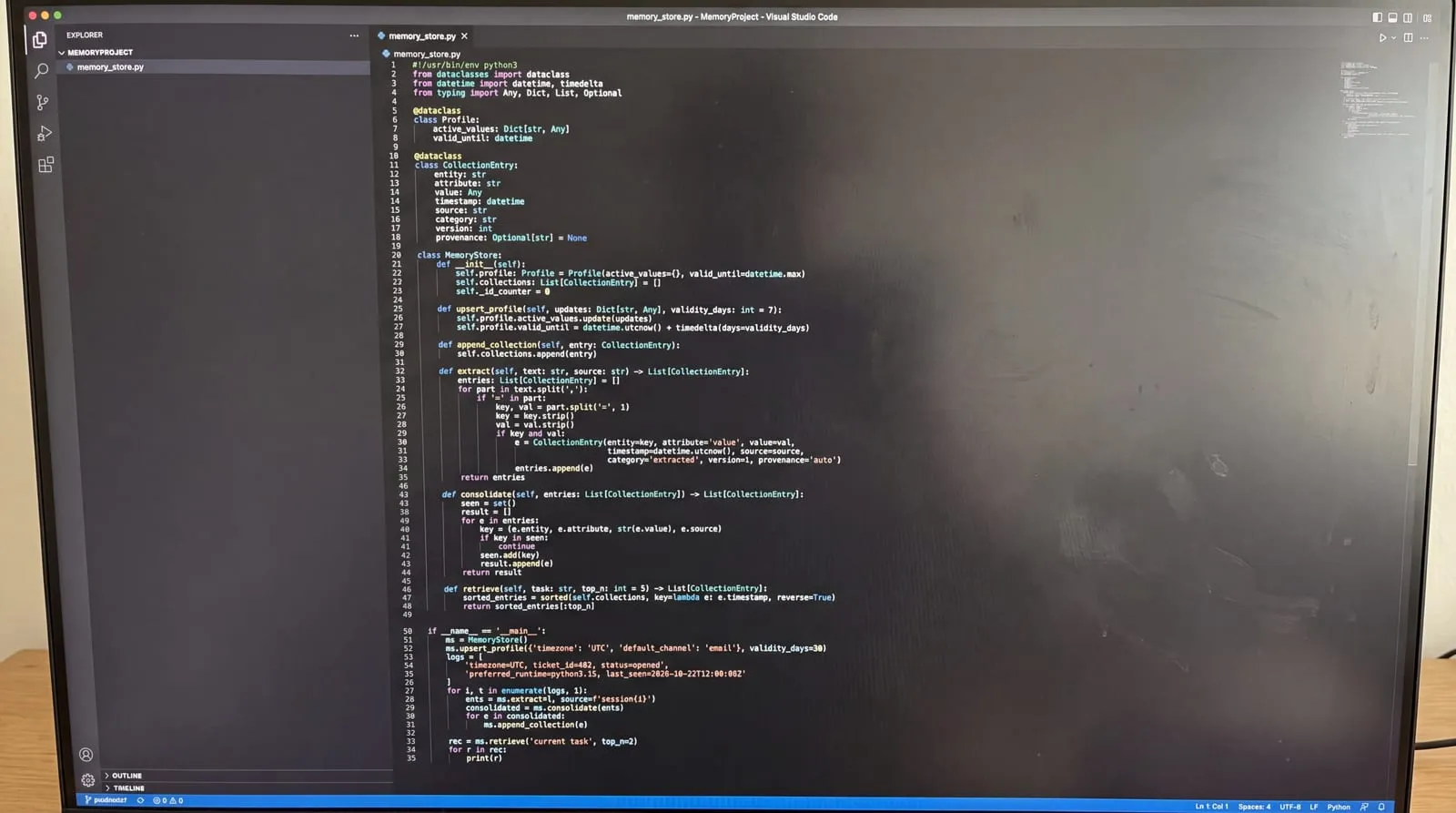
Before storing conversational data, separate current state from chronological history. Store active state in a compact profile and historical context in appendable collections. A profile maintains single active values for standing attributes, such as preferred timezone, primary runtime, or default notification channel, paired with a validity timestamp. Collections capture historical depth across sessions: confirmed facts with version history, episodic interaction logs detailing tool outcomes, and procedural snippets outlining team policies. Every collection entry should record the entity, attribute, value, timestamp, source reference, and category tags, such as recording that a developer prefers UTC, reopened ticket 402, and enforces conventional commits.
Forming durable memory follows a four-step lifecycle across inline hot paths and asynchronous background jobs:
1. Extract: Detect candidate facts, preferences, and events from messages and tool outputs using patterns or a lightweight model, emitting structured entity-attribute-value tuples with source evidence.
2. Consolidate: Map extracted entities to canonical records, merge duplicate statements, and summarize multi-step interactions through background jobs to prevent fragment bloat.
3. Store: Upsert current values into the user profile and append versioned records into collections alongside vector embeddings and retrieval indexes.
4. Retrieve: Inject the active profile and fetch top-scoring records for the current task using embedding similarity and namespace filters within a fixed token budget.
Score memories using importance, recency, and strength to govern retrieval priority. Importance reflects domain weight or user emphasis. Recency applies a decay curve so inactive memories fade. Strength increases whenever an item is reaffirmed, referenced, or validated by successful task completion. When facts conflict, never purge older records immediately. End-date the obsolete fact, promote the verified update into the profile, and retain complete provenance so every automated decision remains explainable.
Prevent retrieval bloat and behavioral drift by pairing score thresholds with lifecycle policies. Enforce category-specific expiration windows, prune records that fall below minimum score floors, and condense extended episodic threads at project milestones. Restrict profile overwrites to updates that carry explicit user confirmation or surpass incumbent scores by a defined margin. Archive older records in encrypted storage rather than issuing unmonitored hard deletes.
## How is long-term memory stored and retrieved?
The ACM Transactions on Information Systems survey notes that many agents implement memory reading by computing similarity between the task context and stored entries. It also highlights that restructuring text into knowledge graphs supports multi-hop question answering, though maintaining and updating these structures remains an ongoing challenge.
Evaluating primary storage options clarifies the trade-offs between implementation effort and reasoning capability:
| Storage substrate | Primary strengths | Operational limits | Implementation effort |
| --- | --- | --- | --- |
| Vector store | Fast semantic matching and top-k retrieval; scales smoothly with approximate nearest neighbor indexing. | Lacks native relational modeling; struggles with multi-hop constraints and precise structural joins. | Low to moderate: requires an embedding model, vector index, and per-user namespace partitioning. |
| Knowledge graph | Explicitly models entities and semantic relationships; enables deterministic graph traversal and multi-hop reasoning. | Requires upfront ontology design, entity extraction, and continuous maintenance to prevent stale edges. | High: demands entity resolution, relationship extraction pipelines, and schema governance. |
| Hybrid (vector and graph) | Combines semantic search for broad candidate recall with localized graph traversal for relational precision. | Greater operational complexity; requires dual-store synchronization and score calibration across modalities. | High: necessitates unified indexing, cross-modal retrieval scoring, and combined query orchestration. |
At inference time, an agent executes a structured retrieval pipeline to surface relevant memories within fixed latency and token constraints:
1. Form query: Generate a dense embedding of the current task prompt, applying metadata filters for user namespace, tenant isolation, and memory category.
2. Retrieve candidates: Run approximate nearest neighbor search to gather initial top-k records, appending any pinned items from the active user profile.
3. Rerank and filter: Score candidates using a cross-encoder or reranking model, adjusting rank values by recency decay, memory strength, and entity deduplication.
4. Enforce budget: Select the top-ranked snippets up to a strict token ceiling, formatting each record with concise timestamps and source tags.
5. Inject and observe: Append the selected memory block to the model prompt or tool context, logging retrieval IDs to track utility across turns.
Relying on expansive context windows instead of external memory introduces severe operational and cognitive bottlenecks. The ACM Transactions on Information Systems survey reports that long prompts raise compute and latency because attention cost grows roughly quadratically with sequence length, and that models are sensitive to token position, creating a lost-in-the-middle effect. In addition, repeated conversational summarization causes progressive drift, shedding nuanced facts and precision over successive turns. Offloading historical context to external storage and retrieving focused context on demand maintains prompt brevity, contains inference expenditure, and stabilizes reasoning accuracy across indefinitely long horizons.
Hybrid retrieval architectures bridge broad semantic discovery and precise relational constraints without overflowing prompt budgets. The process begins with vector similarity search over the user namespace to locate the most relevant core memories. The system extracts entities from those initial hits and traverses one or two hops across an associated graph index to retrieve directly related facts, active constraints, and procedural rules. A scoring engine fuses semantic similarity scores with graph path metrics, including traversal distance and edge confidence, before applying recency weighting. Filtering for compact, highly connected subgraphs delivers accurate context for multi-step reasoning while preserving strict token limits.
## Trade-offs, evaluation, and architecture choices
Evaluating long-term memory requires balancing answer accuracy against token and latency overheads. [Redis AI Research](https://redis.github.io/redis-ai-research-public/longmemeval-agent-memory/) reports 86.1 percent task-averaged accuracy for a hybrid that combines raw conversation excerpts with extracted facts, versus 71.2 percent for extracted-only, on LongMemEval Small. In their evaluation runs, the store was reset, past sessions were ingested, a single question was asked, and an official LLM judge scored the answer. The ACM Transactions on Information Systems survey distinguishes direct evaluation of a memory module from indirect task-based evaluation, emphasizing objective metrics such as accuracy, execution time, and hardware cost. Tracking retrieval recall alongside end-to-end task success ensures memory additions deliver measurable utility within budget.
Select your storage and retrieval design based on task demands and enforce rigorous data governance from day one. When applications require exact verbatim recall of past dialogue, retrieve raw conversational chunks. When tasks require multi-hop reasoning or consistent behavioral rules across sessions, deploy hybrid retrieval that pairs extracted profile facts with relational graph links. Implement explicit privacy safeguards: collect explicit user consent prior to persistence, minimize retention to necessary attributes, provide user interfaces to review or edit stored memories, and log every read, write, and purge operation. Encrypt memory stores at rest, isolate data across tenant namespaces, and maintain an immutable audit trail for compliance.
## Make memory serve the task
Useful memory is selective. Persist stable facts, consequential episodes, and reusable rules only when they can improve a defined task. Keep current state distinct from history, preserve provenance when records change, and let retrieval thresholds and token ceilings control how much context reaches the model. Choose vector, graph, or hybrid storage according to the reasoning the product requires, rather than treating architectural complexity as a goal. Then judge the design through repeatable tests that pair task success and retrieval quality with latency, token use, and operating cost. A small evaluation can reveal whether a memory adds value, needs better ranking, or should be removed before the system grows. A suitable architecture recalls enough trustworthy context to support the decision at hand while meeting your privacy and budget constraints.
---
# Prompt enhancer: a practical guide that actually improves prompts
URL: https://nject.ai/blog/prompt-enhancer
Last updated: October 27, 2026
Vague requests force AI models to guess at your intent, audience and acceptable output. A prompt enhancer can make those decisions explicit, giving you a version that is easier to inspect and test across writing, coding, image and video tasks. That does not mean every rewrite will perform better. The practical value comes from combining clearer instructions with a fair comparison of the resulting outputs. With NjectAI, you can apply that approach to a rough idea, assess whether the enhanced version helps and retain the prompt that fits your task.
## What is a prompt enhancer and how does it work?
A prompt enhancer is a focused software component that rewrites a rough request into an explicit, structured instruction block that a target model can execute with minimal ambiguity. Understanding an enhancer requires distinguishing it from neighboring concepts. An enhancer does not generate ideas from scratch like a prompt generator, which typically populates boilerplate templates and can drift from your original intention. Nor is it identical to prompt engineering as an entire discipline. Prompt engineering represents the overarching human craft of designing systemic interaction patterns, workflows, and evaluation benchmarks. An enhancer automates a practical subset of that craft: an LLM rewrite step detects latent goals, enforces operational constraints, supplies neutral default assumptions, and eliminates conversational fuzziness.
To turn vague instructions into dependable inputs, a text prompt enhancer systematically incorporates six structural elements:
- Role: The operational identity or domain perspective the model should adopt, such as a compliance auditor, software architect, or copy editor.
- Task: A distinct directive using a strong action verb and concrete scope, such as refactoring a specific function rather than broadly reviewing code.
- Context: Relevant background details, including target audience familiarity, business objectives, prerequisite constraints, and existing technical architecture.
- Constraints: Explicit boundaries covering length limits, stylistic tone, prohibited phrasing, mandatory citations, or immutable legacy fields.
- Output format: The specific layout required for immediate downstream use, such as a Markdown table, outline, or strict JSON schema.
- Validation criteria: Objective benchmarks that establish output acceptability, such as requiring two verified source citations or zero runtime linting errors.
Enhancement techniques also adapt to the target generation modality:
- Image prompts: Replace narrative prose with descriptive visual vocabulary covering subject composition, environment, lighting design, camera framing, textures, and color palette.
- Video prompts: Replace static scene descriptions with directorial language specifying camera movement, shot duration, temporal sequence beats, pacing rhythm, and scene transitions.
## When to use one, and what to expect
Prompt enhancers deliver dependable leverage when applied to suitable tasks, but they operate within definite technical limits:
- Ambiguous drafts: When your starting request is incomplete or underspecified, an enhancer fills standard structural gaps so the model responds cleanly on the first run.
- Standardized workflows: Repeated deliverables such as customer incident summaries, user story tickets, and release notes benefit from consistent architectural structure.
- Unfamiliar domains: An enhancer inserts necessary guardrails, terminology frameworks, and structural validation that non-specialists might overlook.
- Inability to supply private context: An enhancer cannot infer internal corporate datasets, private APIs, or unpublished project decisions unless you provide them directly.
- No factuality guarantee: Structuring a prompt improves instruction compliance, but human oversight remains essential to verify domain accuracy and eliminate hallucinations.
- Diminishing returns on mature prompts: If your initial query already defines precise roles, technical constraints, and schemas, automated rewriting provides only minor polishing.
Empirical studies confirm the value of systematic prompt construction. [MDPI (2026)]() reports that structured prompting increases perceived usefulness compared with a zero-shot baseline, and that combining examples with explicit reasoning scaffolds received the highest evaluations among knowledge workers evaluating business analysis and summarization tasks.
However, technique selection requires careful calibration. The Prompt Report (2025) found in a limited MMLU test on GPT-3.5 that Zero-Shot-CoT underperformed zero-shot while few-shot CoT performed best among the tested variants. The Prompt Report (2025) cautions that design choices such as exemplar count, order and phrasing do not generalize across tasks and can help or hurt performance depending on the task.
Furthermore, automatic optimization methods are still developing. An EMNLP 2025 survey of automatic prompt optimization notes that why some rewrites work remains unclear, with odd "evil twin" or gibberish delimiters sometimes performing surprisingly well. The EMNLP 2025 survey highlights that image and video prompt optimization is underexplored. And it points out that optimizing long or system-level prompts can be costly compared with task prompts. Because of these factors, treat an enhancer's output as an operational draft to test rather than a guaranteed fix.
## How do you enhance a prompt in practice?
Apply this compact workflow in minutes to enhance and test any prompt:
1. State core intent: Summarize the primary goal and audience in a single clear sentence.
2. Define the role: Specify the professional identity and perspective the model must adopt.
3. Isolate the task: Use an active verb and concrete scope, splitting compound asks into chained steps.
4. Supply context: Add audience background, technical environment, and necessary reference materials.
5. Set constraints: Define limits on length, tone, prohibited terms, and required sources.
6. Specify output format: Prescribe the structure, such as Markdown headings, tables, or JSON.
7. Define validation checks: State two or three measurable criteria to confirm compliance.
8. Run an A/B test: Compare outputs from the original draft and enhanced prompt under identical settings.
9. Deploy the winner: Save and version the superior prompt in your workflow library.
Text enhancement worked example. Before: "Write a blog post about data privacy." After: "Role: Senior enterprise B2B content marketer. Task: Draft an 800-word educational article on why mid-market procurement teams must inspect vendor data retention policies before SaaS contract renewals. Target audience: Operations managers and procurement leads with basic SOC 2 familiarity. Context: Readers manage recurring vendor agreements and need a practical compliance audit checklist. Constraints: Professional tone; no fear-mongering; cite two compliance standards; no formal legal advice. Output format: Headline, three body sections with H2 headings, and a closing checklist. Verification checks: Word count between 750 and 850 words; checklist contains 5 to 7 concrete audit items."
Image enhancement worked example. Before: "A photo of a cafe at night." After: "Subject: Centered medium shot of a barista locking a glass bistro door, three-quarter profile. Setting: Wet cobblestone alley in a European quarter with vintage neon signs and puddle reflections. Lighting: Warm amber interior glow contrasting with cool cyan street lamps and neon spill. Camera: 50mm lens, f/1.8 shallow depth of field, eye-level framing. Style: Cinematic realism with subtle 35mm grain. Color palette: Teal, deep navy, and amber with crimson signage accents. Quality: Sharp focus on foreground subject, textured brickwork, soft background bokeh."
Video enhancement worked example. Before: "Show a quick product demo video for a task manager app." After: "Directorial script (30 seconds, 16:9 widescreen, clean software aesthetic): Beat 1 (0 to 5s): Macro push-in on a cluttered desk notepad with muted office ambience, transitioning into digital space. Beat 2 (5 to 12s): Screen capture of inbox interface where an animated cursor tags three incoming tasks; gentle 120 BPM synth enters. Beat 3 (12 to 20s): Split screen showing drag-and-drop scheduling alongside an auto-populating calendar panel with subtle camera dolly. Beat 4 (20 to 27s): Punch-in on keyboard shortcuts with a two-second freeze frame showing a time-saved UI card. Beat 5 (27 to 30s): Wide view of an empty inbox with celebration animation; music resolves with logo card and call to action."
Watch for recurring pitfalls when preparing prompts for enhancement:
- Conflating tasks: Bundling analysis, drafting, and coding into one prompt dilutes model focus. Separate distinct goals into chained steps.
- Contradictory guidelines: Demanding both exhaustive detail and brief length forces arbitrary tradeoffs. Rank constraints explicitly.
- Missing schemas: Omitting output blueprints yields unstructured paragraphs that break automated downstream workflows.
- Context overload: Adding long narrative backstories wastes context tokens and obscures instructions. Retain only governing rules and essential inputs.
- Skipping validation: Prompts without clear pass or fail checks force slow manual reviews. Include measurable compliance checks.
## Pick a tool and verify it helps
When choosing a prompt enhancer such as NjectAI, score candidate tools against five criteria:
- Workflow integration: Operates in your editor, browser, or pipeline with granular, selective editing controls.
- Modality support: Handles structured schemas like JSON alongside text, image, and video prompts.
- Privacy and governance: Zero training on inputs, transparent data retention, local processing options, and PII masking.
- Versioning and export: Revision history, prompt diffs, and seamless export across team workspaces.
- Cost and latency: Low response latency without optimization token costs exceeding downstream savings.
Test prompt improvements empirically on your own workload. Run your original draft alongside the enhanced prompt under identical settings, evaluating both for intent preservation, structural clarity, and task effectiveness. This protocol mirrors Claru's benchmark approach, where three independent annotators evaluated candidate enhanced prompts side by side across those same three dimensions. In its video phase, Claru evaluated enhancement quality by comparing the resulting videos in pairwise format rather than judging the prompt text alone. Finally, combine human review with automated checks, such as testing code, linting JSON, or verifying video timing beats.

## Make prompts testable, then keep the better one
A useful enhanced prompt makes the task easier to execute and the result easier to judge. It states the role, relevant context, constraints and required format, then adds checks that define an acceptable response. For image and video work, those details should describe the visual composition or sequence rather than imitate a text prompt.
The rewrite is still a candidate, not a guaranteed improvement. Compare it with the original under the same model and settings, then judge the outputs against intent preservation, clarity and task-specific checks. Keep and version the stronger prompt; discard or revise the other. This turns enhancement into a repeatable decision rather than an act of faith, while leaving factual review and private context in your hands.